
ハイライト
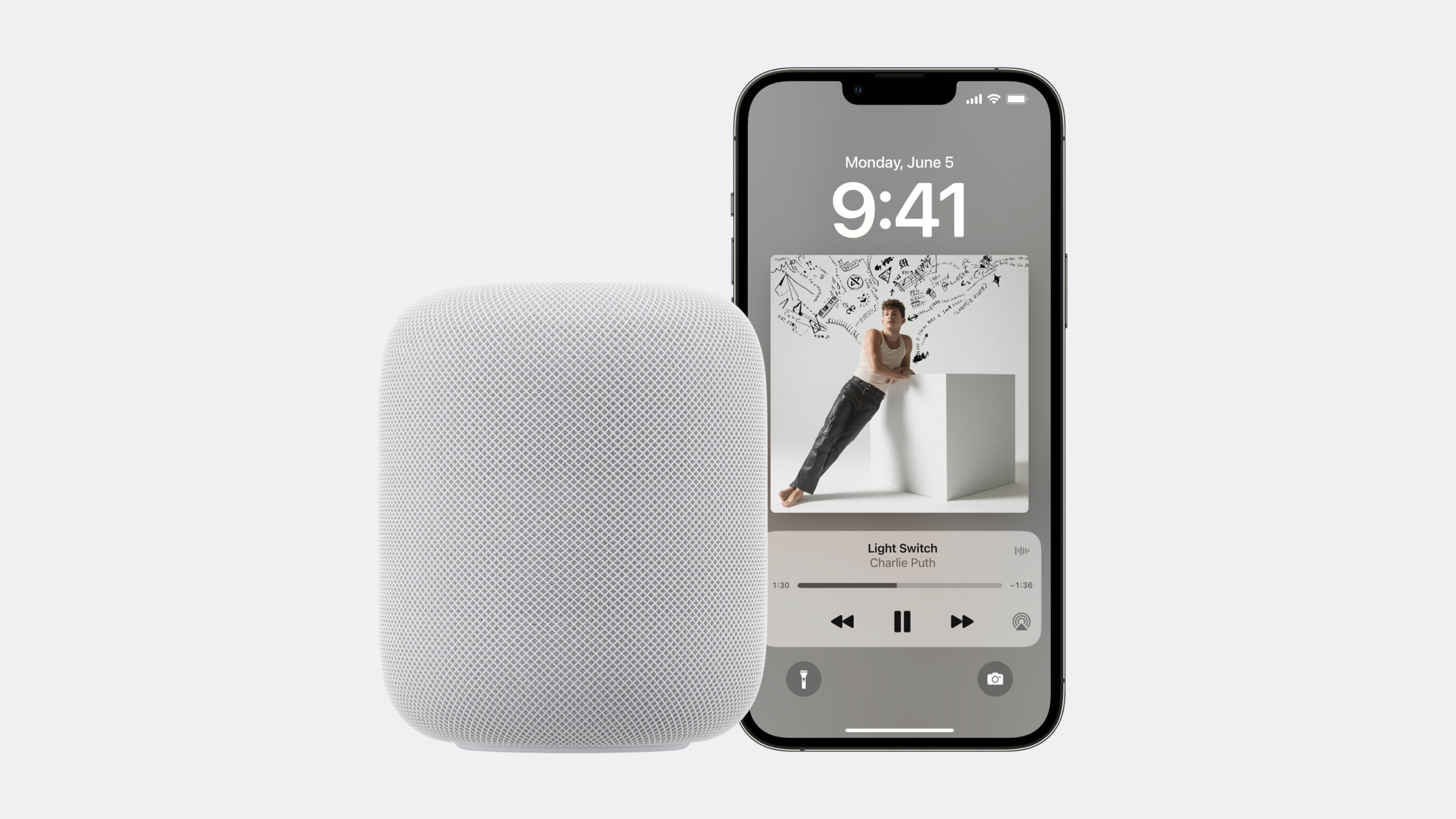
iOS 17 により、HomePod ユーザーは Siri 経由で iPhone や iPad にインストールされたメディアアプリのコンテンツを直接再生できます。既存の SiriKit Media Intents 対応アプリはコード変更なしで利用可能。システムは Wi-Fi 経由でリクエストをユーザーのデバイスにルーティングし、アプリ起動後に AirPlay で HomePod にコンテンツをストリーミングします。
主要内容
動作の仕組み
ユーザーが HomePod に再生を依頼すると、フローは次のとおりです:
- HomePod が音声リクエストを処理し、SiriKit Intent を生成
- Intent が Wi-Fi 経由でユーザーの iPhone(プライマリデバイス)に送信
- iPhone がアプリを起動し、再生リクエストを処理
- 音声が AirPlay 経由で HomePod にストリーミング
デバイスは同一 Wi-Fi ネットワーク上である必要がありますが、物理的な近接は不要です。リビングの HomePod に話しかけても、寝室で充電中の iPhone で動作します。
(00:50)
対応メディアタイプとリクエスト
対応メディアタイプには音楽、オーディオブック、ポッドキャスト、ラジオ、瞑想などがあります。Play、Add、Affinity(お気に入り/プレイリスト追加)リクエストはすべてプライマリデバイスにルーティングされます。
リクエスト例:
- “Play jazz on Control Audio” — ジャンル + アプリ名
- “Play Push It by Dukes on Control Audio” — 曲名 + アプリ名
- “Play my audiobook” — 前回の再生を再開
- “Play the latest news” — ポッドキャスト/ニュース系リクエスト
- “Add this to my playlist” — プレイリストに追加
- “I like this song” — お気に入りにマーク
(02:15)
SiriKit Media Intents の実装
import Intents

class PlayMediaIntentHandler: NSObject, INPlayMediaIntentHandling {
    func handle(intent: INPlayMediaIntent, completion: @escaping (INPlayMediaIntentResponse) -> Void) {
        // リクエストの具体的な内容を確認
        if let mediaName = intent.mediaSearch?.mediaName,
           mediaName == "Push It" {
            let mediaItem = INMediaItem(
                identifier: "song-push-it",
                title: "Push It",
                type: .song,
                artwork: nil
            )
            let response = INPlayMediaIntentResponse(
                code: .success,
                userActivity: nil
            )
            response.mediaItems = [mediaItem]
            completion(response)
            return
        }

        // 未対応のメディアタイプかどうかを確認
        if intent.mediaSearch?.mediaType == .music {
            let response = INPlayMediaIntentResponse(
                code: .failureRequiringAppLaunch,
                userActivity: nil
            )
            completion(response)
            return
        }

        // デフォルト:コンテンツが見つからない
        completion(INPlayMediaIntentResponse(code: .failure, userActivity: nil))
    }
}
キーポイント:
- 既存の SiriKit Media Intents 対応アプリは変更不要
- 新規アプリは Intents Extension を追加し、
INPlayMediaIntentHandlingを実装 - 具体的なエラー理由(非対応メディアタイプ、ログイン必要など)を返すと Siri がより有用な応答を返す
(04:11)
レスポンス方式の選択
import Intents

func handle(intent: INPlayMediaIntent, completion: @escaping (INPlayMediaIntentResponse) -> Void) {
    // 方法 1:バックグラウンド再生(オーディオに推奨)
    let backgroundResponse = INPlayMediaIntentResponse(
        code: .handleInApp,
        userActivity: nil
    )

    // 方法 2:フォアグラウンドで起動
    let foregroundResponse = INPlayMediaIntentResponse(
        code: .continueInApp,
        userActivity: nil
    )

    // オーディオ再生には handleInApp を推奨。電話のロック解除は不要
    completion(backgroundResponse)
}
キーポイント:
handleInAppはバックグラウンドでアプリを起動して再生。スマホのロック解除は不要continueInAppはアプリをフォアグラウンドに持ってくる- HomePod ではスマホが手元にないことが多いため、バックグラウンド再生の方が体験が良い
(07:10)
詳細
オーディオセッションの設定
正しいオーディオセッション設定はバックグラウンド再生の基盤です。
import AVFoundation

func configureAudioSession() {
    let session = AVAudioSession.sharedInstance()

    do {
        // 再生カテゴリに設定し、バックグラウンド再生をサポート
        try session.setCategory(.playback, mode: .default)

        // Podcast/オーディオブックには spokenAudio モードを推奨
        // 割り込み時は音量を下げずに一時停止
        try session.setCategory(.playback, mode: .spokenAudio)

        // セッションを有効化
        try session.setActive(true)
    } catch {
        print("Failed to configure audio session: \(error)")
    }
}
キーポイント:
- セッションをアクティブにする前に category を
.playbackに設定 .spokenAudioモードは中断時にダッキングではなく一時停止。ポッドキャストやオーディオブックに最適- 正しく設定しないと、アプリがバックグラウンド(ロック画面など)に入ると再生が停止
(08:55)
AirPlay 統合
import MediaPlayer

func setupNowPlayingAndRemoteCommands() {
    // 現在の再生情報を設定
    var nowPlayingInfo: [String: Any] = [
        MPMediaItemPropertyTitle: "Push It",
        MPMediaItemPropertyArtist: "Dukes",
        MPNowPlayingInfoPropertyPlaybackRate: 1.0
    ]
    MPNowPlayingInfoCenter.default().nowPlayingInfo = nowPlayingInfo

    // リモート制御コマンドを受信
    let commandCenter = MPRemoteCommandCenter.shared()

    commandCenter.playCommand.addTarget { event in
        self.resumePlayback()
        return .success
    }

    commandCenter.pauseCommand.addTarget { event in
        self.pausePlayback()
        return .success
    }

    commandCenter.nextTrackCommand.addTarget { event in
        self.skipToNext()
        return .success
    }

    commandCenter.previousTrackCommand.addTarget { event in
        self.skipToPrevious()
        return .success
    }
}
キーポイント:
MPNowPlayingInfoCenterが現在の再生内容をシステムに報告MPRemoteCommandCenterが再生/一時停止/スキップなどのリモートコマンドを受信- AirPlay が正常に動作するために両方が必要
(10:52)
再生中断の処理
import AVFoundation

class AudioPlayerManager: NSObject {
    override init() {
        super.init()

        NotificationCenter.default.addObserver(
            self,
            selector: #selector(handleInterruption),
            name: AVAudioSession.interruptionNotification,
            object: nil
        )
    }

    @objc func handleInterruption(_ notification: Notification) {
        guard let userInfo = notification.userInfo,
              let typeValue = userInfo[AVAudioSessionInterruptionTypeKey] as? UInt,
              let type = AVAudioSession.InterruptionType(rawValue: typeValue) else {
            return
        }

        switch type {
        case .began:
            // 再生を一時停止
            pausePlayback()
        case .ended:
            if let optionsValue = userInfo[AVAudioSessionInterruptionOptionKey] as? UInt {
                let options = AVAudioSession.InterruptionOptions(rawValue: optionsValue)
                if options.contains(.shouldResume) {
                    // 再生を再開
                    resumePlayback()
                }
            }
        @unknown default:
            break
        }
    }
}
キーポイント:
AVAudioSession.interruptionNotificationを監視- 着信、ナビ案内、Siri リクエストなどが中断をトリガー
- 中断終了後は
shouldResumeオプションに基づいて再開
(10:28)
リクエストルーティングの仕組み
Siri がどのデバイスを使うかの決定方法:
- リクエストはプライマリ iPhone(Apple ID と探すの設定で位置情報を共有しているデバイス)にルーティング
- リクエストユーザーは Home に登録し「自分の声を認識」を有効にする必要がある
- パーソナルリクエストの有効化は不要
- アプリ初回利用時、Siri がアプリデータへのアクセス許可をリクエスト
(11:46)
パーソナルアプリ語彙
import Intents

func donatePersonalVocabulary() {
    let intent = INAddMediaIntent(
        mediaSearch: INMediaItem(
            identifier: "playlist-workout",
            title: "Workout Mix",
            type: .playlist,
            artwork: nil
        )
    )

    // 個人語彙をシステムへ寄付
    let interaction = INInteraction(intent: intent, response: nil)
    interaction.donate { error in
        if let error = error {
            print("Donation failed: \(error)")
        }
    }
}
キーポイント:
- パーソナルアプリ語彙でユーザー固有のエンティティをシステムに伝える
- 個人プレイリスト、購入オーディオブック、お気に入りポッドキャストなどを含む
- パーソナライズされたリクエストの Siri 認識率を向上
(08:30)
重要ポイント
-
何を作るか: メディアアプリへの SiriKit Media Intents 対応
- なぜ価値があるか: 追加コードなしで HomePod でアプリが利用可能になり、まったく新しい利用シナリオをカバー
- 始め方: Intents Extension を追加し、
INPlayMediaIntentHandlingを実装。mediaNameとmediaTypeフィールドを処理
-
何を作るか: AirPlay 音声体験の最適化
- なぜ価値があるか: HomePod シナリオは完全に AirPlay に依存。バッファリングとレイテンシが体験に直結
- 始め方:
AVAudioSessionを.playbackカテゴリに設定し、MPNowPlayingInfoCenterとMPRemoteCommandCenterを構成。バッファ再生 API で再開遅延を解消
-
何を作るか: 具体的なエラーフィードバック
- なぜ価値があるか: 曖昧な「コンテンツが見つかりません」はユーザーを混乱させる。具体的なエラーで問題解決を支援
- 始め方: 非対応メディアタイプには
.failureRequiringAppLaunchを返し、アプリ内で具体理由(「ジャンル非対応」「ログイン必要」など)を表示
-
何を作るか: ポッドキャスト・オーディオブック向けオーディオセッション最適化
- なぜ価値があるか:
.spokenAudioモードは中断時にダッキングではなく一時停止し、コンテンツを聞き逃さない - 始め方:
AVAudioSessionの mode を.spokenAudioに設定し、interruptionNotificationで中断終了後に再生を再開
- なぜ価値があるか:
-
何を作るか: 認識率向上のためのパーソナル語彙の寄付
- なぜ価値があるか: ユーザー作成プレイリスト名やお気に入りコンテンツ名は汎用モデルでは認識できない
- 始め方:
INInteractionでユーザー固有のメディア項目を寄付し、Siri にパーソナライズされたコンテンツを学習させる
関連セッション
- Spotlight your app with App Shortcuts — App Shortcuts で音声からアプリ機能をトリガー
- Explore enhancements to App Intents — App Intents フレームワークの最新強化
- Tune up your AirPlay experience — AirPlay 音声体験の最適化
コメント
GitHub Issues · utterances