
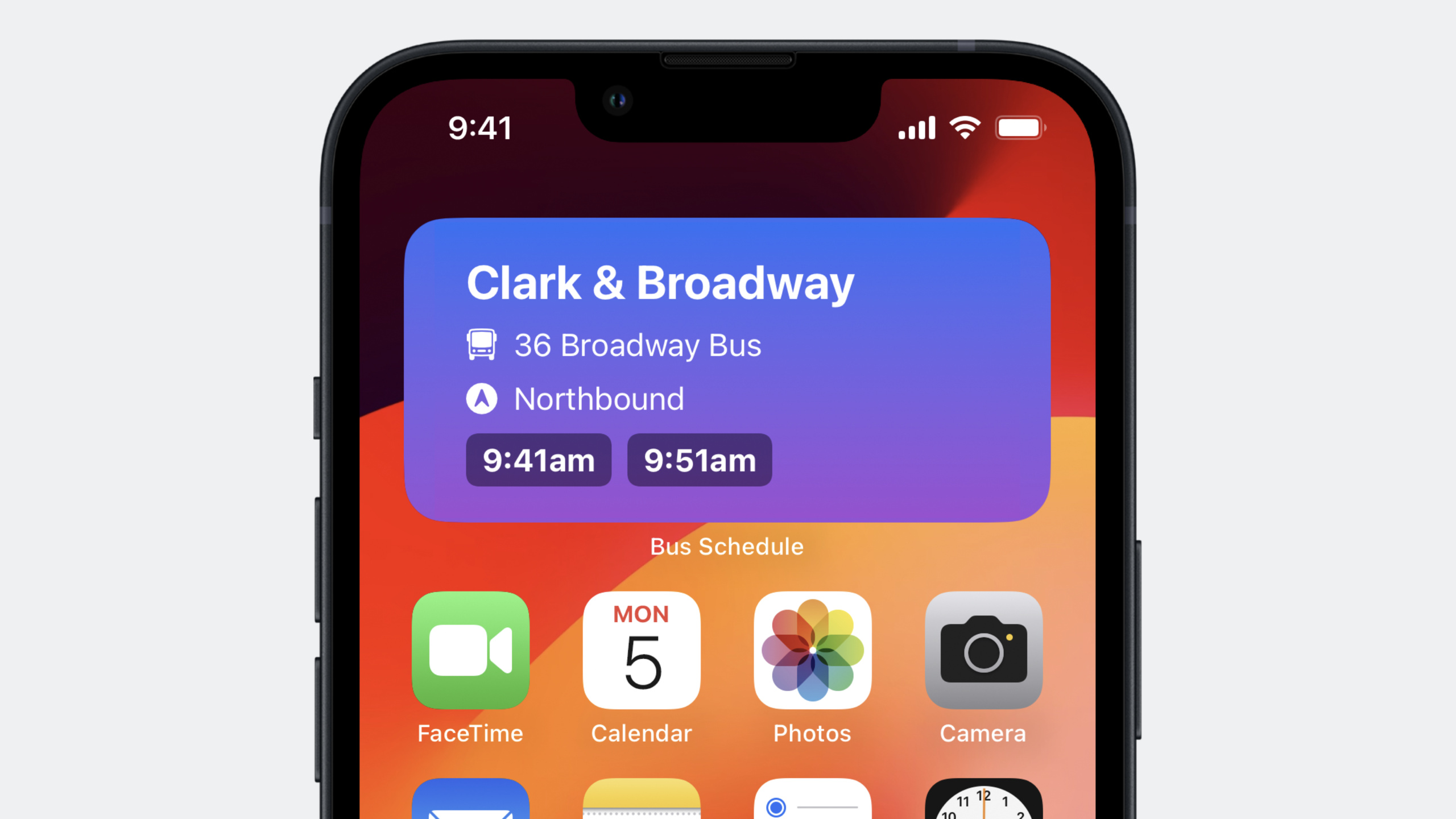
ハイライト
iOS 17 の App Intents により、Widget の設定、インタラクション、Shortcuts 統合が同一コードベースに統一されました。SwiftUI の Button/Toggle から直接 Intent をトリガーでき、パラメータ依存の連動や Apple Pay 統合に対応。複数の Intent 定義ファイルを維持する必要がなくなりました。
主要内容
Widget 設定用 App Intents
以前は Widget の設定に Xcode で Intent Definition File を維持する必要がありました。iOS 17 では Widget Extension のコード内で直接設定 Intent を定義できます。
import WidgetKit
import AppIntents
import SwiftUI

// IntentConfiguration を AppIntentConfiguration に置き換える
struct NextBusWidget: Widget {
    var body: some WidgetConfiguration {
        AppIntentConfiguration(
            kind: "com.example.nextbus",
            intent: ShowNextBusIntent.self,
            provider: Provider()
        ) { entry in
            NextBusWidgetView(entry: entry)
        }
    }
}

// Widget Extension 内で設定 Intent を直接定義
struct ShowNextBusIntent: WidgetConfigurationIntent {
    static var title: LocalizedStringResource = "Next Bus"

    @Parameter(title: "Bus Stop")
    var busStop: BusStop

    @Parameter(title: "Route")
    var route: BusRoute

    @Parameter(title: "Direction")
    var direction: Direction
}
キーポイント:
IntentConfigurationの代わりにAppIntentConfigurationを使用WidgetConfigurationIntentはAppIntentのサブプロトコル- 動的オプションとクエリを Widget Extension 内で直接実装でき、別の Intents Extension は不要
(01:05)
Widget インタラクション
SwiftUI の Button と Toggle が App Intents に対応し、ユーザーが Widget 内のボタンをタップするだけでアプリコードを実行できます。
import WidgetKit
import SwiftUI
import AppIntents

// インタラクション Intent を定義
struct SetAlarmIntent: AppIntent {
    static var title: LocalizedStringResource = "Set Bus Alarm"

    @Parameter(title: "Bus Time")
    var busTime: Date

    func perform() async throws -> some IntentResult {
        AlarmManager.shared.setAlarm(for: busTime)
        return .result(dialog: "Alarm set for \(busTime)")
    }
}

struct NextBusWidgetView: View {
    var entry: Provider.Entry

    var body: some View {
        VStack {
            ForEach(entry.upcomingBuses) { bus in
                // ボタンを App Intent に直接関連付ける
                Button(intent: SetAlarmIntent(busTime: bus.arrivalTime)) {
                    Text(bus.arrivalTime, style: .time)
                }
            }
        }
    }
}
キーポイント:
Button(intent:)で App Intent をボタンタップに関連付け- 同じ Intent を Widget インタラクションと Shortcuts アクションの両方に使える
- アプリを開かずに操作を完了できる
(05:41)
パラメータ依存の連動
IntentParameterDependency により DynamicOptionsProvider が他のパラメータ値にアクセスし、カスケード選択を実現できます。
import AppIntents

struct BusRouteQuery: EntityQuery {
    // ShowNextBusIntent の busStop パラメータに依存
    @IntentParameterDependency(ShowNextBus.self, \.busStop)
    var showNextBus

    func suggestedEntities() async throws -> [BusRoute] {
        guard let stop = showNextBus?.busStop else {
            return BusRoute.allRoutes
        }
        // 選択済み停留所に基づいて利用可能な路線をフィルタ
        return BusRoute.routes(forStop: stop)
    }
}

// 複数パラメータ依存の例
struct DirectionQuery: EntityQuery {
    @IntentParameterDependency(ShowNextBus.self, \.busStop)
    var showNextBusStop

    @IntentParameterDependency(ShowNextBus.self, \.route)
    var showNextBusRoute

    @IntentParameterDependency(ShowFavoriteRoute.self, \.route)
    var favoriteRoute

    var route: BusRoute? {
        showNextBusRoute?.route ?? favoriteRoute?.route
    }

    func suggestedEntities() async throws -> [Direction] {
        guard let route = route else { return Direction.all }
        return route.availableDirections
    }
}
キーポイント:
@IntentParameterDependencyは Widget、Shortcuts、Focus Filters で共通- 複数パラメータや複数 Intent に依存できる
- フィルタ済みオプションを返し、ユーザーには現在のコンテキストに関連する選択肢のみ表示
(07:59)
配列パラメータのサイズ制限
Widget 設定では配列パラメータのサイズ制限を宣言でき、Widget サイズごとに異なる上限を設定できます。
struct FavoriteRoutesIntent: WidgetConfigurationIntent {
    static var title: LocalizedStringResource = "Favorite Routes"

    // 最大 3 路線まで選択を制限
    @Parameter(title: "Routes", size: .init(upperBound: 3))
    var routes: [BusRoute]

    // Widget family に応じて異なる上限を設定
    @Parameter(title: "Routes", size: [
        .systemSmall: .init(upperBound: 1),
        .systemMedium: .init(upperBound: 2),
        .systemLarge: .init(upperBound: 5)
    ])
    var dynamicRoutes: [BusRoute]
}
キーポイント:
- 配列パラメータに
upperBoundで選択数の上限を設定可能 - Widget family ごとに異なるサイズ制限をマッピング可能
- 大きな Widget にはより多くの項目を収容できる
(10:54)
詳細
ParameterSummary と Widget 設定 UI
ParameterSummary は App Intent パラメータが Shortcuts エディタ、Focus Filters、Widget 設定でどう表示されるかを定義します。
struct ShowNextBusIntent: WidgetConfigurationIntent {
    @Parameter(title: "Routes")
    var routes: [BusRoute]

    @Parameter(title: "Include Weather")
    var includeWeatherInfo: Bool

    static var parameterSummary: some ParameterSummary {
        Summary("Show schedules for \(routes)") {
            \$includeWeatherInfo
        }
    }
}
iOS 17 では Widget family ごとに条件付きでパラメータを表示する When 文が追加されました:
static var parameterSummary: some ParameterSummary {
    Summary("Show schedules for \(routes)") {
        When(.widgetFamily, .equalTo, .systemLarge) {
            \$includeWeatherInfo
        }
    }
}
キーポイント:
- 文中のパラメータが先に表示され、closure 内のパラメータが後に表示される
When文により大きな Widget でより多くの設定オプションを表示可能- 小さな Widget では重要度の低いパラメータを非表示にできる
(11:35)
Widget タップによる遷移
ユーザーが Widget をタップすると、widgetConfigurationIntent から設定 Intent を取得し、アプリ内の特定ページへ遷移できます。
import SwiftUI

struct BusScheduleApp: App {
    var body: some Scene {
        WindowGroup {
            ContentView()
                .onContinueUserActivity(NSUserActivityTypeBrowsingWeb) { userActivity in
                    // Widget のタップから設定 Intent を取得
                    if let intent = userActivity.widgetConfigurationIntent as? ShowNextBusIntent {
                        NavigationManager.shared.showBusStop(
                            stop: intent.busStop,
                            route: intent.route
                        )
                    }
                }
        }
    }
}
キーポイント:
userActivity.widgetConfigurationIntentが関連する App Intent を返す- Intent の内容で対応画面へ遷移
- Widget タップ後すぐに関連コンテンツを表示できる
(12:52)
フレームワーク対応の拡張
iOS 17 ではフレームワークが App Intents を直接公開でき、同じコードを複数ターゲットにコンパイルする必要がなくなりました。
// BusScheduleIntents フレームワーク
public struct ShowScheduleIntent: AppIntent {
    public static var title: LocalizedStringResource = "Show Schedule"
    // ...
}

// フレームワークで re-export をサポート
extension BusScheduleIntents: AppIntentsPackage {}

// BusScheduleUI フレームワークが BusScheduleIntents に依存し re-export する
extension BusScheduleUI: AppIntentsPackage {}

// メインアプリは BusScheduleUI だけをインポート
import BusScheduleUI

@main
struct BusScheduleApp: App, AppIntentsPackage {
    var body: some Scene {
        WindowGroup {
            ContentView()
        }
    }
}
キーポイント:
AppIntentsPackageプロトコルでフレームワークが依存を再帰的にインポート可能- アプリは直接依存するフレームワークのみ参照すればよい
- バイナリサイズを削減し、コード重複を回避
(14:47)
フォアグラウンドでの継続実行
2 つの新プロトコルにより Intent をフォアグラウンドで継続実行できます:
// 方法 1:バックグラウンド実行を完全に停止し、ユーザーにフォアグラウンドでの続行を求める
struct FetchBusScheduleIntent: AppIntent, ForegroundContinuableIntent {
    func perform() async throws -> some IntentResult {
        do {
            let schedule = try await BusAPI.fetchSchedule()
            return .result(value: schedule)
        } catch {
            // エラーを投げると、システムがユーザーにフォアグラウンドでの続行を促す
            throw needsToContinueInForegroundError {
                // アプリがフォアグラウンドに入った後に実行される closure
                NavigationManager.shared.showErrorScreen()
            }
        }
    }
}

// 方法 2:バックグラウンド実行を一時停止し、ユーザー入力を取得してから続行
struct ChooseAlternateRouteIntent: AppIntent {
    func perform() async throws -> some IntentResult {
        let currentRoute = try await BusAPI.fetchCurrentRoute()

        if currentRoute.hasMaintenanceIssue {
            // ユーザーにフォアグラウンドで代替路線の選択を求める
            let alternateRoute = try await requestToContinueInForeground(
                returnValue: BusRoute.self
            ) {
                // 路線選択画面を表示
                RouteSelectionView.preselectRoute(currentRoute)
            }

            return .result(value: alternateRoute)
        }

        return .result(value: currentRoute)
    }
}
キーポイント:
ForegroundContinuableIntentは完全に停止してフォアグラウンドで再開するシナリオ向けrequestToContinueInForegroundはユーザー入力後に継続するシナリオ向け- continuation closure はメインスレッドで実行
(19:11)
Apple Pay 統合
import AppIntents
import PassKit

struct BuyTicketIntent: AppIntent {
    static var title: LocalizedStringResource = "Buy Bus Ticket"

    func perform() async throws -> some IntentResult {
        let paymentRequest = PKPaymentRequest()
        paymentRequest.merchantIdentifier = "merchant.com.example.bus"
        paymentRequest.countryCode = "US"
        paymentRequest.currencyCode = "USD"
        paymentRequest.paymentSummaryItems = [
            PKPaymentSummaryItem(label: "Bus Ticket", amount: 2.50)
        ]

        let controller = PKPaymentAuthorizationController(paymentRequest: paymentRequest)

        guard await controller.present() else {
            return .result(dialog: "Unable to process payment")
        }

        // 支払い結果を処理
        return .result(dialog: "Payment successful")
    }
}
キーポイント:
perform()内で直接PKPaymentRequestを作成PKPaymentAuthorizationControllerで支払いシートを表示- Shortcuts 自動化内で支払いフローを完了可能
(21:50)
進捗レポート
struct DownloadScheduleIntent: AppIntent, ProgressReportingIntent {
    static var title: LocalizedStringResource = "Download Schedule"

    func perform() async throws -> some IntentResult {
        let routes = await BusAPI.fetchAllRoutes()
        progress.totalUnitCount = Int64(routes.count)

        for route in routes {
            try await BusAPI.downloadSchedule(for: route)
            progress.completedUnitCount += 1
        }

        return .result(dialog: "Downloaded all schedules")
    }
}
キーポイント:
ProgressReportingIntentプロトコルを実装perform()内でprogressオブジェクトにアクセス- Shortcuts アプリが自動でプログレスバーを表示
(25:00)
重要ポイント
-
何を作るか: Widget 設定、インタラクション、Shortcuts を 1 つの App Intents コードで対応
- なぜ価値があるか: コード重複を減らし、3 シナリオで動作を一貫させ、保守コストを大幅に削減
- 始め方: 設定用に
WidgetConfigurationIntent、インタラクション用にAppIntentを定義し、同じ Query を両方で共有
-
何を作るか: Widget にボタンとトグルインタラクションを追加
- なぜ価値があるか: アプリを開かずに常用操作を完了でき、利用頻度が上がる
- 始め方: Widget ビューで
Button(intent:)とToggle(intent:)を使い、対応するAppIntentを実装
-
何を作るか: カスケードパラメータ選択
- なぜ価値があるか: パラメータ間に依存がある場合、フィルタ済みオプションで選択が速く、ミスが減る
- 始め方: Query で
@IntentParameterDependencyを使い他パラメータ値を読み取り、suggestedEntities()でフィルタ済みリストを返す
-
何を作るか: App Intents コードを Framework に移行
- なぜ価値があるか: メインアプリと Widget Extension で同じコードを重複コンパイルせず、バイナリサイズを削減
- 始め方: App Intents を含む Framework を作成し、Framework とメインアプリの両方で
AppIntentsPackageに準拠
-
何を作るか: 時間のかかる操作へのフォアグラウンド継続対応
- なぜ価値があるか: ネットワーク失敗やユーザー確認が必要な場合、音声よりフォアグラウンド UI の方が使いやすい
- 始め方: ユーザー判断が必要な Intent に
ForegroundContinuableIntentを実装するか、requestToContinueInForegroundで入力後に継続
関連セッション
- Spotlight your app with App Shortcuts — App Shortcuts でアプリ機能を Spotlight と Siri で利用可能に
- Bring your widget to life — Widget にインタラクティブ性を追加
- Build widgets for the Smart Stack on Apple Watch — Apple Watch Smart Stack 用 Widget の構築
コメント
GitHub Issues · utterances