
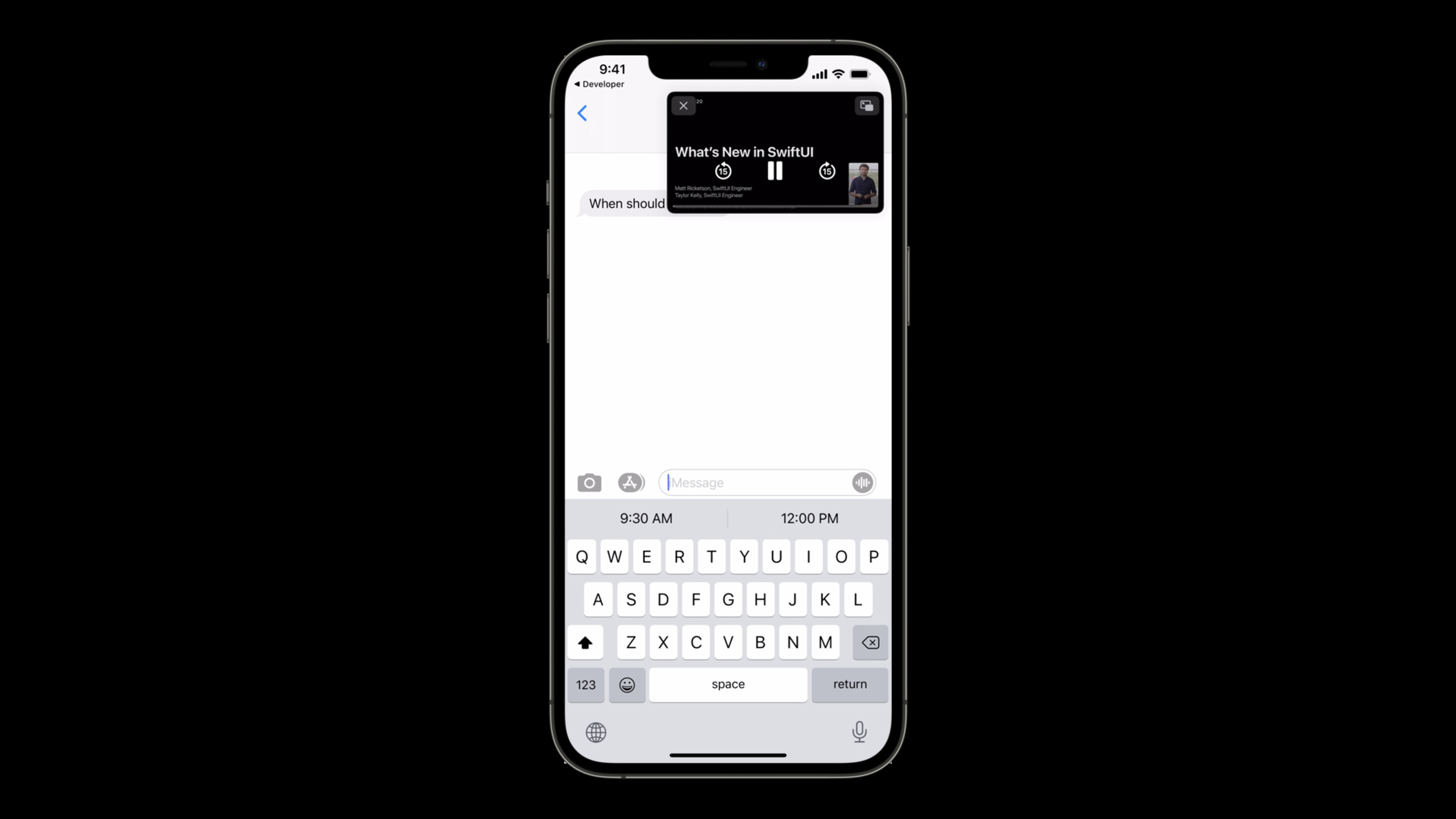
ハイライト
AVKit により、インライン ビデオが iOS 15 および macOS Monterey でピクチャ イン ピクチャに自動的に入るようになり、
AVSampleBufferDisplayLayerシステムのピクチャー・イン・ピクチャーのサポートを追加し、Mac Catalyst ビデオに真の全画面再生エクスペリエンスを提供します。
主な内容
ビデオ アプリが最も恐れるのは、ユーザーが再生ページから離れることです。
ユーザーはビデオを見ているときにメッセージを受け取ります。彼はホーム画面に戻って返信した。プレーヤーにピクチャ イン ピクチャ (PiP) がない場合、ビデオはその場で停止します。ユーザーはアプリに戻り、元のページを見つけて、プレイを続ける必要があります。
これまで、AVKit は次のことを処理できました。AVPlayer走行動画。使用AVPlayerViewController、システム コントロールはピクチャー イン ピクチャーへのアクセスに役立ちます。カスタムプレーヤーも利用可能AVPictureInPictureControllerですが、そのコアオブジェクトはまだ残っていますAVPlayerLayer。
これはカスタム再生パイプラインには十分ではありません。たとえば、WebRTC、リアルタイム ストリーミング、カスタム コーデック、画像はAVSampleBufferDisplayLayer見せる。プレイステータスが入っていませんAVPlayerここで、システムは、いつ一時停止するか、いつ早送りするか、タイムラインをどこに描画するかがわかりません。
WWDC21 AVKit アップデートによりこれが追加されます。 Apple は、コンテンツ ソース API を追加して、AVPictureInPictureController奉仕できるAVSampleBufferDisplayLayer。開発者は再生ステータスを提供し、制御コマンドに応答する必要があり、システムはピクチャ イン ピクチャ ウィンドウと対話を担当します。
macOS Monterey は、別の問題点も解決します。 Mac Catalyst アプリのビデオ フルスクリーンは、真のフルスクリーンにはならず、ウィンドウを埋めるだけでした。ビデオを画面全体に表示できるようになりました。ユーザーが全画面ビデオからアプリにスライドして戻った後も、アプリがプレーヤー オブジェクトを維持している限り、再生を続行できます。
##詳細
インラインビデオは自動的にピクチャーインピクチャーに入ります
(01:16)
アップルが追加canStartPictureInPictureAutomaticallyFromInline。それは入っていますAVPlayerViewControllerそしてAVPictureInPictureControllerで利用可能です。
import AVKit

let playerViewController = AVPlayerViewController()
playerViewController.canStartPictureInPictureAutomaticallyFromInline = true
キーポイント:
import AVKitAVKit のプレーヤー ビュー コントローラーの紹介。 -AVPlayerViewController()システム再生コントロールを使用するプレーヤー コンテナを作成します。 -canStartPictureInPictureAutomaticallyFromInline = trueユーザーがホーム画面にスライドして戻ったときに、インラインで再生されたビデオが自動的にピクチャ イン ピクチャになるようにします。
このスイッチはメインコンテンツのビデオにのみ適しています。逐語的なドラフトでは、再生コンテンツがユーザーの主な焦点である場合にのみ、それを次のように設定することを明確に注意しています。true。
(01:40)
アプリがカスタム UI を使用している場合でも、引き続き使用できますAVPictureInPictureController。
func setupPictureInPicture() {
    // Ensure PiP is supported by current device.
    if AVPictureInPictureController.isPictureInPictureSupported() {
        // Create a new controller, passing the reference to the AVPlayerLayer.
        pictureInPictureController = AVPictureInPictureController(playerLayer: playerLayer)
        pictureInPictureController.delegate = self

        // Observe AVPictureInPictureController.isPictureInPicturePossible to update the PiP
        // button’s enabled state.
    } else {
        // PiP isn't supported by the current device. Disable the PiP button.
        pictureInPictureButton.isEnabled = false
    }
}
キーポイント:
isPictureInPictureSupported()まず、現在のデバイスがピクチャー・イン・ピクチャーをサポートしているかどうかを確認します。 -AVPictureInPictureController(playerLayer: playerLayer)ピクチャーインピクチャーコントローラーを入れて、AVPlayerLayerバインディング。 -pictureInPictureController.delegate = self現在のオブジェクトがピクチャー・イン・ピクチャーのライフサイクル・コールバックを受信できるようにします。 -pictureInPictureButton.isEnabled = falseデバイスが入力をサポートしていない場合は、ユーザーに使用できないボタンが表示されるのを避けるために、入力を無効にします。
(02:11)
ボタンをクリックすると、現在の状態に基づいて start または stop を呼び出すだけです。
@IBAction func togglePictureInPictureMode(_ sender: UIButton) {
    if pictureInPictureController.isPictureInPictureActive {
        pictureInPictureController.stopPictureInPicture()
    } else {
        pictureInPictureController.startPictureInPicture()
    }
}
キーポイント:
@IBActionボタンのクリックをこのメソッドに接続します。 -isPictureInPictureActive現在ピクチャー・イン・ピクチャーであるかどうかを確認します。 -stopPictureInPicture()現在のピクチャーインピクチャーを終了します。 -startPictureInPicture()ピクチャーインピクチャーを有効にします。
AVSampleBufferDisplayLayerピクチャー・イン・ピクチャーのサポートを受ける
(02:28)
過去の風景を再現したピクチャー・イン・ピクチャーAVPlayerコンテンツ構築。 WWDC21以降は、AVPictureInPictureControllerサポートAVSampleBufferDisplayLayer。
草案にそのまま記載されているプロセスは次のとおりです。まず作成します。ContentSource、次に使用しますAVPlayerLayerまたはAVSampleBufferDisplayLayer設定してください。ユーザーにとって、ピクチャー・イン・ピクチャーのエクスペリエンスは一貫しています。開発者にとっては、AVPlayer再生には追加の再生ステータスが必要です。
(02:56)
新しい委任契約は、AVPictureInPictureSampleBufferPlaybackDelegate。
public protocol AVPictureInPictureSampleBufferPlaybackDelegate: NSObjectProtocol{

    // Delegate is responsible for:
    //
    // - Supplying playback state information for PiP UI.
    // - Responding to user input from PiP UI.

}
キーポイント:
AVPictureInPictureSampleBufferPlaybackDelegateピクチャー・イン・ピクチャー UI に再生ステータスを伝える役割を果たします。 -Supplying playback state informationタイムライン、再生、一時停止などの状態に対応します。 -Responding to user inputピクチャーインピクチャーウィンドウでユーザーが再生、一時停止、ジャンプをクリックすることに対応します。
このステップを行う理由は単純です。AVSampleBufferDisplayLayer仕方ないけどAVPlayer管理者、システムはプレイヤー オブジェクトからステータスを読み取ることができません。
ピクチャーインピクチャーウィンドウでの再生コントロールの処理
(03:17)
ユーザーがピクチャインピクチャ ウィンドウで再生、一時停止、巻き戻し、または早送りをクリックすると、AVKit はコマンドをデリゲートに転送します。
func pictureInPictureController(_ pictureInPictureController: AVPictureInPictureController, setPlaying playing: Bool)

func pictureInPictureController(_ pictureInPictureController: AVPictureInPictureController, skipByInterval skipInterval: CMTime, completion completionHandler: @escaping () -> Void)
キーポイント:
setPlaying playing: Boolユーザーが再生ボタンまたは一時停止ボタンをクリックしたときに呼び出されます。 -playingシステムがプレイヤーに切り替えてほしいターゲット状態です。 -skipByInterval skipInterval: CMTimeユーザーがジャンプ ボタンをクリックしたときに呼び出されます。 -completionHandlerジャンプ処理の完了後に呼び出され、コマンドが処理されたことをシステムに知らせます。
(03:31)
ピクチャーインピクチャーウィンドウにはタイムラインも必要です。委託用CMTimeRange再生可能な範囲を返します。
func pictureInPictureControllerTimeRangeForPlayback(_ pictureInPictureController: AVPictureInPictureController) -> CMTimeRangeキーポイント:
- 戻り値
CMTimeRange現在の再生可能な時間範囲を説明します。 - 逐語的な説明: 制限された持続時間の範囲には、サンプル バッファー表示レイヤーのタイムベースの現在時刻が含まれる必要があります。
- 無限の継続時間範囲はライブ コンテンツを表します。
(03:51)
ピクチャーインピクチャーのウィンドウサイズが変わります。たとえば、ユーザーがズーム ウィンドウをピンチします。 AVKit はレンダリング サイズ コールバックを提供します。
func pictureInPictureController(_ pictureInPictureController: AVPictureInPictureController, didTransitionToRenderSize newRenderSize: CMVideoDimensions)キーポイント:
didTransitionToRenderSizeピクチャーインピクチャーのウィンドウサイズが変更されたときに呼び出されます。 -newRenderSizeは新しいレンダリング サイズです。- Verbatim では、追加のデコード オーバーヘッドを避けるために、このサイズに基づいて適切なメディア バリアントを選択することをお勧めします。
(04:06)
AVKit は、現在一時停止しているかどうかを定期的に尋ねます。
func pictureInPictureControllerIsPlaybackPaused(pictureInPictureController: AVPictureInPictureController) -> Boolキーポイント:
- 戻る
trueプレーヤーが現在一時停止していることを示します。 - 戻る
falseプレーヤーが現在プレイ中であることを示します。 - 逐語的に比較すると、
AVPlayerのtimeControlStatus。
Mac Catalyst は真の全画面再生を実現
(04:23)
Big Sur では、Mac Catalyst アプリの全画面ビデオはウィンドウ全体にしか表示されません。 macOS Monterey が画面全体に表示されます。再生コントロールも、ネイティブ macOS アプリと Mac Catalyst アプリの間で一貫しています。
この動作は、すべての Mac Catalyst アプリに対して自動的に有効になります。ユーザーは、ネイティブ macOS 全画面表示と同じように、アプリ ウィンドウをスライドして戻すこともできます。プレースホルダー ビューが元のプレーヤーの位置に表示され、コンテンツが全画面で再生されていることを示します。
(06:05)
開発者が本当に対処する必要があるのはライフサイクルです。ユーザーがアプリにスワイプして戻った後もリストの閲覧を続けると、元のプレーヤー コントローラーがビュー階層から離れる可能性があります。オブジェクトを放すと全画面再生が終了します。
func playerViewController(_ playerViewController: AVPlayerViewController, willBeginFullScreenPresentationWithAnimationCoordinator coordinator: UIViewControllerTransitionCoordinator) {
    coordinator.animate(alongsideTransition: nil) { context in
        // Keep a strong reference to the playerViewController while in full screen.
        self.detachedPlayerViewController = playerViewController
    }
}
キーポイント:
willBeginFullScreenPresentationWithAnimationCoordinator全画面表示に入ろうとしたときに呼び出されます。 -coordinator.animate移行完了フェーズ中に参照の保存を手配します。 -self.detachedPlayerViewController = playerViewControllerコントローラがビュー階層から削除されたときにコントローラが解放されないように、強い参照を維持します。
(06:38)
全画面表示を終了した後、アプリはこの一時的な参照を解放できます。
func playerViewController(_ playerViewController: AVPlayerViewController, willEndFullScreenPresentationWithAnimationCoordinator coordinator: UIViewControllerTransitionCoordinator){
    coordinator.animate(alongsideTransition: nil) { context in
        // Stop keeping the playerViewController alive when transition completes,
        self.detachedPlayerViewController = nil
    }
}
キーポイント:
willEndFullScreenPresentationWithAnimationCoordinator全画面表示が終了しようとしているときに呼び出されます。 -coordinator.animate終了遷移が完了するまで待ちます。 -self.detachedPlayerViewController = nil強参照を解放し、オブジェクトのライフサイクルをアプリの元の管理ロジックに戻します。
(06:46)
ネイティブ macOS アプリの使用法AVPlayerViewデリゲートメソッド。
func playerViewWillEnterFullScreen(_ playerView: AVPlayerView) {
    // Start keeping the player view alive while it is not in the view hierarchy.
    self.detachedPlayerView = playerView
}

func playerViewWillExitFullScreen(_ playerView: AVPlayerView) {
    // Stop keeping the player view alive.
    self.detachedPlayerView = nil
}
キーポイント:
playerViewWillEnterFullScreen存在するAVPlayerView全画面表示に入るときに呼び出されます。 -self.detachedPlayerView = playerViewプレーヤービューを維持します。 -playerViewWillExitFullScreen全画面表示を終了するときに呼び出されます。 -self.detachedPlayerView = nil一時的な参照を解放します。
全画面表示を終了するときにインターフェイスを復元する
(06:55)
ユーザーが全画面表示を終了すると、アプリは元の再生ページに戻ることができます。 AVKit は非同期再開コールバックを提供します。
// Restoring UI when exiting full screen

// iOS / MacCatalyst
func playerViewControllerRestoreUserInterfaceForFullScreenExit(_ playerViewController: AVPlayerViewController) async -> Bool {
	// Custom UI restoration logic
	return true
}

// macOS
func playerViewRestoreUserInterfaceForFullScreenExit(_ playerView: AVPlayerView) async -> Bool {
	// custom UI restore logic here
	return true
}
キーポイント:
playerViewControllerRestoreUserInterfaceForFullScreenExitiOS および Mac Catalyst で利用可能です。 -playerViewRestoreUserInterfaceForFullScreenExitmacOS用。 -return trueインターフェースが正常に復元されたことを示します。- フルスクリーンからインラインへの移行をブロックしないように、できるだけ早く戻るよう逐語的にリマインダーします。
- 戻る
false復元が失敗したか復元できず、コンテンツがアニメーションなしで全画面で終了することを示します。
重要なポイント
-
対処方法: コースビデオページのインライン自動ピクチャーインピクチャーを有効にします。 価値がある理由: ユーザーがメッセージに返信するためにホーム画面にスライドしても、ビデオの再生を続けることができます。 開始方法: を使用します
AVPlayerViewControllerいつ、置くcanStartPictureInPictureAutomaticallyFromInlineに設定true、メインビデオの再生中にのみ有効になります。 -
やるべきこと: WebRTC またはリアルタイム ビデオ プレーヤーにシステム ピクチャ イン ピクチャを追加します。 実行する価値がある理由:
AVSampleBufferDisplayLayerコンテンツソースAPI経由でアクセス可能AVPictureInPictureController。 開始方法: サンプルバッファ再生の実装AVPictureInPictureSampleBufferPlaybackDelegate、最初に処理しますsetPlaying、skipByIntervalそしてisPlaybackPaused。 -
内容: ピクチャ イン ピクチャ ウィンドウ サイズに基づいてビデオ バリアントを切り替えます。 価値がある理由: ピクチャ イン ピクチャ ウィンドウが小さい場合、高解像度のデコードにより追加のオーバーヘッドが発生します。 開始方法: 実装
pictureInPictureController(_:didTransitionToRenderSize:)、使用CMVideoDimensionsより適切なメディア バリアントを選択してください。 -
対処方法: Mac Catalyst Video App を有効にして、ページを離れた後の継続的な全画面再生をサポートします。 実行する価値がある理由: ユーザーは全画面ビデオからアプリにスライドして戻った後、全画面再生を中断することなくコンテンツの閲覧を続けることができます。 開始方法:
willBeginFullScreenPresentation保存playerViewController強力な参照、willEndFullScreenPresentationリリース。 -
対処法: 全画面表示を終了すると、自動的にビデオの詳細ページに戻ります。 価値がある理由: ユーザーは、Mission Control やジェスチャーからアプリに戻ったときに、再生コンテキストを失うことがありません。 開始方法: 実装
playerViewControllerRestoreUserInterfaceForFullScreenExitまたはplayerViewRestoreUserInterfaceForFullScreenExit、すぐにナビゲーションを完了して戻りますtrue。
関連セッション
- AVFoundation の最新情報 — メディア属性の読み込み、ビデオの合成、および字幕の作成に対する AVFoundation の更新について説明します。
- AVFoundation で HLS バリアントを調べる — HLS バリアントを調べて、さまざまな再生サイズに適切なコンテンツを選択する方法を学びます。
- VideoToolbox で低遅延ビデオ エンコーディングを探索する — リアルタイム ビデオ シナリオにおける低遅延 H.264 エンコーディングについて学びます。
- グループ アクティビティでメディア エクスペリエンスを調整する — SharePlay メディアの同期とピクチャー イン ピクチャー レイアウトに関連する機能を学びます。
コメント
GitHub Issues · utterances