
Highlight
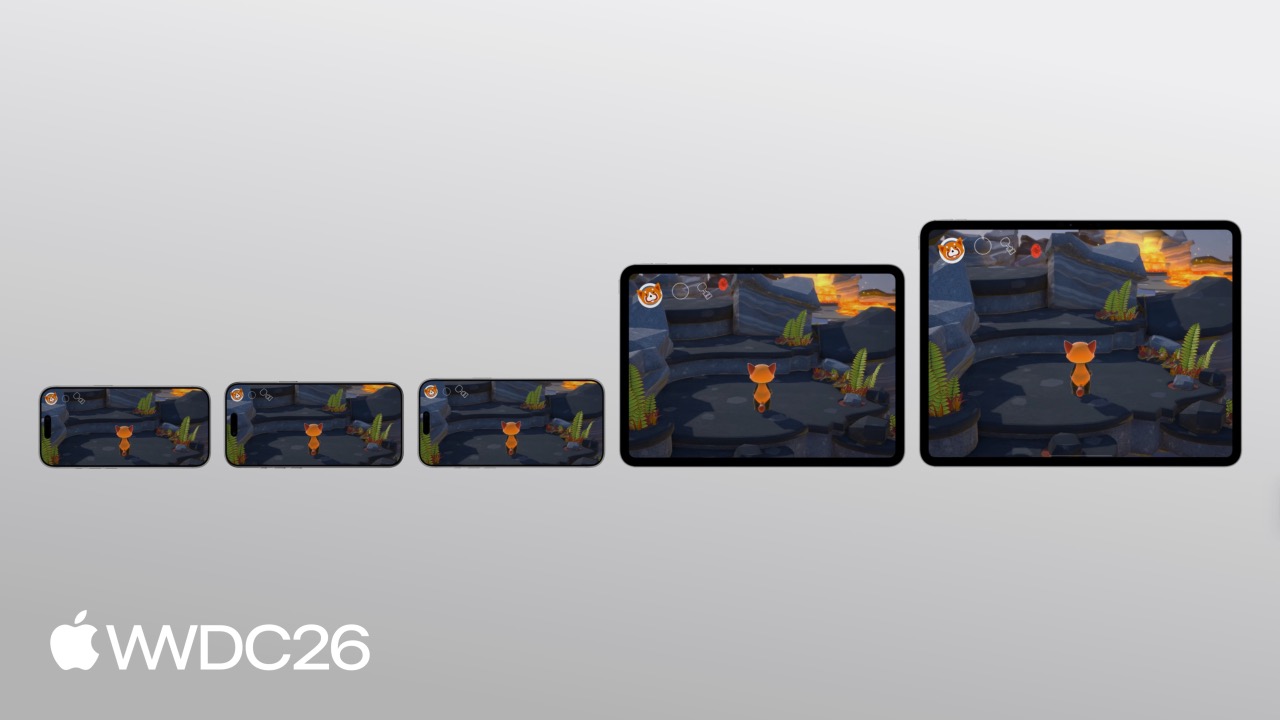
Apple introduced the Touch Controller framework, allowing games that already support Game Controller to extend seamlessly to touch input through dynamic controls, full-screen touch regions, and custom visual feedback for a fluid mobile player experience.
Core Content
Moving a game from Mac to iOS is already convenient, and Game Porting Toolkit 4 makes the process even easier. Players can use a wide variety of game controllers across Mac, iPad, and iPhone.
But there is a practical problem: a player may pull out an iPhone and jump into a game at any time, and they may not have a controller with them. Without a hardware controller, how do you still deliver a great game experience? The answer is well-designed touch controls.
The Touch Controller framework is built on top of the Game Controller framework and keeps the same input model: you can poll state or set value-change handlers. The difference is that it can display these controls on a touch screen and lets you fully customize their appearance.
The framework integrates directly with Metal to preserve rendering performance. Once enabled, the touch controller appears as a GCController object, so your game logic does not need major changes.
Details
Setting up a touch controller
(02:04)
The core of the Game Controller framework is simple: listen for GCController connection and disconnection notifications, then poll device state or set change handlers.
// Polling
if (button.isPressed) {
    // ...
}

// Change handlers
pressedInput.pressedDidChangeHandler = { (element: any GCPhysicalInputElement,
                                           input: any GCPressedStateInput,
                                           pressed: Bool)
    // ...
}
Key points:
- Polling works well for checking input state every frame.
- Change handlers are useful for responding to input events reactively.
- Touch Controller supports both models.
(03:14)
The code structure for setting up a touch controller:
// Set up a TCTouchController
private(set) var touchController: TCTouchController?

let descriptor = TCTouchControllerDescriptor(mtkView: mtkView)
if TCTouchController.isSupported {
    touchController = TCTouchController(descriptor: descriptor)
}
touchController?.connect()
touchController?.render(using: renderEncoder)

override func touchesBegan(_ touches: Set<UITouch>, with event: UIEvent?) {
    for touch in touches {
        touchControls.handleTouchBegan(at: touch.location(in: view), index: touch.hash)
    }
}

buttonA?.valueChangedHandler = { (_ button: GCControllerButtonInput, _ value: Float,
                                  _ pressed: Bool) in
    // ...
}
Key points:
TCTouchControllerDescriptoris created with anMTKView.connect()enables the touch controller.render(using:)draws the controls in the Metal render pass.- Touch events from the
UIViewneed to be forwarded to the touch controller.
Flexible layout design
(05:21)
The Touch Controller framework provides nine anchor-based layouts. Each control can specify an anchor and a relative offset.
// Create a standard circular button B
let buttonBDesc = TCButtonDescriptor()
buttonBDesc.label = TCControlLabel.buttonB
buttonBDesc.anchor = .bottomRight
buttonBDesc.offset = adjustedOffset(CGPoint(x: -35, y: -106), for: buttonBDesc.anchor)
buttonBDesc.contents = .buttonContents(forSystemImageNamed: "b.circle",
                                       size: buttonBDesc.size, shape: .circle,
                                       controller: touchController)
touchController.addButton(descriptor: buttonBDesc)

func adjustedOffset(_ offset: CGPoint, for anchor: TCControlLayoutAnchor) -> CGPoint {
    var x = offset.x, y = offset.y
    let safeArea = view.safeAreaInsets
    switch anchor {
    case .bottomRight:
        x -= safeArea.right
        y -= safeArea.bottom
    // ... Other anchors
    }
    return CGPoint(x: x, y: y)
}
Key points:
TCControlLabel.buttonBmaps to the B button on a physical controller.- After anchor positioning, the offset is calculated relative to the anchor.
safeAreaInsetsprevents controls from being covered by rounded corners or the Dynamic Island.- Related controls can share the same anchor to preserve their relative positions.
Dynamic controls
(10:48)
The advantage of touch controls is that their appearance can change dynamically.
// Change icon image
buttonBDesc.contents = .buttonContents(forSystemImageNamed: "figure.fencing",
                                       size: buttonBDesc.size,
                                       shape: .circle,
controller: touchController)(11:51)
Update control contents based on game context:
func setButtonBContents(symbolName: String) {
    for button in touchController.buttons {
        if button.label == TCControlLabel.buttonB {
            button.contents = .buttonContents(forSystemImageNamed: symbolName, size: buttonSize,
                                              shape: .circle, controller: touchController)
        }
    }
}

func cyclePower() {
    switch currentPower {
    case .strike:       touchControls?.setButtonBContents(symbolName: "figure.fencing")
    case .fireball:     touchControls?.setButtonBContents(symbolName: "flame.fill")
    case .waterBlaster: touchControls?.setButtonBContents(symbolName: "drop.fill")
    }
}
Key points:
- Icons should reflect the actual function of the control.
- Update icons when context changes.
- Players can understand what each control does without opening settings.
Contextual hiding
(13:01)
Controls that are not being used should be hidden.
// Hide left thumbstick when it is not touched
let leftStickDesc = TCThumbstickDescriptor()
leftStickDesc.hidesWhenNotPressed = true(13:19)
Show and hide the pickup button dynamically based on the scene:
func showPickupButton(at projectedPosition: CGPoint) {
    // Calculate the pickup button position (ptX, ptY)
    descriptor.offset = CGPoint(x: ptX, y: ptY)
    touchController.addButton(descriptor: descriptor)
}

func hidePickupButton() {
    for button in touchController.buttons {
        if button.label == TCControlLabel.buttonY {
            touchController.removeControl(button)
        }
    }
}
Key points:
hidesWhenNotPressedmakes the thumbstick hide automatically when it is not in use.- Buttons can be shown or hidden with
isEnabled. - Buttons whose positions change dynamically can be managed with
addButtonandremoveControl. - Reducing screen clutter helps players focus on the game.
Full-screen touch regions
(15:34)
Physical thumbsticks have a fixed size; touch screens can expand the input area.
// Use the left half of the screen for character movement
let leftStickDesc = TCThumbstickDescriptor()
leftStickDesc.colliderShape = .leftSide
Key points:
.leftSidemakes the thumbstick cover the left half of the screen.- Players can start input from any position.
- They do not need to touch the visual control precisely.
(16:39)
Trigger sprinting from the thumbstick tilt magnitude:
func pollInput() {
    if let gamePad = gameController.extendedGamepad {
        let gamePadLeft = gamePad.leftThumbstick
        var moveInput = simd_make_float2(gamePadLeft.xAxis.value, -gamePadLeft.yAxis.value)
        let magnitude = simd_length(moveInput)
        if magnitude > 0.8 {
            self.runModifier = 1.3
        }
        self.characterDirection = moveInput
    }
}
Key points:
- A small tilt means normal movement.
- A large tilt triggers sprinting.
- Players do not need to press a sprint button with a second finger.
Replacing a thumbstick with a touchpad
(17:36)
The right thumbstick can be replaced with a touchpad to avoid excessive rotation.
// Replace right thumbstick with touchpad
let touchpadDesc = TCTouchpadDescriptor()
touchpadDesc.label = TCControlLabel.rightThumbstick
touchpadDesc.colliderShape = .rightSide
touchpadDesc.reportsRelativeValues = true
touchController.addTouchpad(descriptor: touchpadDesc)
Key points:
reportsRelativeValuesmakes the touchpad report relative movement.- Relative movement avoids excessive rotation.
- The touchpad has no visual element, so it does not obscure the game.
- Movement responds immediately with no delay.
Simplifying complex actions
(19:30)
A QTE, or quick time event, may require pressing multiple buttons at once. It can be simplified to a single button.
// Collapse 2 QTE buttons into 1 single button
func setupControls() {
    let desc = TCButtonDescriptor()
    desc.label = TCControlLabel(name: "escape_button", role: .button)
    touchController.addButton(descriptor: desc)
}

func showEscapeButton() {
    escapeButton.isEnabled = true
}

func hideEscapeButton() {
    escapeButton.isEnabled = false
}
Key points:
- A fixed-position QTE button can be shown and hidden with
isEnabled. - Players can use one finger while continuing to move the character.
- This reduces the complexity of multi-finger input.
(20:28)
Aiming and release can be merged into one action button:
buttonB?.valueChangedHandler = { (_ button: GCControllerButtonInput, _ value: Float,
                                  _ pressed: Bool) -> Void in
    self.releasePower(pressed: pressed)
}

override func touchesMoved(_ touches: Set<UITouch>, with event: UIEvent?) {
    for touch in touches {
        let point = touch.location(in: metalView)
        if let gc = gameController, gc.isAiming {
            let prev = touch.previousLocation(in: metalView)
            gc.aimTouchDelta += simd_float2(Float(point.x - prev.x), Float(point.y - prev.y))
        }
    }
}
Key points:
- Hold the button to aim, drag to adjust direction, and release to fire.
touchesMovedtracks touch deltas independently.- With two fingers, players can move and aim at the same time.
Custom visual feedback
(21:52)
Add a glow effect to the left thumbstick while sprinting:
let haloLayer = TCControlImage(texture: haloTexture, size: haloSize, highlight: nil,
                               offset: .zero, tintColor: tint)
let normalBgImages = TCControlContents.thumbstickStickBackgroundContents(size: bgSize,
                                                                         controller: controller).images
haloThumbstickBg = TCControlContents(images: [haloLayer] + normalBgImages)
thumbstick.backgroundContents = active ? haloThumbstickBg : normalThumbstickBg
Key points:
TCControlContentsis an array of layers.- The halo layer is stacked on top of the standard background.
- Switch background contents based on sprint state.
- Clear visual feedback improves the game experience.
Key Takeaways
-
Show the skill wheel directly as touch buttons — Instead of opening a pop-up menu, show currently available skills directly on the screen. Add them dynamically with
addButton, then hide them automatically after a three-second timeout. Players can tap directly without navigating a menu. -
Full-screen thumbstick region — Set the movement thumbstick’s
colliderShapeto.leftSideso players can start moving anywhere on the left half of the screen. They do not need to precisely touch a small thumbstick, making the game comfortable even when reclining. -
Tilt-to-sprint — Read the thumbstick tilt magnitude and automatically sprint after it crosses a threshold. This removes a separate sprint button and reduces finger strain, especially for action games that require frequent sprinting.
-
Touchpad camera control — Replace the right thumbstick with
TCTouchpadand setreportsRelativeValues. The camera rotates by the amount the finger moves, avoiding over-rotation and latency. -
Context-sensitive buttons — Show buttons dynamically based on game state. The pickup button appears only near an item, and the attack button icon changes with the current weapon. This reduces screen clutter and keeps the player’s attention on the game.
Related Sessions
- Level up with Apple game technologies — Game porting and an overview of Apple game technologies
- Design great interfaces for handheld games — Interface design principles for handheld games
- Game Porting Toolkit — A detailed look at game porting tools
- SwiftUI graphics — SwiftUI drawing techniques that can be used for custom game UI
- Metal — Metal rendering performance optimization
Comments
GitHub Issues · utterances