
Highlight
SwiftUI’s LazyVStack and LazyHStack deliver smooth scrolling through on-demand subview loading and prefetching, but height estimation, view resolution, and state management come with specific constraints. Developers need to follow best practices around data-layer filtering, initializer-based setup, and avoiding dynamic view counts.
Core Ideas
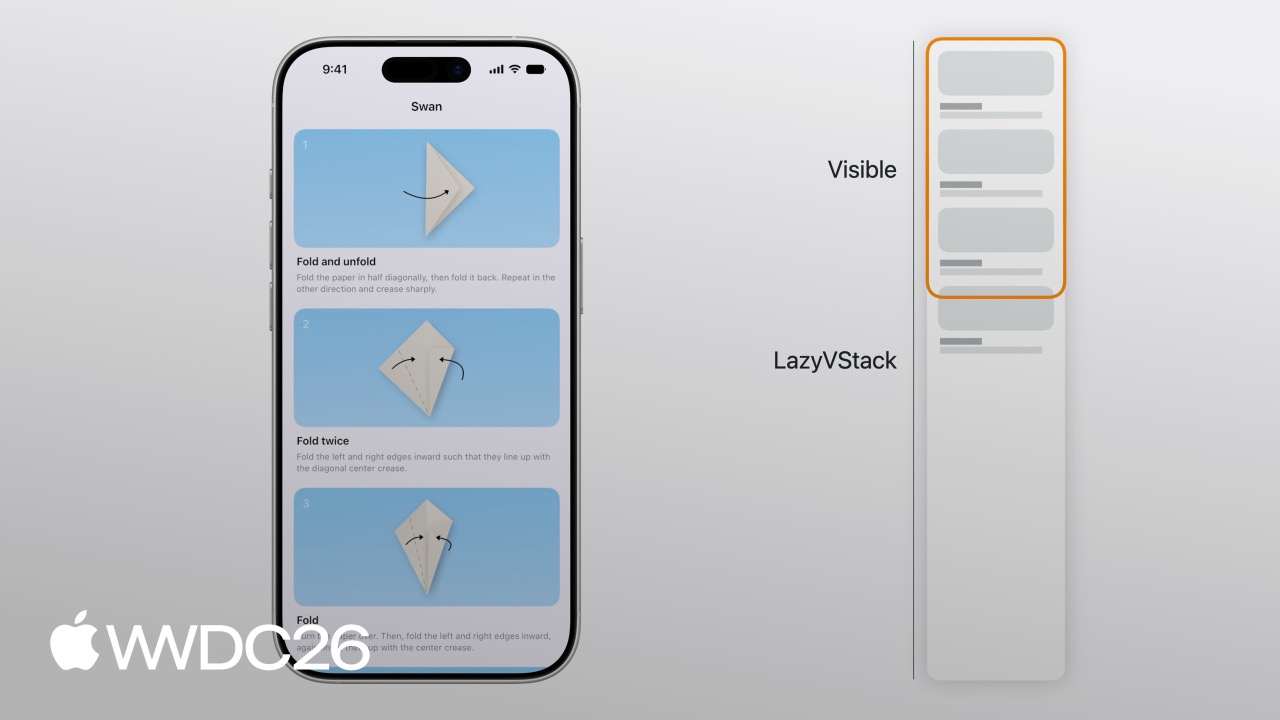
Imagine you are building an origami tutorial app with dozens of steps that combine diagrams and text. If you use a regular VStack, every step loads at once when the page opens, and memory and rendering cost grow linearly with the number of steps. LazyVStack solves this by loading only the views in the currently visible area, appending new content as you scroll and removing views that leave the screen.
(01:37)
This on-demand loading has a cost: the heights of offscreen views are estimates. LazyVStack estimates total height from the average height of already placed views and the number of remaining views, so total height can adjust dynamically during scrolling. Similarly, a LazyVStack’s ideal width equals the width of its first child, because it has not loaded every view to calculate the maximum width.
(02:42)
A typical case is rotation between portrait and landscape. After an iPhone rotates from portrait to landscape, StepView becomes shorter because subtitles take fewer lines. LazyVStack keeps the current top visible view anchored, but when scrolling back to the top, it must gradually correct the estimated height of the area above while synchronizing the ScrollView’s contentOffset, ensuring the offset is zero once the top is reached.
(04:02)
Lazy stacks support nesting. Add a horizontally scrolling photo showcase at the bottom of the origami app by nesting LazyHStack inside LazyVStack; the inner views do not load until the user scrolls to the photo area. But watch out: LazyHStack’s ideal height equals the height of its first child. If photos have captions with variable line counts, long text will be clipped. The fix is to use a fixed height, such as setting lineLimit on the text.
(05:12)
To make the photo section stand out, put it inside a Section and pin its header with pinnedViews: [.sectionHeaders]. The header sticks to the top as users scroll.
(06:30)
Scroll effects and visibility detection
Adding scrollTransition to photos can create entrance and exit animations. Be careful: Lazy stack decides whether a view is onscreen from the view’s original position. If a transform pushes the view outside its original frame, Lazy stack may think it has gone offscreen and unload it early, making the view disappear unexpectedly.
(07:04)
When detecting scroll position, do not read absolute contentOffset with onScrollGeometryChange. Lazy stack’s offset is an estimate, so when the estimate updates, the boundary for showing or hiding a button will drift. Use onScrollTargetVisibilityChange instead and make decisions from the relative visibility of child views.
(08:20)
Details
View resolution: one View struct is not the same as one child view
The “child views” loaded by LazyVStack do not necessarily correspond to the View structs in your code. ForEach expands into multiple StepView instances, but if a StepView’s top-level body returns two views and they are not wrapped in a VStack, LazyVStack treats those two views as independent child views and loads them separately.
(09:29)
struct StepView: View {
    let step: Step

    var body: some View {
        StepDiagram(/* ... */)
        StepInstructions(/* ... */)
    }
}
Key points:
- The top level of
StepView’s body has two views and no wrappingVStack - LazyVStack treats
StepDiagramandStepInstructionsas two independent child views StepViewitself still needs to be evaluated, but LazyVStack manages the child views after it expands
A more subtle problem is a dynamic number of views. If StepView decides from environment values whether it returns one view or zero views, LazyVStack keeps every StepView in memory to maintain correct indexing, even when they are not currently visible.
(10:52)
struct StepView: View {
    let step: Step
    @Environment(\.detailLevel) var detailLevel

    var body: some View {
        if step.isVisible(in: detailLevel) {
            VStack { /* ... */ }
        }
    }
}
Key points:
- The
ifcondition makes StepView sometimes return one child view and sometimes zero - LazyVStack addresses visible child views by index, so it must keep all StepView instances in case indexes shift after
detailLevelchanges - These offscreen views can also trigger unnecessary body recalculation when unrelated environment values, such as
writingStyle, change
The right approach is to filter at the data layer:
(12:15)
struct ContentView: View {
    @Query var steps: [Step]

    init(detailLevel: DetailLevel) {
        _steps = Query(filter: #Predicate<Step> { step in
            step.detailLevel >= detailLevel
        })
    }

    var body: some View { /* ... */ }
}
Key points:
- Use SwiftData
Query+Predicateto filter at the data layer - LazyVStack receives a definite number of child views and does not need to construct Views to calculate count
- Unrelated environment changes no longer affect offscreen views
Optional unwrapping with if let has the same issue. If the apiToken environment value changes from nil to a value, every StepView’s index can change. A better approach is to let an upper-level view handle authentication state and show ContentUnavailableView directly when signed out, without entering the lazy stack.
(12:35)
Prefetching and state management
Lazy stack prefetches views that are about to enter the screen in the scroll direction. It evaluates body and performs layout gradually during frame idle time, breaking what could be a large single-frame workload into multiple frames to avoid dropped frames.
(13:19)
Prefetching means a view’s body may be called before onAppear. If the user scrolls in the opposite direction, a prefetched view may have its body evaluated but never trigger onAppear. Do not put critical initialization logic in onAppear.
(15:53)
Wrong approach:
struct StepView: View {
    let id: Step.ID
    @State var viewModel = StepViewModel()

    var body: some View {
        VStack {
            if let content = viewModel.content { /* ... */ }
        }
        .onAppear {
            viewModel.configure(with: id)
        }
    }
}
Key points:
- Configuring
viewModelinonAppearleaves the view unconfigured before it appears - Layout work done during prefetch is discarded and recalculated after
onAppearfires - Scrolling performance suffers, and the stack may load more views than it actually needs
The right approach is to configure in the initializer:
(16:14)
struct StepView: View {
    @State var viewModel: StepViewModel

    init(id: Step.ID) {
        _viewModel = State(initialValue: StepViewModel(id: id))
    }

    var body: some View { /* ... */ }
}
Key points:
viewModelis configured during initialization, so correct data is available during prefetch- The view is already in a valid state before it appears, and prefetched work is not wasted
Asynchronous loading can also use prefetching to start earlier. For example, load origami diagrams from the network:
(16:23)
struct StepView: View {
    let step: Step
    @State var diagram: Diagram?

    var body: some View {
        VStack { /* ... */ }
            .task {
                diagram = await DiagramLoader.loadDiagram(id: step.id)
            }
    }
}
To start loading even earlier, use an @Observable loader that begins work during initialization:
(16:40)
struct StepView: View {
    let step: Step
    @State var diagramLoader: DiagramLoader

    init(step: Step) {
        self.step = step
        _diagramLoader = State(initialValue: DiagramLoader(id: step.id))
    }

    var body: some View { /* ... */ }
}

@Observable
class DiagramLoader {
    var diagram: Diagram?

    init(id: Step.ID) {
        Task {
            diagram = await loadFromNetwork(id: id)
        }
    }
}
Key points:
DiagramLoaderstarts the network request during initialization- During prefetch, the loader has already started loading, so data is likely ready when the view scrolls onscreen
- Combined with caching, this can further improve the experience
Views are not immediately removed from memory after scrolling offscreen. Lazy stack keeps them around briefly in case users scroll back quickly. But state variables (@State) are eventually released, so do not store data that must persist in View state.
(17:16)
// Wrong: highlight state is lost after the view scrolls offscreen
struct StepView: View {
    let step: Step
    @State var isHighlighted = false
    // ...
}

// Correct: lift the state to the outer layer with Binding
struct ContentView: View {
    @State var highlighted: Set<Step.ID> = []
    // ...
}

struct StepView: View {
    let step: Step
    @Binding var highlighted: Set<Step.ID>
    // ...
}
Key points:
@Stateexists with the view lifecycle, so state is lost after the view is released- State that needs to persist should live in a Model object or be lifted to a parent view with
@Binding
Programmatic scrolling
SwiftUI provides ScrollPosition for programmatically controlling scroll position, including scrolling to views that are currently offscreen.
(17:58)
struct ContentView: View {
    @State var scrollPosition = ScrollPosition()

    var body: some View {
        ScrollView { /* ... */ }
            .scrollPosition($scrollPosition)
            .overlay(alignment: .bottom) {
                Button {
                    scrollToShowcase()
                } label: { /* ... */ }
            }
    }

    func scrollToShowcase() {
        withAnimation {
            scrollPosition.scrollTo(id: "showcase-header")
        }
    }
}
Key points:
ScrollPositionis bound to the ScrollViewscrollTo(id:)can jump directly to a view with a specified ID, even when it is currently offscreen- Use it with
withAnimationfor smooth scrolling
Programmatic scrolling performance depends on whether Lazy stack can quickly locate the target view. If every ForEach element always resolves to a single child view, LazyVStack can query ForEach directly and find the target ID without constructing any View. Dynamic view counts reduce that lookup efficiency.
Avoid changing layout after scrolling
A common anti-pattern is using onGeometryChange to read a child view’s height, then using that value to adjust the layout of other views. This changes the view’s own height after it appears, pushes content below it downward, and destabilizes scroll position.
(19:16)
// Not recommended: changes layout after scrolling
struct StepView: View {
    let step: Step
    @State var subtitleHeight: CGFloat?

    var body: some View {
        VStack {
            StepDiagram(diagram: step.diagram)
                .frame(height: diagramHeight(subtitleHeight: subtitleHeight))
            Title(step.title)
            Subtitle(step.subtitle)
                .onGeometryChange(for: CGFloat.self, of: \.size.height) { _, value in
                    subtitleHeight = value
                }
        }
    }
}
If SwiftUI’s built-in layouts cannot satisfy complex needs such as text wrapping around images or fixed proportions, use a custom Layout instead of an onGeometryChange hack:
(19:17)
struct StepView: View {
    let step: Step

    var body: some View {
        StepLayout {
            StepDiagram(diagram: step.diagram)
            Title(step.title)
            Subtitle(step.subtitle)
        }
    }
}

struct StepLayout: Layout {
    // Calculate all child sizes and positions at once in sizeThatFits
    // ...
}
Key points:
- A custom Layout completes measurement and placement in
sizeThatFitsandplaceSubviews - It avoids the second layout adjustment that happens only after the view appears
- Scroll position remains stable
Key Takeaways
1. Long-list photo browser
What to build: Use LazyVStack + Section + pinnedViews to create a photo feed grouped by date. Section headers show dates and stick to the top while scrolling. Nest a horizontal LazyHStack to preview thumbnails from the same day.
Why it is worth doing: Photo libraries often contain thousands of items. A regular VStack would load every view at once, making memory and launch time unacceptable. Lazy stack’s on-demand loading keeps large albums smooth, and pinnedViews keeps date navigation visible.
How to start: Use SwiftData Query to group by date at the data layer, avoiding conditional filtering inside View body. Entry point: LazyVStack(pinnedViews: [.sectionHeaders]) + @Query
2. Infinite-scrolling content feed
What to build: Place a ProgressView at the bottom of the list and use onAppear to trigger loading the next page. Start data-loading logic in an initializer or @Observable loader.
Why it is worth doing: Lazy stack’s prefetching can load content before users reach the bottom. But if loading logic lives in onAppear, the viewModel is still unconfigured during prefetch, so loading starts only when the user actually reaches the end. Moving initialization into construction lets prefetching and loading happen together.
How to start: Use the DiagramLoader pattern or configure the viewModel in an initializer, then use .task for async loading. Entry point: init(step: Step) { _diagramLoader = State(initialValue: DiagramLoader(id: step.id)) }
3. Card list with scroll animations
What to build: Add scrollTransition to cards for scale or rotation effects as they scroll in.
Why it is worth doing: Scroll animation improves visual quality and gives content transitions a sense of rhythm. But Lazy stack determines visibility from a view’s original frame. If a transform pushes the view outside that frame, Lazy stack may treat it as offscreen and unload it early, causing abnormal disappearance.
How to start: Use effects that keep the view inside its original bounds, such as scaleEffect(1 - abs(phase.value) * 0.1). Entry point: .scrollTransition { effect, phase in effect.scaleEffect(1 - abs(phase.value) * 0.1) }
4. Smart reading progress persistence
What to build: In a long-form reading app, store each chapter’s reading progress in a parent view or Model, then use ScrollPosition to return to the last reading position.
Why it is worth doing: @State follows the view lifecycle. Once the view scrolls offscreen and Lazy stack recycles it, state is lost. If a user reads to chapter 10, returns to the table of contents, and enters again, progress resets to zero. Lift state to a parent or store it in SwiftData to persist it.
How to start: Use @Binding var readingProgress: Set<Chapter.ID> to lift state to a parent, or store it in a SwiftData Model. Combine it with ScrollPosition’s scrollTo(id:) for navigation. Entry point: @Binding var readingProgress: Set<Chapter.ID> + scrollPosition.scrollTo(id:)
5. Complex mixed text-and-image layouts
What to build: When built-in Stack layouts cannot satisfy complex arrangements such as text wrapping around images or fixed proportions, use a custom Layout instead of an onGeometryChange hack.
Why it is worth doing: Reading a child view’s height with onGeometryChange and then adjusting other layout afterward causes the view to change its own height after appearing, pushing content below it and destabilizing scroll position. A custom Layout determines every child position during sizeThatFits, which works more predictably with lazy stacks.
How to start: Implement the sizeThatFits and placeSubviews methods of the Layout protocol to measure and place everything at once. Entry point: struct StepLayout: Layout { func sizeThatFits(...) -> CGSize { ... } }
Related Sessions
- Code-along: Build powerful drag and drop in SwiftUI - How SwiftUI drag reordering works together with lazy stacks
- Compose custom layouts with SwiftUI - Use custom Layout instead of geometry-change callbacks
- Stacks, Grids, and Outlines in SwiftUI - SwiftUI layout fundamentals and prerequisite knowledge for this session
- SwiftData - Filter list data at the data layer with Query and Predicate
Comments
GitHub Issues · utterances