
Highlight
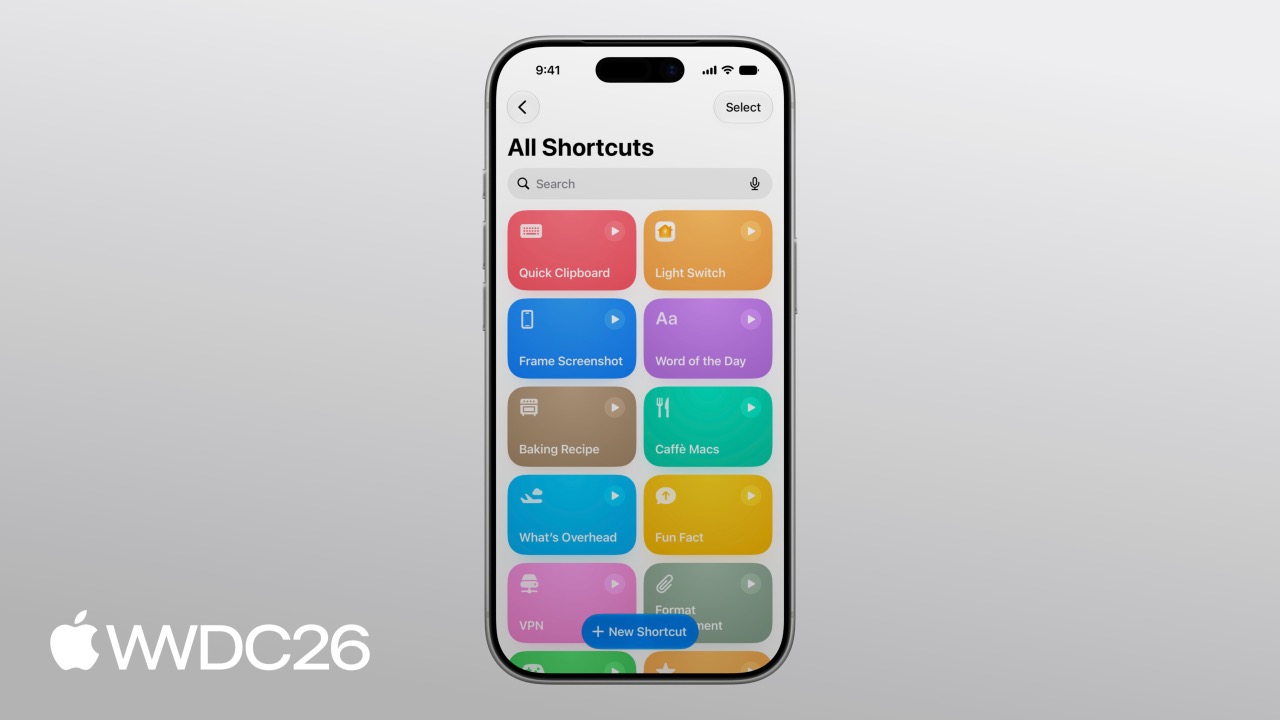
Shortcuts gains three new automation triggers - screenshots, keyboard connect/disconnect, and notifications - plus transcript debugging for the Use Model action and persistent Storage. Together, these let app content work deeply with Apple Intelligence and enable stateful automations whose memory syncs across devices.
Core Content
Automations no longer hide in a corner
In earlier versions, setting up a Shortcuts automation meant switching to a separate Automation tab, disconnected from the action editor. iOS 26 brings automation directly into the Shortcuts editor and presents it alongside the action list. (01:15)
There are three new triggers:
- Screenshot automation: Runs when a screenshot is saved
- Keyboard automation: Runs when an external keyboard connects or disconnects
- Notification automation: Runs when a push notification from a specified app arrives
Notification automation is the most direct scenario. Suppose you build a food delivery app that sends a notification like “Driver John will arrive in 5 minutes” when the courier is nearby. A user can configure Shortcuts so that when this app sends a notification containing “arriving”, the entryway light turns on automatically. (01:51)
There is an implicit requirement for developers here: notification copy must include a concrete subject, verb, and actionable data. If the notification only says “You have a new message”, the user cannot set meaningful keyword filters, and the automation becomes almost useless.
The Use Model action now has a “medical record”
The Use Model action lets a large language model run directly inside Shortcuts. In iOS 26, the model is stronger and can also access the network to fetch up-to-date information. (03:28)
But when the model output was wrong, developers previously had to guess why. Now you can add a Show Content action after Use Model, choose the Transcript property, and see the raw data the model actually received. (05:11)
For example, the Soup Chef app uses Use Model to choose soup based on a user’s taste preferences. On the first run, the model chose chicken corn soup - the mildest option on the menu - even though the user wanted something spicy. The Transcript showed that the Soup Entity sent to the model only included the name and whether the soup was available, with no ingredient information, so the model could only infer spiciness from the name. (04:54)
After adding an ingredients property to SoupEntity, the model correctly chose tom yum soup.
Storage gives Shortcuts memory
Storage is the biggest new Shortcuts capability in iOS 26. It lets Shortcuts save data between runs and supports cross-device sync through iCloud. (06:59)
The Shortcuts editor now includes a Storage view where users can create, inspect, and edit stored values. They can also create global values shared across multiple Shortcuts, which is useful for common configuration such as API keys. (07:08)
Three actions operate on Storage:
- Get Value: Reads a stored value
- Set Value: Writes a stored value
- Add to List: Appends an element to a list
One practical example is pushing a daily racing-tech trivia item. Use Model is deterministic, so without intervention it can repeat itself. Store a “Previous Facts” list in Storage, read the history before each run, ask the model to avoid existing facts, and then append the new result back to the list. (07:49)
Another example: a Soup of the Day Shortcut may recommend the same bowl several days in a row. Use Storage to remember recent choices, pass them to the model as exclusions, and get “no repeated recommendation” behavior. (08:53)
Cross-device sync imposes a strict requirement on Entity IDs. A Soup Entity stored on iPhone must be recognized as the same entity when read on iPad. If the ID is generated locally on each device, it fails after switching devices. The solution is to use a stable backend database ID, such as a row ID. (10:07)
Details
Optimize App Entity for LLMs
(06:12)
The complete SoupEntity definition:
import AppIntents

struct SoupEntity: AppEntity, Identifiable {
    static var typeDisplayRepresentation = TypeDisplayRepresentation(
        name: "Soup",
        numericFormat: "\(placeholder: .int) soups"
    )
    static var defaultQuery = SoupEntityQuery()

    var id: Soup.ID

    @Property var name: String

    @Property(title: "Available Today")
    var isAvailableToday: Bool

    @Property(title: "Ingredients")
    var ingredients: String

    var displayRepresentation: DisplayRepresentation {
        DisplayRepresentation(title: "\(name)", subtitle: SoupStore.description(for: id))
    }
}
Key points:
typeDisplayRepresentationdefines the Entity’s display name and plural format in Shortcuts and SiridefaultQueryconnects the query type so the Find Soups action can retrieve this Entityidmust be a stable cross-device identifier; this example uses the backend database’sSoup.ID- The
titlein@Property(title: "Ingredients")appears in the Transcript and helps the LLM understand the field ingredientsstores a string of ingredient names plus amounts per serving, so the LLM can infer spiciness from compositiondisplayRepresentationcontrols how the Entity appears in the UI, including title and subtitle
Debug the Use Model Transcript
(05:11)
Steps in the Shortcuts editor:
- Add a Use Model action, then configure the prompt and input data
- Add a Show Content action after it
- Set the Show Content input to the Transcript property of the Use Model output
- Run the Shortcut and inspect the structured representation of each Entity in the Transcript
The Transcript shows the complete serialized property list for each Soup Entity. If a critical property is missing or has the wrong value, you can locate the problem. In the first run, for example, the Transcript did not include an ingredients field, so the model could only infer from the soup name and chose a non-spicy option.
Storage usage pattern
(08:11)
Data flow for a Soup of the Day Shortcut with memory:
Get Value("Previous Soups")          // Read previous choices
  -> Use Model(prompt: "Choose a spicy soup from the list below,
                       avoiding these previous choices: \(previousSoups)",
               context: availableSoups)
  -> Add to List(newSoup, previousSoups)  // Append the new choice to the list
  -> Set Value("Previous Soups", updatedList)  // Write back to Storage
  -> Order Soup(newSoup)               // Place the order
Key points:
- If the key does not exist on first run,
Get Valuereturns an empty value, and the Shortcut needs to handle that case Add to Listoutputs a new list that contains the new element; the original list is unchangedSet Valueoverwrites the stored value, completing the state update- Stored values sync through iCloud and are shared by all devices signed in to the same Apple ID
- When an Entity is stored, only its ID and exposed properties are stored; when read, the App Intent resolves it again from the ID
Key Ideas
1. Add “taste memory” to an AI assistant
What to build: Create a Shortcut that records each piece of user feedback, such as “too spicy” or “too bland”, stores it in Storage as a preference profile, and lets Use Model refer to the historical feedback next time.
Why it is worth building: Most recommendation systems do not have a user-feedback loop. Storage lets Shortcuts implement personalization at low cost.
How to start: Add @Property var userRating: Int to the App Entity, ask the user to rate each recommendation, and store the score in Storage with Set Value.
2. Notification-driven smart-home automation
What to build: A fitness app sends “Today’s workout complete, 300 calories burned” when a workout ends. The user configures a notification automation that triggers a Shortcut to dim the living-room lights and start relaxing music.
Why it is worth building: Notification automation turns an app from an information sender into a scene trigger, extending its depth of system integration.
How to start: Make sure notification text includes clear verbs and numeric values, such as “completed” and “300 calories”, so users can set keyword filters.
3. Cross-device reading-progress sync
What to build: A reading app stores the current reading position as an App Entity. The user runs one Shortcut on iPhone to mark “continue later” and another Shortcut on iPad to jump directly to that location.
Why it is worth building: Storage’s cross-device sync turns Shortcuts into a lightweight state-sync channel without requiring a custom backend.
How to start: Use book ISBN plus chapter number as the Entity ID so it is consistent across devices. Get Value reads the stored Entity ID, and an App Intent opens the corresponding page.
4. A personalized daily brief generated by AI
What to build: Store a user’s watched stocks, weather cities, and calendar keywords in Storage. Each morning, one Shortcut run asks Use Model to generate a natural-language morning summary from that data.
Why it is worth building: LLMs can turn several data sources into coherent text, while Storage solves persistence for the “data source configuration”.
How to start: Store configuration data in global Storage, read it with Get Value, pass it to Use Model, and specify the output format in the prompt.
5. A creative-writing assistant that avoids repeated LLM output
What to build: A writing app offers a Shortcut that uses Use Model to generate writing ideas from a topic. Storage records generated ideas to prevent repeats.
Why it is worth building: Deterministic LLMs often produce similar output for the same prompt. Storage provides a simple “deduping memory”.
How to start: Store a list of idea titles in Storage, pass it to the model as an exclusion list before each generation, and append the new idea afterward.
Related Sessions
- Develop for Shortcuts and Spotlight with App Intents - A foundation-level introduction to App Intents; every Entity and Query definition in session 310 depends on this framework
- What’s new in App Intents - Advanced App Intents usage, including more configuration options for Entity types
- Build agentic apps with Apple Intelligence - A deeper explanation of the Apple Intelligence model capabilities behind the Use Model action
- What’s new in Siri - New iOS 26 progress in the integration between Shortcuts and Siri
- What’s new in Foundation Models - Capability boundaries and best practices for the models called by the Use Model action
Comments
GitHub Issues · utterances