
Highlight
Apple introduced the Foveated Streaming framework in visionOS 26.4, letting Vision Pro wirelessly stream OpenXR content from a PC over Wi-Fi. The system uses eye tracking for dynamic foveated compression and includes the NVIDIA CloudXR protocol, so developers can bring existing OpenXR apps to Vision Pro in about a day.
Core Ideas
A real pain point: PC-class VR content is trapped in headsets
Many immersive applications need PC compute. Flight simulators, racing games, and industrial 3D visualization all use models and physics workloads far beyond what a standalone headset can handle.
The old solution was to pair a PC with a VR headset over a cable. Users were tethered beside the computer, and their movement was limited. Content ecosystems were fragmented too: OpenXR apps ran inside the PC VR ecosystem, while visionOS capabilities such as ARKit, SwiftUI, and RealityKit were unavailable.
Apple’s answer: wireless streaming plus system-level foveation
Foveated Streaming solves two problems.
First, wireless streaming. visionOS includes the NVIDIA CloudXR SDK, and the PC sends video and audio to Vision Pro over Wi-Fi. It can run on a home LAN or through the cloud.
Second, dynamic foveated compression. Vision Pro’s eye-tracking hardware knows where the user is looking in real time. The system transmits the gaze center at high resolution and lowers precision in peripheral regions. visionOS handles the compression logic completely; developers do not need to intervene.
(00:26)
Existing apps validate the path
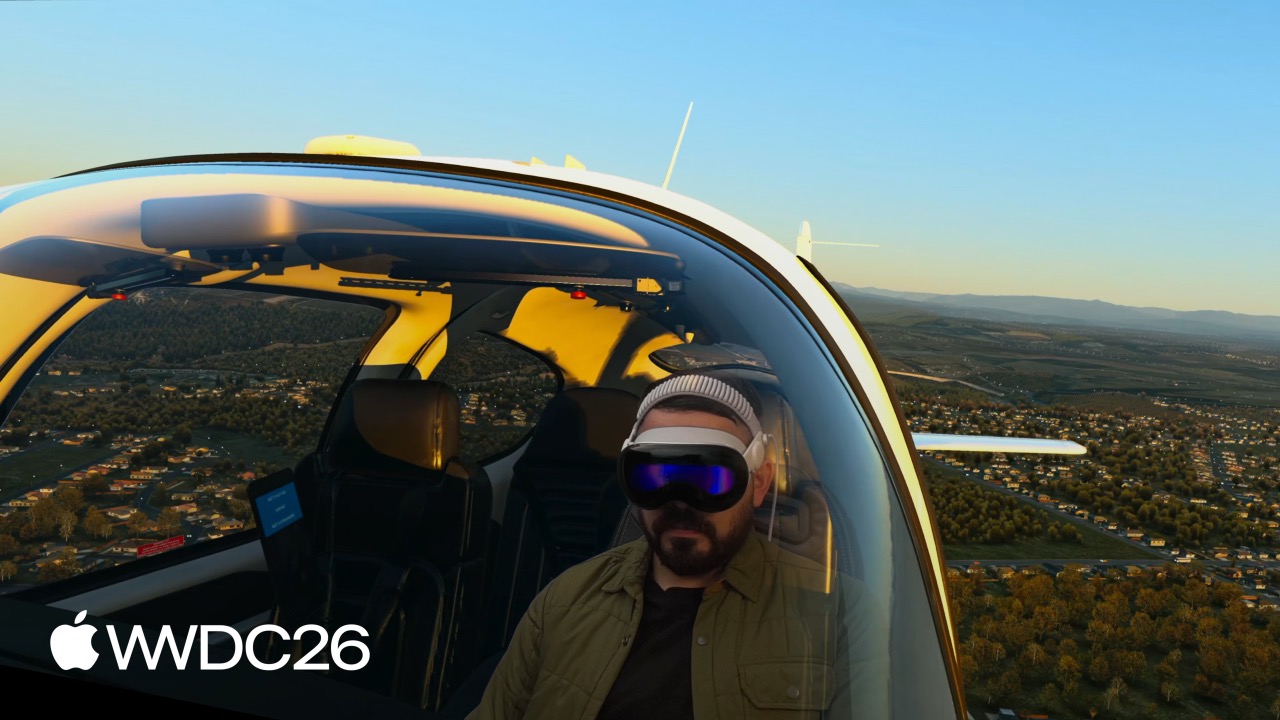
Laminar Research uses this approach to bring X-Plane 12 from PC flight simulation to Vision Pro. The visionOS app uses ARKit to recognize the physical cockpit position, aligning the streamed virtual scene with real equipment. Users can see their own hands gripping a real yoke while the full virtual cockpit and scenery appear in front of them.
iRacing uses the same approach for racing simulation. ARKit hand tracking syncs the real steering wheel position into the virtual cockpit, so when users look down they see their hands gripping the virtual wheel.
Autodesk VRED reaches Vision Pro through Innoactive’s integration. Kia designers use it to inspect car models at real scale with engineering-level detail.
(01:04)
Not just streaming, but mixing with native visionOS capabilities
Foveated Streaming is not simply a “video player.” Streamed content can be layered with SwiftUI interfaces, RealityKit rendering, and ARKit spatial awareness.
For example, you can put a SwiftUI level-selection menu above the streamed OpenXR game. The menu uses native visionOS controls and supports spatial gestures. After the user chooses a level, a Message Channel sends the command to the OpenXR app running on the PC.
(03:13)
Details
System architecture: what each side needs to do
The system has two parts:
- PC side (Streaming Endpoint): OpenXR app + NVIDIA CloudXR Runtime + Apple Foveated Streaming Protocol implementation
- Vision Pro side (Receiver App): uses the
FoveatedStreamingframework to connect, display content, and integrate native visionOS capabilities
(04:10)
Apple provides complete end-to-end sample code on GitHub, including the Windows-side protocol reference implementation and an OpenXR sample app. Following the documentation, you can connect the whole path in an afternoon.
Establishing a connection: session-style API
The core class on the visionOS side is FoveatedStreamingSession.
import SwiftUI
import FoveatedStreaming

struct ConnectView: View {
    let session: FoveatedStreamingSession

    var body: some View {
        Button("Connect") {
            Task {
                try await session.connect()
            }
        }
    }
}(06:03)
Key points:
FoveatedStreamingSessionis the entry point to the session-based APIconnect()is asynchronous and handles the complete pairing and connection flow internally- After the call, the framework automatically scans the local network for available endpoints
- When Vision Pro and an endpoint pair for the first time, the PC displays a QR code and the user scans it with gaze to complete pairing
Showing streamed content in an ImmersiveSpace
After the connection is established, pass the session to ImmersiveSpace to display the stream.
import SwiftUI
import FoveatedStreaming

@main struct FoveatedStreamingSampleApp: App {
    private let session = FoveatedStreamingSession()

    var body: some SwiftUI.Scene {
        ImmersiveSpace(foveatedStreaming: session)
    }
}(06:44)
Key points:
ImmersiveSpace(foveatedStreaming:)is SwiftUI’s dedicated initializer for Foveated Streaming- You do not manually manage video textures or a render loop; the framework handles it internally
- Streamed content becomes the base layer of the ImmersiveSpace, while SwiftUI and RealityKit content can be layered above it
Mixing SwiftUI content
Real apps usually need native UI layered over the streamed image.
import SwiftUI
import FoveatedStreaming

@main struct FoveatedStreamingSampleApp: App {
    private let session = FoveatedStreamingSession()
    private let appModel = AppModel()

    var body: some SwiftUI.Scene {
        Window("Main", id: appModel.mainWindowId) {
            ContentView(session: session)
                .environment(appModel)
                .environment(session)
        }

        ImmersiveSpace(foveatedStreaming: session) {
            SpatialContainer {
                ReopenMainWindowView().environment(appModel)
                TransformStreamWidgetView().environment(session)
            }
        }
    }
}(06:55)
Key points:
- A
Windowscene can exist independently for main menus, pause/resume controls, and similar UI - Inside
ImmersiveSpace,SpatialContainerwraps multiple SwiftUI views ReopenMainWindowViewshows how to provide a “reopen main window” control inside the ImmersiveSpaceTransformStreamWidgetViewcan access session state and display connection information or debug data- Progressive immersion and other SwiftUI immersion styles are supported
Mixing RealityKit content
If you need to layer 3D objects over the streamed image, use RealityView.
import SwiftUI
import RealityKit
import FoveatedStreaming

@main struct FoveatedStreamingSampleApp: App {
    private let session = FoveatedStreamingSession()
    private let appModel = AppModel()

    var body: some SwiftUI.Scene {
        ImmersiveSpace(foveatedStreaming: session) {
            RealityView { content in
                // Add RealityKit entities here
            }
        }
    }
}(13:42)
Key points:
RealityViewand streamed content are automatically composited in the same ImmersiveSpace- If the OpenXR app provides a depth buffer and alpha channel, RealityKit objects and streamed objects can occlude each other correctly
- This is the key mechanism for combining physical-world ARKit data, such as hands and table positions, with streamed virtual content
PC-side protocol: Foveated Streaming Protocol
The PC side needs to implement Apple’s Foveated Streaming Protocol. It is a lightweight TCP connection separate from the video stream, responsible for authentication and state synchronization.
Protocol messages are JSON-encoded and use a request-acknowledge pattern:
- Vision Pro starts a connection request
- If it is not paired, it requests a pairing barcode
- The barcode contains a client token and a connection certificate hash provided by the NVIDIA CloudXR SDK
- After pairing completes, the endpoint reports that content is ready and the video stream begins
(08:30)
Important state-management details:
- When the user removes Vision Pro and it goes to sleep, the system notifies the endpoint to pause streaming
- During sleep, all connections are disconnected
- The endpoint should remain available so the user can reconnect after putting the device back on
Input data passes through automatically
Vision Pro hand tracking, controller positions, and microphone data are automatically mapped to OpenXR input through CloudXR. The OpenXR app on the PC does not need additional adaptation.
Supported inputs include:
- OpenXR Hand Tracking extension
- PlayStation VR2 Sense controllers
- Controller and hand-tracking data built in, with no extra code required
Apple recommends that OpenXR apps provide a depth buffer and alpha channel for the best experience.
(10:40)
Message Channel: two-way communication
The Foveated Streaming framework provides a Message Channel API for two-way communication between the visionOS app and the PC-side OpenXR app.
On visionOS, send data through the message channel API on FoveatedStreamingSession. On the PC side, receive it through the OpenXR extension provided by CloudXR. Message contents are raw binary data, and the app defines the format.
Typical uses:
- A SwiftUI menu on visionOS sends a level-loading command after the user makes a selection
- The PC side sends loading progress back
- The visionOS app uses ARKit to locate the physical space and syncs coordinates through the message channel so virtual content aligns with the real environment
FoveatedStreamingSession also provides APIs for converting between OpenXR and ARKit coordinate systems.
(12:06)
Performance debugging tools
Xcode provides the Foveated Streaming Instrument to measure:
- Streaming bandwidth
- Pose latency
- Frame rate
Use this tool to diagnose performance issues in the streaming experience.
(11:34)
Key Takeaways
Bring existing PC VR games to Vision Pro
What to build: If you already have an OpenXR-based PC VR game or app, you can make it run wirelessly on Vision Pro in about a day.
Why it is worth doing: Vision Pro’s display resolution and eye-tracking precision exceed most PC VR headsets. Add wireless freedom and native visionOS UI capabilities, and the experience can improve dramatically.
How to start: Download Apple’s StreamingSession sample from GitHub and integrate the Windows-side protocol reference implementation into your OpenXR app. On visionOS, start from the sample code and change the interface.
Physical equipment plus virtual-image simulators
What to build: Following the X-Plane 12 approach, build a simulator that uses physical peripherals such as a steering wheel, flight yoke, or musical instrument. ARKit recognizes the real equipment, and the virtual image streams from the PC.
Why it is worth doing: These apps require high physical interaction fidelity, and standalone headsets do not have enough compute for every case. Foveated Streaming lets the PC handle rendering while Vision Pro handles spatial awareness and display.
How to start: Use ARKit plane detection and object tracking to locate physical peripherals, then sync coordinates to the PC-side OpenXR app through the Message Channel. FoveatedStreamingSession already includes coordinate conversion APIs.
Industrial design review tools
What to build: Following the Autodesk VRED integration, build a tool that lets designers inspect large 3D models at real scale. The model renders on the PC, while Vision Pro handles display and spatial localization.
Why it is worth doing: CAD models in automotive, architecture, and aerospace often reach tens of gigabytes and cannot be loaded locally on the headset. A PC has professional graphics hardware and enough memory, making streaming the sensible approach.
How to start: Load CAD models in an OpenXR app on the PC. On visionOS, use ARKit to identify the floor and walls of a meeting room or showroom, then sync spatial anchors through the Message Channel so the model stands on the real floor.
Mixed-reality meeting rooms for collaboration
What to build: Show a shared 3D scene streamed from a cloud PC on Vision Pro. Each participant uses their own Vision Pro to see the same content with an independent viewpoint.
Why it is worth doing: A cloud PC can render very large scenes, such as city-scale digital twins, while multiple Vision Pro devices connect at the same time. Each user’s eye tracking optimizes their own stream independently.
How to start: Deploy NVIDIA CloudXR servers in the cloud and run a Foveated Streaming receiver app on each Vision Pro. Use the Message Channel to synchronize user positions and interactions.
5. Use SwiftUI overlays for streaming game HUDs and menus
What to build: Build level selection, settings panels, friend lists, and other UI layers in SwiftUI above streamed OpenXR game content. Native SwiftUI controls support spatial gestures and blend into the streamed scene.
Why it is worth doing: UI in pure OpenXR apps is often drawn as custom textures, which can feel out of place on Vision Pro. A SwiftUI overlay matches the visionOS design language while Message Channel sends user actions to the PC game.
How to start: Inside ImmersiveSpace(foveatedStreaming: session), wrap SwiftUI views in SpatialContainer. When a button is tapped, send a binary command to the PC through the message channel API on FoveatedStreamingSession.
Related Sessions
- Build immersive environments for games and media - Learn how to build immersive environments in visionOS, which can be combined with streamed content
- Compose interactive 3D content in RealityKit - Technical details for mixed rendering between RealityKit content and Foveated Streaming content
- Create 3D models for your spatial app - 3D model optimization strategies that improve visual quality in streamed scenes
- Develop your spatial app with SwiftUI - Spatial interface development with SwiftUI in visionOS, useful for building UI overlays on Foveated Streaming experiences
Comments
GitHub Issues · utterances