
Highlight
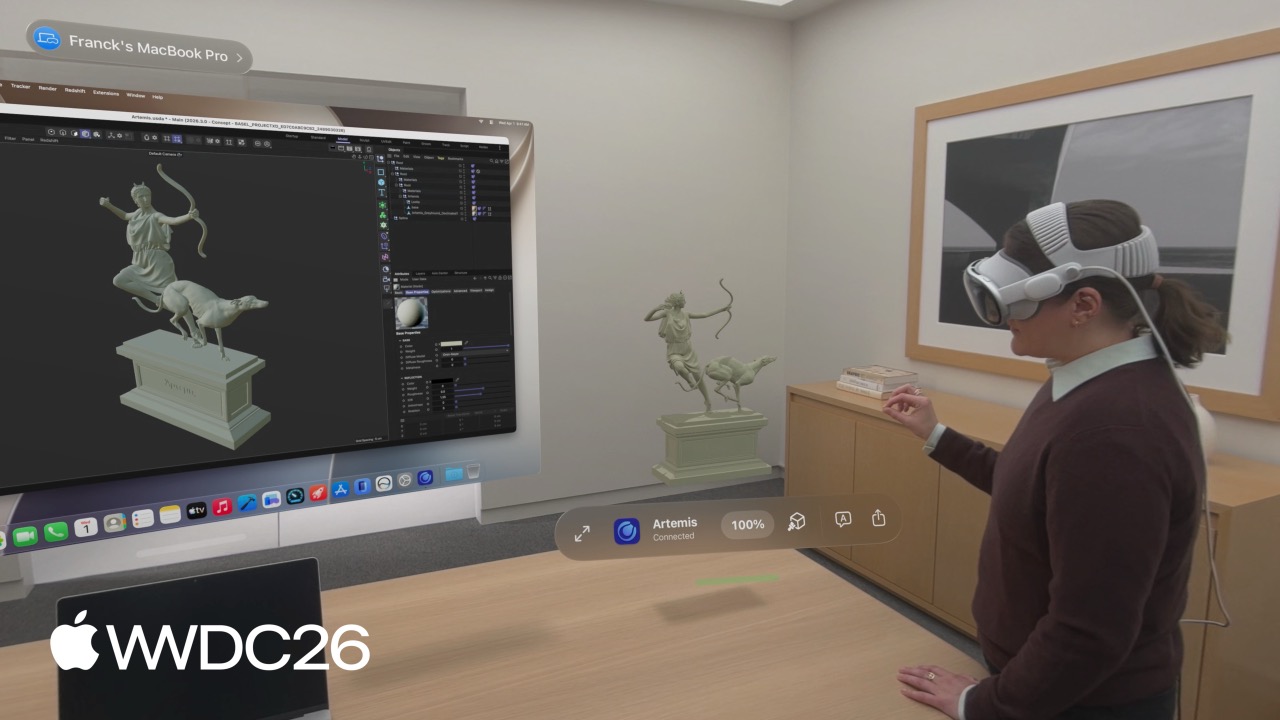
The Spatial Preview framework lets macOS apps send documents and 3D content to Quick Look on Vision Pro without writing visionOS code, with two-way real-time editing and SharePlay collaboration.
Core Content
From “Write Another visionOS App” to “A Few Lines of Code”
Developers building 3D content tools have all run into this scenario: you create a beautiful architectural model or material on Mac, then want a client to inspect it immersively in Vision Pro. Until now, that meant writing a companion visionOS app, handling network transfer, scene synchronization, and gesture interaction. Two codebases, two asset pipelines, two release processes.
(00:27) The Spatial Preview framework cuts that flow down to a few lines of Mac-side code. Your Mac app creates a session, passes in a file URL or USD Stage, and Quick Look on Vision Pro takes over rendering and interaction automatically. You do not need to write any visionOS code, handle device pairing, or build your own network synchronization layer.
Cinema 4D and SketchUp have already adopted this capability, including real-time two-way synchronization for material edits (01:43). Adjust a metalness parameter on Mac and the model in Vision Pro updates immediately.
Two Session Types for Two Workflows
The framework provides two session types:
- DocumentPreviewSession: Handles document types such as spatial photos, spatial videos, Apple Immersive Video frames, and PDFs.
- USDPreviewSession: Handles 3D content, using a USDKit
USDStagefor two-way real-time editing.
(03:07) Which one you choose depends on your content. Video editing tools use DocumentPreviewSession; 3D modeling and CAD tools use USDPreviewSession.
Device Discovery: Do Not Assume Mac Virtual Display Is Always Connected
The framework’s first step is getting the target device endpoint. If the user is using Mac Virtual Display, you can get the connected device directly. If not, your app needs to present a device picker so the user can manually choose a Vision Pro signed in to the same iCloud account.
(04:20) Apple provides a ready-made SwiftUI view called SpatialPreviewDevicePicker; present it in a sheet and you are done. Do not assume the user always has Mac Virtual Display enabled, or your Preview button becomes a dead button whenever the headset is not connected.
The Double-Edged Sword of Automatic Optimization
(08:32) Vision Pro is powerful, but rendering an industrial-scale USD scene with millions of polygons from a Mac can still stutter. Spatial Preview enables automatic optimization by default, quietly applying mesh decimation and texture downsampling to preserve frame rate.
That is friendly for ordinary previews, but developers building high-precision industrial review tools need to be careful: decimation can remove details. You can pass .unmodified to disable optimization, but if the scene is too complex, start throws an assetUnshareable error. That means your Mac app needs its own asset checks or LOD management instead of blindly handing raw assets to the framework.
SharePlay Collaboration Out of the Box
(13:05) SharePlay support on the Vision Pro side is built in. Multiple collaborators can join the same live session and view or edit the same spatial content. When one person moves a piece of furniture in Vision Pro, everyone’s view updates immediately.
Details
Start a Document Preview Session
(03:58) This code shows how to create a Document Preview Session and send it to Vision Pro through Mac Virtual Display:
import SwiftUI
import SpatialPreview

let deviceObserver = ConnectedSpatialEndpointObserver()
let previewSession = DocumentPreviewSession(name: "Immersive.aivu", contentType: .aivu)

func startPreview(contentURL: URL, endpoint: SpatialPreviewEndpoint) async throws {
    let endpoint = try await deviceObserver.endpoint
    try await previewSession.start(endpoint: endpoint)
    try await previewSession.updateContents(url: contentURL)
}

@State var showDevicePicker: Bool = false

var body: some View {
    // ...
    .sheet(isPresented: $showDevicePicker) {
        SpatialPreviewDevicePicker(isPresented: $showDevicePicker) { endpoint in
            showDevicePicker = false
            Task {
                try await startPreview(filename: filename, endpoint: endpoint)
            }
        }
    }
}
Key points:
ConnectedSpatialEndpointObserver()observes the device currently connected through Mac Virtual Display and returns aSpatialPreviewEndpoint.DocumentPreviewSessionneeds a content type (.aivumeans Apple Immersive Video) and a session name.- After
start(endpoint:)starts the session, Quick Look opens automatically on Vision Pro. updateContents(url:)sends content into the already open session, reusing the same scene.SpatialPreviewDevicePickeris the system-provided device picker UI, where users can choose a nearby Vision Pro on the same iCloud account.
Update Content and Observe Session State
(05:20) When switching items in a gallery, use updateContents to reuse the scene instead of creating a new session every time:
import SwiftUI
import SpatialPreview

ForEach(contentURLs, id: \.self) { url in
    Button {
        Task { try await previewSession?.updateContents(url: url) }
    }
}
.task(id: previewSession.map { ObjectIdentifier($0) }) {
    for await state in Observations({ session.state }) {
        if state.isInvalidated {
            previewSession = nil
            break
        }
    }
}

try await previewSession?.close()
Key points:
updateContents(url:)reuses the current scene and avoids flickering scene reconstruction on Vision Pro.- Calling
startagain for every file switch opens a new scene and creates a poor experience. - Use
Observationsto observesession.state; when the user closes Quick Look on Vision Pro,isInvalidatedbecomes true so the Mac app can clear its UI state. - Call
close()when the session ends, and the scene on Vision Pro closes automatically.
Start a Live USD Preview
(07:36) Use USDKit to load a USD scene, then send it through USDPreviewSession:
import SpatialPreview
import USDKit

let deviceObserver = ConnectedSpatialEndpointObserver()
var usdSession: USDPreviewSession?

func shareStage(to endpoint: SpatialPreviewEndpoint) async throws -> USDPreviewSession {
    let endpoint = try await deviceObserver.endpoint

    let stageURL = Bundle.main.url(forResource: "sampleScene", withExtension: "usdz")
    let stage = try USDStage.open(stageURL)
    usdSession = USDPreviewSession(stage: stage)

    try await usdSession?.start(endpoint: endpoint)
}
Key points:
USDStage.open(stageURL)loads a local USDZ file with USDKit.USDPreviewSession(stage:)wraps the Stage in a preview session.- After
start(endpoint:), Vision Pro presents the 3D content in a volumetric view, and users can switch to an immersive view. - Camera views, wireframe material overrides, and related tools are built into Quick Look on Vision Pro, so the Mac app does not need extra code.
Disable Automatic Optimization and Handle Errors
(08:56) High-precision scenes need automatic optimization disabled:
import SpatialPreview

let endpoint = try await deviceObserver.endpoint
do {
    try await usdSession.start(endpoint: endpoint, parameters: .unmodified)
} catch USDPreviewSession.Error.assetUnshareable {
    // Handle the Asset Unshareable error
}
Key points:
- The
.unmodifiedparameter disables mesh decimation and texture downsampling, preserving original precision. - If the scene is too complex for Vision Pro,
startthrowsassetUnshareable. - Your Mac app should catch this error and offer fallback options, such as loading a low-poly version.
Switch Layouts with USD Variants
(10:10) USD Variant Sets can synchronize live between Mac and Vision Pro:
# LayoutVariants.usda
#usda 1.0
over "furniture" (
    variantSets = "Layout"
    variants = { string Layout = "LayoutA" }
)
{
    variantSet "Layout" = {
        "LayoutA" {
            // Default furniture position and rotation
        }
        "LayoutB" {
            // Move furniture prims to a different position and rotation
        }
        ...
    }
}
import SpatialPreview
import USDKit
func applyLayoutVariant(named layoutVariantName: String) throws {
let prim = stage.prim(at: SdfPath("/root/furniture"))
try prim.variantSets?.setSelection("Layout", variantName: layoutVariantName)
}Key points:
- Variant Sets are a standard USD mechanism for switching between different data variants on the same Prim.
- After
prim.variantSets?.setSelectionswitches the variant, Stage changes automatically synchronize to Vision Pro. - Variants can also be switched from the Quick Look menu on Vision Pro, and those changes are sent back to Mac.
- This is well suited to interior design apps, where users can switch between “modern” and “natural wood” layouts with one tap.
Observe Stage Changes and Annotations
(10:49) Observe changes made to the USD Stage on Vision Pro:
import SpatialPreview
import USDKit

let observerToken: ObservationToken

observerToken = stage.addObserver(for: UsdStage.ObjectsDidChange.self) { notice in
    for path in notice.resyncedPaths {
        let prim = notice.stage.prim(at: path)
        guard prim.isValid else { continue }
        if prim.isAnnotation {
            // Handle annotation changes
            break
        }
    }
}(11:13) Annotation data needs to conform to a specific schema:
AppleTextAnnotation {
    string text
    uniform string author
    uniform string identifier
}

/__documentAnnotationGroup__
Key points:
stage.addObserver(for: UsdStage.ObjectsDidChange.self)subscribes to Stage change notifications.notice.resyncedPathscontains every Prim path that changed.prim.isAnnotationchecks whether that Prim is an annotation.- An annotation must be a child Prim of
__documentAnnotationGroup__and conform to theAppleTextAnnotationschema to display correctly on Vision Pro. - Each annotation includes three fields:
textfor content,authorfor the author identifier, andidentifierfor a unique ID.
Enable Object Manipulation and Event Listening
(11:33) To let Vision Pro users move 3D objects with gestures, set metadata in USD:
customData = {
    dictionary apple = {
        bool spatialEditable = 1
    }
}(12:16) Configure session options and listen for events:
import SpatialPreview
import USDKit

session.start(endpoint: endpoint, options: [.annotations, .perObjectManipulation, .export])

func listenForEvents(session: USDPreviewSession) async {
    for await event in session.events {
        if case .timeChanged(let time) = event {
            playbackModel.timeCode = time
        } else if case .playbackStateChanged(let isPlaying) = event {
            playbackModel.playbackStateChanged(isPlaying)
        }
    }
}
Key points:
- The
spatialEditable = 1metadata marker enables gesture-based dragging for a Prim on Vision Pro. options: [.annotations, .perObjectManipulation, .export]enables annotations, object manipulation, and export; all are enabled by default.session.eventsprovides events such as animation playback time changes (timeChanged) and playback state changes (playbackStateChanged).- You can use these events to synchronize playback controls in the Mac UI.
Monitor Synchronization Progress
(12:38) Show progress while large files transfer:
import SpatialPreview
import USDKit

@State private var sessionProgress: Double = 0

var body: some View {
    // ...
    .task(id: usdSession.map { ObjectIdentifier($0) }) {
        guard let session = usdSession else { return }
        for await fraction in Observations({ session.progress.fractionCompleted }) {
            sessionProgress = fraction
        }
    }
    .overlay(alignment: .bottom) {
        ProgressView(value: sessionProgress)
            .padding()
    }
}
Key points:
session.progress.fractionCompletedreturns synchronization progress from 0 to 1.- Use
Observationsto observe progress changes and update the UI in real time. - For USDZ files that are hundreds of MB, a progress bar reassures users much better than an indefinite spinner.
Key Ideas
1. Add a “Spatial Preview” Button to an Existing Mac 3D Tool
What to build: Add a “Preview in Vision Pro” button to the toolbar of an existing Mac modeling or design tool.
Why it is worth building: You do not need to rewrite anything for visionOS. A few Spatial Preview API calls can give the product a concrete spatial computing feature. Clients can view models at real scale in a headset, which is much more intuitive than a 3D viewport on a screen.
How to start: Import SpatialPreview and USDKit, use ConnectedSpatialEndpointObserver to get a device, create a USDPreviewSession, and pass in the currently open USD Stage.
2. Build a Real-Time Collaborative Interior Design Review Tool
What to build: Put the floor plan and furniture library on Mac, and show the 3D room on Vision Pro. Designers and clients review the space together and discuss layout changes in real time.
Why it is worth building: SharePlay support is built in, so you do not need to implement multiuser synchronization yourself. USD Variants can store several layout options and switch between them instantly.
How to start: Enable annotations and object movement with USDPreviewSession options such as options: [.annotations, .perObjectManipulation]. On Mac, observe ObjectsDidChange notifications and save annotations and position changes from Vision Pro into your own project database.
3. Add “Spatial Frame Preview” to a Video Editing Tool
What to build: Extract key frames from Apple Immersive Video and send them to Vision Pro with one click to inspect the stereoscopic result.
Why it is worth building: DocumentPreviewSession directly supports Apple Immersive Video frames through the .aivu content type. Editors can check spatial quality during editing without exporting a full video and transferring it to the headset.
How to start: Create a session with DocumentPreviewSession(name:contentType: .aivu), then call updateContents(url:) to send frame files. In a gallery view, use updateContents to reuse the scene for fast switching.
4. Create a “Spatial Annotation” Workflow for USD Assets
What to build: During 3D model review, reviewers pin annotations directly onto the model in Vision Pro, while the Mac app automatically collects and organizes them.
Why it is worth building: Annotations exist as standard USD Prims rather than a private format. Your Mac app can classify them by author and identifier, then generate a review report.
How to start: Make sure annotation Prims conform to the AppleTextAnnotation schema and live under __documentAnnotationGroup__. On Mac, use stage.addObserver(for: UsdStage.ObjectsDidChange.self) to observe changes and extract annotation data.
5. Warn About Performance on Mac Before Sending to Vision Pro
What to build: Before calling start, analyze the USD Stage’s polygon count and texture sizes, then warn the user that “this model may perform poorly on Vision Pro.”
Why it is worth building: After automatic optimization is disabled, complex scenes throw assetUnshareable directly, which is a poor experience. Checking on Mac first lets you offer a simplified version before the failure.
How to start: Use USDKit to traverse every Mesh Prim in the Stage, sum polygon counts, and inspect texture dimensions. When the scene exceeds a threshold, prompt the user to choose a low-poly version or keep automatic optimization enabled.
Related Sessions
- Discover the USDKit framework — USDKit is the foundation Spatial Preview uses to work with 3D content, so understanding USD Stage, Prim, and Layer concepts is essential.
- What’s new in RealityKit — RealityKit is the underlying framework for rendering 3D content on Vision Pro, and Spatial Preview’s Quick Look view is built on RealityKit.
- Discover Reality Composer Pro 3 — Reality Composer Pro 3 supports editing USD scenes on Mac and setting
spatialEditablemetadata, which connects directly to the Spatial Preview workflow. - Build immersive environments in visionOS — Understanding immersive and volumetric views in visionOS helps you design how Spatial Preview content should be presented.
- What’s new in visionOS — New visionOS 27 features provide the underlying support for Spatial Preview, including Mac Virtual Display and SharePlay.
Comments
GitHub Issues · utterances