
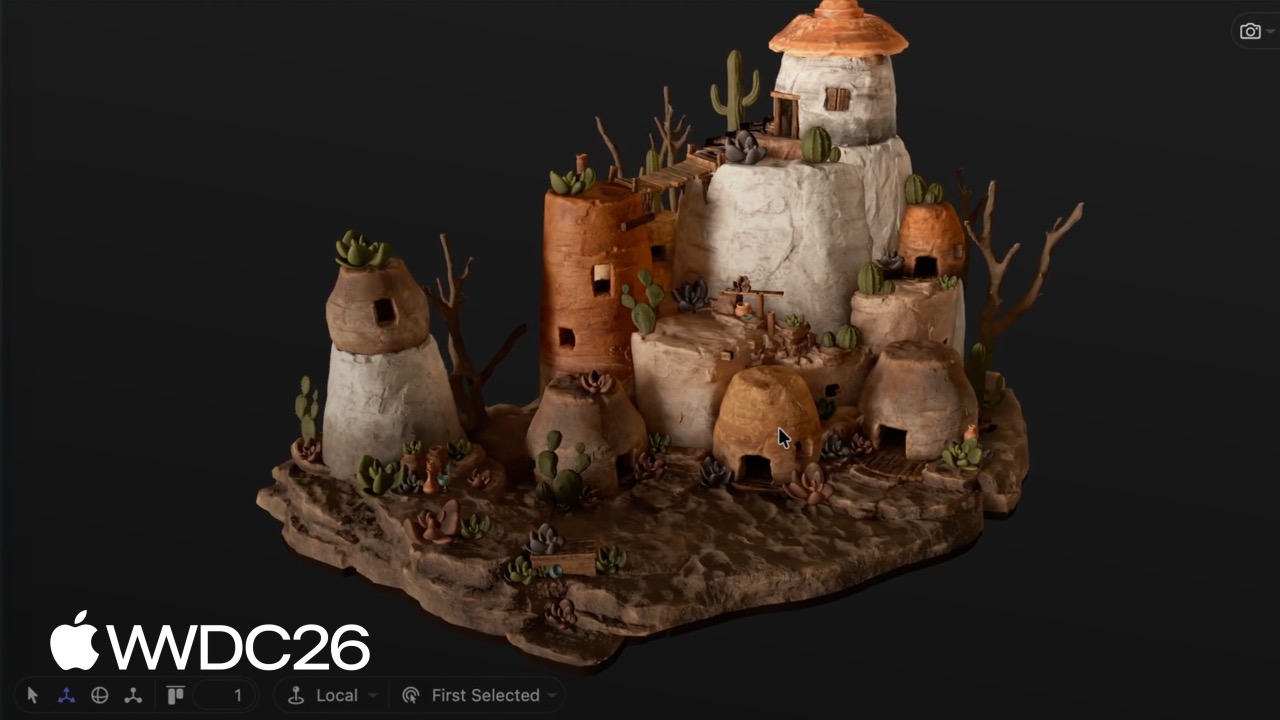
Highlight
Reality Composer Pro 3 supports plugins written in Xcode. Custom Components, Systems, animation Actions, and Script Graph nodes can be exposed directly to the editor, letting artists and designers adjust parameters and preview results inside the editor without repeatedly compiling and deploying the app.
Core Ideas
The pain point in team collaboration
In spatial computing projects, developers and artists often work in separate worlds. Engineers write code in Xcode to control 3D scene logic; artists place models and tune materials in Reality Composer Pro. The workflows are disconnected. If an artist wants to adjust a parameter and see the result, they must wait for an engineer to change code, compile, package, and deploy to a device before validation. Each loop can take minutes, and a large part of the day disappears into waiting.
The bigger problem is that custom Components and Systems written by engineers are black boxes to the editor. Artists cannot see their properties or edit them directly in the editor. Every adjustment has to go through engineers, raising communication cost and slowing iteration.
Reality Composer Pro 3’s plugin mechanism
Apple’s solution this year is pluginization. Engineers write a dynamic library in Xcode and register project-specific Components, Systems, and animation Actions with Reality Composer Pro 3. After the editor loads the plugin, those custom capabilities appear in the editor UI, and artists can use them directly.
(02:07) The workflow looks like this: the Xcode project has two Schemes, one for building the final game app and another for building the RCPCustomComponents.framework plugin. The Reality Composer Pro 3 project is linked with the Xcode project through the simulation bar, so the app can be launched directly from the editor. Both projects live in the same Git repository, where team members make changes and merge them. The editor also includes a custom merge tool, which reduces conflicts when handling internal JSON data.
(03:34) The data flow is also clear: Xcode builds the app and plugin; Reality Composer Pro 3 loads custom components and systems through the plugin; artists adjust the scene in the editor; finally, the scene is exported as a Reality File that the app loads at runtime.
When to move from Script Graph to code
(05:20) Reality Composer Pro 3 includes Script Graph, a visual scripting tool that can implement a lot of logic without code. But Script Graph has limits: large graphs become hard to maintain, and they cannot call other Apple APIs outside Script Graph, such as SwiftUI.
The presenter gives an example: water in a cauldron needs to rise and fall as ingredients are added, and it also needs a vortex effect. Implementing this entirely with Script Graph would create a complex graph. Later, it also needs to connect with a floating-ingredients system, so code is the better choice.
Details
Custom Component and System
(06:07) First, define a Component to store the cauldron’s water level:
import RealityKit

public struct Cauldron: Component, Codable {
    public var waterLevel: Float

    enum CodingKeys: CodingKey {
        case waterLevel
    }
}
Key points:
- The
Componentprotocol letsCauldronattach to an Entity. Codableis required so Reality Composer Pro 3 can serialize this component in the editor and save it into a Reality File.CodingKeyscontrols which properties participate in serialization. It can be omitted in simple cases.
(06:42) Second, write a System to respond to water-level changes:
import RealityKit

public struct CauldronSystem: System {
    let query = EntityComponentQuery(Cauldron.self)
    public init(scene: Scene) {}

    public func update(context: SceneUpdateContext) {
        for (entity, cauldron) in context.entities(matching: query) {
            guard let water = entity.findEntity(named: "Cauldron_Water_mesh")
                else { continue }
            water.setPosition(SIMD3<Float>(0, 1, 0) * cauldron.waterLevel, relativeTo: entity)
        }
    }
}
Key points:
EntityComponentQuery(Cauldron.self)defines the set of entities this system cares about.update(context:)runs every frame and iterates all entities with aCauldroncomponent.findEntity(named:)looks up the child entity named"Cauldron_Water_mesh", the water surface mesh.setPosition(_:relativeTo:)adjusts the water surface height based on the water-level value.
(07:00) Third, create a plugin so the editor can recognize these components and systems:
import RealityComposerPro

final class RCPCustomComponentsPlugin: RealityComposerProPlugin {
    public func setup(context: any RealityComposerProContext) {
        context.registerComponent(Cauldron.self)
        context.registerSystem(CauldronSystem.self)
    }
}

@_cdecl("createRealityComposerProPlugin")
public func createRealityComposerProPlugin() -> UnsafeMutableRawPointer {
    return RCPCustomComponentsPlugin().passRetained()
}
Key points:
- The
RealityComposerProPluginprotocol comes from theRealityComposerProSwift Package, which is added automatically when linking a project through “Run With Xcode” in the editor. - Register components and systems inside
setup(context:); once the editor loads the plugin, it can recognize them. @_cdecl("createRealityComposerProPlugin")exports the function as a C symbol so the plugin loader can find the entry point.passRetained()returns a raw pointer because the plugin loader calls through a dynamic library interface.
After compiling the plugin Scheme, open the project in Reality Composer Pro 3. The editor asks whether to trust the plugin. After trust is granted, the Cauldron component appears in the Custom Components folder. Attach it to the cauldron entity and adjust the waterLevel property; the water surface responds in real time.
(10:12) Even better, you can set a breakpoint on the System’s update method in Xcode and attach to the editor process for debugging. The code runs inside the editor, and the debugging experience is the same as debugging an ordinary app.
Connecting with Shader Graph
(10:35) After the basic water level works, the next step is adding a vortex effect to the water surface. The technical artist has already built a vortex material in Shader Graph with parameters such as rotationSpeed and vortexCoeff. We need to drive those parameters from code.
First, extend the Cauldron component with vortex-related properties:
public struct Cauldron: Component, Codable {
    public var waterLevel: Float
    public var rotationSpeed: Float
    public var minWaterLevel: Float
    public var maxWaterLevel: Float
    public var vortexCoeff: Float
}(11:05) Then modify CauldronSystem to sync component properties into Shader Graph material parameters:
public func update(context: SceneUpdateContext) {
    for (entity, cauldron) in context.entities(matching: query) {
        guard let water = entity.findEntity(named: "Cauldron_Water_mesh") else { continue }
        water.setPosition(SIMD3<Float>(0, 1, 0) * cauldron.waterLevel, relativeTo: entity)

        guard var model = water.components[ModelComponent.self] else { continue }
        guard var mat = model.materials.first as? ShaderGraphMaterial else { continue }
        let surface = computeSurface(cauldron: cauldron)
        try? mat.setParameter(name: "Level Radius", value: .float(surface.levelRadius))
        try? mat.setParameter(name: "Lowest Point",
            value: .float(cauldron.waterLevel - surface.lowestPoint))
        try? mat.setParameter(name: "Height Change", value: .float(surface.heightChange))
        try? mat.setParameter(name: "Level Coeff", value: .float(surface.levelCoeff))
        try? mat.setParameter(name: "Is Level", value: .bool(surface.isLevel))
        model.materials[0] = mat
        water.components.set(model)
    }
}
Key points:
water.components[ModelComponent.self]retrieves the entity’s model component.model.materials.first as? ShaderGraphMaterialgets the Shader Graph material.setParameter(name:value:)sets material parameters and supports types such as.floatand.bool.- The modified material must be assigned back to
model.materials[0], then written back to the entity withwater.components.set(model).
Every time the plugin is rebuilt, Reality Composer Pro 3 needs to restart. On restart, it shows a diff dialog for component changes. After confirmation, the new properties appear in the editor. Adjust rotationSpeed, and the vortex depth changes in real time.
Custom animation Action
(13:25) Reality Composer Pro 3’s animation sequencer supports custom animation Actions. The presenter demonstrates an animation that transitions the water level from 0.3 to 0.5.
First define the Action:
import RealityKit

public struct SetWaterLevelAction: EntityAction, Codable {
    public let startWaterLevel: Float
    public let endWaterLevel: Float

    public var animatedValueType: (any AnimatableData.Type)? { Transform.self }
}
Key points:
- The
EntityActionprotocol lets the Action be placed in a sequencer timeline. Codableensures the Action can be serialized into a Reality File.animatedValueTypereturnsTransform.self, which is required by theEntityActionprotocol so the animation executor can access the target entity.
(14:05) Then write the execution logic:
extension SetWaterLevelAction {
    static func subscribe() {
        Task { @MainActor in
            SetWaterLevelAction.subscribe(to: .updated) { event in
                let normalizedTime = (event.playbackController.time - event.startTime) /
                    event.duration
                let action = event.action
                let currentLevel = action.startWaterLevel +
                    Float(normalizedTime) * (action.endWaterLevel - action.startWaterLevel)
                guard let entity = event.targetEntity else { return }
                guard var cauldron = entity.components[Cauldron.self] else { return }
                cauldron.waterLevel = currentLevel
                entity.components.set(cauldron)
            }
        }
    }
}
Key points:
subscribe(to: .updated)listens for animation update events.normalizedTimecalculates current animation progress from 0 to 1.- Linear interpolation calculates the current water level:
start + progress * (end - start). - Get the target entity from
event.targetEntityand update itsCauldroncomponent.
(14:56) Finally, register the Action in the plugin and call subscribe():
final class RCPCustomComponentsPlugin: RealityComposerProPlugin {
    public func setup(context: any RealityComposerProContext) {
        context.registerComponent(Cauldron.self)
        context.registerSystem(CauldronSystem.self)

        context.registerAction(SetWaterLevelAction.self)
        SetWaterLevelAction.subscribe()
    }
}
After registration, create a Sequence in the editor, add an animation track, drag SetWaterLevelAction onto the timeline, set the start and end water levels, and play it to see the water level animate.
Custom Script Graph nodes
(17:32) Script Graph is the visual scripting system in Reality Composer Pro 3. It lets designers create interactions without writing code. Through plugins, custom components can be exposed as Script Graph nodes.
The simplest way is to use the @Scriptable macro:
import RealityKit
import RealityKitScripting
import RealityKitScriptingMacros

@Scriptable
public struct Cauldron: Component, Codable {
    public var waterLevel: Float
    public var rotationSpeed: Float
    public var minWaterLevel: Float
    public var maxWaterLevel: Float
    public var vortexCoeff: Float
}
Key points:
- The
@Scriptablemacro automatically generatesSchemaProvider.schema, which describes the component’s property structure. - You need to import
RealityKitScriptingandRealityKitScriptingMacros. - Like the
RealityComposerProSwift Package, these two modules are configured automatically when creating an Xcode project through the editor.
(18:08) Then register the scripting module in the plugin:
public func setup(context: any RealityComposerProContext) {
    context.registerComponent(Cauldron.self)
    context.registerSystem(CauldronSystem.self)

    context.registerAction(SetWaterLevelAction.self)
    SetWaterLevelAction.subscribe()

    Task { @MainActor in
        let config = RKS.Configuration(id: "ChaparralVillage")
            .onInitialize { _ in
            [
                Module("ChaparralVillage") {
                    Cauldron.SchemaProvider.schema
                }
            ]
        }
        try! RKS.addConfiguration(config)
    }
}
Key points:
- Script module registration must run on the main thread, so it is wrapped in
Task { @MainActor in ... }. RKS.Configuration(id:)creates a project-specific configuration.- The
onInitializeclosure returns a list of modules, and each module includes the component schema. RKS.addConfiguration(config)adds the configuration to the RealityKitScripting system.
After registration, add a Scripting component to the cauldron entity and open the Script Graph editor. Add an Update node and an If node to detect key presses. Connect the true branch of the If node to the Set Water Level node, set the “a” key to water level 0.25, and the “z” key to water level 0.5. Open simulation view and press “a” and “z”; the water level rises and falls in real time.
Key Takeaways
1. Build a real-time adjustable particle system editor
Use a custom Component to store particle parameters, such as emission rate, lifetime, and color gradient, and use a System to drive particle behavior. Artists adjust parameters in Reality Composer Pro 3 and immediately see changes in the particle effect. Entry APIs: Component, System, RealityComposerProPlugin.
2. Turn physics interaction logic into visual nodes
Use the @Scriptable macro to expose custom physics components to Script Graph. Designers can configure collision responses and gravity field strength by dragging nodes, without writing code. Entry APIs: @Scriptable, RKS.Configuration.
3. Build a character animation state machine
Define multiple EntityActions such as Idle, Walk, and Jump. Each Action controls skeleton animation and displacement. Arrange state transition timelines in the sequencer so designers can adjust transition duration and blend weight directly in the editor. Entry APIs: EntityAction, subscribe(to: .updated).
4. Build a real-time material parameter preview tool
Wrap PBR material parameters such as roughness, metallic, and emissive in a custom Component. A System syncs them to Shader Graph material every frame. Artists can adjust sliders and immediately see different material effects, much faster than repeated export-and-test loops. Entry API: ShaderGraphMaterial.setParameter(name:value:).
5. Use version control for collaborative spatial scenes
Use Reality Composer Pro 3’s custom merge tool and Git integration to keep scene data, JSON, and code in the same repository. Engineers change plugins, artists change scenes, and their commits can be merged with fewer conflicts. Entry point: the editor’s built-in merge tool plus simulation bar linkage to the Xcode project.
Related Sessions
- Iterate your spatial scenes faster with Reality Composer Pro 3 — New Reality Composer Pro 3 features and artist workflows
- Design no-code games with Reality Composer Pro 3 — Build games with Script Graph without writing code
- Explore advances in RealityKit — The latest RealityKit APIs and capabilities
- Supercharge your spatial workflows with Reality Composer Pro 3 — Tips for improving editor productivity
Comments
GitHub Issues · utterances