
Highlight
MusicKit adds two native SwiftUI modifiers,
.musicPicker()and.musicSubscriptionOffer(), so even non-music apps can handle authorization, song selection, playback controls, and subscription prompts in just a few lines of code.
Core Ideas
Why Apple Music integration used to be painful
Imagine adding background music to a fitness app. The old flow looked like this: write authorization logic, check whether the user subscribes to Apple Music, design your own subscription prompt if they do not, build a song picker if they do, manage the playback queue, and observe playback state. By the time you only wanted a BGM feature, you might have written a thousand lines of code.
What Apple changed
MusicKit in WWDC26 packages that flow into two SwiftUI modifiers and a native music picker. Use MusicAuthorization.request() for authorization, .musicSubscriptionOffer() for subscription guidance, .musicPicker() for picking music, and ApplicationMusicPlayer.shared for playback control. Integration moves from “rebuild half the app” to “add a few modifiers.”
How the new capabilities remove friction
Take the fitness app from the session. When the user starts a cycling workout, they tap a “Pick Music” button to present .musicPicker() and choose songs from the Apple Music catalog or their personal library. If the user is not subscribed, the interface can automatically show a subscription button; tapping it presents .musicSubscriptionOffer() so they can subscribe without leaving the app. The selected song plays through ApplicationMusicPlayer, while the app shows album artwork, song metadata, and playback controls directly in its UI. The whole experience feels native and seamless.
Details
Authorization and project setup
(01:03) The first step in adopting MusicKit is enabling the MusicKit service in Xcode. In the App Services tab of your App ID registration, check MusicKit. Xcode automatically generates the developer token, so you do not need to manage it manually.
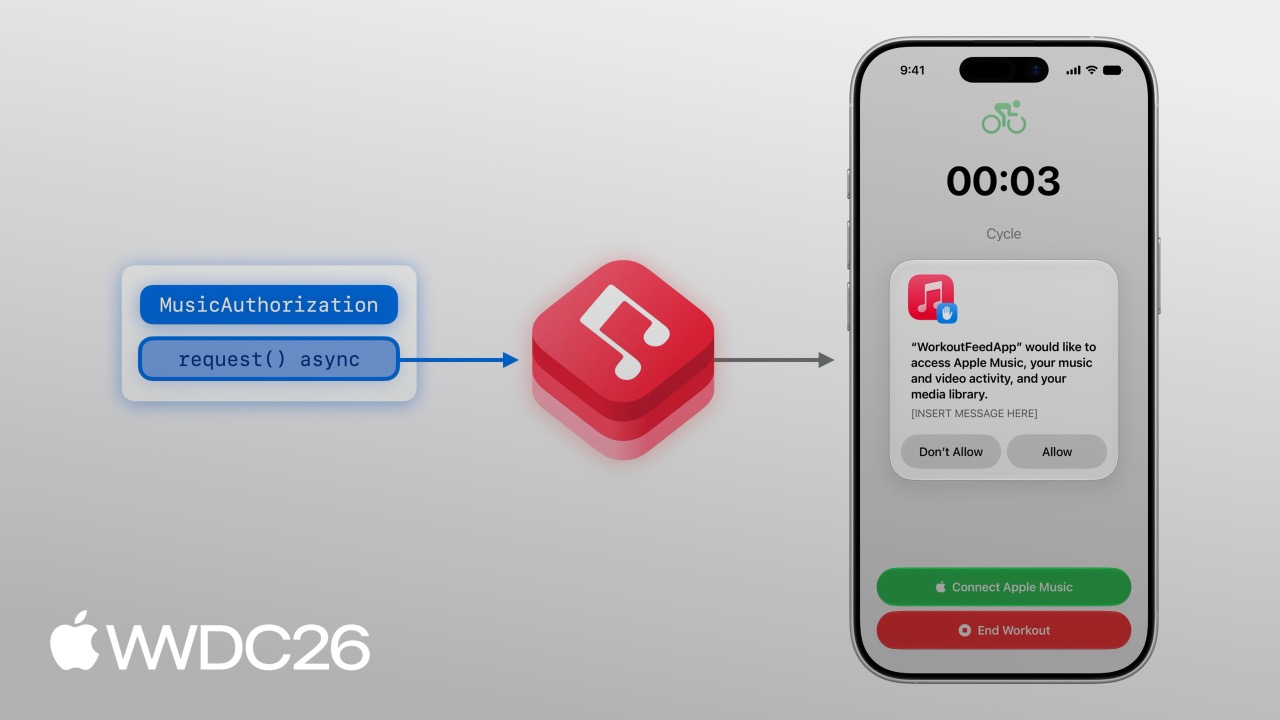
(03:12) Request user authorization with MusicAuthorization.request(). This asynchronous method returns the authorization status. To make the permission prompt explain itself clearly, add the Media Library capability in Xcode’s Signing & Capabilities settings and fill in the description text for why your app uses the music library.
Subscription guidance
(04:46) For users who do not subscribe to Apple Music, use the .musicSubscriptionOffer() modifier to show the subscription offer directly inside your app. Users do not need to jump to the Music app or the App Store.
@State var showSubscriptionOffer = false

let options = MusicSubscriptionOffer.Options(
    messageIdentifier: .playMusic
)

@ViewBuilder
var musicSubscriptionButton: some View {
    Button("Subscribe to Apple Music", systemImage: "music.note") {
        showSubscriptionOffer = true
    }
    .musicSubscriptionOffer(isPresented: $showSubscriptionOffer, options: options)
}
Key points:
- The
messageIdentifierinMusicSubscriptionOffer.Optionsdetermines the copy and style shown in the offer UI;.playMusicfits playback scenarios. - Developers can earn subscription commission through the Apple Services Performance Partner Program.
- The offer is shown and hidden through the
isPresentedbinding.
(05:59) In the main view, observe subscription state and show the button only when the user is eligible to subscribe:
@State var subscription: MusicSubscription?

var body: some View {
    VStack {
        if let subscription, subscription.canBecomeSubscriber {
            musicSubscriptionButton
        }
    }
    .task(id: isAuthorized) {
        self.subscription = try? await MusicSubscription.current
        for await subscription in MusicSubscription.subscriptionUpdates {
            self.subscription = subscription
        }
    }
}
Key points:
MusicSubscription.currentgets the current subscription state.MusicSubscription.subscriptionUpdatesis anAsyncSequencethat automatically emits new values when subscription state changes.canBecomeSubscribertells you whether the user is eligible to subscribe, meaning they are not subscribed and their region supports it.
Music picker
(08:48) .musicPicker() is a SwiftUI view modifier that presents a native interface for browsing the Apple Music catalog and the user’s personal library. It supports single selection, multiple selection, albums, and playlists.
@State var showMusicPicker = false
@State var selectedSong: Song? = nil

@ViewBuilder
var musicPickerButton: some View {
    Button("Pick some Music", systemImage: "music.note.list") {
        showMusicPicker = true
    }
    .musicPicker(isPresented: $showMusicPicker, selection: $selectedSong)
}
Key points:
- Bind
selectiontoSong?for single selection, or to[Song]for multiple selection. - Users can use the picker without an Apple Music subscription, but unsubscribed users only see content in their personal library.
- The picker supports search, album detail browsing, and selecting an entire playlist.
Choosing between two players
(10:54) MusicKit provides two players:
| Feature | SystemMusicPlayer | ApplicationMusicPlayer |
|---|---|---|
| What it controls | The system Music app | Your app itself |
| Background playback | Supported automatically | Requires Audio Background Mode |
| Queue access | Read-only current item | Full read-write access |
| Best fit | Standalone music clients | Apps that need BGM, such as fitness or meditation apps |
ApplicationMusicPlayer supports lazy loading for its queue. If you initialize a queue with an album or playlist, the player loads songs as needed instead of loading everything up front, which can significantly reduce startup latency.
(13:02) The prepareToPlay() method can pre-buffer audio assets before the user taps play, removing the wait after the tap:
let player = ApplicationMusicPlayer.shared

// Buffer ahead of time
Task {
    try await player.prepareToPlay()
}
Playback controls and observing state
(14:49) The queue and state of ApplicationMusicPlayer are observable objects, so you can use them directly in SwiftUI views.
Showing album artwork for the current song:
@State var queue = ApplicationMusicPlayer.shared.queue

var body: some View {
    VStack {
        if let artwork = queue.currentEntry?.artwork {
            ArtworkImage(artwork, width: 200, height: 200)
        } else {
            RoundedRectangle(cornerRadius: 16)
                .fill(.quaternary)
                .frame(width: 200, height: 200)
        }
    }
}
Key points:
ArtworkImageis a SwiftUI view provided by MusicKit that handles artwork loading and display automatically.queue.currentEntry?.artworkgets the artwork resource for the currently playing item.- A
.quaternaryfill makes a natural-looking placeholder while artwork is unavailable.
(15:06) Showing the song title and subtitle:
if let currentSong = queue.currentEntry {
    Text(currentSong.title)
        .font(.title3.bold())

    if let subtitle = currentSong.subtitle {
        Text(subtitle)
            .font(.subheadline)
            .foregroundStyle(.secondary)
    }
}(15:14) Play and pause control:
let player = ApplicationMusicPlayer.shared
@State var state = ApplicationMusicPlayer.shared.state

var isPlaying: Bool {
    state.playbackStatus == .playing
}

var playPause: some View {
    Button(
        isPlaying ? "Pause" : "Play",
        systemImage: isPlaying ? "pause.fill" : "play.fill"
    ) {
        if isPlaying {
            player.pause()
        } else {
            Task {
                try await player.play()
            }
        }
    }
}
Key points:
state.playbackStatusreturns enum values such as.playingand.paused.player.play()andplayer.pause()are asynchronous methods and should be called from aTask.- Playback state changes automatically trigger SwiftUI view updates.
(15:38) Previous and next controls:
let player = ApplicationMusicPlayer.shared

var controls: some View {
    HStack {
        Button("Back", systemImage: "backward.fill") {
            Task {
                try await player.skipToPreviousEntry()
            }
        }
        // ...
        Button("Next", systemImage: "forward.fill") {
            Task {
                try await player.skipToNextEntry()
            }
        }
    }
}
Catalog requests and cross-territory equivalents
(16:26) MusicCatalogResourceRequest requests specific resources from the Apple Music catalog. You can specify related data, such as a song’s Artists relationship, and limit the number of returned items.
(18:58) Cross-territory equivalence is an important MusicKit feature. The same song can have different IDs in different Apple Music territories, and some territories may offer a “clean” version instead of an explicit version. The .findEquivalents option handles these mappings automatically:
func fetchSongs(songIDs: [MusicItemID]) async throws -> (featured: Song?, other: [Song]) {
    var request = MusicCatalogResourceRequest<Song>(
        matching: \.id, memberOf: songIDs
    )
    request.options = [.findEquivalents]

    let response = try await request.response()

    let featuredSongID = songIDs[0]
    let featuredSong = response.item(for: featuredSongID)

    let others: [Song] = songIDs[1...].compactMap { songID in
        return response.item(for: songID)
    }

    return (featuredSong, others)
}
Key points:
MusicCatalogResourceRequest<Song>is a generic request, and<Song>specifies the returned type.matching: \.id, memberOf: songIDsmatches songs in the request list by ID..findEquivalentsenables cross-territory equivalent lookup and automatically substitutes unavailable resources.response.item(for:)gets a result by the original ID, even if the actual returned item is an equivalent version.MusicItemCollectionsupports pagination throughhasNextBatchandnextBatch().
Practical Ideas
1. Add workout BGM to a fitness app
Add a “Pick Music” button to the workout start screen. Use .musicPicker() to let users choose a playlist, then use ApplicationMusicPlayer to loop it during the workout. Call prepareToPlay() during the countdown so the music starts immediately when the user taps “Start.”
Entry APIs: ApplicationMusicPlayer.shared + .musicPicker()
2. Build white noise or background music for a focus timer
A pomodoro or meditation app can use MusicCatalogResourceRequest to request focus playlists or white-noise albums from Apple Music, then present them as presets. Users can start playback with a tap without leaving your app to search in Music.
Entry APIs: MusicCatalogResourceRequest<Playlist> + ApplicationMusicPlayer
3. Add a “share what I’m listening to” feature to a social app
Use queue.currentEntry to get the currently playing song, then combine it with ArtworkImage to generate a share card. Use .findEquivalents on MusicCatalogResourceRequest so the shared song link can open correctly for users in different territories.
Entry APIs: queue.currentEntry + MusicCatalogResourceRequest + .findEquivalents
4. Switch dynamic background music in a game
Preload different MusicItemCollection values for game states such as combat, exploration, and story moments. Use ApplicationMusicPlayer queue operations to switch seamlessly. After enabling Audio Background Mode, music can continue playing even if the player switches to another app.
Entry APIs: ApplicationMusicPlayer.shared.queue + prepareToPlay()
5. Filter content safely in a children’s app
Use the .findEquivalents option on MusicCatalogResourceRequest so when explicit content is unavailable under the user’s account settings, MusicKit automatically returns a clean version. Your app does not need to maintain its own content rating logic.
Entry APIs: MusicCatalogResourceRequest + .findEquivalents
Related Sessions
- 253 - Explore music understanding - Apple Music’s music understanding capabilities, which can be combined with MusicKit for smarter recommendations
- 312 - What’s new in Now Playing - The latest updates to system-level playback controls and the Now Playing interface
- 310 - What’s new in Shortcuts - Extending music-related automation in your app through Shortcuts
- 262 - What’s new in Swift - New Swift Concurrency and SwiftUI features used throughout MusicKit
- 269 - What’s new in SwiftUI - SwiftUI implementation details for modifiers such as
.musicPicker()and.musicSubscriptionOffer()
Comments
GitHub Issues · utterances