
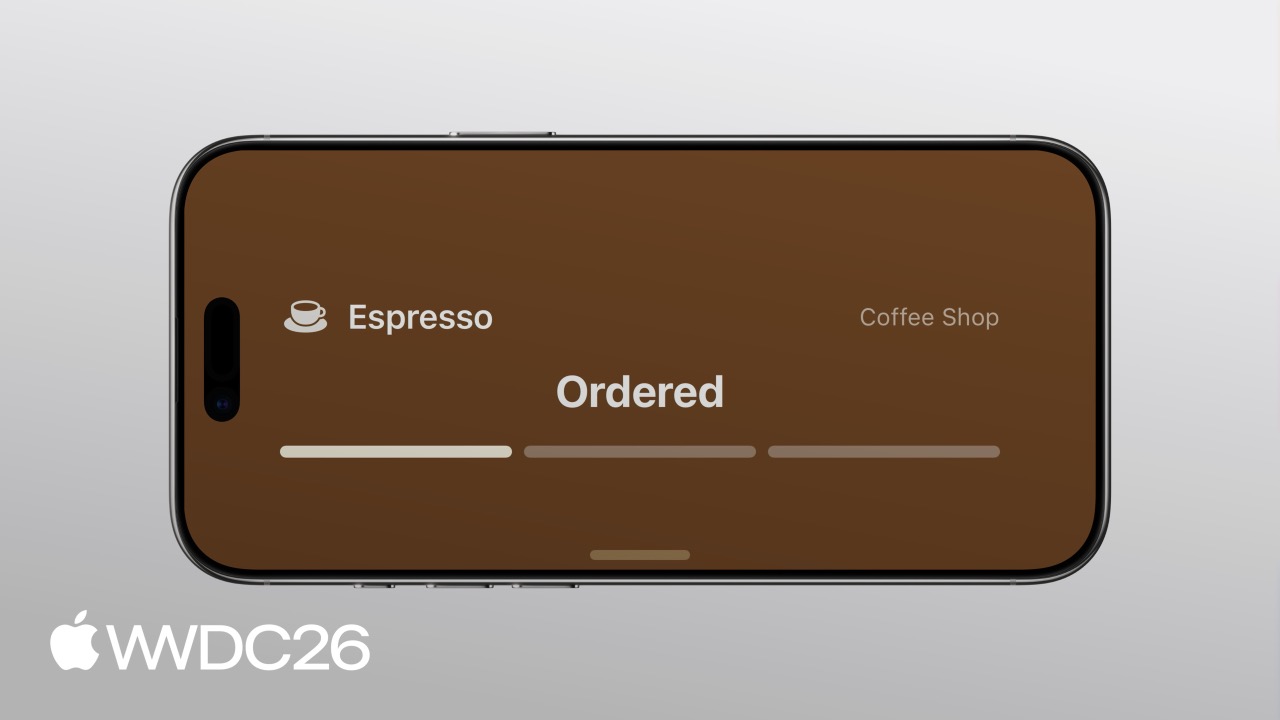
Highlight
In iOS 27, Live Activities expand from the portrait Lock Screen to the landscape Dynamic Island, StandBy, Apple Watch, and CarPlay. With ActivityKit data-model separation, WidgetKit multi-size view configuration, and
LiveActivityIntentinteractions, developers can provide real-time updates across every device with one code path.
Key Takeaways
Imagine ordering a coffee in a delivery app. After placing the order, you want to know when it will be ready, but you do not want to keep opening the app to check. That is the problem Live Activities solve.
Before iOS 27, Live Activities appeared only on the portrait Lock Screen and in the Dynamic Island. When you played a game or watched a video in landscape, that information disappeared. An iPhone charging in StandBy could not show the progress either. Apple Watch and CarPlay were out of reach.
iOS 27 changes all of this. In landscape, the Dynamic Island still shows Live Activities, just with compressed width. StandBy displays the Lock Screen view at 200 percent scale. The same Live Activity also syncs automatically to the Apple Watch Smart Stack, the macOS menu bar, and the CarPlay dashboard.
That means developers cannot ship a single fixed UI and call it done. Landscape has limited width, StandBy needs a full-bleed background, and Apple Watch and CarPlay have extremely small spaces. Apple does not ask developers to hard-code sizes. Instead, it provides environment values that identify the current presentation context, letting the same view adapt its content automatically.
The other change is interaction. Previously, tapping a Live Activity could only return the user to the app. Now LiveActivityIntent can perform lightweight actions directly on the Lock Screen or in the Dynamic Island, such as rating a coffee order without opening the app.
Details
Data Model: Separate Static and Dynamic Data
(04:16)
Live Activities require data to be split into two categories: values that never change go into ActivityAttributes, while values that change over time go into ContentState. This separation lets the system push updates efficiently by sending only the changed parts.
Using a coffee order as an example:
import ActivityKit
import Foundation

public struct DrinkOrderAttributes: ActivityAttributes {
    let shopName: String
    let drink: Drink
    let orderID: UUID

    public struct ContentState: Codable, Hashable {
        var phase: DrinkOrder.Phase = .waiting
        var estimatedReadyDate: Date
        var rating: DrinkOrder.Rating?
    }
}
Key points:
shopName,drink, andorderIDare static data and do not change after the order is placedphase,estimatedReadyDate, andratingare dynamic data that change as the order progressesContentStatemust conform toCodableandHashablebecause the system serializes it and passes it across processes
Multi-Size View Configuration
(05:35)
The Live Activity interface is built with WidgetKit. In the Widget Extension, provide an ActivityConfiguration that defines views for each presentation location:
import ActivityKit
import SwiftUI
import WidgetKit

struct DrinkOrderLiveActivity: Widget {
    var body: some WidgetConfiguration {
        ActivityConfiguration(for: DrinkOrderAttributes.self) { context in
            ActivityView(context: context)
        } dynamicIsland: { context in
            DynamicIsland {
                DynamicIslandExpandedRegion(.leading) {
                    ExpandedLeadingView(context: context)
                }
                DynamicIslandExpandedRegion(.center) {
                    ExpandedCenterView(context: context)
                }
                DynamicIslandExpandedRegion(.trailing) {
                    ExpandedTrailingView(context: context)
                }
                DynamicIslandExpandedRegion(.bottom) {
                    ExpandedBottomView(context: context)
                }
            } compactLeading: {
                CompactLeadingView(context: context)
            } compactTrailing: {
                CompactTrailingView(context: context)
            } minimal: {
                MinimalView(context: context)
            }
        }
    }
}
Key points:
ActivityConfigurationbinds the data model with the generic parameterDrinkOrderAttributes.self- The
contentclosure returns the view shown on the Lock Screen and in StandBy - The
dynamicIslandclosure defines three Dynamic Island sizes: expanded when long-pressed, compact in the two small side regions, and minimal when multiple activities coexist - Each view reads current state through the
contextparameter
Starting and Updating
(07:43)
Before starting a Live Activity, check whether the user has granted permission:
func launchLiveActivity(order: DrinkOrder) throws {
    guard ActivityAuthorizationInfo().areActivitiesEnabled else { return }

    let attributes = DrinkOrderAttributes(
        shopName: "Coffee Shop",
        drink: order.drink,
        orderID: order.id
    )

    let estimatedReadyDate = Date.now + (15 * 60)
    let contentState = DrinkOrderAttributes.ContentState(
        phase: .waiting,
        estimatedReadyDate: estimatedReadyDate
    )

    let activityContent = ActivityContent(state: contentState, staleDate: nil)
    let activity = try Activity.request(attributes: attributes, content: activityContent)
}
Call update when the state changes:
await activity.update(
    ActivityContent(
        state: DrinkOrderAttributes.ContentState(
            phase: .preparing,
            estimatedReadyDate: estimatedReadyDate
        ),
        staleDate: nil
    )
)
Key points:
areActivitiesEnabledchecks whether the user disabled Live Activities in SettingsstaleDatemarks when the content becomes outdated. After that time, the system can show an expired state to warn the user- Updates can be called directly from foreground code or delivered in the background through push notifications
- Push updates have two strategies: broadcast channels for large concurrent scenarios such as live sports, and per-device pushes for personalized scenarios
Adapting to Landscape Dynamic Island Width
(10:33)
In iOS 27, the Dynamic Island has limited width in landscape, so you need to detect the environment and switch content:
struct CompactTrailingView: View {
    @Environment(\.isDynamicIslandLimitedInWidth) var isDynamicIslandLimitedInWidth
    var context: ActivityViewContext<DrinkOrderAttributes>

    var body: some View {
        if isDynamicIslandLimitedInWidth {
            StepProgressIconView(context: context)
        } else if context.state.phase.showsTimer {
            EstimatedReadyView(context: context, font: .system(.body).monospacedDigit())
                .multilineTextAlignment(.trailing)
                .frame(maxWidth: maximumTimerLabelWidth)
        } else {
            OrderPhaseLabelView(context: context, font: .caption2.bold(), color: .brown)
                .multilineTextAlignment(.trailing)
        }
    }
}
Key points:
isDynamicIslandLimitedInWidthreturnstrueonly in landscape- When width is limited, replace text with an icon to avoid layout overflow
- In portrait, where there is enough room, you can show a countdown or status label
Adapting the StandBy Background
(11:34)
In StandBy, the Lock Screen view is scaled up to 200 percent, and the original gradient background can make content feel small. Use an environment value to decide whether to draw your own background:
struct ActivityView: View {
    @Environment(\.showsWidgetContainerBackground) var showsWidgetContainerBackground
    var context: ActivityViewContext<DrinkOrderAttributes>

    var body: some View {
        DetailView(context: context)
            .background {
                if showsWidgetContainerBackground {
                    LinearGradient.barista
                }
            }
            .activityBackgroundTint(.espresso)
    }
}
Key points:
showsWidgetContainerBackgroundistrueon the Lock Screen andfalsein StandBy- Keep the gradient background on the Lock Screen, and use
.activityBackgroundTintfor a full-screen tint in StandBy - This lets the Live Activity fill the whole screen area in StandBy
Small Adaptation for Apple Watch and CarPlay
(12:30)
Apple Watch and CarPlay have very little space, so declare support for the .small activity family and provide a compact view:
struct DrinkOrderLiveActivity: Widget {
    var body: some WidgetConfiguration {
        ActivityConfiguration(for: DrinkOrderAttributes.self) { context in
            ActivityView(context: context)
        } dynamicIsland: { context in
            // ... Dynamic Island configuration
        }
        .supplementalActivityFamilies([.small])
    }
}
Switch layout inside the view with activityFamily:
struct ActivityView: View {
    @Environment(\.showsWidgetContainerBackground) var showsWidgetContainerBackground
    @Environment(\.activityFamily) var activityFamily
    var context: ActivityViewContext<DrinkOrderAttributes>

    var body: some View {
        contentView
            .background {
                if showsWidgetContainerBackground {
                    LinearGradient.barista
                }
            }
            .activityBackgroundTint(.espresso)
    }

    @ViewBuilder
    var contentView: some View {
        if activityFamily == .small {
            SmallView(context: context)
        } else {
            DetailView(context: context)
        }
    }
}
Key points:
.supplementalActivityFamilies([.small])declares support for small devices- When
activityFamilyis.small, the presentation is Apple Watch or CarPlay - The small view must be extremely concise, keeping only the most important number or status icon
- Live Activities on iPhone are forwarded automatically to Apple Watch and CarPlay; no extra code is required
Add Interactions with App Intents
(13:36)
To make a Live Activity more than read-only, define an Intent that conforms to LiveActivityIntent:
struct RateDrinkIntent: LiveActivityIntent {
    static var title: LocalizedStringResource = "Rate Drink"

    @Parameter(title: "Order ID")
    var orderID: String

    @Parameter(title: "Positive")
    var isPositive: Bool

    func perform() async throws -> some IntentResult {
        await updateLocalDatastore(rating: isPositive ? .great : .poor, dismissPolicy: .after(.now + 15))
        return .result()
    }
}
Connect buttons in the view to the Intent:
struct RatingButtons: View {
    var context: ActivityViewContext<DrinkOrderAttributes>

    var body: some View {
        HStack(spacing: 12) {
            Button(intent: RateDrinkIntent(
                orderID: context.attributes.orderID.uuidString, isPositive: false)) {
                Label("Not Good", systemImage: "hand.thumbsdown.fill")
            }
            .buttonStyle(RatingButtonStyle(color: .red))

            Button(intent: RateDrinkIntent(
                orderID: context.attributes.orderID.uuidString, isPositive: true)) {
                Label("Great", systemImage: "hand.thumbsup.fill")
            }
            .buttonStyle(RatingButtonStyle(color: .green))
        }
    }
}
Key points:
LiveActivityIntentinherits from the App Intents framework and runs in the backgroundperform()can update a local database or send a network request, but it cannot show UI alertsdismissPolicy: .after(.now + 15)makes the Live Activity disappear automatically 15 seconds after the action completes- Buttons bind directly to the Intent through the
Button(intent:)initializer, and the system executes the action silently when tapped
Ideas to Build
A delivery progress tracker
What to build: After an order is placed, show the courier’s location and estimated arrival time in a Live Activity. When the user plays a game in landscape, the Dynamic Island still shows progress.
Why it is worth doing: Users do not need to repeatedly open the app to check order status. Real-time information stays visible on the Lock Screen and in the Dynamic Island. When landscape width is limited, replace the map thumbnail with a delivery icon so the key information remains visible.
How to start: Define the ActivityAttributes and ContentState data models, create an ActivityConfiguration, and use isDynamicIslandLimitedInWidth to switch to icon presentation in landscape.
A quick sports score view
What to build: A sports app pushes score changes during a game. On Apple Watch, the .small family shows only the score and remaining time.
Why it is worth doing: Tens of thousands of people may follow the same game at once. Broadcast-channel updates avoid APNs throttling. Multi-device sync lets users get the score quickly in any context without opening the app.
How to start: Start a Live Activity with Activity.request, configure broadcast-channel push updates, and declare .supplementalActivityFamilies([.small]) for Apple Watch and CarPlay support.
A Pomodoro focus assistant
What to build: After the user starts a focus session, a Live Activity shows the remaining time. In StandBy, it shows a full-screen countdown. When the session ends, the user can mark it “complete” or “extend 5 minutes” directly from the Lock Screen.
Why it is worth doing: A focus timer needs to stay visible without interrupting current work. Live Activities keep it visible on the Lock Screen and in StandBy, and LiveActivityIntent lets the user act without unlocking the device.
How to start: Create an Intent that conforms to LiveActivityIntent, update timer state in perform(), and bind it to buttons in the Live Activity view with Button(intent:).
A flight information card
What to build: Before boarding, a Live Activity shows the gate and boarding time. After takeoff, it automatically updates to baggage-claim information.
Why it is worth doing: Flight information changes frequently, and users need to see it quickly at critical moments. Use staleDate to mark the scheduled flight time. If the flight is delayed beyond that time, the UI can show an expired state and avoid presenting stale gate information.
How to start: Pass ActivityContent(state:staleDate:) when starting the activity, call update when flight status changes, and set an appropriate staleDate to mark the validity window.
A smart-home shortcut panel
What to build: Keep air conditioner, purifier, and other device states visible through a Live Activity. Users can adjust temperature or toggle devices directly on the Lock Screen.
Why it is worth doing: Opening the app every time is tedious when users frequently check and operate smart-home devices. A Live Activity keeps state visible, and LiveActivityIntent enables direct Lock Screen actions.
How to start: Define a LiveActivityIntent, call HomeKit APIs or your backend in perform(), and bind action buttons in the Live Activity view with Button(intent:).
Related Sessions
- Design dynamic Live Activities - Learn how to design Live Activity interfaces that communicate clearly at different sizes
- Bring your Live Activity to Apple Watch - Dive deeper into the adaptation details for Apple Watch Smart Stack
- SwiftUI essentials - Learn the SwiftUI fundamentals needed to build Live Activity views
- App Intents advanced - Learn more advanced App Intents interaction patterns and extend what users can do from a Live Activity
Comments
GitHub Issues · utterances