
Highlight
Apple is expanding the native
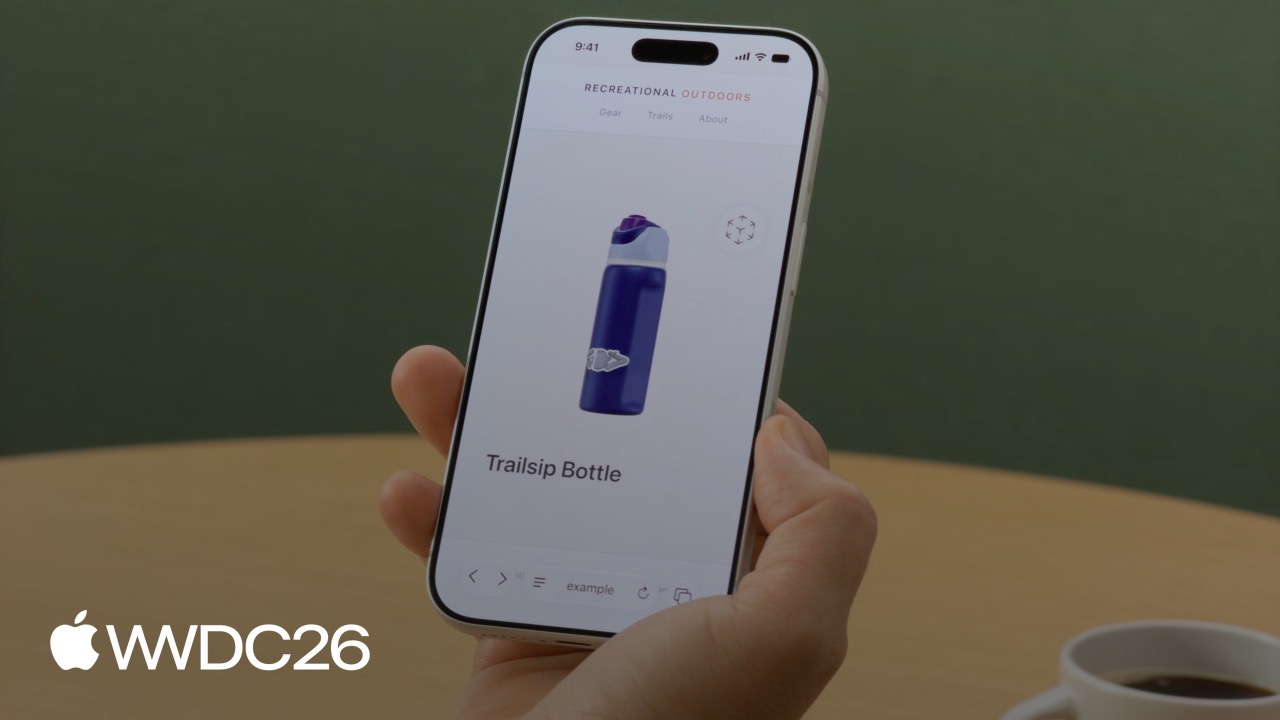
<model>element from visionOS to iOS, iPadOS, and macOS. Developers can embed interactive 3D models in web pages with a single line of HTML, without any JavaScript library, while also supporting AR Quick Look and stereoscopic rendering.
Core Content
There used to be only two practical ways to show 3D models on the web: bring in Google’s model-viewer, or build your own rendering pipeline with Three.js. Both approaches load a large amount of JavaScript, and on visionOS they also require extra work to handle the performance cost of stereoscopic rendering.
Apple first introduced the native <model> element on visionOS. Now this element is coming to Safari on iOS, iPadOS, and macOS. The same line of markup works across every Apple platform.
(00:37)
<model> is a native HTML element rendered directly by the browser. On visionOS, it includes stereoscopic rendering out of the box, and on iPhone and iPad it remains smooth and interactive. It is also a web standard progressing through W3C, so the code is forward-compatible. For browsers that do not support the element, Apple provides an official polyfill as a fallback.
(00:48)
The session uses an outdoor e-commerce site as the example and walks through the full flow from acquiring 3D assets to optimizing for production. There are three ways to acquire assets: scan real objects with an iPhone, create them from scratch in tools such as Blender, or generate them with AI. The session demonstrates generating a USDZ model of a camping mallet from a few photos with Tripo3D in just a few minutes.
(02:22)
USDZ is Apple’s recommended format. It is a zip-packaged form of Universal Scene Description that contains geometry, materials, textures, and animations in one file. Safari also supports other formats, but from a compatibility standpoint, USDZ is the preferred choice.
(03:17)
Details
Loading models and handling fallback
The <model> element is as straightforward as <img> or <video>. Point the src attribute to a USDZ file:
<!-- Use the src attribute -->
<model src="mallet.usdz"></model>

<!-- Use a <source> child element to specify the MIME type -->
<model>
    <source src="mallet.usdz" type="model/vnd.usdz+zip">
</model>(04:19)
Fallback is equally direct. Put an <img> inside <model>, and browsers that do not support the element will show the image:
<model id="mallet" src="mallet.usdz">
    <img src="mallet.png"
         alt="Rubber mallet with wooden handle">
</model>(04:39)
Key points:
- Nest an
<img>inside<model>for graceful fallback - Older Safari versions and other browsers that do not support
<model>will automatically render the image - Users still get at least a static product view
3D model files are often tens of megabytes, so they take time to load. The ready property returns a Promise that resolves when the model has finished loading:
<model id="mallet" src="mallet.usdz"></model>

<script>
    const model = document.getElementById("mallet");
    model.ready.then(result => {
        // Hide the loading indicator
    }).catch(error => {
        // Loading failed, show fallback
    });
</script>(05:09)
Key points:
model.readyis a Promise and resolves after the model is parsed- Hide the loading animation inside the
thencallback - Handle load failures in the
catchcallback and show fallback content
For browsers with no <model> support at all, use the polyfill:
<script type="module">
    if (!window.HTMLModelElement) {
        import("model-element-polyfill.js").then(() => {
            // Polyfill ready to use
        });
    }
</script>(05:39)
Key points:
- Detect native support through
window.HTMLModelElement - Dynamically load the polyfill script when support is missing
- The polyfill cannot emulate hardware-dependent features such as stereoscopic rendering on visionOS
Styling and interaction
<model> renders in its own virtual space and does not inherit the page background. Set background-color directly on the element:
<model id="mallet" src="mallet.usdz"></model>
<style>
    model {
        background-color: #f4f1ec;
    }
</style>(06:13)
Key points:
- The background color is always opaque; colors with alpha are converted to opaque colors
- Styling the
<model>element directly controls its appearance
The simplest interaction is allowing users to freely rotate the model. Add stagemode="orbit":
<model id="mallet"
       src="mallet.usdz"
       stagemode="orbit">
</model>(06:47)
Key points:
stagemode="orbit"lets users rotate the model freely left and right- If users tilt it vertically and release, the model springs back to its original angle
- The model automatically shrinks a little to prevent clipping during rotation
If you need a custom viewpoint, control entityTransform with JavaScript. Disable stagemode first:
<model id="boot" src="boot.usdz"></model>
<button id="button-side">Side</button>
<button id="button-reset">Reset</button>

<script>
    const model = document.getElementById("boot");
    const initialTransform = model.entityTransform;

    document.getElementById("button-side")
            .addEventListener("click", () => {
        const transform = new DOMMatrix();
        transform.rotateSelf(0, 135, 0);
        model.entityTransform = transform;
    });

    document.getElementById("button-reset")
            .addEventListener("click", () => {
        model.entityTransform = initialTransform;
    });
</script>(07:31)
Key points:
- Remove the
stagemodeattribute or set it to"none"before usingentityTransform DOMMatrixrepresents the model’s orientation in 3D spacerotateSelf(0, 135, 0)rotates the model 135 degrees around the Y axis- Save
initialTransformahead of time for reset - Custom rotation can cause clipping, so you may need to adjust the model position manually
Directly switching viewpoints feels abrupt. Use requestAnimationFrame to create a smooth transition:
const model = document.getElementById("boot");
const duration = 500;
let currentAngle = 0;
let animationId = null;

function animateTo(targetAngle) {
    if (animationId) cancelAnimationFrame(animationId);
    const startAngle = currentAngle;
    const startTime = performance.now();

    function step(now) {
        const progress = Math.min((now - startTime) / duration, 1);
        const ease = 1 - Math.pow(1 - progress, 3);
        currentAngle = startAngle + (targetAngle - startAngle) * ease;
        model.entityTransform = new DOMMatrix().rotateSelf(0, currentAngle, 0);
        if (progress < 1) animationId = requestAnimationFrame(step);
    }

    requestAnimationFrame(step);
}

document.getElementById("button-side").addEventListener("click", () => animateTo(135));
document.getElementById("button-reset").addEventListener("click", () => animateTo(0));(08:35)
Key points:
- Call
cancelAnimationFramefirst to cancel any running animation and avoid conflicts ease = 1 - Math.pow(1 - progress, 3)implements ease-out animation- Each frame updates
entityTransformwith a newDOMMatrix - A 500 ms duration balances responsiveness and visual smoothness
Animation playback
USDZ files can contain animations created in Blender or Maya. <model> plays the first animation track by default, and JavaScript can control the playback rate:
<model id="bottle" src="bottle.usdz"></model>
<button id="button-play" onclick="play(5)">
    Play
</button>
<button id="button-reverse" onclick="play(-5)">
    Reverse
</button>

<script>
    const model = document.getElementById("bottle");

    function play(rate) {
        model.playbackRate = rate;
        model.play();
    }
</script>(10:07)
Key points:
model.play()starts animation playbackplaybackRatecontrols playback speed; positive values play forward and negative values play backward- The example uses 5 and -5 for 5x forward and reverse playback
AR Quick Look
Wrap <model> in an <a rel="ar"> tag, and iOS and iPadOS users can tap directly into AR Quick Look:
<a rel="ar" href="bottle.usdz">
    <model id="boot" src="bottle.usdz"></model>
</a>(11:06)
Key points:
<a rel="ar">points to the same USDZ file as<model>- On iOS and iPadOS, it launches the native AR experience
- On visionOS, the model appears with stereoscopic rendering, and users can “pull” the product out of the page to inspect it
Command-line optimization tools
usdcrush can dramatically compress USDZ files. In the session’s example, a 7.9 MB boot model was reduced to 1.9 MB with no visible quality loss.
(12:39)
usdrecord can batch-render thumbnails or fallback images from USDZ files. You can write a script that walks an entire product catalog and automatically generates fallback images without manual screenshots.
(13:10)
Both tools are preinstalled on macOS as part of the USD tool suite.
Key Takeaways
1. Turn e-commerce product pages into 3D with one line
Replace existing product images with a <model> tag that loads the same USDZ file. Users can rotate the product on the page, then tap into AR mode and place it in their home. The entry point is one line of HTML.
- Implementation idea: Use
usdrecordto batch-generate fallback images, nest an<img>inside<model>for fallback, and wrap it in<a rel="ar">for the AR entry point
2. Interactive 3D portfolio sites
Designers and architects can display 3D work directly on personal sites. Visitors do not need to download files; they can rotate and inspect models in the browser. stagemode="orbit" handles the interaction in one line.
- Implementation idea: Export USDZ, embed it directly with
<model stagemode="orbit">, and use CSS background colors to match the page style
3. 3D model explanations for education apps
Biology classes can show cell structures, and history classes can show reconstructed artifacts. Use entityTransform and requestAnimationFrame to switch between preset viewpoints, so tapping a “section view” button smoothly rotates to a specific angle.
- Implementation idea: Define several viewpoint angles, use an
animateTo()function for eased transitions, and useplaybackRateto control embedded model animations
4. An AI-generated 3D asset workflow
Use Tripo3D or Meshy.ai to generate USDZ models from a few product photos, compress them with usdcrush, and deploy. The workflow does not require professional 3D modeling skills.
- Implementation idea: Photos -> AI-generated USDZ ->
usdcrushcompression ->usdrecordfallback image generation -> production
5. Cross-platform distribution for 3D content
The same HTML works on iPhone, iPad, Mac, and Vision Pro. visionOS also adds stereoscopic depth. With the polyfill, you can cover browsers that do not yet support native <model>.
- Implementation idea: Check
window.HTMLModelElement; if it does not exist, load the polyfill for maximum compatibility
Related Sessions
- Explore immersive website environments — A deeper look at immersive website environment APIs on visionOS
- What’s new for the spatial web — A deep dive into spatial web features from WWDC25
- What’s new in USD and MaterialX — Details on the USD ecosystem and command-line tools
- Get started with Reality Composer Pro 3 — 3D asset creation tools
- Create 3D models for your spatial apps — Best practices for creating 3D models
Comments
GitHub Issues · utterances