
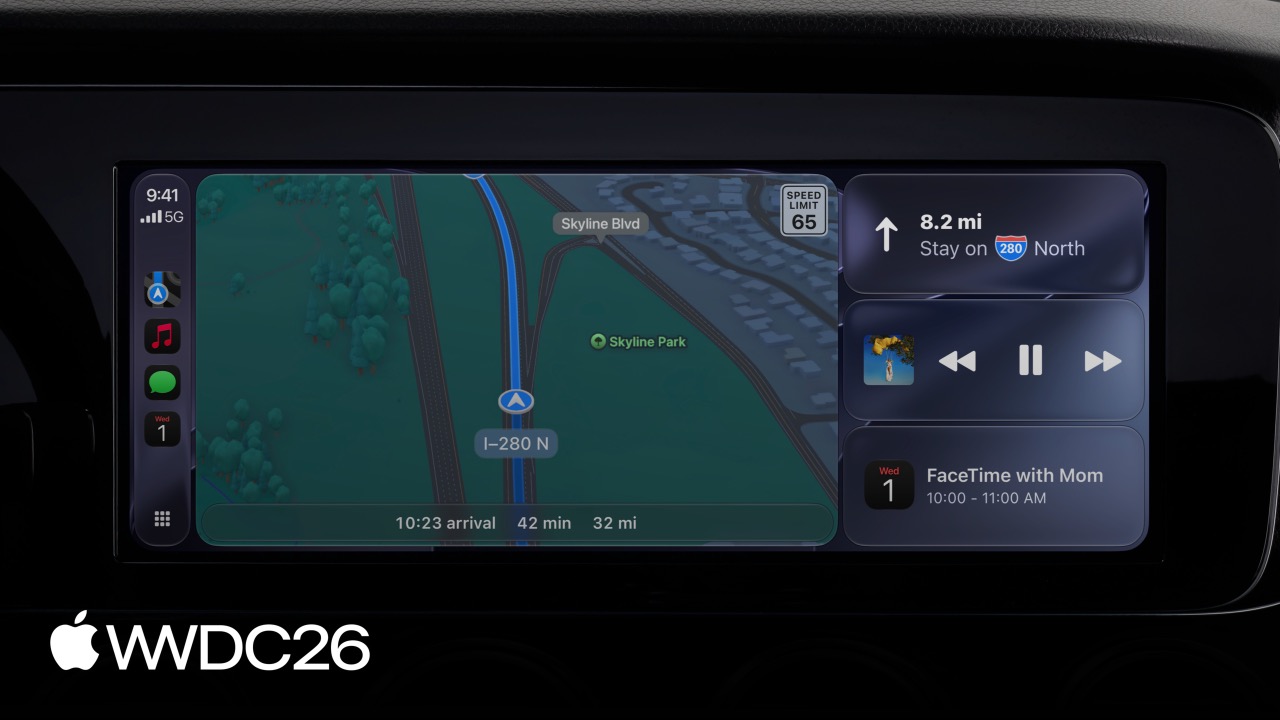
Highlight
iOS 27 introduces four major capabilities for CarPlay: video apps, voice conversational apps, navigation panels, and route sharing. Developers can use the CarPlay framework to build video browsing UI, voice interaction interfaces, and more flexible navigation panels directly on the vehicle display, while also letting vehicle driver-assistance systems read navigation routes.
Core Content
Video apps: from AirPlay to native browsing
Previously, if users wanted to watch video in the car, they had to play it on iPhone and then mirror it to the vehicle display with AirPlay. The flow was long, and users could not browse content directly on the car screen.
iOS 27 adds a CarPlay video app category. As long as the vehicle supports video in car, your app can show video lists, thumbnails, and detail pages directly on the vehicle display. When parked, users can complete the whole flow from browsing to playback on the car screen, such as watching video while waiting to charge.
Video apps need two capabilities: support AirPlay video streaming and use the CarPlay framework to provide the browsing interface. If the vehicle currently does not allow video playback, content automatically falls back to audio-only playback, which is useful for podcasts and sports livestreams.
Voice conversational apps: from navigation-only to every category
Voice conversational apps launched earlier this year, but they were initially limited to certain categories. iOS 27 opens them to all CarPlay app categories.
Your app can now respond to voice commands and perform actions on the vehicle display. The Voice Control template supports both full-screen and overlay presentation. Overlay mode is especially useful for navigation apps because it can appear above the map template, letting users interact by voice while still seeing the map.
Navigation panels: from fixed templates to flexible composition
Previous CarPlay navigation apps were constrained by fixed template flows, with limited flexibility for showing route options and trip information.
iOS 27’s Panel lets navigation apps freely combine multiple UI elements on top of the main map interface, including trips, grids, route choices, waypoints, and list items. The bottom of the panel can also configure action buttons such as “Go” or “End.” The map remains visible while content is overlaid above it.
Route sharing: letting vehicle driver-assistance systems understand your navigation
This is an easily overlooked capability with far-reaching impact. Many vehicles with driver-assistance systems need to know your route so they can perform automatic lane changes, adjust guidance systems, or plan charging stops for electric vehicles.
Previously, CarPlay navigation apps and vehicle systems were disconnected. Route Sharing in iOS 27 lets navigation apps sync a route to the vehicle as an array of geographic coordinates. The vehicle can then suggest waypoints such as charging stations. After the navigation app receives a suggestion, it can either automatically prompt the user for confirmation or manage confirmation itself.
Details
New APIs for video browsing UI
(02:16) The CarPlay framework provides a complete set of UI components for video browsing.
Lists now support images in both portrait and landscape aspect ratios. Card elements go further, with support for thumbnail overlays, playback progress, and motion information.
// Create a thumbnail with an overlay
let overlay = CPImageOverlay(image: badgeImage)
let thumbnail = CPImageSet(
    light: landmarkImage,
    dark: landmarkImage
)

// Configure playback metadata
let playbackConfig = CPPlaybackConfiguration(
    elapsedTime: 120,
    duration: 600,
    playbackAction: .play
)
playbackConfig.preferredPresentation = .video

// Combine everything into a list item
let item = CPListItem(
    text: "Alps",
    detailText: "Switzerland"
)
item.setImage(thumbnail)
item.imageOverlay = overlay
item.playbackConfiguration = playbackConfig
Key points:
CPImageOverlaycan be text or an image, used to mark states such as “new” or “live”CPPlaybackConfiguration’spreferredPresentationdetermines whether content should be presented as video or audio firstplaybackActioncontrols what happens when the user taps: play, pause, or replay- When playback state changes, update
playbackConfigurationpromptly so the progress bar on the thumbnail stays in sync
(05:29) Details Header is useful for highlighting a single item at the top of a list:
let header = CPDetailsHeader(
    title: "Eiffel Tower",
    subtitle: "Paris, France",
    body: "Completed in 1889...",
    image: thumbnail
)
header.playbackConfiguration = playbackConfig
header.actionButtons = [
    CPBarButton(type: .text, title: "Play", handler: { _ in }),
    CPBarButton(type: .text, title: "Add to Playlist", handler: { _ in })
]

let template = CPListTemplate(title: "Landmarks", sections: [
    CPListSection(items: relatedVideos, header: header)
])
Key points:
- Details Header combines a thumbnail, title, body text, playback configuration, and action buttons
- Playback progress automatically integrates with the first action button
- Update
playbackConfigurationwhen state changes so users see the correct progress when they return
MiniPlayer controls
(06:22) iOS 27 adds MiniPlayer to the Now Playing template, and every app that uses Now Playing gets it automatically. On large displays, users can play, pause, and skip directly in MiniPlayer.
If your app does not need MiniPlayer, you can turn it off:
// Disable MiniPlayer and use the navigation bar icon instead
CPNowPlayingTemplate.shared.allowsMiniPlayer = false
Key points:
- Enabled by default, with no extra code required
- When disabled, the Now Playing entry appears as a navigation bar icon
Voice Control template
(07:08) The Voice Control template is now open to every app category, with support for full-screen and overlay modes.
// Present voice control as an overlay
let voiceTemplate = CPVoiceControlTemplate(
    title: "Ask about landmarks",
    subtitle: nil,
    image: nil,
    actionButtons: [
        CPBarButton(type: .text, title: "Navigate", handler: { _ in })
    ]
)
interfaceController.presentTemplate(voiceTemplate, animated: true)

// Present as an overlay
interfaceController.presentTemplate(
    voiceTemplate,
    animated: true,
    presentationStyle: .overlay
)
Key points:
- In overlay mode, text should be shorter because less space is available
- Supports up to two action buttons, plus the leading and trailing buttons in the navigation bar
- You can trigger navigation or phone calls with URL opening:
CPTemplateApplicationScene.shared.open(url) - Apple recommends configuring
AVAudioSessionwith the playAndRecord category and using audio feedback to indicate conversation state
Navigation Panel
(12:03) Navigation apps can combine multiple elements with Panel:
let panel = CPPanel(
    items: [
        trip,
        routeChoice,
        waypointList,
        gridItem
    ],
    buttonConfiguration: CPButtonConfiguration(
        primaryAction: .go,
        secondaryAction: .end
    )
)
mapTemplate.pushPanel(panel, animated: true)
Key points:
itemsin Panel can mix many types, includingCPTrip,CPRouteChoice,CPWaypoint, andCPGridButtonbuttonConfigurationconfigures action buttons at the bottom of the panel- After pushing a Panel, the navigation app controls the main interface region of the map template
- The map remains visible, with Panel content overlaid above it
Route sharing
(15:06) Navigation apps enable route sharing through a Map Template delegate method:
// Enable route sharing
func mapTemplateShouldProvideRouteSharing(_ mapTemplate: CPMapTemplate) -> Bool {
    return true
}
Disable it for a single trip:
// This trip does not participate in route sharing
trip.routeSegmentsAvailableForRegion = false
Key points:
- Requires iOS 26.4 or later and a supported vehicle
- Users must authorize route sharing when pairing the vehicle for the first time
- Routes are sent to the vehicle as geographic coordinate arrays, or route segments
- Vehicles can suggest waypoints such as charging stations, and the app receives them through
CPMapTemplatedelegate methods - The navigation app returns an updated estimated time for the trip, and the map template automatically prompts the user to confirm. The app can also return no estimated time and manage confirmation itself
Key Takeaways
Build video content for charging waits
What to do: EV charging often takes 20-40 minutes. If your app has video content, such as tutorials, news, or sports, make it a CarPlay video app so users can browse and play directly on the vehicle display while charging.
Why it is worth doing: Charging waits are a high-frequency in-car screen use case, but previously users could only mirror through AirPlay, with a long interaction path and no direct browsing on the vehicle display. Native CarPlay video apps keep the full flow from browsing to playback on the car screen.
How to start: Request the CarPlay video entitlement, add a video tab with CPTabBarTemplate, and ensure the app also supports AirPlay video streaming.
Replace complex list operations with voice conversation
What to do: In driving scenarios, letting users say “play my favorite podcast” is safer than making them tap through nested lists. Use CPVoiceControlTemplate to turn search or recommendations into voice interaction.
Why it is worth doing: Screen interaction while driving creates safety risks. Voice interaction lets users complete tasks without taking their eyes off the road. Overlay mode can sit on top of the current interface without interrupting the current flow.
How to start: Create a voice control interface with CPVoiceControlTemplate, configure AVAudioSession with the playAndRecord category, and use audio feedback to indicate conversation state.
Let navigation apps cooperate with vehicle driver assistance
What to do: After route sharing is enabled, vehicles with driver-assistance systems can use your route for automatic lane changes and charging planning.
Why it is worth doing: Previously, CarPlay navigation apps and vehicle systems were disconnected, so vehicle driver assistance did not know your route. Route sharing lets navigation apps sync the route to the vehicle, which can then suggest waypoints such as charging stations and improve the driving experience.
How to start: Implement mapTemplateShouldProvideRouteSharing to return true, set routeSegments on CPTrip, and receive vehicle-suggested waypoints through CPMapTemplateDelegate.
Use Details Header for content recommendations
What to do: Video or audio apps can use CPDetailsHeader to highlight “Today’s Pick” or “Continue Watching” at the top of a list, with related content below.
Why it is worth doing: Flat lists lack hierarchy, and users need to scroll for too long to find important content. Details Header combines a thumbnail, title, body text, playback configuration, and action buttons, so users see the key item immediately.
How to start: Create a CPDetailsHeader, set title, subtitle, body, and image, configure playbackConfiguration and actionButtons, and use it as the header of a CPListSection.
Build richer navigation interfaces with Panel
What to do: Navigation apps are no longer limited to fixed route preview and selection flows. Use Panel to show a route overview, waypoint list, and quick action buttons on top of the map at the same time.
Why it is worth doing: Previous CarPlay navigation apps were constrained by fixed templates, limiting flexibility for route options and trip information. Panel lets multiple UI elements be freely combined while the map remains visible, so users see more information on one screen.
How to start: Create a CPPanel, mix types such as CPTrip, CPRouteChoice, and CPWaypoint in items, configure bottom action buttons with buttonConfiguration, and call mapTemplate.pushPanel to present it.
Related Sessions
- SwiftUI — If your CarPlay app also has an iPhone version, you can share UI code with SwiftUI
- Live Activities — CarPlay supports Live Activities and widgets for all apps without requiring dedicated CarPlay adaptation
- Design principles — In-car interface design needs to follow specific safety and readability principles
- App Intents new — Voice conversational apps can combine with App Intents so Siri understands more complex user commands
- Xcode 27 — CarPlay Simulator is integrated into Device Hub, so you can test directly in Xcode 27
Comments
GitHub Issues · utterances