
Highlight
iOS 27 brings a new Poster Generic style, four new barcode formats, and the Featured Actions API to Wallet passes. Apple also introduces Pass Designer, a visual design tool for Mac, and Pass Builder, a Swift on Server signing library, so designing, personalizing, and distributing passes no longer requires hand-written JSON and third-party signing scripts.
Core Content
The pain of designing passes is finally over
Building a Wallet pass used to look like this: open a text editor, hand-write pass.json, and check the documentation for every field key, hierarchy, and format. Drop images into the bundle, but you cannot see the final result, so you repeatedly package it, send it to a phone, and refresh Wallet to verify. Signing is even more cumbersome: manage certificates yourself, generate the manifest, create a PKCS#7 signature, compress everything into .pkpass, and often depend on open source scripts that have not been maintained for years.
WWDC26 provides the official answer. Apple introduced two tools: Pass Designer and Pass Builder.
Pass Designer is a WYSIWYG editor for Mac (06:03). The left sidebar configures style, images, barcodes, and fields, while the right side renders a live pass preview matching a real iOS device. Designers can drag images, adjust colors, switch styles, and export .pkpasstemplate template files.
Pass Builder is a Swift on Server package (06:26) that runs on Mac and Linux. It provides type-safe Swift APIs and a buildpass command-line tool, and handles personalizing templates, signing, and packaging them as .pkpass files. The dirty work of manifest generation, PKCS#7 signing, and compression is automated.
Poster Generic: make the large image the hero
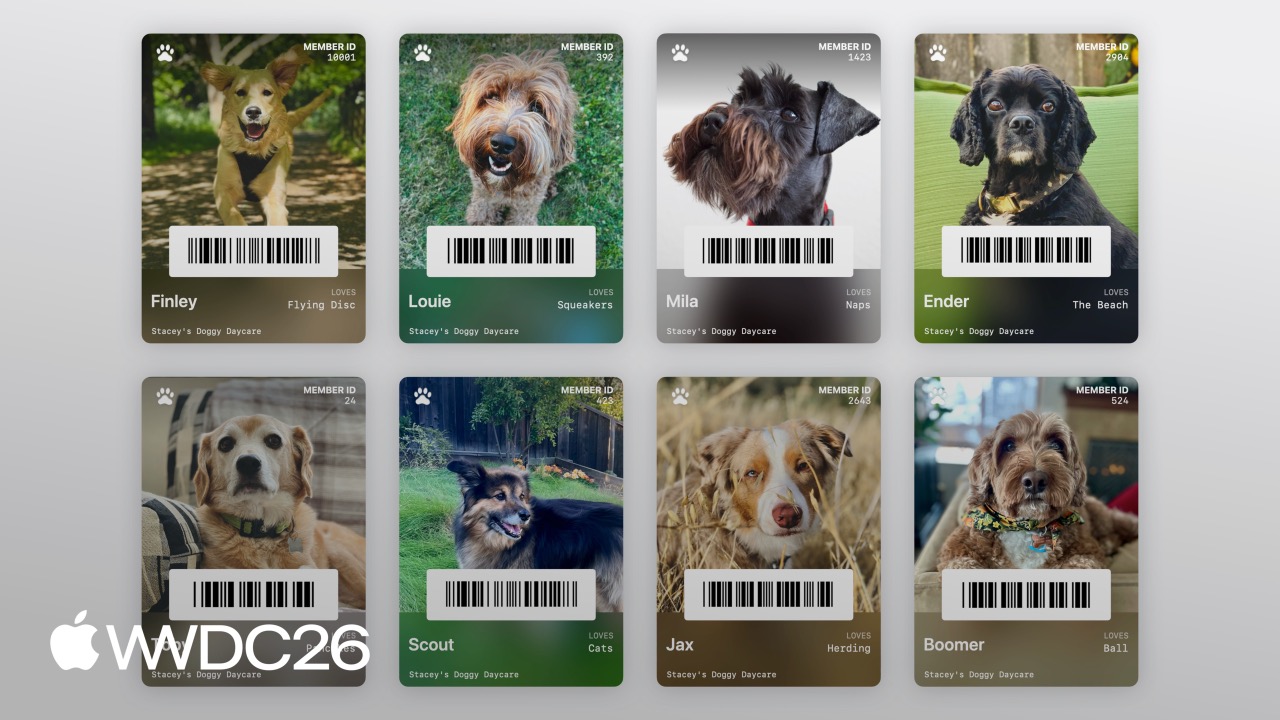
iOS 27 adds a pass style called Poster Generic (00:36). It is suited to membership cards, loyalty cards, and stored-value cards that need strong visual impact. The front of the pass consists of a background image, primary logo, header fields, primary fields, a single footer field, and a barcode. The background image takes the main visual area, while field information is overlaid on top of it.
Use it by declaring the posterGeneric key at the top level of pass.json (01:41):
{
  "posterGeneric": {
    "headerFields": [
      {
        "key": "memberID",
        "label": "Guest No.",
        "value": "102035"
      }
    ],
    "footerFields": [
      {
        "key": "membershipType",
        "value": "Family Pass"
      }
    ]
  }
}
There are two limits to note:
- Poster Generic supports only one footer field. If you provide more than one, only the first is displayed (01:58).
- It requires iOS 27. For compatibility with older devices, Apple recommends keeping the
generickey as well (02:12):
{
  "posterGeneric": {
    "headerFields": [
      { "key": "memberID", "label": "Guest No.", "value": "102035" }
    ],
    "footerFields": [
      { "key": "membershipType", "value": "Family Pass" }
    ]
  },
  "generic": {
    "headerFields": [
      { "key": "memberID", "label": "Guest No.", "value": "102035" }
    ],
    "footerFields": [
      { "key": "membershipType", "value": "Family Pass" }
    ]
  }
}
With this setup, iOS 26 and earlier fall back to the generic style, while iOS 27 shows Poster Generic.
Four new barcodes, but remember the fallback
iOS 27 adds support for four barcode formats: EAN-13, Code 39, Codabar, and ITF (02:33). Specify the format in the barcodes array in pass.json:
{
  "barcodes": [
    {
      "format": "PKBarcodeFormatCodabar",
      "message": "123456789",
      "messageEncoding": "iso-8859-1"
    }
  ]
}
Older iOS versions do not support these new formats. If you provide only one new barcode, the pass will show no barcode at all on iOS 26 and earlier devices (03:28).
The recommended approach is to provide multiple barcodes in priority order, letting the system choose a format the device can render (03:37):
{
  "barcodes": [
    {
      "format": "PKBarcodeFormatCodabar",
      "message": "123456789",
      "messageEncoding": "iso-8859-1"
    },
    {
      "format": "PKBarcodeFormatQR",
      "message": "123456789",
      "messageEncoding": "iso-8859-1"
    }
  ]
}
If you truly can support only one barcode type, Apple recommends placing the credential ID in a headerField or primaryField so staff can enter it manually (03:58).
Featured Actions: attach action buttons below a pass
iOS 18 introduced semantic URLs for second-generation event tickets, enabling action buttons below a pass, such as viewing the event schedule. iOS 27 opens this capability to all pass styles (04:42).
Define a featuredActions array at the top level of pass.json:
{
  "featuredActions": [
    {
      "identifier": "my-offer-id",
      "type": "membershipBenefits",
      "url": "www.example.com/offers"
    }
  ]
}
Each action contains a unique ID, a type, and a value, usually a URL. Wallet renders a button below the pass with a colorful icon and localized call-to-action copy (05:15).
Each pass supports up to two featured actions. Apple recommends sorting them by priority and including only the most meaningful operations (05:24).
Details
Designing templates with Pass Designer
The Pass Designer workflow is straightforward (06:58):
- Choose a pass style, such as Poster Generic
- Drag images into the Images area to set the background image and primary logo
- Add header, primary, and footer fields in the sidebar
- Configure barcode type and message
- Adjust colors, such as Label Color and background color
- Save as a
.pkpasstemplatefile
A practical tip: if the first primary field in Poster Generic omits the label, its value appears as a bold headline (08:26). This is ideal for a member name, points balance, or other core information.
Generating passes in bulk on the server with Pass Builder
Pass Builder is a Swift Package. Add it as a dependency in Package.swift (10:56):
// Package.swift
import PackageDescription

let package = Package(
    name: "MyServer",
    products: [
        .library(name: "MyServer", targets: ["MyServer"]),
    ],
    dependencies: [
        .package(path: "./path/to/PassBuilder")
    ],
    targets: [
        .target(
            name: "MyServer",
            dependencies: [
                .product(name: "PassBuilder", package: "PassBuilder")
            ]
        ),
    ]
)
Code for generating a pass (11:05):
import PassBuilder

func createPass(for doggo: MemberModel) async throws -> URL {
    // Load the template exported from Pass Designer
    var package = PassPackage(url: "template.pkpasstemplate")

    // Personalize fields
    package.pass.fields.setValue(doggo.name, forKey: "DOG_NAME")
    package.pass.fields.setValue(doggo.favoriteToy, forKey: "LOVES")
    package.pass.fields.setValue(doggo.id, forKey: "MEMBER_ID")

    // Set the background image
    package.background = PassImage(url: doggo.photoURL)

    // Configure the barcode
    package.pass.barcodes = [
        Pass.Barcode(message: doggo.id, format: .pdf417)
    ]

    // Add a Featured Action
    package.featuredActions = [
        Pass.Action(id: "action-1", type: "viewMembership", url: doggo.membershipURL)
    ]

    // Load signing certificates
    let passCertificate = try PassCertificate(url: "pass.p12", password: "s3cr3t")
    let wwdrCertificate = try PassCertificate(url: "wwdr.cer")

    let signer = PassSigner(
        passCertificate: passCertificate,
        wwdrCertifiate: wwdrCertificate
    )

    // Sign and output the .pkpass
    let destinationURL = URL(string: "/www/passes/" + doggo.id)
    try signer.signPass(package, writingTo: destinationURL)

    return destinationURL
}
Key points:
PassPackageprovides type-safe APIs for accessing the pass bundle, including properties such aspass.fields,background,barcodes, andfeaturedActionsPassImageloads image assets from a URLPass.Barcodesupports format enums such as.pdf417and.qrPassCertificateloads the.p12signing certificate and Apple WWDR intermediate certificatePassSignerencapsulates all manifest generation, PKCS#7 signing, compression, and packaging logicsignPass(package, writingTo:)outputs a distributable.pkpassfile in one step
Non-Swift backends can use it too
Pass Builder is not limited to Swift backends. Apple provides two paths:
- swift-java bindings: Use the swift-java project to generate native Java bindings and call the Pass Builder API directly from the JVM (13:54)
- Protobuf + command line: Apple provides protobuf definitions for the Pass Package format, so any language can generate type-safe models and then call the
buildpasscommand-line tool to personalize and sign passes (14:03)
Key Takeaways
1. Visual upgrade for membership and loyalty card apps
Set the user’s avatar or the brand’s key visual as the Poster Generic background image. Omit the label on the first primary field to show the user’s name or points balance, and put membership tier in the footer. Attach two Featured Actions: “View rewards store” and “Redeem coupon.” When users open Wallet, they immediately see the core information and can tap straight into an action.
Entry point: Create a Poster Generic template in Pass Designer, then inject user data on the backend with PassPackage.
2. Scan-to-enter systems for offline stores
Gyms, yoga studios, and coworking spaces can use Pass Builder to generate daily or monthly cards in bulk with PDF417 barcodes. The barcode encodes the user ID and expiration date, and the gate opens when scanned. Use QR Code as a fallback barcode for older devices.
Entry point: Pass.Barcode(message: userId, format: .pdf417) plus a QR Code fallback in the barcodes array.
3. Semantic actions for event tickets
Concert and exhibition tickets can attach two Featured Actions below the pass: “View seating map” and “Venue directions.” Users at the venue do not need to search through the app; they can tap directly from Wallet.
Entry point: Configure type and url in the featuredActions array, and Wallet automatically renders the icon and copy.
4. Internal enterprise visitor pass system
The company front desk can design a visitor badge template in Pass Designer, while the HR system calls the Pass Builder API to generate a pass for each visitor with a photo, access area, and validity period, then emails the .pkpass attachment. Once the visitor adds it to Wallet, access control can scan it for entry.
Entry point: Set the visitor photo with PassImage(url: photoURL) and encode the visitor ID with Pass.Barcode.
5. Migrate from third-party signing scripts to the official toolchain
Teams still using Python or Node.js open source libraries to generate passes can replace their signing logic with the buildpass CLI or Pass Builder. This can eliminate operations issues such as OpenSSL version conflicts and incompatible certificate formats.
Entry point: Download the Pass Builder source, replace existing signing logic with PassSigner, and use the protobuf definitions to support multi-language backends.
Related Sessions
- 258 - What’s New in Xcode 27 — New features in Xcode 27, part of the same developer toolchain upgrade as Pass Designer
- 262 - What’s New in Swift — Pass Builder is based on Swift on Server; learn about the latest Swift language updates
- 265 - Simplify Network Communication with gRPC — Distribute passes generated by the backend to clients through gRPC
- 310 - What’s New in App Intents and Shortcuts — Combine Featured Actions with App Intents to create richer pass interactions
- 378 - What’s New in StoreKit — Scenarios that combine stored-value cards and membership cards with StoreKit in-app purchases
Comments
GitHub Issues · utterances