
Highlight
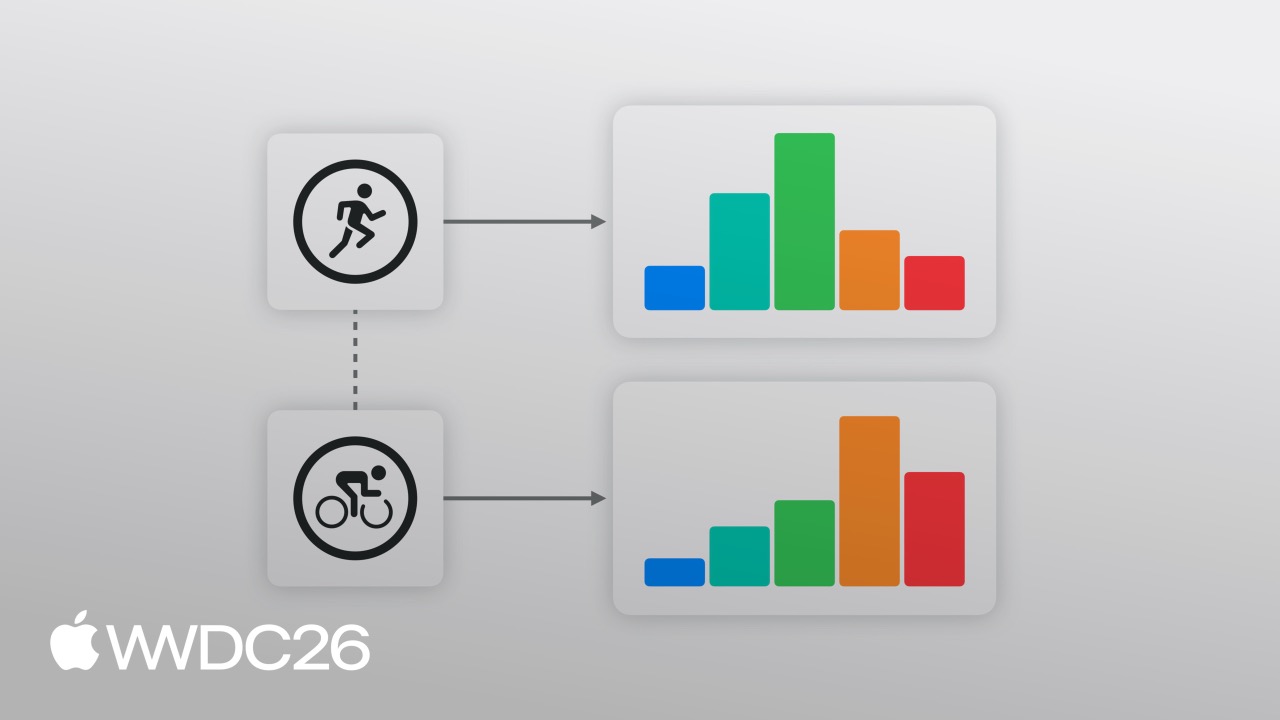
iOS 27 and watchOS 27 integrate Heart Rate Zones and Cycling Power Zones directly into HealthKit. Developers no longer need to calculate zone thresholds or maintain zone logic themselves. They can call new APIs to read system-computed zone data, receive live notifications when the current zone changes, or provide custom zone configurations.
Core Content
How it worked before: every fitness app had to calculate zones itself
If you build a fitness app, heart rate zones are hard to avoid. After a run, users want to see how long they spent in each intensity zone, but developers have had limited options:
- Maintain a custom zone formula and calculate five zone thresholds from age and resting heart rate
- Compare every heart rate sample against those zones and accumulate time
- Handle multi-device syncing so zone data stays consistent between iPhone and Apple Watch
- Accept that different apps use different algorithms, so zones change when users switch apps
Cycling Power Zones are even more troublesome because they are based on functional threshold power (FTP), with logic completely different from heart rate zones. Supporting both zone types in one app doubles the code complexity.
What Apple added
HealthKit in iOS 27 and watchOS 27 adds a Workout Zone system that takes over calculation, storage, and syncing for heart rate zones and cycling power zones.
The system automatically calculates heart rate zone thresholds based on the user’s age and resting heart rate. Users can also manually adjust those thresholds in the Health app. All zone configurations sync across devices through HealthKit and remain consistent even when users switch apps.
Developers only need to request the relevant permissions to read zone data that the system has already calculated, or provide their own custom zones.
What this solves
For developers, this removes the need to maintain zone algorithms and cross-device syncing code. For users, heart rate zone definitions are consistent across fitness apps, and their data carries across seamlessly.
Details
Reading zone data from a completed workout
(03:54)
After a workout ends, read zone data from HKWorkout or HKWorkoutActivity:
if let heartRateZoneGroup = workout.zoneGroupsByType?[HKQuantityType(.heartRate)] {
    let zones = ZoneDisplayData(
        zoneCount: heartRateZoneGroup.configuration.zones.count,
        currentZoneIndex: nil,
        durations: heartRateZoneGroup.zoneDurations.map(\.duration)
    )
}
Key points:
zoneGroupsByTypeis a dictionary keyed byHKQuantityType. PassHKQuantityType(.heartRate)to get heart rate zones, or pass the quantity type for cycling power to get power zones- The returned
HKWorkoutZoneGroupcontains two core properties:configurationfor the zone configuration andzoneDurationsfor the accumulated time in each zone zoneDurationsis sorted by zone threshold from low to high, so it can be used directly to draw a bar chart
The structure of HKWorkoutZoneConfiguration is worth a closer look:
quantityType: the data type this configuration corresponds to, such as heart rate or cycling powersource: where the zone thresholds came from: automatic system calculation, manual user configuration in settings, or a custom app-provided configurationzones: an array of zones. Each zone hasindex,minimum, andmaximumproperties. The first zone has no lower bound and the last has no upper bound, ensuring every possible value is covered
Receiving live zone changes
(07:57)
During a workout, HealthKit processes incoming heart rate samples in real time and determines the current zone. When the zone changes, such as from Zone 2 to Zone 3, it notifies the app through a delegate:
func workoutBuilder(
    _ workoutBuilder: HKLiveWorkoutBuilder,
    didUpdateWorkoutZone zoneUpdate: HKLiveWorkoutZoneUpdate
) {
    guard let zoneGroup = zoneUpdate.zoneGroup else {
        return
    }
    if let currentIndex = zoneUpdate.currentZoneDuration?.zone.index {
        let data = ZoneDisplayData(
            zoneCount: zoneGroup.configuration.zones.count,
            currentZoneIndex: currentIndex,
            durations: zoneGroup.zoneDurations.map(\.duration)
        )
        Task { @MainActor in
            self.heartRateZones = data
        }
    }
}
Key points:
- Implement the
didUpdateWorkoutZonemethod from theHKLiveWorkoutBuilderDelegateprotocol zoneUpdate.currentZoneDurationcontains the current zone and accumulated durationzoneUpdate.zoneGroupcontains the complete zone configuration and accumulated duration for every zone- Notifications are sent only when the current zone actually changes, not for every sample
- Use
@MainActorto switch UI updates back to the main thread
This mechanism makes live coaching features simple. Apps can alert users when they drift away from a target zone or highlight the current zone.
Checking the user’s preferred zone configuration
(09:19)
Before starting a zone-based workout, first confirm whether the user has set a preferred zone configuration:
if try await builder.zoneConfiguration(for: HKQuantityType(.heartRate)) == nil {
    // The user has not set a preferred zone configuration, so provide a custom one
}
Key points:
- You can query this on either
HKWorkoutBuilderorHKHealthStore - A return value of
nilmeans the user has not configured zone thresholds in the Health app - Preferred zones sync across devices. Set them on one device, and they take effect everywhere
Creating a custom zone configuration
(09:24)
If the user has no preferred configuration, or your app has a proprietary zone model, you can provide a custom configuration:
let defaultHeartRateZoneThresholds = [91.0, 114.0, 136.0, 158.0]
let bpmUnit = HKUnit.count().unitDivided(by: HKUnit.minute())
let boundaries = defaultHeartRateZoneThresholds.map {
    HKQuantity(unit: bpmUnit, doubleValue: $0)
}

let heartRate = HKQuantityType(.heartRate)
let defaultConfiguration = try HKWorkoutZoneConfiguration(
    quantityType: heartRate,
    zoneBoundaries: boundaries
)

try await builder.setCustomZoneConfiguration(defaultConfiguration, for: heartRate)(10:03)
Start data collection after setting the configuration:
let startDate = Date()
try await builder.beginCollection(at: startDate)
Key points:
- Zone boundaries are represented by
HKQuantity, and the unit must be compatible with the quantity type. Heart rate usescount/minute, and cycling power useswatt - HealthKit automatically creates zones from the boundaries. The first zone starts at 0, and the last has no upper bound
- You must provide between 3 and 9 zones
- Custom configuration must be set before calling
beginCollection - Custom configuration is stored only in the context of the current workout. The app is responsible for saving and syncing it
Notes on comparing across workouts
(10:43)
Different workouts can have different numbers of zones. The system default is five heart rate zones and six cycling power zones, but some training platforms use five, seven, or eight zones.
Directly comparing “time spent in Zone 3” across workouts with different zone counts is meaningless. Zone 3 in a five-zone workout and Zone 3 in a seven-zone workout cover completely different heart rate ranges.
The correct approach is to recalculate from raw samples: fetch the original heart rate samples from the workout and re-bucket them into the target number of zones. HealthKit has already calculated which zone each sample falls into, but cross-workout comparison requires normalization.
Key Takeaways
1. Smart post-workout summary page
- What to do: After a workout ends, show a zone distribution chart, use color to distinguish the five heart rate zones, and clearly show where the user spent the most time
- Why it is worth doing: HealthKit has already calculated
zoneDurations, so you only need to read the data and draw a bar chart; it can be implemented in minutes - How to start: After a workout ends, read data from
HKWorkout.zoneGroupsByTypeand usezoneDurations.map(\.duration)to get the duration array for each zone
2. Live zone coach
- What to do: Highlight the current heart rate zone during a workout, and trigger haptic or voice feedback when the user drifts away from the target zone
- Why it is worth doing:
didUpdateWorkoutZonefires only when the zone changes, so it does not interrupt users frequently but still provides timely guidance - How to start: Implement
HKLiveWorkoutBuilderDelegate, compare the current zone with the target zone insidedidUpdateWorkoutZone, and trigger an alert when they differ
3. Long-term training load analysis
- What to do: Aggregate the user’s accumulated time in each zone by week or month and generate a training load trend chart
- Why it is worth doing: Zone data is more meaningful for training than raw heart rate. Zones 1-2 indicate recovery, while Zones 4-5 indicate high intensity. Long-term trends reveal whether training is balanced
- How to start: Read
zoneGroupsByTypefrom historicalHKWorkoutrecords, accumulate zone durations, and draw the trend with Swift Charts
4. Support cycling power zones
- What to do: Add power zone support to a cycling app. The structure is exactly the same as heart rate zones
- Why it is worth doing: Cyclists commonly train with power, but FTP-based zone calculation has always been a barrier. Once HealthKit takes over, developers can read it directly
- How to start: Change the quantity type from
HKQuantityType(.heartRate)to the corresponding cycling power type; the rest of the code structure remains unchanged
5. Custom zone models for training platforms
- What to do: If your training platform has a proprietary zone algorithm, such as a model based on HRV or lactate threshold, provide a custom zone configuration to override the system default
- Why it is worth doing: You keep HealthKit’s zone infrastructure, including live notifications and cross-workout storage, while preserving the differentiation of your platform’s algorithm
- How to start: Calculate your zone boundary thresholds, create an
HKWorkoutZoneConfiguration, and set it withsetCustomZoneConfigurationbeforebeginCollection
Related Sessions
- Session 303: Build a great camera experience — Fitness apps often combine camera features to record the training process
- Session 304: Capture the perfect photo — Photo capture optimizations for workout scenarios
- Session 223: Live Activities — Show live heart rate zones on the Lock Screen and Dynamic Island
- Session 262: Swift — HealthKit APIs are designed around Swift concurrency and make extensive use of
async/await - Session 274: SwiftData — Persist historical zone data in a local database for offline workout history
Comments
GitHub Issues · utterances