
Highlight
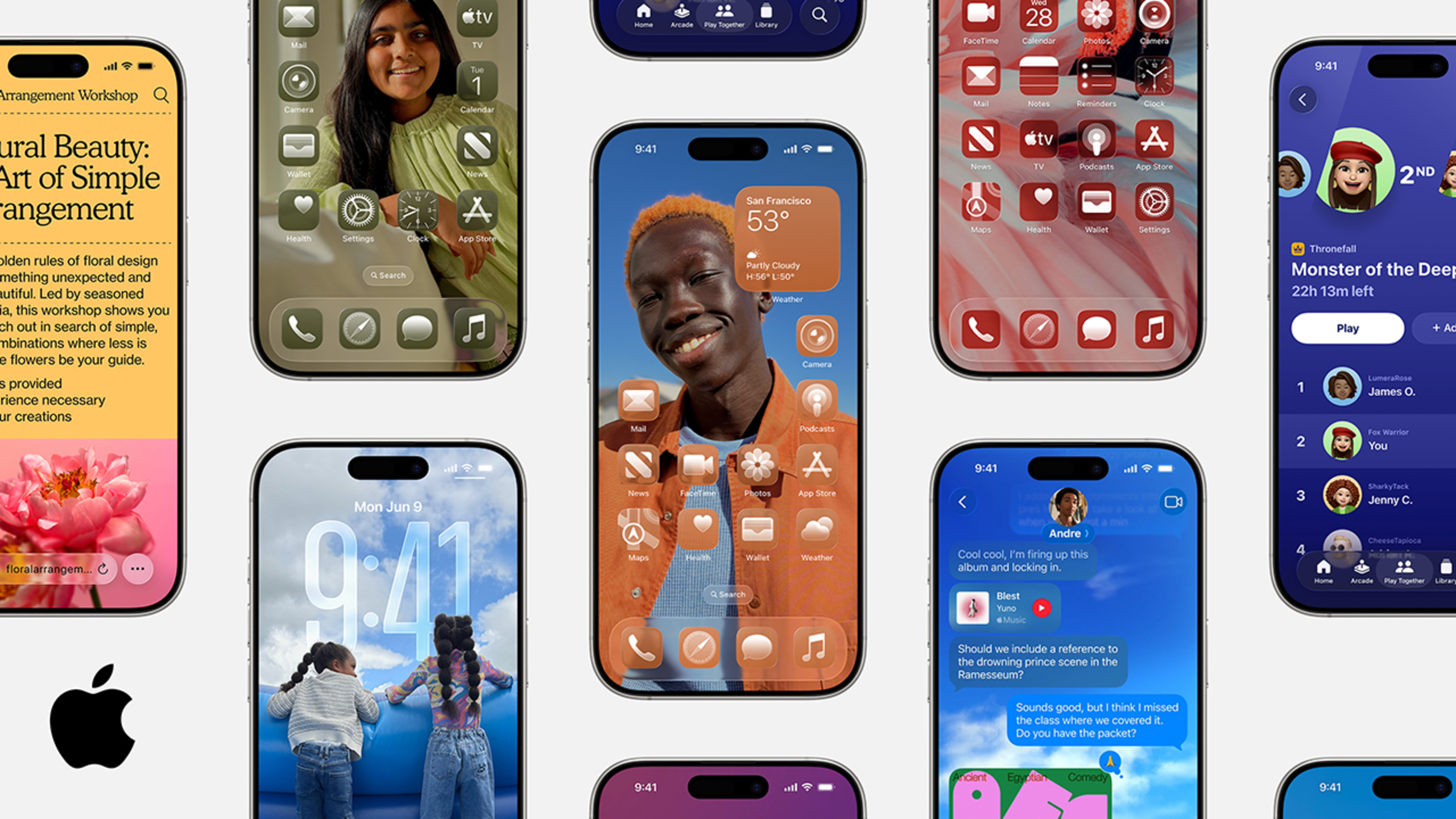
This is a two-minute consumer-facing trailer using quick cuts to string together WWDC25’s main updates for everyday users: Liquid Glass design, Messages group chat voting, call filtering, AirPods video recording control, live translation, screenshot-to-calendar, iPad multi-window and menu bar.
Core Content
The WWDC keynote packs a lot of information each year. Developers care about APIs; everyday users care about “what I can use this year.” The two often miss each other: developers finish the Keynote still unclear on the marketing message, while marketing folks watch technical Sessions and miss the selling points. This two-minute short is Apple’s version for non-technical audiences, using voiceover and quick cuts to cover the year’s feature upgrades.
The video opens with Liquid Glass, the voiceover saying screens are “getting more transparent, more fluid, more 3D, more like you” (00:02). Then it jumps to Messages: group chats can launch polls, Apple Cash supports bill splitting, custom chat backgrounds (00:18). Unknown calls and texts get filtered into the junk drawer (00:35), iPhone can “wait on hold for customer service” for you—press a button and walk away, it notifies you when it’s your turn (00:41). FaceTime gets a new look, Photos navigation is simpler. AirPods add “press to start/stop recording video,” Apple Intelligence gains live translation, screenshots automatically detect events and create calendar entries, Watch gains Workout Buddy. Mac and iPad desktops can swap folder colors and icons, iPad supports many windows open at once plus a new menu bar, CarPlay adds message tapback reactions and live flight updates.
Detail
This video itself has no API or code. It’s positioned as a consumer trailer, 2 minutes 3 seconds long, stringing the year’s features into a single edit by timeline. Below are video timestamps for each feature point in order of appearance, for easy reference.
Design and interface:
- Liquid Glass design language (00:00–00:16), keywords are glassier, liquid, fluid, 3D-ish.
- FaceTime new look (00:50), Photos simplified navigation (00:53).
- Mac/iPad desktop custom folder colors and icons (01:32).
Communication and collaboration:
- Messages group chat voting (00:21), Apple Cash bill splitting (00:25), custom chat backgrounds (00:30).
- Unknown text and call filtering to junk drawer (00:35).
- iPhone waits on customer service calls (00:41).
- CarPlay message tapback reactions, live flight updates (01:47).
Creation and Apple Intelligence:
- AirPods press to start/stop video recording (00:59).
- Apple Intelligence live translation for text and calls (01:07).
- Screenshot to calendar, auto-extract event info from screenshots (01:17).
Device experience:
- Workout Buddy on Apple Watch (01:22).
- New Games app, aggregating all games and friends in one place (01:28).
- iPad multi-window and menu bar (01:39).
- Clock widget for wall decor, new desktop “mini windows” (01:54).
The video contains no technical details, specs, or code. To get to the API level, go to the corresponding technical Sessions: Liquid Glass is covered in 219, design system in 356, Apple Intelligence in 360 and 286, Messages group chat and Apple Cash are typically mentioned in 102 Platforms State of the Union.
Key Takeaways
-
Do this: Map consumer-level updates to your own app’s feature checklist.
- Why it’s worth doing: User expectations rise with system-level new features—for example, after AirPods video recording control appears, users will expect their own camera/livestream apps to support it too.
- How to start: List the 12 features from the video in a table, mark each as “relevant to me / complementary / directly competing.” Audit competing items first.
-
Do this: Treat system capabilities like “screenshot to calendar” and “junk drawer filtering” as default assumptions, then re-examine your product differentiation.
- Why it’s worth doing: When the OS makes a common utility a default behavior, third-party apps must offer more specific value (like industry templates, cross-platform sync), or they’ll be bypassed.
- How to start: List the “utilities” in your own app that users used most over the past year. Compare whether iOS 26 and macOS 26 already cover them natively. Where covered, write out three differentiators.
-
Do this: Use this video to align your team on “user perspective.”
- Why it’s worth doing: Technical Sessions explain “how to implement”—this clip explains “how users perceive it.” Marketing, design, and customer support need the latter.
- How to start: Play this two-minute video directly in a team weekly meeting. List the 5 most visible changes users will see after upgrading to iOS 26, then work backward to update product copy and help center entries.
Related Sessions
- Keynote — WWDC25 keynote, the full version corresponding to this trailer.
- Platforms State of the Union — Platform overview for developers, covering technical details like Liquid Glass and Apple Intelligence.
- Meet Liquid Glass — Principles and adaptation guide for the Liquid Glass design language.
- Get to know the new design system — Unified standards for the cross-platform new design system.
- Discover machine learning & AI frameworks on Apple platforms — Apple Intelligence and machine learning framework updates.
Comments
GitHub Issues · utterances