
Highlight
watchOS 26 brings Controls, configurable widgets, and RelevanceKit to Apple Watch, letting iPhone features trigger on the wrist without writing a Watch app.
Core Content
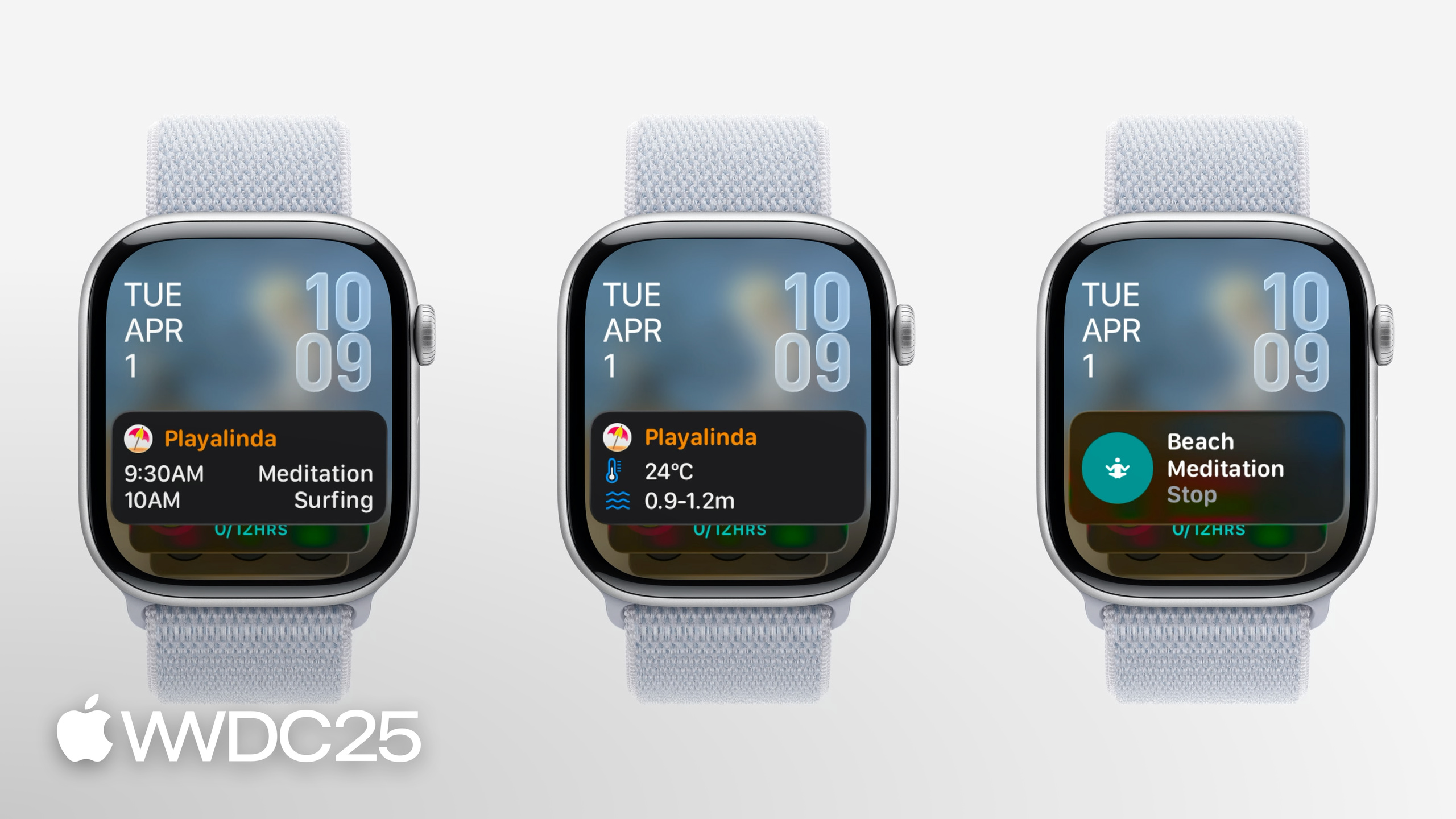
watchOS had a longstanding problem: users have a Smart Stack on their wrist, but developers could only put limited content in it. Timeline widgets display one timeline entry at a time. A scenario like “9 AM meditation and three beach activities at 10 AM” would cram three events onto one card and get truncated. Controls, the quick-action feature that has existed since iOS 16, was missing from Apple Watch. Developers either had to build a separate Watch app at cost, or abandon that wrist real estate.
watchOS 26 responds in three layers. First, it brings iOS Controls directly to Apple Watch: users can put an iPhone app’s control into Watch’s Control Center, Smart Stack, or Action Button. Tapping executes the action on iPhone without extra Watch-side code (speaker Anne confirms this at 04:44). Second, both widgets and controls are now configurable on Watch, using the same AppIntent flow as iOS. Third is the new RelevanceKit framework and Relevant Widgets: you declare that a widget becomes relevant “when a POI like a beach appears” or “near a certain event time,” and the system suggests multiple cards in Smart Stack simultaneously, one per event, bypassing Timeline widget’s single-line limit.
Underlying this is another important change: Apple Watch Series 9 and Ultra 2 officially switch to arm64 on watchOS 26. Xcode 14 already supports this, and the simulator has always been arm64, so most apps build directly with Standard Architectures. Only low-level code like Float/Int conversion and pointer math needs care.
Details
Make legacy Timeline widgets configurable on watchOS 26 (06:53)
// In the AppIntentTimelineProvider
func recommendations() -> [AppIntentRecommendation<BeachConfigurationIntent>] {
  if #available(watchOS 26, *) {
    // Return an empty array to allow configuration of the widget in watchOS 12+
    return []
  } else {
    // Return array of recommendations for preconfigured widgets before watchOS 12
    return recommendedBeaches
  }
}
Key points:
recommendations()is a method onAppIntentTimelineProvider. Before watchOS 26, it must return a set of preconfigured items; users couldn’t change parameters.- From watchOS 26, returning an empty array
[]tells the system “this widget is configured by the user on the watch face or Smart Stack.” When users edit the widget, they enter the AppIntent configuration page. - Adding an
if #available(watchOS 26, *)branch keeps the same code compatible with older systems, avoiding a non-configurable widget for existing users.
Make Controls configurable too (07:46)
struct ConfigurableMeditationControl: ControlWidget {
  var body: some ControlWidgetConfiguration {
    AppIntentControlConfiguration(
      kind: WidgetKinds.configurableMeditationControl,
      provider: Provider()
    ) { value in
      // Provide the control's content
    }
    .displayName("Ocean Meditation")
    .description("Meditation with optional ocean sounds.")
    .promptsForUserConfiguration()
  }
}
Key points:
AppIntentControlConfigurationis identically named to iOS; Watch side doesn’t need a different API.providermust conform toAppIntentControlValueProvider, providingpreviewValue(configuration:)andcurrentValue(configuration:). The former previews in the “add control” panel; the latter fetches actual runtime values..promptsForUserConfiguration()makes the system show configuration UI when users first add this control—for example, letting users choose “play ocean sounds during meditation.”
Tag widgets with POI categories using RelevanceKit (10:53)
func relevance() async -> WidgetRelevance<Void> {
  guard let context = RelevantContext.location(category: .beach) else {
    return WidgetRelevance<Void>([])
  }
  return WidgetRelevance([WidgetRelevanceAttribute(context: context)])
}
Key points:
RelevantContext.location(category:)accepts a MapKit POI category. Unsupported categories return nil, so guard first.- The returned
WidgetRelevancecontainsWidgetRelevanceAttribute(context:), telling the system “when the user appears at this type of location, push this widget to the top of Smart Stack.” - Categories cover grocery store, cafe, beach, and more—no need to write your own GeoFence.
Relevant Widget: suggest multiple cards to Smart Stack at once (14:37)
struct BeachEventRelevanceProvider: RelevanceEntriesProvider {
  let store: BeachEventStore

  func relevance() async -> WidgetRelevance<BeachEventConfigurationIntent> {
    // Associate configuration intents with RelevantContexts
    let attributes = events.map { event in
      WidgetRelevanceAttribute(
        configuration: BeachEventConfigurationIntent(event: event),
        context: .date(interval: event.date, kind: .default)
      )
    }

    return WidgetRelevance(attributes)
  }
}
Key points:
RelevanceEntriesProvideris a new protocol replacingAppIntentTimelineProvider, specifically for Relevant Widgets.relevance()pairs eachBeachEventConfigurationIntentwith its correspondingRelevantContext(here, the event’s time interval) into aWidgetRelevanceAttribute.- When multiple attributes match at the same time, the system suggests multiple cards in Smart Stack simultaneously, one per event, bypassing Timeline widget’s single-card truncation (see the 12:48 demo comparing three events crammed onto one card).
Assemble widgets with RelevanceConfiguration and avoid duplicates (17:31)
struct BeachEventWidget: Widget {
  private let model = BeachEventStore.shared

  var body: some WidgetConfiguration {
    RelevanceConfiguration(
      kind: "BeachWidget",
      provider: BeachEventRelevanceProvider(store: model)
    ) { entry in
      BeachWidgetView(entry: entry)
    }
    .configurationDisplayName("Beach Events")
    .description("Events at the beach")
    .associatedKind(WidgetKinds.beachEventsTimeline)
  }
}
Key points:
RelevanceConfigurationis a new widget configuration type, parallel toAppIntentConfiguration, driven byRelevanceEntriesProvider.- The closure receives
entryand renders a SwiftUI view, same as Timeline widget. .associatedKind(WidgetKinds.beachEventsTimeline)is key: if users already added the same Timeline widget to Smart Stack, the system replaces the timeline card with the relevant card when suggested, avoiding two cards for one event.
Key Takeaways
1. Expose iPhone Controls to Apple Watch first — Starting watchOS 26, iPhone app controls can be added to Watch’s Control Center, Smart Stack, and Action Button by default, triggering remotely without a Watch app. Why: near-zero cost, broad reach—controls appear automatically if their action doesn’t force the iPhone app to the foreground (05:04). How to start: audit existing iOS controls, split out foreground app ones or rewrite them as background AppIntents.
2. Make widgets configurable on watchOS 26 — Use an if #available(watchOS 26, *) branch, make recommendations() return an empty array, and unlock user custom parameters. Why: Smart Stack has limited slots; configurable widgets let users keep one slot covering multiple contents (like weather at different locations). How to start: find existing AppIntentTimelineProvider, add a #available branch in recommendations().
3. Use RelevantContext for precise suggestions — Attach widget relevance to POI categories, time intervals, fitness/sleep states, letting the system push to the top of Smart Stack at the right time. Why: users don’t arrange widget order manually; relevant content surfaces automatically, improving retention and activity. How to start: return a set of WidgetRelevanceAttribute in the relevance() method, try starting with one RelevantContext.location(category:).
4. Convert multi-event scenarios to Relevant Widgets — For calendars, orders, trips where “multiple events may clash at the same time,” use RelevanceConfiguration + RelevanceEntriesProvider instead of Timeline widgets. Why: Smart Stack suggests multiple cards simultaneously, one per event, avoiding single-card truncation. How to start: write a RelevanceEntriesProvider first, pair each event with a WidgetRelevanceAttribute in relevance(), then use .associatedKind(_) to link the old Timeline widget to prevent duplicates.
5. Final migration window for ClockKit complications — watchOS 26 widget push updates come through APNs. Apps that stayed on ClockKit because “only complications had push, widgets didn’t” can now migrate safely (see 19:14 and “Go further with Complications in WidgetKit”). Why: ClockKit won’t exist forever; migrate sooner to save work later. How to start: rewrite complex complication pages with WidgetKit, integrate with the APNs widget push channel.
Related Sessions
- Meet Liquid Glass — The new design language for all watchOS 26 apps, toolbar and control styles migrate automatically.
- What’s new in widgets — The hub for cross-platform widget updates including widget push updates and Live Activities.
- Go further with MapKit — The source of watchOS 26 MapKit routing and local search capabilities.
- Create icons with Icon Composer — Use Icon Composer to generate new icons for both iOS and watchOS in one pass.
Comments
GitHub Issues · utterances