
Highlight
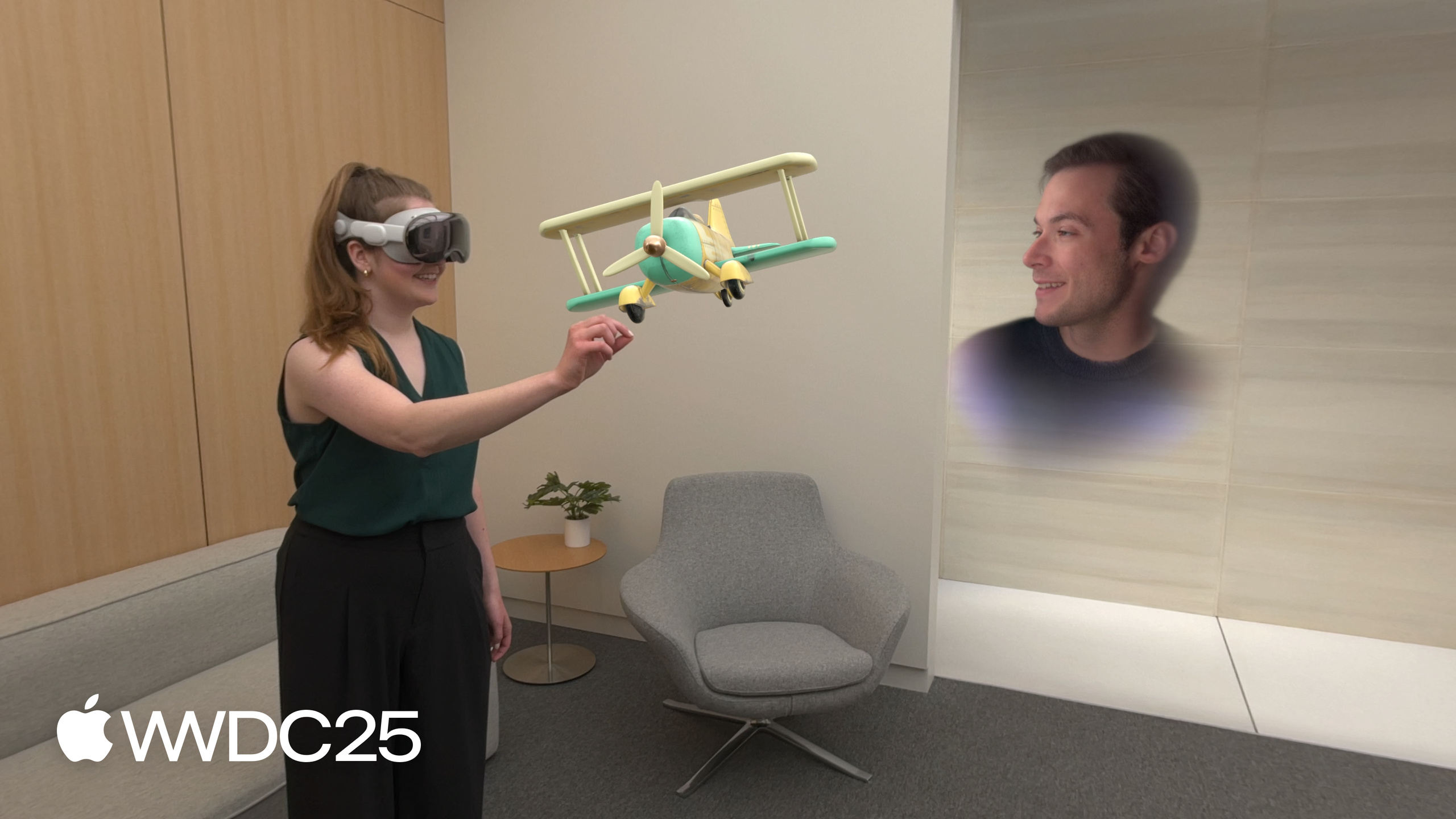
visionOS 26 introduces Nearby Window Sharing: a new share button appears on the right side of each window. Tap it, select nearby people, and the window appears in the same position and size for everyone. A green window bar indicates sharing is active.
Core Content
Two people wearing Vision Pro sit in the same living room. They want to watch a movie together or play a board game. In the past, each person opened the app on their own device. The views were misaligned, audio was out of sync, and they couldn’t even point at the screen together. Remote SharePlay turned the other person into a virtual Persona, while the experience of being physically together in the same room was ignored.
visionOS 26 solves this with Nearby Window Sharing. Each window bar gains a share button on the right. Tap it, choose nearby people from the list, and the window appears at the exact same position and size in everyone’s space. The window bar turns green to show it’s shared (01:02). Anyone can drag the window, resize it, or attach it to a wall—changes sync for all. Content fades out when a hand passes through, keeping gestures visible. Press the digital crown to recenter, and the window returns to a position that works for everyone. Apps already using SharePlay work with zero changes. Apps without SharePlay can still be shared in “read-only mode.” FaceTime remote participants appear as spatial Personas arranged nearby. When sharing volumetric windows, they fill the empty space around volumes.
Details
To implement nearby sharing properly, the session follows a main thread: expose GroupActivity to the Share menu, enhance the experience based on participant positions, then use ARKit to pin content to physical space.
Step 1: Expose activity to Share menu (06:21). The Share menu for volumetric windows is only available after the app exposes an activity. In SwiftUI, add a hidden ShareLink:
import SwiftUI
import GroupActivities

struct BoardGameActivity: GroupActivity, Transferable {
    var metadata: GroupActivityMetadata = {
        var metadata = GroupActivityMetadata()
        metadata.title = "Play Together"
        return metadata
    }()
}

struct BoardGameApp: App {
    var body: some Scene {
        WindowGroup {
            BoardGameView()
            ShareLink(item: BoardGameActivity(), preview: SharePreview("Play Together"))
                .hidden()
        }
        .windowStyle(.volumetric)
    }
}
Key points:
BoardGameActivityconforms to bothGroupActivityandTransferable—the latter letsShareLinkrecognize it.metadata.titleis the activity name shown in the Share menu.ShareLink(item:)takes an activity instance. Add.hidden()to avoid affecting UI—it only registers the activity with the Share menu..windowStyle(.volumetric)declares this as a volumetric window, so others see it as a volume when shared.
Step 2: Observe sessions and join (07:14). Activating an activity from the Share menu automatically creates a GroupSession, equivalent to calling activate() manually:
func observeSessions() async {
    for await session in BoardGameActivity.sessions() {
        guard let systemCoordinator = await session.systemCoordinator else { continue }
        systemCoordinator.configuration.supportsGroupImmersiveSpace = true
        session.join()
    }
}
Key points:
BoardGameActivity.sessions()is an async sequence that pushes a new session each time the activity is activated.systemCoordinatorprovides system-level SharePlay configuration.supportsGroupImmersiveSpace = truemeans the immersive space appears at the same position for everyone; otherwise, each person starts locally.session.join()is the actual call to enter SharePlay—without this line, the session is only observed, not started.
Step 3: Identify nearby participants (09:59). When FaceTime remote participants join, distinguish between local and remote:
func observeParticipants(session: GroupSession<BoardGameActivity>) async {
    for await activeParticipants in session.$activeParticipants.values {
        let nearbyParticipants = activeParticipants.filter {
            $0.isNearbyWithLocalParticipant && $0 != session.localParticipant
        }
    }
}
Key points:
session.$activeParticipants.valuesconverts the participant set to an async sequence, pushing on participant changes.isNearbyWithLocalParticipantis a new visionOS 26 property that checks if the other person is in the same physical space as the local user.- Exclude
localParticipantto avoid counting yourself as “nearby.” - With this list, you can create “nearby vs. remote” teams for adversarial games.
Step 4: Read participant positions (11:42). In immersive space, participants might stand anywhere—don’t assume everyone is at the origin:
func observeLocalParticipantState(session: GroupSession<BoardGameActivity>) async {
    guard let systemCoordinator = await session.systemCoordinator else { return }

    for await localParticipantState in systemCoordinator.localParticipantStates {
        let localParticipantPose = localParticipantState.pose
        // Place presented content relative to the local participant pose
    }
}
Key points:
localParticipantStatesis an async sequence on the system coordinator, pushing on state changes.posegives the participant’s pose in the ImmersiveSpace scene, including position and orientation.- pose does not track in real time—it updates once after key events like sharing start or digital crown recenter.
- With pose, place scoreboards and UI controls in front of each person instead of piling everything at the scene origin.
Step 5: Multi-window primary selection (15:54). When an app has multiple WindowGroups, the .groupActivityAssociation(.primary("InstructionalVideo")) modifier specifies which window is the SharePlay primary.
Step 6: Share World Anchor (20:24). ARKit in visionOS 26 adds a new initializer parameter to WorldAnchor:
import ARKit

class SharedAnchorController {
    func createAnchor(at transform: simd_float4x4, provider: WorldTrackingProvider) async throws {
        let anchor = WorldAnchor(originFromAnchorTransform: transform,
                                 sharedWithNearbyParticipants: true)
        try await provider.addAnchor(anchor)
    }

    func observeWorldTracking(provider: WorldTrackingProvider) async {
       for await update in provider.anchorUpdates {
            switch update.event {
            case .added, .updated, .removed:
                let anchorIdentifier = update.anchor.id
            }
        }
    }
}
Key points:
sharedWithNearbyParticipants: trueshares the anchor with nearby participants, so everyone sees the same physical position.- Before calling, observe
provider.worldAnchorSharingAvailability—don’t attempt sharing when unavailable. update.anchor.idis consistent across all devices and can be used directly as a content sync identifier.- Shared anchors do not persist after SharePlay ends, unlike regular world anchors—this is a common pitfall.
For media playback, visionOS 26’s AVPlayer automatically syncs audio and video for nearby participants through AVPlaybackCoordinator, preventing echoes when one device’s sound arrives before another’s.
Key Takeaways
-
Do: Run an existing SharePlay app on two Vision Pros in the same room to confirm nearby sharing works directly.
- Why: Apple says it works with zero changes, but real effects (position sync, Persona arrangement, AVPlayer sync) need device testing to catch details.
- How: Get a visionOS 26 device, invite a colleague to wear a second one, use the existing ShareLink to start a GroupSession, and watch for the green window bar and position consistency.
-
Do: Convert a pure Immersive Space experience to a “non-immersive window + immersive scene” dual mode.
- Why: Immersive Space has no window bar, so users can’t find the Share button and must rely on app-provided entry points. A non-immersive entry window keeps the Share menu always accessible.
- How: First create a regular WindowGroup as a lobby page, expose the activity with
ShareLink(item: YourActivity()). After everyone joins, transition to ImmersiveSpace and setsupportsGroupImmersiveSpace = true.
-
Do: Use
ParticipantState.poseto place UI in front of each nearby participant.- Why: Assuming everyone gathers directly in front of the window often fails—people might be anywhere in the room when sharing starts. A scoreboard at the origin faces empty space.
- How: Monitor
systemCoordinator.localParticipantStates, and when pose updates, pin scoreboards and toolbars 0.5 meters in front of each person’s pose. Refresh positions after digital crown recenter events.
-
Do: Anchor multi-user physical layouts (boards, table tools, 3D models) to a Shared World Anchor.
- Why: Making virtual content truly “stick” to the room’s table instead of floating in each person’s relative coordinate system is the most convincing part of being together in person.
- How: First
observe worldAnchorSharingAvailability. When available, create an anchor withWorldAnchor(originFromAnchorTransform:sharedWithNearbyParticipants: true). Useupdate.anchor.idas a sync identifier, and recreate after session ends (not persisted).
Related Sessions
- Create a seamless multiview playback experience — Implement multi-view playback and switching in your app.
- Enhance your app’s audio recording capabilities — Use new recording APIs to improve your app’s audio capture quality.
- Explore video experiences for visionOS — Various ways to present immersive video on visionOS.
- Learn about Apple Immersive Video technologies — Overview of Apple Immersive Video and Spatial Audio format capabilities.
Comments
GitHub Issues · utterances