
Highlight
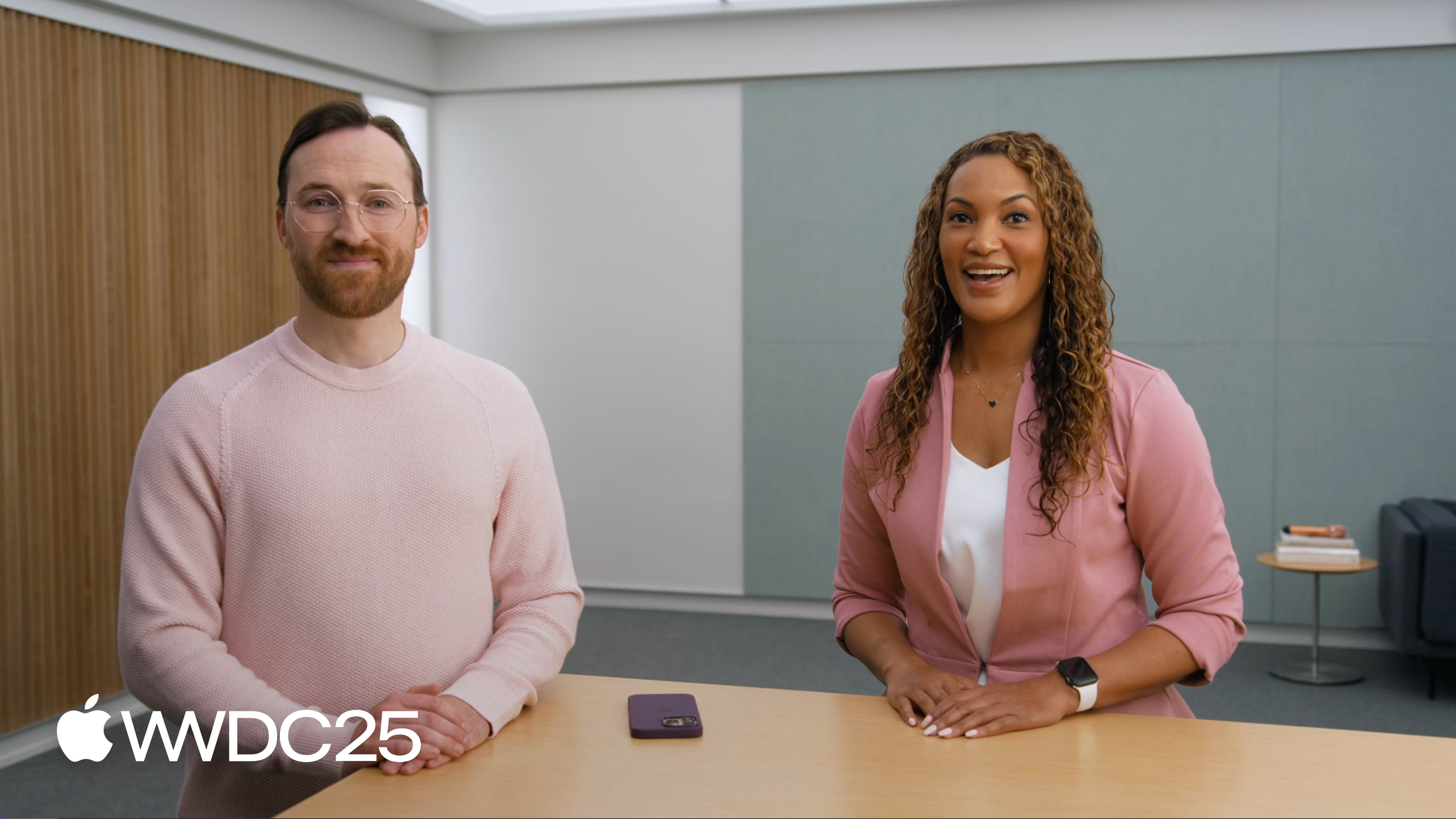
Apple designers Chris and Lisa propose the inclusion gap framework: disability arises from the gap between what a body can do and what society expects it to do. Products that bridge this gap (elevators, microphones, curb cuts) end up helping everyone.
Core Content
Many developers treat accessibility as a compliance task: “add VoiceOver labels after the feature is done.” This session offers a more practical angle. One in seven people has some form of disability (00:39). That does not even count temporary ones: temporary hearing loss after a concert, a loud library where you cannot play audio out loud, a room where everyone speaks a foreign language. Treating disability as “a special need for a minority” means walking away from a large design space.
The session redefines disability as an inclusion gap: the distance between what a body can do and what society defaults to expecting it to do (04:55). A two-story building with no elevator blocks wheelchair users. If the stairs are also under repair, people with full mobility are blocked too. The gap in ability is real, but disability is created by the environment. Under this framework, the designer’s job is no longer “fixing” but finding hidden inclusion gaps in the app and treating them as innovation opportunities.
Chris offers a practical language trick: think of disability as a spectrum, and add the word “some” — “some vision,” “some hearing.” He is legally blind, yet he can still see color, light, and large objects (03:29). This small wording shift moves design decisions from an all-or-nothing binary to a continuous range of gradual trade-offs.
Detailed Content
The session gives five sensory dimensions to check during design: vision, hearing, motor, speech, and cognitive (02:35). Around these five dimensions, Apple proposes four actionable principles.
1. Support multiple senses (08:54)
Video captions are the classic example: deaf and hard-of-hearing people need them, and so do people in libraries. The same information must travel through at least two sensory channels.
The new Accessibility Reader feature pushes this to the extreme (10:11): any text on screen can switch between visual reading, audio-only, or audio with highlighted text. Third-party app Crouton, a recipe app, offers four ways to import a recipe: From Image, From Camera, From Text, and Hands Free mode (11:27). Someone who cannot type can take a photo. Someone who cannot see the screen can type. Someone cooking with messy hands can flip pages by voice. Same feature, four sensory channels.
2. Offer customization (12:46)
Every sensory channel should be individually adjustable, not just font size. Accessibility Reader lets you change font size, color scheme, switch to the highly legible San Francisco variant, or swap the entire font (13:10).
Third-party app Carrot Weather turns layout density into a slider (13:39): from a dense dashboard-style layout all the way down to a minimal interface showing only one line of temperature. People with high cognitive load can pick the simplest version; weather enthusiasts can pick the densest. The app adapts to the person, not the other way around.
3. Adopt Accessibility APIs (14:26)
VoiceOver, Switch Control, Voice Control, and Larger Text have been around for years. Integrating them means a user can complete every action with a single external physical button — one button to move to the next item, one button to confirm (16:42). Larger Text scales fonts up to 3x, provided the layout has been made responsive.
The session cites Blackbox as an example (17:35). It is a puzzle game that uses iPhone sensors, such as rotating the phone 360 degrees horizontally. A low-vision player can solve the puzzle through a VoiceOver audio hint: “Clue: a circle made of 360 dashed lines.” The game mechanics themselves do not change; only an audio label is added.
4. Track inclusion debt (18:45)
Inclusiveness is not a one-time deal. The session compares it to technical debt: after each design round, you will still find new gaps. Log them, add them to the backlog, and iterate. Accessibility Reader itself is still iterating, with richer typography options and more reading styles on the way.
The key question at the design stage: “If the user is deaf, blind, has limited hand mobility, cannot speak, or has high cognitive load, can they complete the core task in my app?” If not, that is an inclusion gap, and that is a product opportunity.
Another principle running through the entire session: “Nothing about us without us” (07:48) — when making design decisions about people with disabilities, people with disabilities must be involved. If no one on the team has a disability, at least find one assistive-technology user to test with.
Core Takeaways
1. Run an inclusion gap audit on your app
Why it matters: checking once across each of the five sensory dimensions (vision, hearing, motor, speech, cognitive) usually reveals 3 to 5 hidden gaps. These gaps are not just accessibility problems; they are often pain points for ordinary users too (noisy environments, busy hands, language barriers).
How to start: list your app’s core task flows (sign-up, main feature, checkout). Run each flow five times, each time assuming the user has lost one sensory ability. Note which steps get them stuck. Those are the gaps.
2. Expand “customization” from font size to every sensory channel
Why it matters: most apps’ “accessibility settings” only support Dynamic Type. But people with vision impairments need color schemes and typefaces; people with hearing impairments need captions and haptic feedback; people with cognitive disabilities need layout density. Carrot Weather’s density slider is a concrete model to copy.
How to start: pick one core screen and offer at least two layouts — a dense version and a minimal version. Let users switch in settings, and persist that preference.
3. Add a second channel to video and audio content
Why it matters: auto-caption video (Apple already provides the Speech framework for on-device transcription), and auto-generate text summaries for audio content. Deaf people benefit; so do people on the subway who cannot play audio out loud.
How to start: use SpeechAnalyzer or SFSpeechRecognizer for on-device captions. For long audio, use Foundation Models to generate paragraph summaries and allow jumping to them.
4. Build inclusion debt into your engineering workflow
Why it matters: inclusiveness needs steady investment, not a one-off sprint. Tracking gaps as technical debt lets you allocate a fixed budget to fix one or two each iteration, so they do not become permanent backlog.
How to start: create an inclusion label in your issue tracker. Tag every gap found in user research, usability testing, or App Store reviews. Dedicate 10% of each sprint to this backlog.
5. Find at least one real assistive-technology user to test with
Why it matters: simulated testing (for example, turning off the screen and using VoiceOver yourself) catches about 30% of issues. The remaining 70% only surface with real users. “Nothing about us without us” is a design principle and a quality assurance method.
How to start: contact a local blind or deaf association, or explicitly recruit assistive-technology users in your TestFlight sign-up. Give them one core task and watch how they complete or abandon it.
Related Sessions
- Customize your app for Assistive Access — Assistive Access is a simplified iOS mode designed for users with cognitive disabilities; see how apps reshape their interface under this mode.
- Evaluate your app for Accessibility Nutrition Labels — App Store now adds Accessibility labels so users can see which assistive features an app supports before downloading.
- Make your Mac app more accessible to everyone — Mac accessibility API integration, including VoiceOver-specific behavior on macOS and desktop interaction patterns.
- Catch up on accessibility in SwiftUI — a full overview of SwiftUI accessibility modifiers, the recommended starting point for the APIs mentioned in this session.
Comments
GitHub Issues · utterances