
Highlight
The session targets three pain points: playback synchronization across multiple players, route management for AirPlay multi-stream output, and quality priority across streams.
Core content
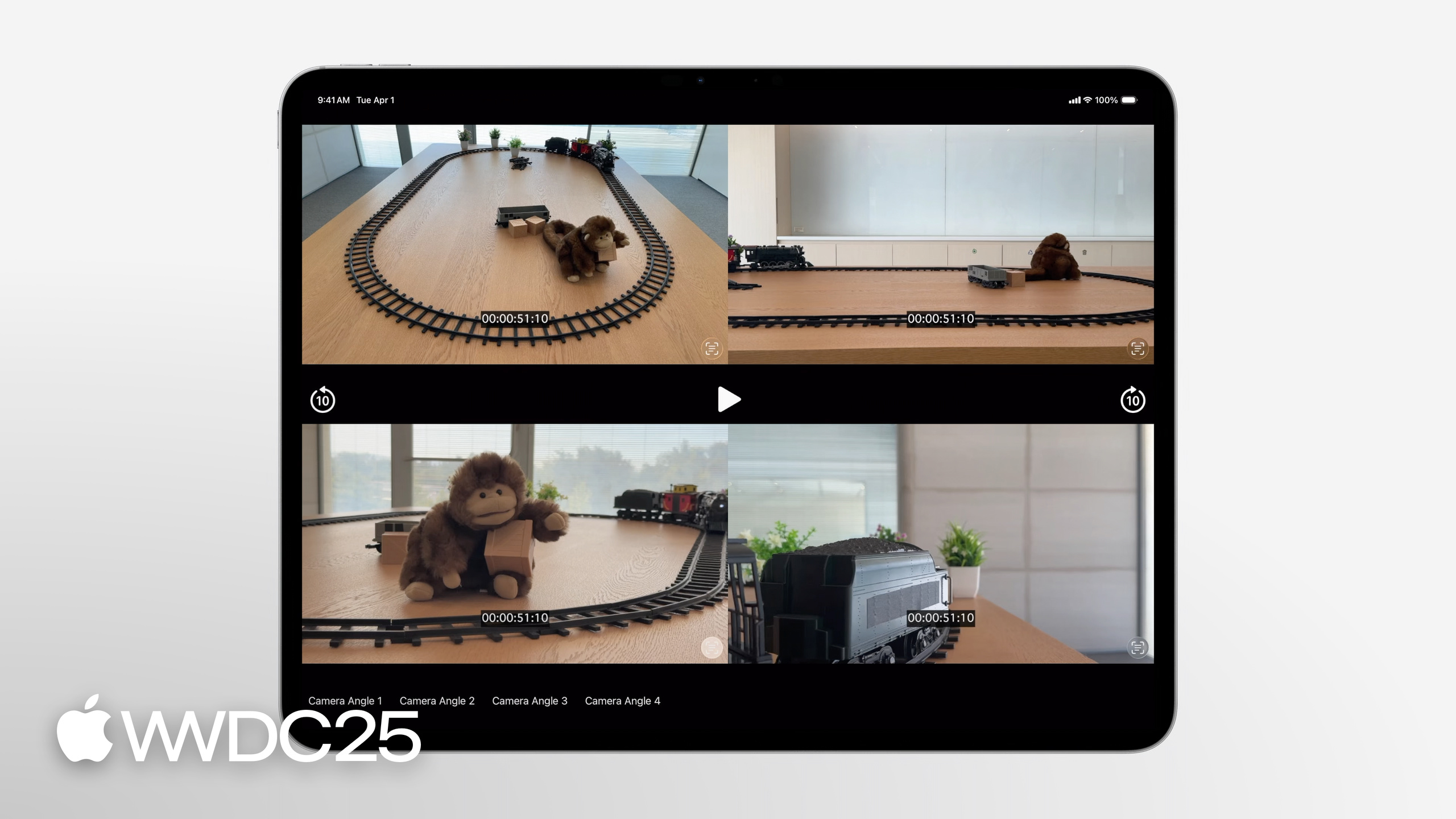
Picture a scene. The user is watching a ball game, and the app plays four streams at once: a bird’s-eye shot, a close-up follow shot, and two sideline cameras. The user hits pause, and all four streams must stop on the same frame. Skip forward 10 seconds, and all four must jump to the same moment. The network drops, and the bird’s-eye stream must hold high definition while the others may fall back to low definition. Before iOS 26, you had to write all of this by hand: seek precision, stall recovery, startup waiting. Each piece was easy to get wrong.
This WWDC25 session covers three new APIs added to AVFoundation and AVRouting in iOS 26 that fold these behaviors into the system. AVPlaybackCoordinationMedium syncs state across several AVPlayer instances. AVRoutingPlaybackArbiter decides which stream takes the big screen on output devices like AirPlay that only carry one stream. AVPlayer.networkResourcePriority lets the system protect the quality of the key stream when bandwidth is tight. Together, the app layer needs only a few lines of code to build a full multiview playback experience.
Details
Multi-stream sync: AVPlaybackCoordinationMedium
AVPlaybackCoordinationMedium builds on the existing AVPlaybackCoordination architecture, the same one SharePlay uses. Each AVPlayer carries an AVPlaybackCoordinator that negotiates state between the local player and other connected players. The medium passes messages between them: rate changes, time jumps, stalls, interruptions, and startup sync all flow through the message channel (06:17).
The hookup is short. Connect each player’s playbackCoordinator to the same medium through coordinate(using:) (07:55):
import AVFoundation

var closeUpVideo = AVPlayer()
var birdsEyeVideo = AVPlayer()

let coordinationMedium = AVPlaybackCoordinationMedium()

do {
  try closeUpVideo.playbackCoordinator.coordinate(using: coordinationMedium)
} catch let error {
  // Handle error
}

do {
  try birdsEyeVideo.playbackCoordinator.coordinate(using: coordinationMedium)
} catch let error {
  // Handle error
}
Key points:
closeUpVideoandbirdsEyeVideoare two independentAVPlayerinstances that load different assets and stay decoupled from each other.AVPlaybackCoordinationMedium()creates a shared coordination medium. Every player you want to sync connects to the same instance.playbackCoordinator.coordinate(using:)attaches the current player’s coordinator to the medium. The method may throw, so you musttryand handle the error.- Once connected, calling
play(),pause(), orseek(to:)on any player makes the medium broadcast the state to the others. You write no sync logic of your own. - The mechanism keeps players in sync under system UI such as Picture-in-Picture and Now Playing (05:19).
AirPlay routing: AVRoutingPlaybackArbiter
An AirPlay receiver only takes one stream, so the app must tell the system which stream goes to the big screen and which goes to the HomePod. AVRoutingPlaybackArbiter lives in the AVRouting framework and handles exactly this. It covers two route types: non-mixable audio routes (devices like HomePod that play only one audio stream) and constrained external playback video routes (AirPlay video, the Lightning Digital AV Adapter, and other devices that play only one video stream) (11:31).
import AVFoundation
import AVRouting

var closeUpVideo = AVPlayer()
var birdsEyeVideo = AVPlayer()

let routingPlaybackArbiter = AVRoutingPlaybackArbiter.shared()

routingPlaybackArbiter.preferredParticipantForExternalPlayback = birdsEyeVideo

routingPlaybackArbiter.preferredParticipantForNonMixableAudioRoutes = birdsEyeVideo
Key points (13:17):
AVRoutingPlaybackArbiter.shared()returns a singleton. The whole app has one arbiter.preferredParticipantForExternalPlaybackpicks which video stream takes the big screen when AirPlaying to an Apple TV. The other players keep playing locally.preferredParticipantForNonMixableAudioRoutespicks which audio stream the system uses when routing to a device like HomePod.- The two properties may point to the same player or to different players. Video and audio can come from different streams.
- To switch the preference, just assign a new value to the property. In the demo, pressing the star button sets
closeUpVideoas preferred, and the streams on and off the big screen swap automatically (10:17).
Quality priority: networkResourcePriority
Every stream eats bandwidth. By default the system treats all streams as equally important and splits bandwidth evenly. But in practice, the bird’s-eye main shot must stay sharp, while the crowd-cam can drop a resolution tier without harm. AVPlayer.networkResourcePriority has three levels: default, .high, and .low (14:59).
birdsEyeVideo.networkResourcePriority = .high
closeUpVideo.networkResourcePriority = .low
Key points (16:15):
.highsays this stream needs more network resources, and the system will try to keep it on a higher resolution tier..lowsays this stream is not sensitive to sharpness, and the system will drop it first when bandwidth is tight.- This is a hint to the system, not a hard quota. Actual bandwidth allocation also factors in the number of players, video layer size, hardware constraints, and more (16:35).
- In the demo, when the network gets worse, the close-up marked
.lowdrops to a lower resolution first, while the bird’s-eye marked.highholds high definition (17:52).
Takeaways
-
What to build: bring multi-camera live coverage into sports, performance, or teaching apps.
- Why it pays off: rolling your own sync logic used to be expensive. Dropped frames, mismatched seeks, and startup waits were all traps. The medium plugs them.
- How to start: build a minimal demo. Two
AVPlayerinstances load HLS streams from different cameras, wire them together withAVPlaybackCoordinationMedium, and check play / pause / seek / startup sync under poor network conditions.
-
What to build: add a sign-language stream (ASL/CSL) channel to an existing video app.
- Why it pays off: a sign-language stream is a textbook case of “must stay in strict sync, and prefer the main video on AirPlay.” Medium plus Arbiter gets you in at near-zero cost, and the accessibility win is large.
- How to start: connect the main video player and the sign-language player to the same medium. Set the main video as
preferredParticipantForExternalPlaybackso the sign-language stream stays on the local device when AirPlay takes over the big screen.
-
What to build: add a “main view / sub view” toggle to the multiview playback page.
- Why it pays off: when the user long-presses or double-taps to switch the main view, the AirPlay big-screen stream should follow. With
AVRoutingPlaybackArbiter, a single assignment swaps the streams. The result is smoother than tearing down and rebuilding players yourself. - How to start: listen for the user’s “star” or “pin” action and update
preferredParticipantForExternalPlayback. At the same time, switchnetworkResourcePriorityto.high/.lowso bandwidth follows the main view.
- Why it pays off: when the user long-presses or double-taps to switch the main view, the AirPlay big-screen stream should follow. With
-
What to build: adjust
networkResourcePrioritybased on view size.- Why it pays off: in an iPad multiview layout, the enlarged stream deserves more bandwidth. Linking priority to view size means the stream the user notices most stays sharp first under poor network conditions.
- How to start: when a view’s size changes (split-screen switch, PiP switch), update the matching
AVPlayer’snetworkResourcePriority, and run an A/B test to measure sharpness under poor network conditions.
Related sessions
- Enhance your app’s audio recording capabilities — AVAudioRecorder and multi-microphone recording upgrades, fit for dubbing or live-stream apps.
- Explore video experiences for visionOS — immersive video presentation on visionOS. The multiview idea extends into spatial content.
- Learn about Apple Immersive Video technologies — Apple Immersive Video and Spatial Audio formats, paired with multiview for new patterns.
- Learn about the Apple Projected Media Profile — APMP brings 180°/360° projected media. Stack APMP on multiview to build a control-room-grade experience.
Comments
GitHub Issues · utterances