
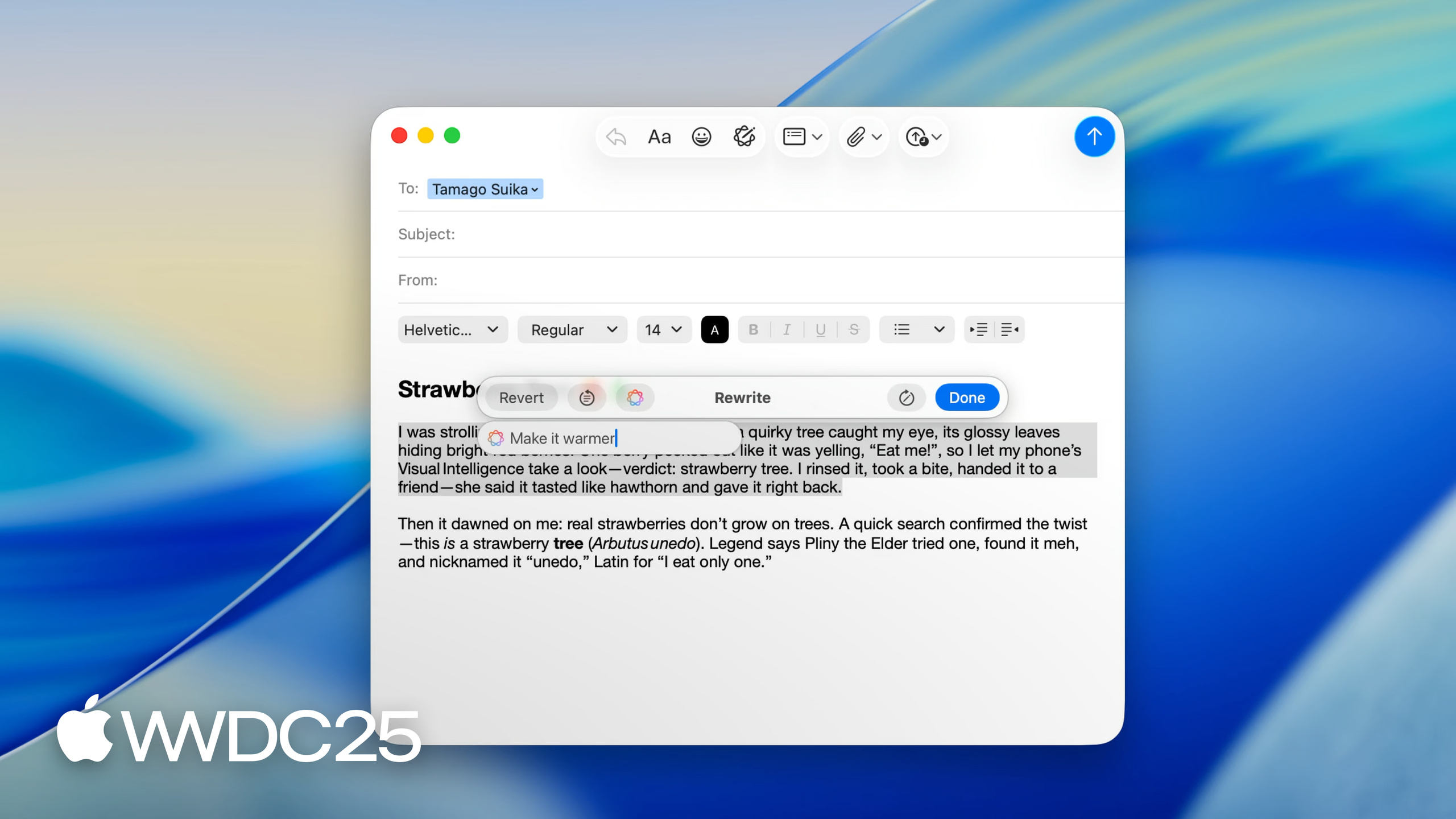
Highlight
Writing Tools adds a Writing Tools Coordinator API this year, so custom text engines also get the full experience: in-place rewrite, animation, and inline proofreading.
Core Content
Last year Apple shipped Writing Tools. The native UITextView and NSTextView worked out of the box, but any app that ships its own text engine (notes, code editors, rich text editors) only got a panel-style experience: select text, see the result, hit Replace. The result lived in a floating panel — no animation, no inline proofread underlines. A clear gap behind native Mail and Notes.
This year iOS, iPadOS, and macOS 26 give the answer: UIWritingToolsCoordinator and NSWritingToolsCoordinator. The Coordinator owns the conversation between your text view and Writing Tools — you supply context (text + selection), the Coordinator drives the delegate to do replacement, animation preview, proofread underline drawing, and state change handling. The end result: Rewrite animates the new text directly in the view, Proofread draws underlines on the original text, and tapping an underline pops up a suggestion.
Beyond the Coordinator, Writing Tools comes to visionOS this year. It also gains ChatGPT integration (generate text, generate images), Follow Up after a rewrite (“warmer”, “more conversational”), and a Shortcuts entry point. Native text views also fill in the API gaps: a standard toolbar button, the standard menu items via writingToolsItems, and the presentationIntent result option for rich text.
Details
Custom Text Engine Adoption: Three Steps with the Coordinator
Step one is attaching the Coordinator to the view. UIKit uses a UIInteraction; AppKit uses an instance property on NSView (11:46):
// Attach a coordinator to the view
// AppKit

func configureWritingTools() {
    guard NSWritingToolsCoordinator.isWritingToolsAvailable else { return }

    let coordinator = NSWritingToolsCoordinator(delegate: self)

    coordinator.preferredBehavior = .complete
    coordinator.preferredResultOptions = [.richText, .list]
    writingToolsCoordinator = coordinator
}
Key points:
isWritingToolsAvailableis the availability fallback — return early when the device does not support Apple Intelligence so you don’t waste later configuration.preferredBehavior = .completemeans the full experience (in-place rewrite + animation + inline proofread), as opposed to.limitedwhich is panel-only.preferredResultOptionsdeclares what formats your view can consume:.richTextfor bold and italic, plus.listfor lists, plus.tablefor tables, plus.presentationIntentfor semantic intents.
Step two is providing the context (13:06):
// Prepare the context

func writingToolsCoordinator(_ writingToolsCoordinator: NSWritingToolsCoordinator,
        requestsContextsFor scope: NSWritingToolsCoordinator.ContextScope,
        completion: @escaping ([NSWritingToolsCoordinator.Context]) -> Void) {

    var contexts = [NSWritingToolsCoordinator.Context]()

    switch scope {
    case .userSelection:
        let context = getContextObjectForSelection()
        contexts.append(context)
        break
        // other cases…
    }

    // Save references to the contexts for later delegate calls.
    storeContexts(contexts)
    completion(contexts)
}
Key points:
- The delegate method is async (completion handler) because pulling text from the underlying storage in a large document can take time.
- A Context has two parts: an
NSAttributedStringof text and a selectionNSRange. - It must include the current selection. You can also include the paragraphs around the selection so Writing Tools sees the surrounding context.
- When there is no selection, return the whole document as the context with the range set to the cursor — Writing Tools can then operate on the entire text.
storeContexts(contexts)keeps a reference to the context, because later replacement, preview, and proofread callbacks come back with the same context object.
Step three is responding to text replacement (13:48):
// Respond to text changes from Writing Tools

func writingToolsCoordinator(_ writingToolsCoordinator: NSWritingToolsCoordinator,
        replace range: NSRange,
        in context: NSWritingToolsCoordinator.Context,
        proposedText replacementText: NSAttributedString,
        reason: NSWritingToolsCoordinator.TextReplacementReason,
        animationParameters: NSWritingToolsCoordinator.AnimationParameters?,
        completion: @escaping (NSAttributedString?) -> Void) {
}

// Update selected range

func writingToolsCoordinator(_ writingToolsCoordinator: NSWritingToolsCoordinator,
        select ranges: [NSValue],
        in context: NSWritingToolsCoordinator.Context,
        completion: @escaping () -> Void) {
}
Key points:
- The
replacemethod writes the Writing Tools suggestion back to the view’s text storage. The same context may be called back many times, each time for a different range. rangeis relative to the text inside the context. Map it to your view’s text storage coordinates.- The
selectmethod runs after replacement, so you can update the selection to point at the new text.
Animation Preview: Make the Replacement Move
Writing Tools wants to show animations during processing (a glow, a flow effect). It does not touch your real view. Instead it asks you for a preview image and overlays the effect on top (14:41):
// Generate preview for animation (macOS)

func writingToolsCoordinator(_ writingToolsCoordinator: NSWritingToolsCoordinator,
        requestsPreviewFor textAnimation: NSWritingToolsCoordinator.TextAnimation,
        of range: NSRange,
        in context: NSWritingToolsCoordinator.Context,
        completion: @escaping ([NSTextPreview]?) -> Void) {
}

func writingToolsCoordinator(_ writingToolsCoordinator: NSWritingToolsCoordinator,
        requestsPreviewFor rect: NSRect,
        in context: NSWritingToolsCoordinator.Context,
        completion: @escaping (NSTextPreview?) -> Void) {
}
Key points:
- macOS has two delegate methods: one returns an array of previews for a range (at least one, but you can return one per line for smoother animation); the other returns a single preview for a rect.
- Render previews with a transparent background — Writing Tools layers the preview over the original spot during the animation.
- iOS uses
UITargetedPreview(14:58) and has only one delegate method. - Animations come with paired
prepareFor/finishcallbacks (15:08): hide the real text in that range before the animation starts, show it again after, so the preview and the real text don’t overlap.
Inline Proofread: Return Bezier Paths
Proofread mode draws underlines on top of the original view. Writing Tools does not compute coordinates either — it asks you for the paths (15:39):
// Create proofreading marks

func writingToolsCoordinator(_ writingToolsCoordinator: NSWritingToolsCoordinator,
        requestsUnderlinePathsFor range: NSRange,
        in context: NSWritingToolsCoordinator.Context,
        completion: @escaping ([NSBezierPath]) -> Void) {
}

func writingToolsCoordinator(_ writingToolsCoordinator: NSWritingToolsCoordinator,
        requestsBoundingBezierPathsFor range: NSRange,
        in context: NSWritingToolsCoordinator.Context,
        completion: @escaping ([NSBezierPath]) -> Void) {
}
Key points:
requestsUnderlinePathsForreturns the underline paths. Writing Tools uses them to draw the proofread marks.requestsBoundingBezierPathsForreturns the hit area around the range, used to respond to clicks and touches — when the user taps a suggestion, the change detail pops up.- After the layout changes (window resize, font change), call
updateForReflowedTextto tell the Coordinator to request paths and previews again. - When external code modifies the text (undo, external sync), call
updateRange:withTextso Writing Tools stays in sync.
Display Attributes vs Presentation Intents
Rich text apps face a choice (06:48). With .richText alone, Writing Tools expresses styles through display attributes — concrete font size, bold, italic written directly onto NSAttributedString properties. TextEdit works this way.
Add .presentationIntent and Writing Tools switches to semantic intents: a heading paragraph carries a header intent without a specific font size; a list carries a list intent; a code block carries a code block intent. Notes uses this mode and converts the intents into its own semantic style system.
The points: presentation intents do not carry default styles — your app does the rendering. Some styles (underline, superscript, subscript) cannot be expressed as intents and still fall back to display attributes. Once you turn on presentation intents, override requestContexts so the existing paragraph intents also flow into Writing Tools.
Takeaways
-
Add a Writing Tools toolbar button to text-heavy apps: why it pays off — users may not know about the select-then-invoke path; a clear toolbar entry, like Notes and Mail, lifts adoption noticeably. How to start: use
UIBarButtonItemin UIKit andNSToolbarItemin AppKit; the standard API ships with the icon and localization. -
Use the
writingToolsItemsAPI to place menu items by hand: why it pays off — the menu structure for Proofread / Rewrite / Summary changed this year, and the auto-inserted position may not match your menu. Pull the standard items from the API and place them yourself, and updates this year and next will follow along. How to start: setautomaticallyInsertsWritingToolsItemstofalse, callwritingToolsItemsfor the standard items, and slot them into your menu structure. -
Upgrade custom text engines to the full Coordinator experience: why it pays off — basic adoption gives you only the panel mode and the gap is obvious; the Coordinator gives you in-place rewrite animation and inline proofread, matching system apps. How to start: follow Apple’s sample code “Enhancing your custom text engine with Writing Tools” and implement the six core delegate methods (context, replace, select, preview, underline path, state change).
-
Evaluate
.presentationIntentfor rich text editors: why it pays off — if your app already has its own semantic style system (heading, subheading, blockquote), intents give you structured results, and mapping intents to internal styles is more reliable than parsing concrete font sizes. How to start: add.presentationIntenttopreferredResultOptions, overriderequestContextsto pass existing paragraph intents out, and write an intent-to-internal-style mapping function. -
Make every delegate method truly async: why it pays off — generating previews and computing underline paths for large documents both take time; blocking the completion handler will jank the animation. How to start: render previews on a background queue and call back on the main thread; do replacements through your text storage’s batch editing interface so layout doesn’t fire on every character.
Related Sessions
- Get started with Writing Tools — last year’s intro session, covering
WritingToolsBehavior,AllowedInputOptions(this year’s Result Options), and basic adoption. - Bring your machine learning and AI models to Apple silicon — move your own ML models on-device, complementing Writing Tools as “system AI + your AI”.
- Meet the Foundation Models framework — this year’s new on-device LLM framework; beyond Writing Tools, you can call the foundation model directly.
- Code-along: Bring on-device AI to your app using the Foundation Models framework — a Foundation Models code-along, showing on-device AI beyond Writing Tools.
Comments
GitHub Issues · utterances