
Highlight
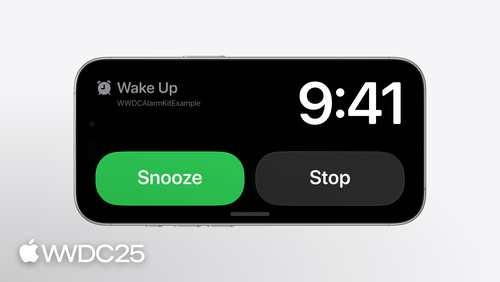
iOS 26 uses AlarmKit to open up to third-party apps the kind of alarm that breaks through silent mode and Focus. Paired with Live Activity, it shows a countdown on the Lock Screen and Dynamic Island, and lets you wire up custom button behavior through App Intents.
Core content
Third-party apps have always run into the same wall: local notifications get muted by silent mode and Focus, so the user never hears them when the time is up. For cooking timers, wake-up alarms, and long-run pace reminders — anything that has to ring — developers either tell users to turn off silent mode or take the gray path of push plus background audio. Until now, system-level alarms were the exclusive domain of Apple’s own Clock app.
AlarmKit in iOS 26 tears down that wall. The framework gives third-party alarms the same priority as system alarms: when they ring, they pierce silent mode and the current Focus, and they show up on the Lock Screen, Dynamic Island, StandBy, and Apple Watch. The developer declares NSAlarmKitUsageDescription in Info.plist, and once the user grants permission, the app can schedule alarms with AlarmManager.shared.schedule(id:configuration:). An alarm has four parts: a countdown duration, a schedule (fixed time or relative recurrence), a presentation (title, buttons, color), and an optional custom sound. The Live Activity is not decoration — it is required. As soon as an alarm has a countdown, the app must implement the matching Live Activity, or the system falls back to its default presentation.
Detail
Before scheduling an alarm, check authorization. AlarmManager.shared.authorizationState returns one of .notDetermined / .authorized / .denied (02:41).
import AlarmKit

func checkAuthorization() {
  switch AlarmManager.shared.authorizationState {
    case .notDetermined:
      // Manually request authorization
    case .authorized:
      // Proceed with scheduling
    case .denied:
      // Inform status is not authorized
  }
}
Key points:
AlarmManager.sharedis the singleton entry point. All scheduling, querying, and canceling go through it.- If the state is
.notDetermined, you can callrequestAuthorizationto prompt explicitly, or let the system prompt automatically on the firstschedulecall. - In the
.deniedstate, tell the user in the UI that the alarm will not ring — do not let them assume that setting it is enough.
The countdown duration is described by Alarm.CountdownDuration, split into preAlert and postAlert (04:08).
let countdownDuration = Alarm.CountdownDuration(preAlert: (10 * 60), postAlert: (5 * 60))Key points:
preAlertis the countdown before the first ring, in seconds. For a 10-minute steak, write10 * 60.postAlertis the countdown before the alarm rings again after the user taps “repeat” or “snooze”.- Both values are optional. A pure point-in-time alarm with no countdown can omit them.
There are two kinds of schedule. Fixed scheduling, Alarm.Schedule.fixed(_:), takes an absolute Date and does not shift with the time zone (04:40).
let keynoteDateComponents = DateComponents(
  calendar: .current,
  year: 2025, month: 6, day: 9,
  hour: 9, minute: 41)
let keynoteDate = Calendar.current.date(from: keynoteDateComponents)!
let scheduleFixed = Alarm.Schedule.fixed(keynoteDate)
Relative scheduling, Alarm.Schedule.Relative, takes a time and a recurrence rule, and drifts with the device’s time zone (05:13).
let time = Alarm.Schedule.Relative.Time(hour: 7, minute: 0)
let recurrence = Alarm.Schedule.Relative.Recurrence.weekly([
  .monday, .wednesday, .friday
])
let schedule = Alarm.Schedule.Relative(time: time, repeats: recurrence)
Key points:
- Use
fixedfor travel alarms — fly to Tokyo and the alarm still rings at the absolute time set in your home zone. - Use
Relativefor a weekday wake-up — across time zones it auto-adjusts to 7 a.m. local. Recurrence.weekly([.monday, ...])uses aSetto express the days of the week, which reads naturally.
The presentation is built around the two-layer structure of AlarmAttributes and AlarmConfiguration. The minimal “show an alert with a single dismiss button” config looks like this (05:43):
func scheduleAlarm() async throws {
    typealias AlarmConfiguration = AlarmManager.AlarmConfiguration<CookingData>

    let id = UUID()
    let duration = Alarm.CountdownDuration(preAlert: (10 * 60), postAlert: (5 * 60))

    let stopButton = AlarmButton(
        text: "Dismiss",
        textColor: .white,
        systemImageName: "stop.circle")

    let alertPresentation = AlarmPresentation.Alert(
        title: "Food Ready!",
        stopButton: stopButton)

    let attributes = AlarmAttributes<CookingData>(
        presentation: AlarmPresentation(alert: alertPresentation),
        tintColor: Color.green)

    let alarmConfiguration = AlarmConfiguration(
        countdownDuration: duration,
        attributes: attributes)

    try await AlarmManager.shared.schedule(id: id, configuration: alarmConfiguration)
}
Key points:
- The app generates and stores the
id: UUID— canceling and querying the alarm later both rely on it. - An
AlarmButtonhas three pieces: text, text color, and an SF Symbol name. The SF Symbol shows up in the Dynamic Island compact mode. - The generic parameter on
AlarmAttributes<CookingData>is your custom metadata type. PassingNeverworks, but custom metadata gives you more flexibility. tintColorcontrols the main color of the countdown in the system presentation.
To make a “repeat” button start the countdown again, add a secondaryButton and set secondaryButtonBehavior to .countdown (07:17). To have a button jump into the app and run custom logic, set the behavior to .custom and supply a LiveActivityIntent (14:09):
let secondaryIntent = OpenInApp(alarmID: id.uuidString)

let openButton = AlarmButton(
  text: "Open",
  textColor: .white,
  systemImageName: "arrow.right.circle.fill")

let alertPresentation = AlarmPresentation.Alert(
  title: "Food Ready!",
  stopButton: stopButton,
  secondaryButton: openButton,
  secondaryButtonBehavior: .custom)

// ...

let alarmConfiguration = AlarmConfiguration(
  countdownDuration: duration,
  attributes: attributes,
  secondaryIntent: secondaryIntent)

public struct OpenInApp: LiveActivityIntent {
    public func perform() async throws -> some IntentResult { .result() }
    public static var title: LocalizedStringResource = "Open App"
    public static var openAppWhenRun = true

    @Parameter(title: "alarmID")
    public var alarmID: String

    public init(alarmID: String) { self.alarmID = alarmID }
    public init() { self.alarmID = "" }
}
Key points:
- Only
secondaryButtonBehavior: .custompaired with asecondaryIntentlets you run app logic straight from the Lock Screen. - A
LiveActivityIntentmust have a no-argumentinit()— the system needs it to deserialize. openAppWhenRun = truebrings the app to the foreground after the intent runs.alarmIDcomes in through@Parameter, so the intent knows which alarm fired.
The countdown itself needs a Live Activity to render it. The generic parameter on ActivityConfiguration points to AlarmAttributes<CookingData>, and the view branches on context.state.mode to render the .countdown, .paused, and .alert states (09:15):
struct AlarmLiveActivity: Widget {
  var body: some WidgetConfiguration {
    ActivityConfiguration(for: AlarmAttributes<CookingData>.self) { context in
      switch context.state.mode {
      case .countdown:
        countdownView(context)
      case .paused:
        pausedView(context)
      case .alert:
        alertView(context)
      }
    } dynamicIsland: { context in
      DynamicIsland {
        DynamicIslandExpandedRegion(.leading)  { leadingView(context)  }
        DynamicIslandExpandedRegion(.trailing) { trailingView(context) }
      } compactLeading:  { compactLeadingView(context)  }
        compactTrailing: { compactTrailingView(context) }
        minimal:         { minimalView(context)         }
    }
  }
}
Key points:
- The AlarmKit Live Activity goes in the app’s Widget Extension and is written the same way as a regular ActivityKit Live Activity.
context.state.modeis a state machine the system feeds in for you — no need to manage it yourself.- Provide views for all three Dynamic Island sizes — compact, minimal, and expanded — or the system will show a blank.
- Custom metadata is read through
context.attributes.metadata, and can drive things like switching SF Symbols (for example, swapping the icon between fry and bake).
Takeaways
-
What to do: add AlarmKit countdowns to cooking and baking apps, replacing local notifications from
UNUserNotificationCenter.- Why it matters: local notifications go silent under mute and Focus, but AlarmKit breaks through; an overcooked steak is far worse than a popup the app forgot.
- How to start: add
NSAlarmKitUsageDescriptiontoInfo.plistwith copy like “Used for cooking timers”; setpreAlertto the recipe step duration and leavepostAlertat 1–2 minutes as a backstop.
-
What to do: in cross-time-zone travel apps, set the boarding alarm with
Alarm.Schedule.fixed.- Why it matters: a relative schedule drifts across time zones, but boarding time is absolute and must not drift; only a fixed schedule guarantees the alarm fires at the time you wrote down at home, even when you land in Tokyo.
- How to start: build
DateComponentsfor the boarding time in the flight’s local time zone, convert it to aDate, and pass it toAlarm.Schedule.fixed(_:); save the alarmidin the trip database so a rebooking cancanceland re-schedule.
-
What to do: in long-run and Pomodoro apps, use
secondaryButtonBehavior: .customso a Lock Screen button runs the next step directly.- Why it matters: unlocking with sweaty hands mid-run is a chore; a Lock Screen button that jumps to the next interval is much smoother than “open the app and look for the button”.
- How to start: define a
LiveActivityIntentand passalarmIDas a@Parameter; inperform(), read the next pace from the workout database and schedule the next alarm.
-
What to do: in wake-up alarm apps, combine relative scheduling with
Recurrence.weeklyto set Monday through Friday once.- Why it matters: users hate adjusting their alarm manually every day; a single weekly recurrence rings at 7 a.m. local even when they travel across time zones.
- How to start: set the time with
Alarm.Schedule.Relative.Time(hour:minute:)and list the weekdays with.weekly([.monday, .tuesday, ...]); weekend rules go in a separate alarm.
Related sessions
- Meet ActivityKit — an introduction to the Live Activity framework, which the AlarmKit countdown UI builds on directly.
- Bring widgets to new places — the new placements for Widgets and Live Activities in iOS 26.
- Explore enhancements to App Intents —
LiveActivityIntentis part of the App Intents family and is what powers custom button behavior. - What’s new in widgets — Widget updates for the Lock Screen, Dynamic Island, and StandBy, which affect how alarms look.
Comments
GitHub Issues · utterances