
Highlight
watchOS 26 opens up Controls, configurable widgets, and
WidgetRelevance-based relevance signals to developers, and moves Apple Watch Series 9 and later to the arm64 architecture.
Core content
The biggest pain in building Apple Watch apps used to be that the user had to open the app first to use any of its features. Space on the watch face is tight, and complex features are hard to run on a small screen. The result: many iPhone apps end up as just an icon on Apple Watch, tapped a few times and then forgotten.
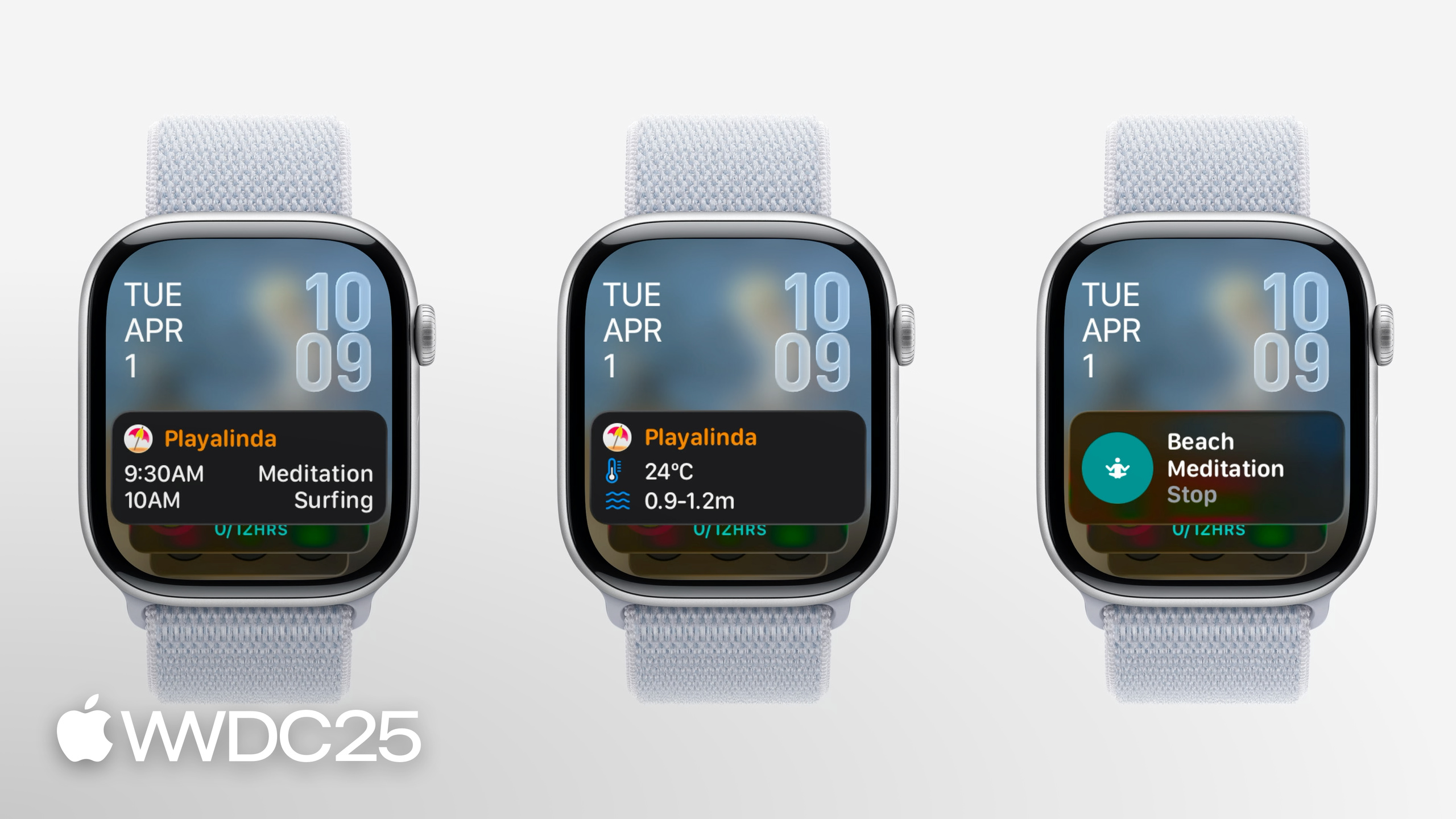
watchOS 26 changes three things at once to clear this path. First, Controls come to Apple Watch (04:04). They can sit in Control Center, in the Smart Stack, or be bound to the Action button on Apple Watch Ultra to fire an action with a single tap. Second, widgets now support configuration (06:53): one codebase lets the user pick what the widget shows. Third, the relevance API has been upgraded. With WidgetRelevance and RelevanceEntriesProvider, an app can tell the system “here is when it is worth pushing me to the top of the Smart Stack” — for example, when the user enters the area near a beach, or when an event is about to start (10:53, 14:37).
The engine underneath has changed too. Apple Watch Series 9 and later move to the arm64 architecture on watchOS 26 (02:46). Xcode 14 already supports building arm64 watchOS apps, and the simulator on Apple Silicon Macs has run arm64 all along, so for most projects flipping on “Standard Architectures” is enough. Watch out for differences in Float, Int, and pointer arithmetic on arm64; run your app on both the simulator and a real device.
Details
Making widgets configurable is the most direct code change in this release of watchOS. Return an empty array from AppIntentTimelineProvider and the user can configure the widget content themselves:
// In the AppIntentTimelineProvider
func recommendations() -> [AppIntentRecommendation<BeachConfigurationIntent>] {
  return []
}
Key points:
recommendations()is a method on theAppIntentTimelineProviderprotocol. It tells the system which preset configurations are available.- Returning
[]means no presets, so the user goes into the configuration UI and picks the parameters. - The generic parameter
BeachConfigurationIntentis your ownAppIntent, which carries the widget’s configurable fields.
If your widget needs to support older systems, wrap it in an #available check (07:06):
// In the AppIntentTimelineProvider
func recommendations() -> [AppIntentRecommendation<BeachConfigurationIntent>] {
  if #available(watchOS 26, *) {
    // Return an empty array to allow configuration of the widget in watchOS 12+
    return []
  } else {
    // Return array of recommendations for preconfigured widgets before watchOS 12
    return recommendedBeaches
  }
}
Key points:
- On watchOS 26 the user configures the widget; older systems keep returning preset entries, so users do not see an empty widget when configuration is not available.
recommendedBeachesis your own preset array of type[AppIntentRecommendation<BeachConfigurationIntent>].
A Control can also be made configurable (07:46):
struct ConfigurableMeditationControl: ControlWidget {
  var body: some ControlWidgetConfiguration {
    AppIntentControlConfiguration(
      kind: WidgetKinds.configurableMeditationControl,
      provider: Provider()
    ) { value in
      // Provide the control's content
    }
    .displayName("Ocean Meditation")
    .description("Meditation with optional ocean sounds.")
    .promptsForUserConfiguration()
  }
}
Key points:
ControlWidgetis the control type.AppIntentControlConfigurationties the Control to anAppIntent.kindis the Control’s stable identifier. When you build for several platforms, share the same constant between iOS and watchOS..promptsForUserConfiguration()makes the Control bring up its configuration UI as soon as it is added, so the user does not have to add it first and edit it later.
Relevance signals are the key to pushing a widget to the top of the Smart Stack. Location-based relevance is the simplest case (10:53):
func relevance() async -> WidgetRelevance<Void> {
  guard let context = RelevantContext.location(category: .beach) else {
    return WidgetRelevance<Void>([])
  }
  return WidgetRelevance([WidgetRelevanceAttribute(context: context)])
}
Key points:
RelevantContext.location(category:)describes a semantic location, such as a beach or a gym. The system decides whether the current location matches.WidgetRelevanceAttributepackages the context into a relevance attribute the system can read.- An empty array means the widget is not asking for any relevance right now, so the Smart Stack will not surface it on its own.
If the widget is configurable, you mark relevance for each specific configuration (14:37):
struct BeachEventRelevanceProvider: RelevanceEntriesProvider {
  let store: BeachEventStore

  func relevance() async -> WidgetRelevance<BeachEventConfigurationIntent> {
    // Associate configuration intents with RelevantContexts
    let attributes = events.map { event in
      WidgetRelevanceAttribute(
        configuration: BeachEventConfigurationIntent(event: event),
        context: .date(interval: event.date, kind: .default)
      )
    }

    return WidgetRelevance(attributes)
  }
}
Key points:
RelevanceEntriesProviderlets you declare relevance separately for each configuration instance..date(interval:kind:)ties the relevance window to a time interval. As the event approaches, the system raises priority on its own.events.mapturns the data source into the array of attributes the system understands. This is the common pattern for feeding domain data into the Smart Stack.
Takeaways
-
What to do: First migrate the project to the arm64 architecture, then check every C/Objective-C dependency.
- Why it matters: This is the prerequisite for everything else on watchOS 26. A blocked dependency stalls all the later work.
- How to start: In Xcode, switch the Apple Watch target’s Architectures to Standard Architectures, run on a real device, and watch for warnings about Float/Int conversions and pointer arithmetic.
-
What to do: Build a Control for your app’s most frequent action, and share the
kindidentifier with the iOS side.- Why it matters: Control is the new zero-open-cost entry point in watchOS 26. The Action button, Smart Stack, and Control Center all use it — write it once, cover three system surfaces.
- How to start: Pick a single action like “start a meditation”, “log an expense”, or “open a frequently used screen”. Build a minimal version with
AppIntentControlConfigurationfirst, then decide whether you need.promptsForUserConfiguration().
-
What to do: Tag your widget with one or two high-quality relevance signals using
WidgetRelevance.- Why it matters: The Smart Stack decides whether your widget shows up at the right moment. No relevance signal means no integration.
- How to start: Begin with
RelevantContext.locationor.date(interval:kind:). Write the firstRelevanceEntriesProvideraround your app’s core scenarios. Do not pile on a dozen vague signals at once.
-
What to do: Turn the widget into a configurable one and let the user pick what it shows.
- Why it matters: Widgets with fixed content get dropped from the Smart Stack quickly. A configurable widget gives the user a reason to keep it.
- How to start: Return an empty array from
recommendations()on the watchOS 26 branch, and keep returning presets on older systems for a smooth transition.
-
What to do: Re-export your watchOS 26 and iOS 26 icons with Icon Composer.
- Why it matters: Notifications forwarded from iPhone to Watch show the iOS icon. An out-of-date icon looks out of place under the new design language.
- How to start: Follow “Create icons with Icon Composer”. Export iOS and watchOS icons together so they cover both notifications and watch faces.
Related sessions
- Meet Liquid Glass — the official introduction to the new design language in watchOS 26. A must-watch alongside this session when you update your UI.
- What’s new in widgets — the full update on widgets, Live Activities, and Controls. Cross-platform thinking lives here.
- Create icons with Icon Composer — the Icon Composer workflow, the official path for updating iOS and watchOS icons.
- Go further with MapKit — full MapKit support on watchOS, with concrete usage of route planning and overlays.
Comments
GitHub Issues · utterances