
Highlight
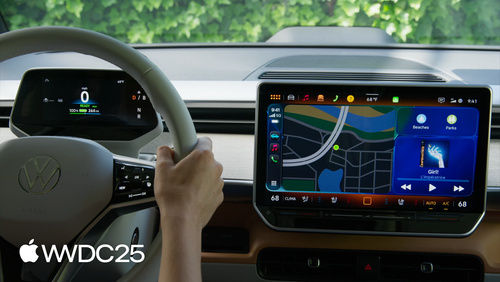
iOS 26 lets widgets and Live Activities reach the car without a CarPlay app, and navigation apps can push 54 kinds of maneuver metadata to the instrument cluster and HUD.
Core Content
The car screen has always been awkward. Drivers want to glance at the score, check charging progress, or peek at today’s weather, but only vendors who built a dedicated CarPlay app got to show up. Most apps stay invisible in the car, and developers have no reason to staff a separate engineering team for the dashboard.
iOS 26 tears down this barrier. Any app that supports a systemSmall widget or a Live Activity now appears on the left side of the CarPlay Dashboard automatically — no new CarPlay project, no extra entitlement. The driver flips a switch in Settings → General → CarPlay and it works. In the car, a Live Activity also pops up as a notification at the bottom, so the driver does not miss a goal or a food-delivery arrival (05:07).
For developers who do build CarPlay apps, the template system also got an upgrade. The List template adds headerGridButtons to pin common items at the top. The Now Playing template adds a sports mode that shows two team scores and a game clock right on the dashboard. The map template now supports multitouch gestures, and on CarPlay Ultra you can push turn-by-turn metadata to the instrument cluster and HUD, where the carmaker renders the styling. Apple has turned “going to the car” from a heavy investment into something you do on the side.
Detailed Content
Widgets in the Car: One Modifier Is Enough
Widgets are moved to CarPlay by default, but some are a bad fit. A game widget that needs frequent interaction, or content that depends on data protection class A/B (CarPlay is mostly used while the iPhone is locked, and cannot read such data), should opt out. Use disfavoredLocations to mark CarPlay as a non-recommended location (03:21):
// Disfavored locations modifier for CarPlay

WidgetConfiguration()
    .disfavoredLocations([.carPlay], for: [.systemSmall])
Key points:
disfavoredLocationstakes an array of locations to tell the system this widget does not behave well in.carPlay.for: [.systemSmall]limits the effect to the small size — CarPlay only shows small, so other sizes are unaffected.- A flagged widget still appears in Settings but is grouped under “not optimized,” and interaction is disabled even if the driver forces it on.
List Template: Pin the Core Entry Points to the Top
iOS 26 adds a headerGridButtons property to CPListTemplate, which renders a row of grid buttons before the first list section (10:05):
// Pinned elements

var headerGridButtons: [CPGridButton]?

// For Communication apps

class CPGridButton

init(titleVariants: [String],
     image: UIImage,
     messageConfiguration: CPMessageGridItemConfiguration?,
     handler: ((CPGridButton) -> Void)?)

class CPMessageGridItemConfiguration

init(conversationIdentifier: String, unread: Bool)
Key points:
titleVariantsis a list of title candidates ranked by priority. The car picks the best one for the available width to avoid truncation.- Communication apps can pass a
CPMessageGridItemConfigurationto forwardconversationIdentifierto SiriKit, so a tap jumps straight back to that conversation. - The
unreadfield draws a small red dot on the button, so the driver can tell at a glance whether there are new messages.
Now Playing Sports Mode: Game Scores in the Car
Since iOS 18.4, CarPlay audio apps can switch Now Playing to sports mode and show the matchup between two teams (11:20):
// Now playing template with sports mode

let clock = CPNowPlayingSportsClock(elapsedTime: time, paused: false)

let status = CPNowPlayingSportsEventStatus(
    eventStatusText: ["1st"], // 1st quarter
    eventStatusImage: UIImage(named: "Semifinals"),
    eventClock: clock
)

let sports = CPNowPlayingModeSports(
    leftTeam: getLeftTeam(), // CPNowPlayingSportsTeam
    rightTeam: getRightTeam(), // CPNowPlayingSportsTeam
    eventStatus: status,
    backgroundArtwork: getBackgroundArtwork() // get UIImage
)

CPNowPlayingTemplate.sharedTemplate.nowPlayingMode = sports
Key points:
CPNowPlayingSportsClockonly needs a starting time and a paused flag. The system counts forward or backward in real time, so the app does not need to push an update every second.eventStatusTextaccepts a string array for the game phase (such as “1st” or “Semifinal”), which makes localization easier.- After setting
nowPlayingMode, you do not need to swap the template object. You can update the score and possession indicator at any time during the game, and remember to sync metadata to the matching timestamp during time-shifted playback.
Multitouch: Gesture Callbacks for the Map Template
CarPlay Ultra and some new vehicles support multitouch. CPMapTemplate hands zoom, pitch, and rotate events to the app via callbacks (14:15):
// Multitouch

// Zoom callback

func mapTemplate(_ mapTemplate: CPMapTemplate,
                 didUpdateZoomGestureWithCenter center: CGPoint,
                 scale: CGFloat,
                 velocity: CGFloat) {     }

// Pitch callback

func mapTemplate(_ mapTemplate: CPMapTemplate,
                 pitchWithCenter center: CGPoint) {     }

// Rotate callback

func mapTemplate(_ mapTemplate: CPMapTemplate,
                 didRotateWithCenter center: CGPoint,
                 rotation: CGFloat,
                 velocity: CGFloat) {     }
Key points:
centeris the gesture center in the map view’s coordinate system. Combined withscale, it lets you zoom anchored at the touch point.velocityreports gesture speed, which you can feed into inertial animation so zoom and rotate decelerate naturally.- The three callbacks are independent. Pinch, two-finger pan, and two-finger rotate can fire at the same time, so the app needs to handle combined gestures.
Navigation Metadata: Send 54 Maneuver Types to the Cluster
CarPlay Ultra lets the app send turn information to the instrument cluster or HUD, but the carmaker decides how to draw it. The app only describes the semantics (16:28):
// Add support for metadata

// Declare support

func mapTemplateShouldProvideNavigationMetadata(_ mapTemplate: CPMapTemplate) -> Bool {
    true
}

// Provide maneuver information up-front

cpNavigationSession.add(maneuvers)
cpNavigationSession.add(laneGuidance)

// Reroute

cpNavigationSession.pauseTrip(for: .rerouting, description: "Rerouting")
cpNavigationSession.resumeTrip(updatedRouteInformation: cpRouteInformation)
Key points:
- Returning
trueis the master switch. It tells the system that this app is willing to provide metadata; otherwise the cluster stays blank. add(maneuvers)submits multiple maneuvers up front in one call. It saves power and CPU compared with pushing one at a time, which matters most on long routes.- When rerouting, call
pauseTrip(for: .rerouting)first so the cluster shows a “rerouting” state, then callresumeTripwith a newCPRouteInformationonce the route is ready, to avoid a jarring jump. CPManeuverhas 54 types covering straight, turns, roundabouts, on/off ramps, ferries, arrival, and more. The carmaker renders its own icons based on the semantics (19:13).
Key Takeaways
-
What to do: Add CarPlay support to an existing widget. Pick a
systemSmalland get it running.- Why it is worth doing: The cost is tiny and you gain another car-screen slot. For utility apps that live and die by daily active users, it is essentially free exposure.
- How to start: Check whether the widget depends on data that is unavailable on the lock screen. If it does, exclude it with
disfavoredLocations. Otherwise, just confirmwidgetContentMarginsandcontainerBackgroundRemovableare set.
-
What to do: Adapt your existing Live Activity to the
activity family smallsize.- Why it is worth doing: CarPlay shows the small size first. Without it, the system falls back to the Dynamic Island compact leading/trailing layout, and information density drops sharply.
- How to start: Reuse the watchOS Smart Stack design and show only “the one or two most critical states.” Remember that Live Activities in the car are not interactive.
-
What to do: For navigation apps, return
truefrommapTemplateShouldProvideNavigationMetadataright away.- Why it is worth doing: CarPlay Ultra is rolling out across mid- and high-end vehicles, and the cluster is where the driver looks most. An app without metadata is just blank on that screen.
- How to start: Convert your existing route data into a
CPManeuverarray andaddit toCPNavigationSessionup front, then test on the Mac with the CarPlay Simulator.
-
What to do: For sports and game audio apps, hook into Now Playing sports mode.
- Why it is worth doing: Listening to a game while driving fits scores better than album art. A live score carries an order of magnitude more information than a static logo.
- How to start: Wire
CPNowPlayingSportsClockto your game time source. Keep the score in sync during time-shifted playback. Fill in the other fields (team logos, status text) gradually.
Related Sessions
- Deliver age-appropriate experiences in your app — Use the new declarative tools to provide age-appropriate experiences for users in different age groups.
- Filter and tunnel network traffic with NetworkExtension — Filter and tunnel network traffic with NetworkExtension.
- Finish tasks in the background — Background execution advances and system scheduling strategy.
- Get ahead with quantum-secure cryptography — Protect app data with post-quantum cryptography.
Comments
GitHub Issues · utterances