
Highlight
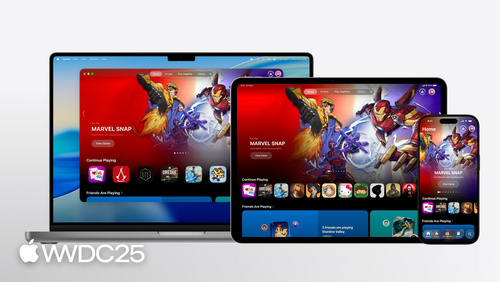
Apple Games is a new game entry point preinstalled on iPhone, iPad, and Mac. It ties categories, Game Center, and In-App Events into a single daily hub for players.
Core content
Games on iOS have always sat in an awkward spot. To find a game, players go to the App Store. To check their progress, they open the game. To compare scores with friends, they dig into a corner of Game Center. To see if there is a new event, they scroll through push notifications. The entry points are scattered, so most players download a game and never come back to the “game space” Apple offers.
At WWDC 2025, App Store Connect engineer Logan Pratt introduced the Apple Games app. It is a standalone app preinstalled on iPhone, iPad, and Mac, with four tabs: Home shows friend activity and events, Play Together handles multiplayer invites, Library manages installed games, and Search helps players discover new ones. Signals that used to be spread across the App Store, Game Center, and push notifications now flow into one place.
For developers, Apple Games is a channel that pulls existing capabilities together. Setting your game’s Primary or Secondary Category to Games is the basic gate (02:31). Hooking into Game Center — achievements, leaderboards, challenges, activities — gets your game shown in the Home tab and the Play Together tab in several places (06:00). Configuring In-App Events pushes time-limited content in front of players (16:48). The more you cover, the more chances you get to surface.
Detailed content
Basic info on the game page: icon, name, subtitle, age rating, and subcategory (Action, Puzzle, etc.) appear in several places in Apple Games (02:46). The background color is derived by the system from the icon. If a game supports controllers, turn on the Game Controller Capability in Xcode. Apple Games and the App Store will then show the controller badge, and players can filter by “controller support” in the Library (04:17). Video previews, screenshots, descriptions, and keywords are all set in App Store Connect, and search results draw from the same assets.
Pre-order: before a game ships, you can open it for pre-order. Apple Games lists it under Upcoming Releases. If a player chooses “automatic download,” the game is pushed to the device on release day (05:23). This turns “waiting for release” into “already booked.”
The four pieces of Game Center:
- Achievements: when earned, they show a localized image, display name, and earned description. Apple Games lists three buckets — completed, in progress, and earned by friends (07:54).
- Leaderboards: a Description field is new this year. You must add it to every new and existing leaderboard (09:04). Recurring leaderboards show the time left until reset.
- Challenges: built on top of leaderboards, they turn solo play into time-limited social matches. Players pick the number of attempts, the duration, and the friends to invite (10:38). The Home tab highlights challenge results.
- Activities: define destinations inside the game (levels, modes, events) and use deep links to drop players right in. You can attach a leaderboard so the “Play” button jumps to the matching level (14:04). A Multiplayer Activity can also generate a party code that friends share across platforms.
Configuring deep links for In-App Events: in the talk, Logan added an event=lobsterbash parameter to the deep link for the Lobster Bash event, so the in-game handler can tell which event the player came from (19:55). A typical In-App Event deep link looks like this:
thecoast://activity/race-at-sea?event=lobsterbashKey points:
thecoast://is the game’s registered Custom URL Scheme. DeclareCFBundleURLTypesin Info.plist, or tapping Play will fail./activity/race-at-seais the Activity’s deep link path. Keep it identical to the deep link configured for the Multiplayer Activity in App Store Connect, so Play from a Leaderboard, Challenge, or Event all land on the same destination.event=lobsterbashmarks the event source. The game uses this query to switch skins, log retention events, and show event-specific rewards.- A single Activity can be reused by many Events. Each Event uses a different query to tell them apart, so you do not have to build a separate entry point for every event.
The release rhythm of In-App Events: time-limited activities, seasonal content, and special promotions all flow through this channel. An event needs a badge (the event type), a localized name and short description, artwork or video for the Event card, high-quality assets for the detail page, and a deep link to a destination inside the game (19:01). Set the Publish Start Date two weeks before the actual start, and the event shows up as an “Upcoming Event” so players can subscribe to a notification. Set it to high priority and it shows at the top of the Game Page first.
Configuration entry points: Game Center achievements, leaderboards, challenges, and activities used to live only in App Store Connect. This year, Xcode added the ability to configure them directly (07:14). Together with the App Store Connect API, you now have three paths to choose from.
Core takeaways
1. Get game category and Game Controller Capability right first
Why it pays off: this is the entry ticket to Apple Games. Without the right category, your game does not show up on Apple Games pages. The controller badge directly affects how players filter the Library.
How to start: in App Store Connect’s App Information, set the Primary Category to Games and pick a Subcategory. In your Xcode project, check the Game Controller Capability. A one-time investment that pays off on every release.
2. Add a Description to every leaderboard
Why it pays off: Description is a new display field in 2025, and the Apple Games leaderboard page uses it. If old leaderboards do not have one, players see a blank space.
How to start: in App Store Connect’s Game Center tab, open each leaderboard and fill in a Description and a high-quality image. Localize for every supported language. Treat this as a maintenance task and put it on the pre-release checklist.
3. Wire Activity + Leaderboard + Challenge into one social loop
Why it pays off: once these three are tied together, Apple Games will recommend your game in Home, Play Together, and the Game Page. Tapping Play drops players into the matching level, and tapping Challenge starts a match with a friend. One configuration covers three entry points.
How to start: pick a core competitive level (the most popular dungeon, say). Create the matching Leaderboard, then a Challenge tied to that leaderboard, and finally a Multiplayer Activity pointing at the deep link for that level. Acceptance test: from any entry point in Apple Games, you should land in the right level.
4. Use In-App Events to warm up two weeks before launch
Why it pays off: with Publish Start Date set two weeks early, the event shows up as Upcoming, players can subscribe to a notification, and they get pushed back into the game on launch day. This is Apple’s official warm-up and re-engagement channel, and it reaches more players than a self-built push system.
How to start: in the In-App Events tab in App Store Connect, create an event. Prepare a short video plus a high-quality image, localized copy, and the deep link parameters (add event=xxx so the in-game handler knows the source). Set the Publish Start Date to 14 days before the actual start, and Priority to High.
Related sessions
- Get started with Game Center — Getting started with Game Center: the implementation path for achievements, leaderboards, challenges, and activities.
- What’s new in App Store Connect — New build delivery UI in App Store Connect and TestFlight enhancements.
- Automate your development process with the App Store Connect API — Receive real-time App Store Connect notifications via Webhooks.
- Build a UIKit app with the new design — Page and navigation updates for UIKit under the new design system.
Comments
GitHub Issues · utterances