
Highlight
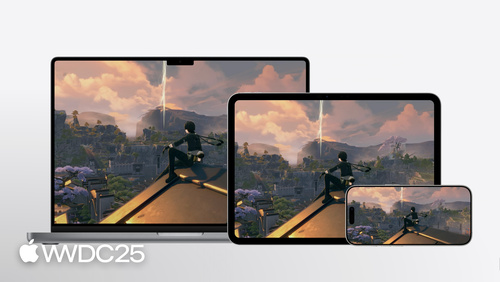
This session bundles Apple’s updates for game developers this year: Game Mode, Sustained Execution Mode, GameSave, Touch Controls, Background Assets, MetalFX upgraded with frame interpolation and denoising, and finally Metal 4 with the new Performance HUD.
Core content
Game developers on Apple platforms keep losing users to the same problems. The bundle is too big and players give up halfway through the download. A player gets to the middle of a session on Mac, switches to iPhone, and finds the progress gone. The same code runs at 60 fps on iOS for ten minutes, then throttles to 40 fps and the experience falls apart. None of these are graphics-API problems. They are platform-level infrastructure problems.
This year Apple fills the holes one by one. Game Mode gives games more CPU time and lower Bluetooth latency, with a single LSSupportsGameMode key in info.plist. Sustained Execution Mode pins performance to a steady state from launch, so developers no longer have to bet on whether the player will hit a thermal cliff at minute ten. The GameSave framework runs save sync directly on iCloud, so developers do not maintain their own cloud storage. Background Assets splits the launch bundle into “tutorial level plus the rest downloading in the background”, so the player can play the moment they tap the icon. On the graphics side, Metal 4 takes over the low-level API. MetalFX adds frame interpolation and ray-tracing denoising. The Performance HUD can now tell you “this frame stutters because the shader is compiling at runtime.”
Detailed content
Listening for Low Power Mode (04:02). macOS 26 prompts the player to switch to Low Power Mode when a game draws too much power, and the player can also toggle it from the Game Overlay. The game has to react to this state change:
static let NSProcessInfoPowerStateDidChange: NSNotification.Name
var isLowPowerModeEnabled: Bool { get }
Key points:
NSProcessInfoPowerStateDidChangeis the notification name the system posts when Low Power Mode is toggled. Observe it to receive the switch event.isLowPowerModeEnabledis a read-only property onProcessInfothat tells you whether the device is currently in Low Power Mode.- When you receive the notification, drop quality presets, turn off post-processing, lower resolution, and protect the frame rate first.
Adopting GameSave (12:13). The GameSave framework is built on iCloud Documents. The player saves on Mac and the file shows up on iPhone automatically. Adoption takes two steps: enable iCloud Documents capability in Xcode and add the container entitlement. The API does the rest.
// Objective-C GameSave code sample
#import <GameSave/GameSave.h>
NSString* containerIdentifier = ///… container entitlement string, nil specifies the first in the entitlement array

GSSyncedDirectory* directory = [GSSyncedDirectory openDirectoryForContainerIdentifier:containerIdentifier];

/// Where statusDisplay is an NSWindow or UIWindow where the alert will be anchored to
[directory finishSyncing:statusDisplay completionHandler:^{
 }];

GSSyncedDirectoryState* directoryState = [directory directoryState];
switch (directoryState.state) {
    case GSSyncStateError:
        error = directoryState.error;
        break;
    default:
        NSLog(@"Sync has finished");
}

NSURL* saveURL = directoryState.url;
Key points:
openDirectoryForContainerIdentifier:opens the synced directory using the iCloud container identifier from your entitlement. Passnilto use the first one in the entitlement array. The returnedGSSyncedDirectoryis the handle for everything that follows.finishSyncing:completionHandler:pulls the latest save in the background. Pass anNSWindoworUIWindowasstatusDisplayand the framework anchors progress and conflict-resolution UI to that window. The developer writes none of it.directoryStatereturns the current sync state. TheGSSyncStateErrorbranch handles network failures and missing iCloud sign-in. Anything else means sync is done.directoryState.urlis the real readable and writable save directory. The game reads and writes files there, and the framework handles sync, conflicts, and sign-out underneath.
Performance and graphics pipeline (15:04). Metal 4 lowers the CPU cost of encoding commands and lets you embed machine learning into the render pipeline. MetalFX ships three pieces at once: spatial and temporal upscaling, frame interpolation that generates intermediate frames, and ray-tracing denoising that lets you cast fewer rays and recover the quality afterwards. CD Projekt Red used this stack to push Cyberpunk 2077 to a clearly higher frame rate on the M4 Max MacBook Pro.
New Insights in the Performance HUD (20:00). The HUD now recognizes typical issues like “your shader is compiling at runtime and dropping frames”, points you to the relevant docs, and can roll up a window of metrics into an offline performance report. Native games and ports running under the Evaluation Environment for Windows Games both work.
Core takeaways
-
What to do: add
LSSupportsGameMode = trueto your game’s info.plist and request the Sustained Execution Mode entitlement.- Why it pays off: the cost is close to zero, and players get more CPU time and a steadier frame-rate curve. Sustained Execution Mode pins performance to a steady state, so the frame rate QA measured is the frame rate the player ends up with. No more “stunning for the first five minutes, then a thermal collapse.”
- How to start: tick the Game Mode and Sustained Execution capabilities in Xcode, repackage, and run the test pass again.
-
What to do: replace your homemade cloud-save solution with the GameSave framework.
- Why it pays off: iCloud sync, conflict UI, unsigned-in fallback, cross-device restore — building any of these takes at least a month. GameSave packs them into a handful of API calls. For a small team this is a real case of trading platform capability for engineering budget.
- How to start: spike the three-step flow
openDirectoryForContainerIdentifier:->finishSyncing:-> readdirectoryState.urlin a new project or module, confirm a save round-trips between two devices, and then plan the migration of your existing project.
-
What to do: split the game into “tutorial bundle + Background Assets” and download in two stages.
- Why it pays off: high-end games ship multi-GB initial bundles, and download wait is one of the main causes of day-one drop-off. Managed Background Assets gives you up to 200 GB of Apple-hosted storage, and TestFlight lets you ramp content updates separately without rebuilding the main bundle.
- How to start: classify your assets into “required at launch” vs “fine to download in the background”, adopt the Managed Background Assets API, and watch the TestFlight time-to-first-level distribution.
-
What to do: wire the Metal Performance HUD into your dev builds and turn on Performance Insights.
- Why it pays off: tracking down a frame drop used to mean switching to Instruments and grabbing a trace. The HUD now points out high-frequency issues like “shader is compiling at runtime” right on the game screen, with a link to the docs.
- How to start: enable the HUD by default in dev builds and turn on Shader Compiler. When an insight shows up, save an offline performance report so you have a baseline for regression checks.
Related sessions
- Discover Metal 4 — the new Metal 4 API, resource management, and a machine learning primer
- Combine Metal 4 machine learning and graphics — embed ML inference into the render pipeline and pair it with MetalFX for higher quality
- Engage players with the Apple Games app — get your game into the new Games app and Game Overlay
- Bring your SceneKit project to RealityKit — the migration path for 3D projects after SceneKit’s deprecation
Comments
GitHub Issues · utterances