
Highlight
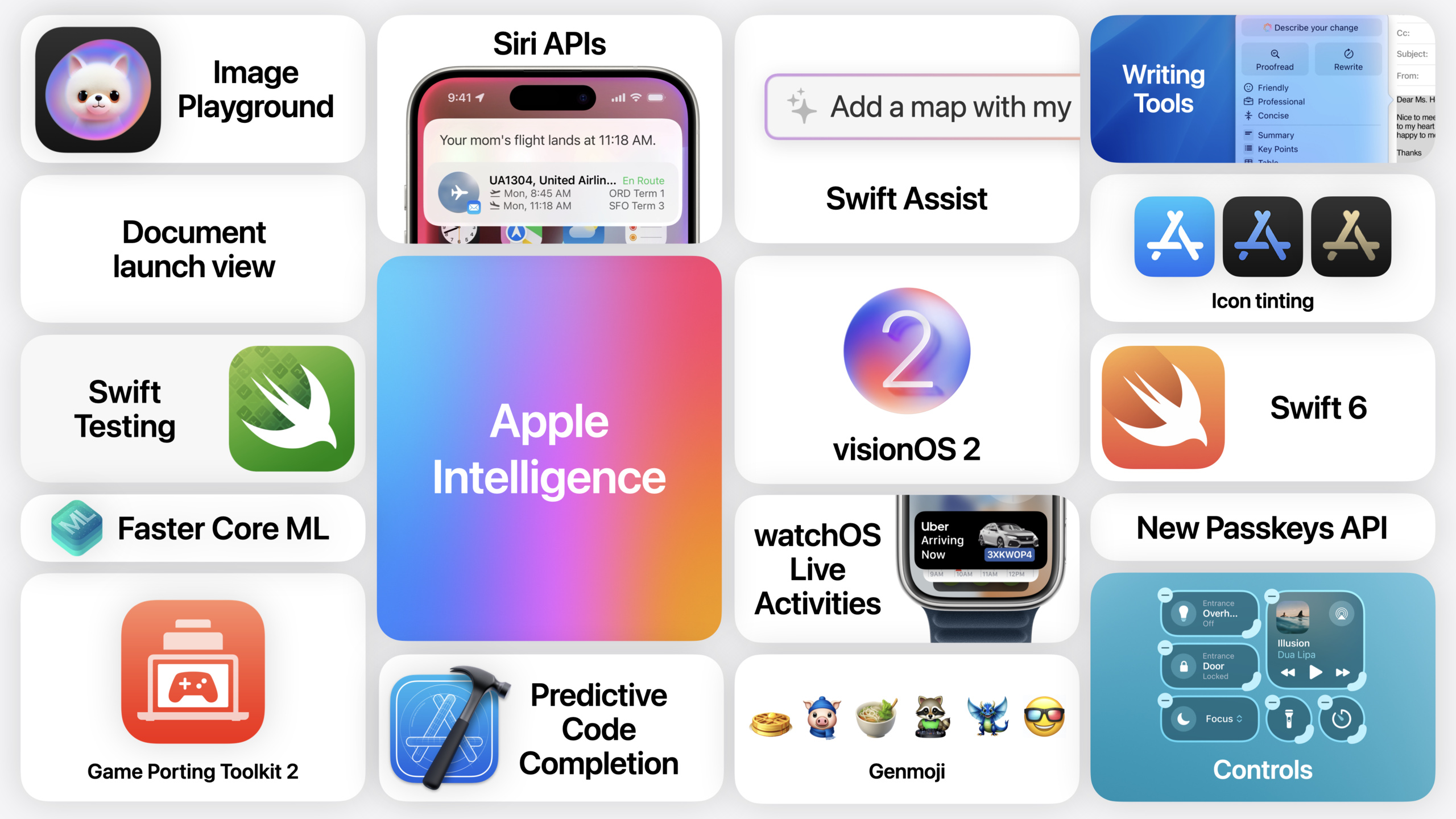
A five-minute recap of WWDC 2024 Platforms State of the Union, centered on Apple Intelligence, covering generative model integration, Xcode 16 AI coding tools, SwiftUI improvements, Controls API, and other key announcements.
Core Content
WWDC releases a flood of new APIs and tools each year, and developers struggle to quickly identify what matters to them. The full Platforms State of the Union runs long—many developers need a quick entry point to filter what to focus on.
This five-minute recap compresses WWDC 2024’s most important announcements into a concise overview. The biggest change is Apple Intelligence—Apple’s personal intelligence system bringing generative models to iOS, iPadOS, and macOS with awareness of the user’s personal context. Apps that render text fields with standard UI frameworks automatically get Writing Tools; developers can customize app behavior when Writing Tools activates via the new TextView delegate API (00:47). Genmoji offers a new way to communicate; the Image Playground API delivers a consistent, easy-to-use image generation experience (00:54).
On the toolchain side, Xcode 16’s code completion engine got a major upgrade: local personalized recommendations using project symbols, no code uploaded to the cloud, works offline (02:14). Swift Assist is a larger cloud-based model—describe what you need in natural language and get code, ideal for exploring new frameworks and experimenting (02:40). Swift turns 10; Apple positions it clearly as C++‘s successor, emphasizing safety, speed, and built-in C/C++ interoperability (01:12).
Detailed Content
Apple Intelligence and Writing Tools (00:24)
Apple Intelligence is the core theme of this WWDC. It is a personal intelligence system integrating generative models into iOS, iPadOS, and macOS with awareness of the user’s personal context. If your app renders text fields with standard UI frameworks, Writing Tools work automatically. Via the new TextView delegate API, developers can customize app behavior when Writing Tools activates (00:47). Genmoji gives users a new way to communicate; the Image Playground API provides a consistent, fun, easy-to-use experience (00:54).
Swift and SwiftUI (01:05)
Swift turns 10. Apple’s positioning is clear: Swift’s safety, speed, and ease of use, plus built-in C and C++ interoperability, make it C++‘s successor (01:17). SwiftUI improvements this year focus on three areas: previews, customization, and interoperability. The preview system uses a new dynamic linking architecture with the same build artifacts as build-and-run (01:45). SwiftUI adds extensive customization to fine-tune app look and feel; all UI frameworks share more common foundations this year (01:52).
Xcode 16 and AI coding tools (02:02)
Xcode 16’s code completion engine gets a major upgrade: a new engine predicts the code you need, personalizes recommendations with project symbols, runs locally to protect code privacy, is extremely fast, and works offline (02:14). Swift Assist is a larger cloud-based model as a coding companion—answer coding questions, help experiment with new APIs, explore new frameworks and ideas with a single request (02:40). Instruments adds flame graph views and a unified backtrace view; localization catalogs are enhanced (03:03).
Controls API and visual updates (03:20)
iOS 18’s Controls API lets app actions appear directly in Control Center, Lock Screen, and the Action Button. Controls can toggle settings, perform actions, or deep link to specific experiences (03:24). App icons and widgets now support Light, Dark, and Tinted appearances; the system handles them intelligently to preserve design intent and readability (03:40).
Games and visionOS (03:52)
Continued Metal and Apple Silicon progress lets all Apple Silicon Macs, M-series iPads, and even iPhone 15 Pro run games that previously needed discrete GPUs (03:52). Game Porting Toolkit 2 improves AVX2 compatibility and ray tracing support, enabling evaluation of more Windows games (04:09). On visionOS, the djay example shows the path from a SwiftUI iPad app recompiled for visionOS to extended spatial computing capabilities (04:21).
Core Takeaways
-
What to do: Integrate Writing Tools with automatic adaptation. If your app uses standard UI framework text fields, Writing Tools already work. Next, use the TextView delegate API to fine-tune app behavior when Writing Tools activates—e.g., limit rewrite scope in editor scenarios, preserve formatting. Why it matters: Zero extra code gives users system-level AI writing; the delegate API keeps you in control of content. How to start: See session 10168 “Get started with Writing Tools”, confirm your text views use standard rendering, then gradually adopt the delegate API.
-
What to do: Expose core functionality via Controls API at system entry points. Control Center, Lock Screen, and Action Button are high-frequency touchpoints. Turn your app’s most-used actions (toggle state, quick launch, deep links) into Controls to reduce steps to open the app. Why it matters: Users complete key actions without entering the app. How to start: Review SwiftUI’s new Control APIs, start with a single feature (like a toggle), then expand to richer interactions.
-
What to do: Evaluate Xcode 16 local code completion for daily dev efficiency. The new engine uses project symbols for local recommendations—privacy-friendly, offline-capable. Use it on an existing project for a week and compare completion hit rate and acceptance. Why it matters: Even a 10% boost in a daily tool compounds over time. How to start: Upgrade to Xcode 16, ensure symbol index is complete, observe completion accuracy in daily coding, and watch Swift Assist when exploring new APIs.
-
What to do: Prepare Dark / Tinted variants for app icons and widgets. iOS 18 applies Light, Dark, and Tinted treatment to all app icons. To preserve brand consistency instead of relying on automatic conversion, provide variants proactively. Why it matters: Automatic conversion may lose design details; provided variants keep brand recognition across appearance modes. How to start: Create Dark and Tinted versions per Apple’s icon guidelines, configure variant slots in Xcode Asset Catalog.
Related Sessions
- Platforms State of the Union — Full technical overview covering all WWDC 2024 developer announcements in detail
- What’s new in Xcode 16 — Deep dive on Xcode 16 code completion, Swift Assist, Instruments flame graphs, and more
- What’s new in SwiftUI — Complete details on SwiftUI preview architecture, Controls API, and customization improvements
- Get started with Writing Tools — How Writing Tools work, automatic integration, and TextView delegate API usage
- Bring your app to Siri — Connect app functionality to Siri and Apple Intelligence via App Intents
Comments
GitHub Issues · utterances