
Highlight
iPadOS 18’s PencilKit tool picker finally supports custom tools—your stamps, erasers, and retouching tools can go directly into the system toolbar and automatically gain Apple Pencil Pro squeeze, barrel roll, and haptic feedback.
Core Content
Drawing app developers have long faced a choice: use PencilKit for a great toolbar experience but limited built-in tools (pen, eraser, lasso), or build your own canvas and toolbar for flexible tools but implement Apple Pencil Pro features like squeeze, hover preview, and barrel roll from scratch—a huge amount of work.
This year Apple offers a middle ground: PKToolPickerCustomItem. Register custom tools in the PencilKit toolbar and users can switch to your tools in the system toolbar. When a custom tool is selected, PencilKit’s canvas stops drawing automatically and your code takes over rendering. The toolbar’s color picker and width slider still work, and you can pass in your own UIViewController for extra controls. Barrel roll, squeeze, and other interactions come free with custom tools—zero extra code.
Apple Pencil Pro also brings three new interaction capabilities: the squeeze gesture (pinch the barrel to trigger), barrel roll angle (rotate the barrel to control stroke direction), and position-based haptic feedback (tactile response when aligning to guides and recognizing shapes). PencilKit built-in tools support these automatically; custom canvases can integrate via the new UIPencilInteraction, UICanvasFeedbackGenerator, and SwiftUI’s .onPencilSqueeze and .sensoryFeedback.
Detailed Content
Toolbar customization: toolItems initializer
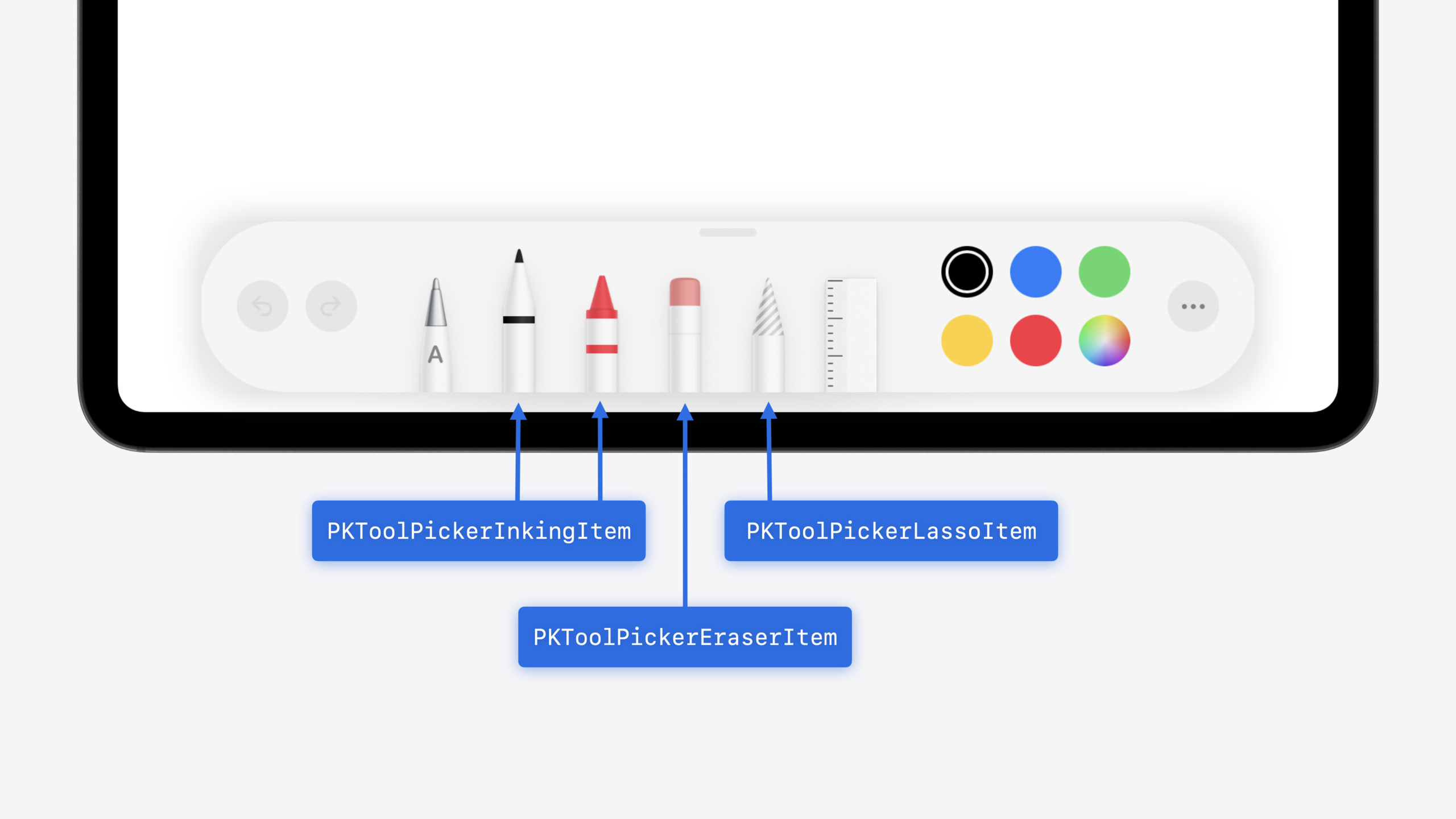
Since iOS 13, PKToolPicker only had the default full tool set. iPadOS 18 adds a toolItems initializer to specify tool order and types in the toolbar (02:39). You can place multiple tools of the same type—for example a red pen and a blue pen—very useful for annotation apps.
Toolbar item types include: PKInkingToolItem (ink), PKEraserToolItem (eraser), PKLassoToolItem (lasso), PKRulerItem (ruler, tap to toggle), PKScribbleItem (handwriting to text), PKToolPickerCustomItem (custom tool), plus a trailing UIBarButtonItem for non-drawing actions (04:55).
Custom tools: PKToolPickerCustomItem
The core of custom tools is PKToolPickerCustomItem and its Configuration struct (06:10). Configuration defines supported properties—color, width, and opacity use PencilKit controls; extra properties are shown via your UIViewController. You provide a closure to render the tool icon; PencilKit calls it automatically when color, width, or opacity changes; call reloadImage() manually when custom properties change.
When a custom tool is selected, all associated PKCanvasView instances stop drawing automatically and your code handles touch events and rendering. PencilKit only manages tool selection UI.
Squeeze gesture
Apple Pencil Pro’s squeeze gesture lets users bring up the toolbar or contextual panel without lifting the pencil (09:20). A global system preference determines what squeeze triggers: show contextual palette, run a shortcut, or custom behavior. If the user chose a shortcut, your app won’t receive squeeze events.
Responding to squeeze in UIKit:
class MyViewController: UIViewController, UIPencilInteractionDelegate {

    func pencilInteraction(_ interaction: UIPencilInteraction,
               didReceiveSqueeze squeeze: UIPencilInteraction.Squeeze) {

        if UIPencilInteraction.preferredSqueezeAction == .showContextualPalette &&
           squeeze.phase == .ended {
           let anchorPoint = squeeze.hoverPose?.location ?? myDefaultLocation
           presentMyContextualPaletteAtPosition(anchorPoint)
        }
    }
}UIPencilInteractionDelegate’spencilInteraction(_:didReceiveSqueeze:)receives squeeze events (10:24)preferredSqueezeActionchecks the user’s system setting preferencesqueeze.phase == .endedensures triggering only when the gesture ends, avoiding duplicate responsessqueeze.hoverPose?.locationgets the hover position at squeeze time for panel placement
Responding to squeeze in SwiftUI:
@Environment(\.preferredPencilSqueezeAction) var preferredAction
@State var contextualPalettePresented = false
@State var contextualPaletteAnchor = MyPaletteAnchor.default

var body: some View {
    MyView()
        .onPencilSqueeze { phase in
            if preferredAction == .showContextualPalette, case let .ended(value) = phase {
                if let anchorPoint = value.hoverPose?.anchor {
                    contextualPaletteAnchor = .point(anchorPoint)
                }
                contextualPalettePresented = true
            }
        }
}@Environment(\.preferredPencilSqueezeAction)reads the system preference (10:46).onPencilSqueezemodifier receives squeeze events;phasedistinguishes gesture stagesvalue.hoverPose?.anchorgets the hover anchor for panel placement
Haptic feedback: UICanvasFeedbackGenerator
Apple Pencil Pro haptic feedback adds two canvas-specific types: alignment and pathComplete (11:36). The feedback API now requires position information so the system can choose the best feedback method for the context.
Using in UIKit:
class MyViewController: UIViewController {
    @ViewLoading var feedbackGenerator: UICanvasFeedbackGenerator

    override func viewDidLoad() {
        super.viewDidLoad()
        feedbackGenerator = UICanvasFeedbackGenerator(view: view)
    }

    func dragAlignedToGuide(_ sender: MyDragGesture) {
        feedbackGenerator.alignmentOccurred(at: sender.location(in: view))
    }

    func snappedToShape(_ sender: MyDrawGesture) {
        feedbackGenerator.pathCompleted(at: sender.location(in: view))
    }
}UICanvasFeedbackGenerator(view:)takes the canvas view at initialization (11:50)alignmentOccurred(at:)triggers haptic feedback when a line aligns to a guidepathCompleted(at:)triggers feedback when shape recognition completes and the stroke snaps to a regular shape
Using in SwiftUI:
@State var dragAlignedToGuide = 0
@State var snappedToShape = 0

var body: some View {
    MyView()
        .sensoryFeedback(.alignment, trigger: dragAlignedToGuide)
        .sensoryFeedback(.pathComplete, trigger: snappedToShape)
}
.sensoryFeedback(.alignment, trigger:)triggers alignment feedback when the trigger value changes (12:29).sensoryFeedback(.pathComplete, trigger:)triggers path-complete feedback when the trigger value changes- Attach modifiers to the most specific subview for more precise feedback
Barrel roll angle
Apple Pencil Pro barrel roll lets rotating the barrel control stroke angle (08:04). PencilKit marker and fountain pen support this built in. Custom canvases can read angle via UITouch.rollAngle and UIHoverGestureRecognizer.rollAngle. Apple recommends adding rollAngle and azimuth angle together so azimuth serves as fallback on devices without roll support (13:32). Note rollAngle starts as an estimate and is refined via Bluetooth updates—get the final precise value in touchesEstimatedPropertiesUpdated.
Core Takeaways
-
What to do: Register custom drawing tools in
PKToolPickerCustomItem. Why it’s worth it: Users switch to your tools in the system toolbar; squeeze and barrel roll work automatically without implementing interaction logic yourself. How to start: CreatePKToolPickerCustomItem.Configuration, define color/width properties, provide an icon rendering closure, then build the toolbar with thetoolItemsinitializer. -
What to do: Integrate squeeze gestures in custom canvases to pop up contextual tool panels. Why it’s worth it: Users switch tools or bring up options without lifting the pencil—the drawing flow isn’t interrupted. How to start: In UIKit, implement
UIPencilInteractionDelegate’spencilInteraction(_:didReceiveSqueeze:); in SwiftUI, use the.onPencilSqueezemodifier. Remember to checkpreferredSqueezeActionto respect system settings. -
What to do: Trigger haptic feedback during shape recognition and alignment snapping. Why it’s worth it: Feedback lets users feel successful snapping before visual confirmation—a more natural feel. How to start: In UIKit, use
UICanvasFeedbackGeneratorand callalignmentOccurred(at:)andpathCompleted(at:); in SwiftUI, use.sensoryFeedback(.alignment, trigger:)and.sensoryFeedback(.pathComplete, trigger:). -
What to do: Read barrel roll angle in custom brush tools to control stroke rotation. Why it’s worth it: Simulates real brush rotation for a digital drawing feel closer to paper and pen. How to start: Read angle from
UITouch.rollAngle, addazimuthAnglefor total rotation, and update the final precise value intouchesEstimatedPropertiesUpdated.
Related Sessions
- Build a spatial drawing app with RealityKit — Build a spatial drawing app from scratch with RealityKit, covering low-level mesh and texture APIs
- What’s new in SwiftUI — Full context for SwiftUI’s new
.onPencilSqueezeand.sensoryFeedbackmodifiers - What’s new in AppKit — New hover and pointer interaction advances on macOS
- Create custom hover effects in visionOS — How to implement custom hover effects in visionOS
- Catch up on accessibility in SwiftUI — Assistive technology adaptation for SwiftUI accessibility elements and interactions
Comments
GitHub Issues · utterances