
Highlight
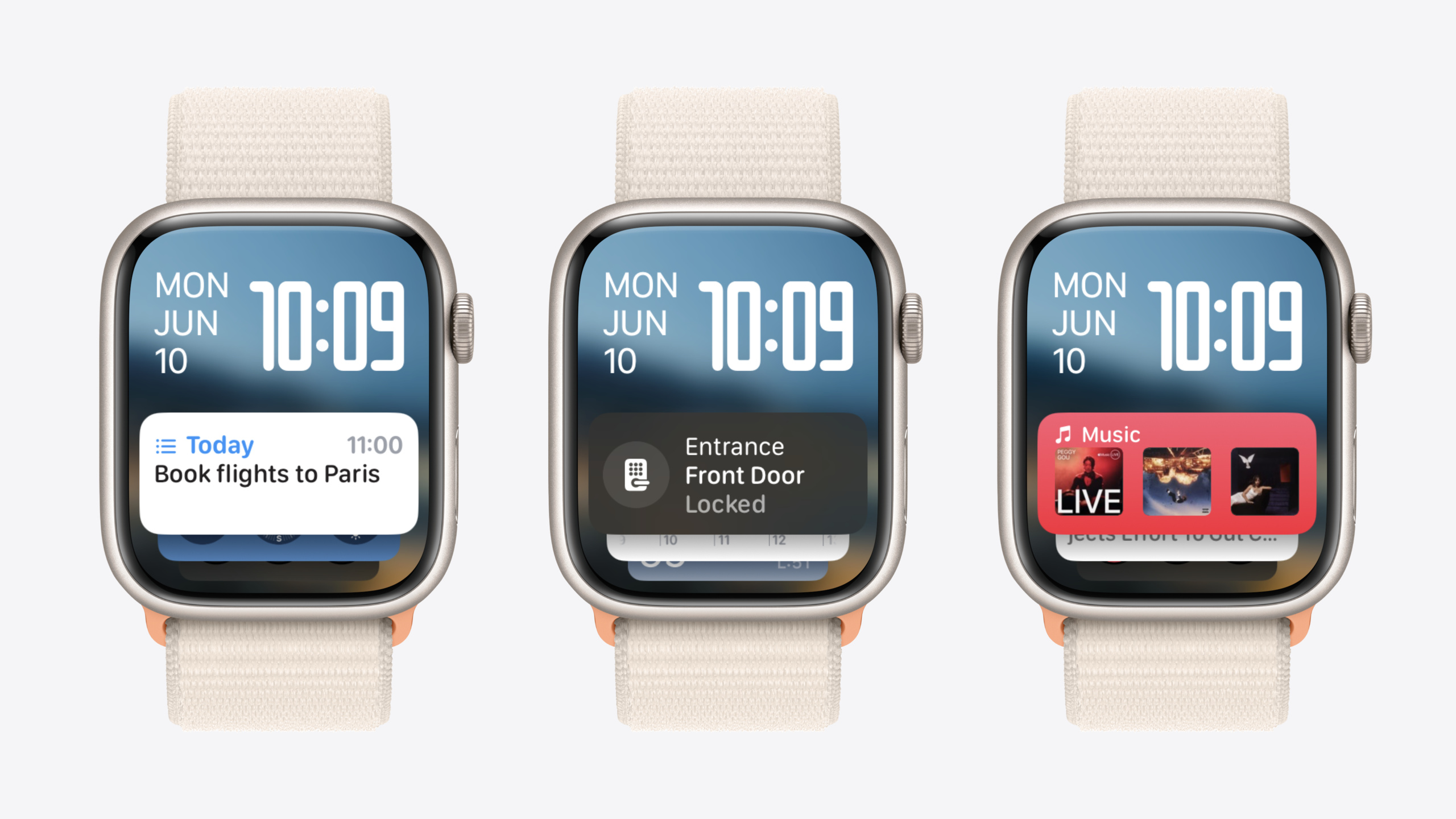
watchOS 11 syncs iOS Live Activities to the Smart Stack automatically, adds the RelevantContext API so widgets surface by time and context, and brings Interactive Widgets plus the AccessoryWidgetGroup template—users can complete actions with a Digital Crown turn without opening your app.
Core Content
The scarcest resource on the watch is user attention. In the past, developers had only two paths to visibility on Apple Watch: get users to open the app, or squeeze into a tiny complication slot. Complications have limited space, and users rarely open watch apps—low launch rates and short session times mean many teams invest heavily in watchOS versions yet see disappointing usage data.
watchOS 11 offers a new approach: move information forward into the Smart Stack. A turn of the Digital Crown shows flight status, message replies, and smart home controls—your app appears in this context far more often than when waiting for users to open it. There are three core changes.
First, iOS Live Activities sync to the watch automatically. You don’t need any watch-side code; Live Activities on iPhone appear directly in the Smart Stack. If you provide a custom view for the .small family, the system prefers your tailored content over the Dynamic Island default. Second, the RelevantContext API lets widgets surface automatically based on time, location, sleep, fitness, and other contexts—developers only declare in TimelineProvider when their widget is most useful, and the system handles scheduling. Third, Interactive Widgets come to watchOS—buttons and toggles work directly on the widget, so users can lock doors, pause playback, or mark tasks complete without jumping into the app.
Together, the strategy is clear: instead of optimizing watch app launch rates, move key information and actions forward into the Smart Stack.
Detailed Content
Live Activity sync to Apple Watch (01:06)
Live Activities from your iOS app appear in the Smart Stack on watchOS 11 with zero code changes. By default, the system uses the Dynamic Island leading and trailing views. For a better watch experience, add the .supplementalActivityFamilies modifier to ActivityConfiguration and specify the .small family for a custom view:
ActivityConfiguration(for: MyLiveActivityAttributes.self) { context in
    MyLiveActivityView(context: context)
} dynamicIsland: { context in
    DynamicIsland {
        // ...
    }
}
.supplementalActivityFamilies([.small])
Key points:
.supplementalActivityFamilies([.small])tells the system your Live Activity supports the Smart Stack compact layout- After adding it, the system prefers your custom view over Dynamic Island views
- Use Environment to distinguish
.small(watch Smart Stack) from.medium(iPhone Lock Screen) and tailor layouts separately - Live Activities sync to the watch even without a watchOS app
RelevantContext API (03:00)
Implement the relevances() method in TimelineProvider to declare when your widget is most useful:
func relevances() -> WidgetRelevances<Void> {
    let dueDate = Calendar.current.date(byAdding: .hour, value: 1, to: Date())!
    let context = RelevantContext.date(dueDate...dueDate)
    return WidgetRelevances([WidgetRelevanceEntry(relevance: context)])
}
Key points:
RelevantContextsupports multiple contexts:.date(time),.location,.sleep(sleep window),.fitness(activity state, including.activityRingsIncomplete)- For widgets using
AppIntentConfiguration, you can provide relevance per intent—for example, a coffee shop widget can supply location context for each favorite store - The
WidgetRelevanceEntryinitializer accepts aconfigurationparameter linked to a specific AppIntent - Call
invalidateRelevances()when the user changes preferences so the system re-requests - The system considers relevance suggestions from multiple widgets; yours is not guaranteed to appear
Interactive Widgets (05:47)
Adding interactivity to watchOS widgets follows the same pattern as iOS 17—place Button or Toggle in the view and implement perform() on the corresponding Intent:
// In the widget view.
Button(intent: LockDoorIntent()) {
    Image(systemName: "lock")
}

// In AppIntent.
struct LockDoorIntent: AppIntent {
    static var title: LocalizedStringResource = "Lock Door"

    func perform() async throws -> some IntentResult {
        // Perform the lock-door action.
        return .result()
    }
}
Key points:
- All watchOS widget families support interactivity
- Multiple interactive targets can live in one widget, limited by widget shape and size
- For actions prone to accidental taps, use
requestConfirmation(.lowConfidenceSource)so the system shows a confirmation when it detects a low-confidence source .lowConfidenceSourcelets the system decide when confirmation is needed—for example, remotely unlocking a home door while at the office
AccessoryWidgetGroup template (07:54)
This is a new view template in watchOS 11 for accessoryRectangular widgets, showing up to three content items:
AccessoryWidgetGroup {
    Label("Messages", systemImage: "message")
} content: {
    ContactView(name: "Alice")
    ContactView(name: "Bob")
    ContactView(name: "Charlie")
}
.accessoryWidgetGroupStyle(.circular)
Key points:
- Composed of
LabelandContent: Label defaults to the widget extension bundle name—customize it - Content shows at most 3 views; extras are dropped
- Each Content view can be interactive (Button) or use
Linkto jump to different app pages - If fewer than 3 views, the system inserts blank placeholders (tap opens the app; color is not configurable)
.accessoryWidgetGroupStyle(.circular)or.roundedSquarecontrols mask shape; default is.circular- Font, view size, and margins are preconfigured—focus on content
Double Tap expansion (10:33)
In watchOS 11, Double Tap automatically supports scrolling in List, ScrollView, and vertical TabView within apps. You can also designate a primary action with .handGestureShortcut(.primaryAction):
Button("Complete") {
    completeTask()
}
.handGestureShortcut(.primaryAction)
Key points:
- On double tap, the system highlights the Button or Toggle outline for visual feedback
- Highlight shape can be customized with
clipShape - Only one element can be primaryAction at a time
- If the control is on screen, the action fires; otherwise the view scrolls to it first
- If the app already inherits auto-scroll via List/ScrollView, don’t add
.primaryActionto controls inside those views to avoid conflicting behavior
WorkoutKit and HealthKit updates (12:28)
WorkoutKit adds pool swim activity types and the Custom Workouts API (previously only cycling and running). The new distanceWithTime goal type lets a workout step set both distance and time targets. Warmup, Work, Recovery, and Cooldown steps for all custom workout types now support the displayName property for custom labels.
HealthKit adds the State of Mind API for reading and writing mood and emotion data.
Core Takeaways
-
Provide a .small view for Live Activities: If your iOS app already has Live Activities, watchOS 11 auto-sync is zero-cost visibility. But Dynamic Island views lack density on the watch—spending half a day on a compact
.smallfamily view noticeably improves information. How to start: add.supplementalActivityFamilies([.small])to your existingActivityConfigurationand use Environment to differentiate layouts. -
Use RelevantContext so widgets surface at the right time: Commutes, food delivery, workouts, todos—these scenarios naturally tie to time or place.
RelevantContexthas excellent ROI; a few lines of code push your widget to the top of the Smart Stack when users need your information most. How to start: implementrelevances()in TimelineProvider, beginning with.dateor.locationcontexts. -
Build interactive widgets quickly with AccessoryWidgetGroup: This template preconfigures font, size, and margins, fits up to three interactive targets, and saves layout debugging time. A Messages widget showing three pinned contacts is a classic example. How to start: replace your existing
accessoryRectangularlayout withAccessoryWidgetGroupand choose.circularor.roundedSquarestyle. -
Add .handGestureShortcut(.primaryAction) to key actions: When users can’t easily touch the screen (carrying items, running), Double Tap is the most efficient interaction. Add one modifier to your app’s main action button and the system handles visual feedback. How to start: find your most-used Button or Toggle and add
.handGestureShortcut(.primaryAction).
Related Sessions
- Bring your Live Activity to Apple Watch — Detailed guide to customizing Live Activity views for Apple Watch
- Broadcast updates to your Live Activities — Update many Live Activities with broadcast push
- Bring your app’s core features to users with App Intents — Core App Intents concepts—the foundation for Interactive Widgets
- Explore wellbeing APIs in HealthKit — Deep dive into the new State of Mind API in watchOS 11
Comments
GitHub Issues · utterances