
Highlight
Third-party camera apps can now launch directly from the Lock Screen. Users can open the viewfinder from Control Center, the Action Button, or Lock Screen controls—no need to unlock the device first.
Core Content
When users pull out their phone to take a photo, they expect “press and shoot”—not unlock, find the app, wait for the viewfinder. The system Camera app has always worked on the Lock Screen; third-party camera apps couldn’t—until iOS 18.
iOS 18’s LockedCameraCapture framework fills that gap. It provides a new App Extension type—Locked Camera Capture Extension—so your capture UI can launch from Control Center, the Action Button, or Lock Screen controls without unlocking. The path shrinks from “unlock → find app → shoot” to “press control → shoot.”
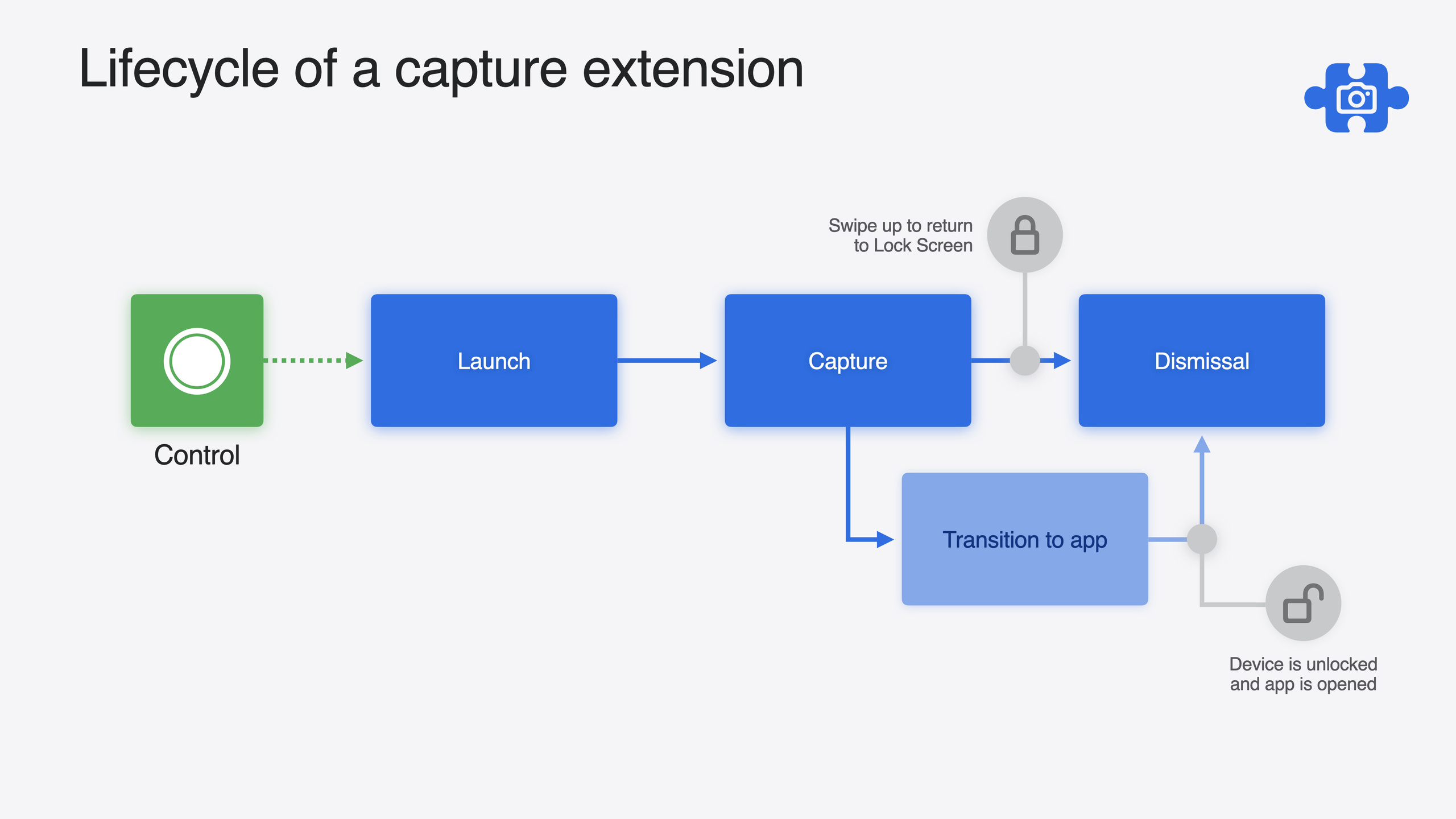
The lifecycle is built around Lock Screen security: the extension must show the viewfinder immediately or the system terminates it; after capture, content saves via the sessionContentURL directory or PhotoKit; if the user needs deeper actions (e.g., sharing to social networks), the extension calls openApplication to request unlock and seamlessly jump to the main app; after dismissal, session content migrates to the main app’s container and the extension container is wiped. Each layer ensures data isolation on the Lock Screen.
Detailed Content
Locked Camera Capture Extension entry point
The extension entry is a SwiftUI struct conforming to LockedCameraCaptureExtension, with a body returning LockedCameraCaptureUIScene (11:21):
@main
struct ClownTownCaptureExtension: LockedCameraCaptureExtension {
    var body: some LockedCameraCaptureUIScene {
        LockedCameraCaptureUIScene { session in
            CaptureView(session: session)
        }
    }
}
Key points:
@mainmarks the extension entry pointLockedCameraCaptureExtensionis a new iOS 18 protocol; Xcode provides a template with viewfinder and shutter button- The
LockedCameraCaptureUISceneinitializer closure receives aLockedCameraCaptureSession—the core object for extension-system interaction
LockedCameraCaptureSession capabilities
The session is the central hub during extension runtime, providing three key capabilities (12:41):
// 1. Persistent directory: the only recommended place to save capture data
let contentURL = session.sessionContentURL

// 2. Mark content as processed so the system can delete the directory
session.invalidateSessionContent()

// 3. Request opening the main app (triggers device unlock)
session.openApplication(
    NSUserActivity(activityType: NSUserActivityTypeLockedCameraCapture)
)
Key points:
sessionContentURLpoints to a directory in the extension container—the only content migrated to the main app after dismissal- All other data in the extension container is wiped—don’t store persistent data elsewhere (08:46)
- After
invalidateSessionContent(), previously written content is deleted but the directory itself can still be written to (13:38) - Call
openApplicationonly on explicit user interaction (e.g., button tap), never automatically (13:51)
CameraCaptureIntent and Control integration
Users need a control to launch your extension. Implement it with a WidgetKit Control paired with the new CameraCaptureIntent (14:54):
struct ClownTownCaptureIntent: CameraCaptureIntent {
    static var title: LocalizedStringResource = "ClownTown Capture"

    // appContext shares preferences between the app and extension
    var clownTownContext: ClownTownContext?

    func perform() async throws -> some IntentResult {
        // Read context and set the extension's initial state
        return .result()
    }
}
Key points:
CameraCaptureIntentis a new iOS 18 Intent type for launching capture extensions- The Intent must be included in three targets: Widget Extension, Capture Extension, and main app (15:17)
appContextshares state between app and extension but has size limits—too large and it won’t persist (16:08)- Call
updateAppContext()to update shared state readable on both sides (16:56)
Main app receiving capture content
The main app gets extension captures via LockedCameraCaptureManager (20:24):
let manager = LockedCameraCaptureManager.shared

// Get all pending session directories
let urls = manager.sessionContentURLs

// Asynchronously listen for new session content
for await update in manager.sessionContentUpdates {
    switch update {
    case .added(let url):
        // Process newly arrived capture content
        processContent(at: url)
        manager.invalidateContent(at: url)
    case .removed(let url):
        break
    }
}
Key points:
sessionContentUpdatesis an AsyncSequence with initial values for all existing session URLs, then continuous updates for adds and removes (20:53)- During extension-to-app transition, the latest session directory may become ready after app launch—prefer the async sequence over one-time reads (21:19)
invalidateContent(at:)deletes directory content and triggers a.removedupdate (21:27)
Security restrictions on the Lock Screen
The extension is strictly limited on the Lock Screen (05:34):
- Must show the camera viewfinder immediately or the system terminates the extension
- Must use
AVCaptureEventInteractionfor hardware button events (volume keys for photo/video) - No network access
- No read/write to the app’s shared Group Container
- No access to the app’s SharedPreferences
- PhotoKit on the Lock Screen allows reading only photos and videos written in the current session
Core Takeaways
-
What to do: Add a Lock Screen shortcut for existing camera apps. Why it’s worth it: Users want speed when shooting; Lock Screen direct access significantly reduces friction and gives third-party apps the same launch priority as the system camera. How to start: Create a Locked Camera Capture Extension target in Xcode, reuse your existing SwiftUI viewfinder view, then add Control and Intent.
-
What to do: Use sessionContentURL for offline-safe capture storage. Why it’s worth it: Extensions can’t access network or containers, but session directories auto-migrate to the main app after dismissal—a natural “capture offline, sync when app runs” architecture. How to start: Write capture data to
session.sessionContentURL; process asynchronously in the main app’sLockedCameraCaptureManager.sessionContentUpdates. -
What to do: Sync user preferences between extension and app via appContext. Why it’s worth it: Extensions can’t access shared containers or preferences, but filters and capture modes chosen in the app should carry over to Lock Screen capture. How to start: Store key settings in
CameraCaptureIntent’sappContext; read on extension launch; callupdateAppContext()when the user changes settings in the extension. -
What to do: Design a coherent “extension capture → unlock jump → deep edit” workflow. Why it’s worth it: Many capture scenarios need follow-up (filters, sharing, editing), but extensions can’t network or access full resources—openApplication enables seamless transition. How to start: Call
session.openApplication()on buttons that need deep actions; pass context viaNSUserActivityuserInfo; restore UI state in the main app’shandleActivity.
Related Sessions
- Extend your app’s controls across the system — How to create custom controls in Control Center, Lock Screen, and Action Button
- Design App Intents for system experiences — Design methods for App Intents powering controls, Spotlight, Siri, and other system experiences
- Keep colors consistent across captures — Maintaining color consistency across capture scenarios
- Use HDR for dynamic image experiences in your app — Integrating HDR images and video in your app
- Build compelling spatial photo and video experiences — Creating immersive spatial photo and video experiences
Comments
GitHub Issues · utterances