
Highlight
visionOS 2 adds custom spatial templates so developers can precisely define each seat’s position, orientation, and role label in 3D space, letting spatial Personas auto-group and sit by activity phase.
Core Content
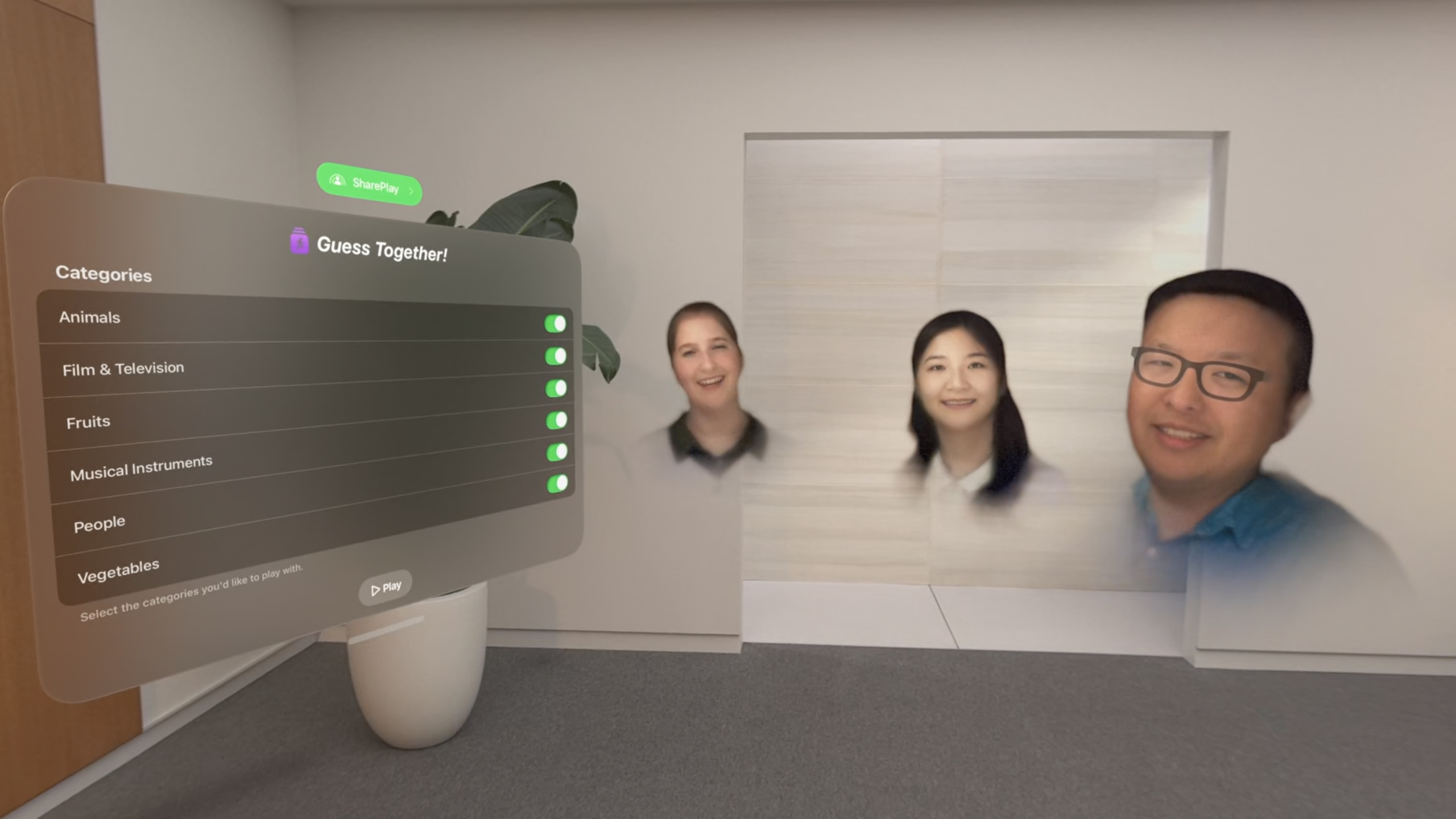
FaceTime on visionOS uses spatial Personas so callers feel like they’re in the same room. When someone starts a SharePlay activity, the system rearranges all participants according to a spatial template—defining each person’s initial position relative to the shared app. visionOS 1 shipped three built-in templates: side-by-side (arc layout, good for video), conversational (open circle, good for music), and surround (closed circle around shared content, good for 3D modeling).
Those three templates don’t cover every scenario. Board games need two players face-to-face with others watching; card games need dealer and players on opposite sides. visionOS 2 custom spatial templates solve this. Developers define each “seat” position and orientation in 3D space and assign role labels (e.g., “Blue Team,” “Red Team,” “Current Player”); when participants join, the system moves their spatial Persona to the matching seat based on role.
Presenter Ethan demos end-to-end with a word-guessing game called “Guess Together.” The game has four phases (welcome, category selection, team formation, gameplay), each using a different template—category selection uses the default side-by-side; team formation and gameplay use custom templates to separate blue team, red team, current player, and opposing team seats. Kevin shares core design principles for custom templates in the second half.
Detailed Content
Defining a custom spatial template
A custom template is a struct conforming to SpatialTemplate; the core is an elements array where each element is a seat with position and optional role (14:59).
Example from Guess Together’s team-selection phase:
import GroupActivities

struct TeamSelectionTemplate: SpatialTemplate {
    enum Role: String, SpatialTemplateRole {
        case blueTeam
        case redTeam
    }

    let elements: [any SpatialTemplateElement] = [
        // Blue team:
        .seat(position: .app.offsetBy(x: -2.5, z: 3.5), role: Role.blueTeam),
        .seat(position: .app.offsetBy(x: -3.0, z: 3.0), role: Role.blueTeam),
        .seat(position: .app.offsetBy(x: -3.5, z: 2.5), role: Role.blueTeam),

        // Starting positions:
        .seat(position: .app.offsetBy(x: 0, z: 4)),
        .seat(position: .app.offsetBy(x: 1, z: 4)),
        .seat(position: .app.offsetBy(x: -1, z: 4)),
        .seat(position: .app.offsetBy(x: 2, z: 4)),
        .seat(position: .app.offsetBy(x: -2, z: 4)),

        // Red team:
        .seat(position: .app.offsetBy(x: 2.5, z: 3.5), role: Role.redTeam),
        .seat(position: .app.offsetBy(x: 3.0, z: 3.0), role: Role.redTeam),
        .seat(position: .app.offsetBy(x: 3.5, z: 2.5), role: Role.redTeam)
    ]
}
Key points:
SpatialTemplaterequires only anelementsarray (12:32)- Seat positions use
.app.offsetBy(x:z:)with the shared app as origin, in meters (12:09) - Roles are String enums conforming to
SpatialTemplateRole, attached to seats to reserve them for participants with that role (13:49) - Seats without roles fill in
elementsarray order, so order determines join sequence (30:41)
Activating templates and assigning roles
Configure a custom template in one line (14:59):
systemCoordinator.configuration.spatialTemplatePreference = .custom(TeamSelectionTemplate())When a participant joins a team, call assignRole to move them to the matching seat (15:39):
systemCoordinator.assignRole(TeamSelectionTemplate.Role.blueTeam)To return to an unassigned seat (e.g., audience), call resignRole (16:00):
systemCoordinator.resignRole()Key points:
systemCoordinatorcomes fromGroupSessionand is the core object for spatial behavior- After role assignment, FaceTime moves the participant’s spatial Persona to an empty seat for that role
- Use
resignRole()to leave a role; the system places them in an unassigned seat
Seat direction
By default all seats face the shared app, but custom templates can control each seat’s orientation—useful in games where the current player faces teammates and teammates face the current player (18:42):
struct GameTemplate: SpatialTemplate {
    enum Role: String, SpatialTemplateRole {
        case player
        case activeTeam
    }

    var elements: [any SpatialTemplateElement] {
        let activeTeamCenterPosition = SpatialTemplateElementPosition.app.offsetBy(x: 2, z: 3)

        let playerSeat = SpatialTemplateSeatElement(
            position: .app.offsetBy(x: -2, z: 3),
            direction: .lookingAt(activeTeamCenterPosition),
            role: Role.player
        )

        let activeTeamSeats: [any SpatialTemplateElement] = [
            .seat(
                position: activeTeamCenterPosition.offsetBy(x: 0, z: -0.5),
                direction: .lookingAt(playerSeat),
                role: Role.activeTeam
            ),
            .seat(
                position: activeTeamCenterPosition.offsetBy(x: 0, z: 0.5),
                direction: .lookingAt(playerSeat),
                role: Role.activeTeam
            )
        ]

        let audienceSeats: [any SpatialTemplateElement] = [
            .seat(position: .app.offsetBy(x: 0, z: 5)),
            .seat(position: .app.offsetBy(x: 1, z: 5)),
            .seat(position: .app.offsetBy(x: -1, z: 5)),
            .seat(position: .app.offsetBy(x: 2, z: 5)),
            .seat(position: .app.offsetBy(x: -2, z: 5))
        ]

        return audienceSeats + [playerSeat] + activeTeamSeats
    }
}
Key points:
direction: .lookingAt(...)faces a position or another seat (31:35)direction: .alignedWith(appAxis: .z)aligns with an app axis (31:46)direction: .lookingAt(.app).rotatedBy(.degrees(30))rotates from the default facing (32:02)- Audience seats need no direction—they default to facing the app
Group immersive space
The gameplay phase shows the current puzzle to the active player. With group immersive space enabled, the immersive space origin matches the spatial template origin, so you can place 3D elements using seat positions (21:41):
systemCoordinator.configuration.supportsGroupImmersiveSpace = trueKey points:
- By default immersive spaces in SharePlay are private—participants can’t see each other’s spatial Personas
- Setting
supportsGroupImmersiveSpace = truemakes the space shared; everyone is in the same space - RealityKit and GroupActivities use meters by default, so seat positions map directly to RealityKit entity positions without conversion
Simulating FaceTime calls in Xcode 16
Xcode 16 can create simulated FaceTime calls in the visionOS simulator (08:28). Use Features > FaceTime to pick remote participant count and test SharePlay apps without hardware. Simulated participants don’t auto-assign roles, so role seats won’t be occupied by them.
Core Takeaways
-
What to do: Design competitive seat templates for board/card apps—two player seats face-to-face, audience on the side. Why it’s worth it: These apps naturally need “opponent” vs. “spectator” spatial separation; built-in templates can’t do that. How to start: Define two face-to-face seats with roles (e.g.,
player1,player2) plus unassigned audience seats; useassignRoleat game start. -
What to do: In collaborative whiteboard/design tools, use
lookingAtso seats face each other instead of the app. Why it’s worth it: Discussion matters more than screen-watching in collaboration; facing each other makes gesture and expression communication more natural. How to start: Use.lookingAt()so adjacent seats’ direction points at the opposite seat. -
What to do: Switch templates per activity phase (e.g., team pick → game → wrap-up) and sync UI state. Why it’s worth it: Participant relationships change each phase—undifferentiated during team pick, role-based during play; matching templates reflect current relationships. How to start: Update
spatialTemplatePreferenceon state transitions; callassignRoleorresignRolein sync; avoid switching templates during transitional states. -
What to do: Place 3D hints (puzzle panels, props) from seat positions in group immersive space. Why it’s worth it: Shared space origin matches the template origin, so you can place UI precisely in front of specific seats without users turning their heads. How to start: Enable
supportsGroupImmersiveSpace, position RealityKit entities with seat positions plus a small offset.
Related Sessions
- Meet TabletopKit for visionOS — Build visionOS board games from scratch with TabletopKit; pairs naturally with custom spatial templates
- Dive deep into volumes and immersive spaces — Deep dive into customizing volumes and immersive spaces in visionOS
- Design great visionOS apps — visionOS app design principles including immersion and gesture interaction
- Build a spatial drawing app with RealityKit — Build a spatial drawing app with RealityKit; covers 3D content placement in shared spaces
Comments
GitHub Issues · utterances