
Highlight
SF Symbols 6 adds three universal animation presets—Wiggle, Rotate, and Breathe—upgrades Replace to Magic Replace, improves closed-loop Variable Color playback, and ships a full layer-annotation toolchain for custom symbols.
Core Content
Icons in interfaces are usually static. When users scan a screen, a motionless icon is easy to miss—you may add tooltips, change colors, or write extra hint text. SF Symbols 6 tries to solve this with animation: lightweight, semantic motion that lets the icon “speak for itself.”
Three new universal presets this year. Wiggle moves the symbol a short distance to draw the eye—good for guiding users to overlooked actions. Rotate adds spin—either mimicking real objects (a fan) or acting as a progress indicator. Breathe smoothly changes opacity and size so the symbol feels “alive”—ideal for ongoing recording or timing.
Replace gets a major upgrade. Magic Replace recognizes shape-related symbol pairs: slashes draw and erase independently; badges appear or disappear apart from the base symbol. Unrelated shapes fall back to standard Replace. Variable Color: symbols designed as closed loops now loop seamlessly without a visible jump.
Detailed Content
Wiggle (01:41)
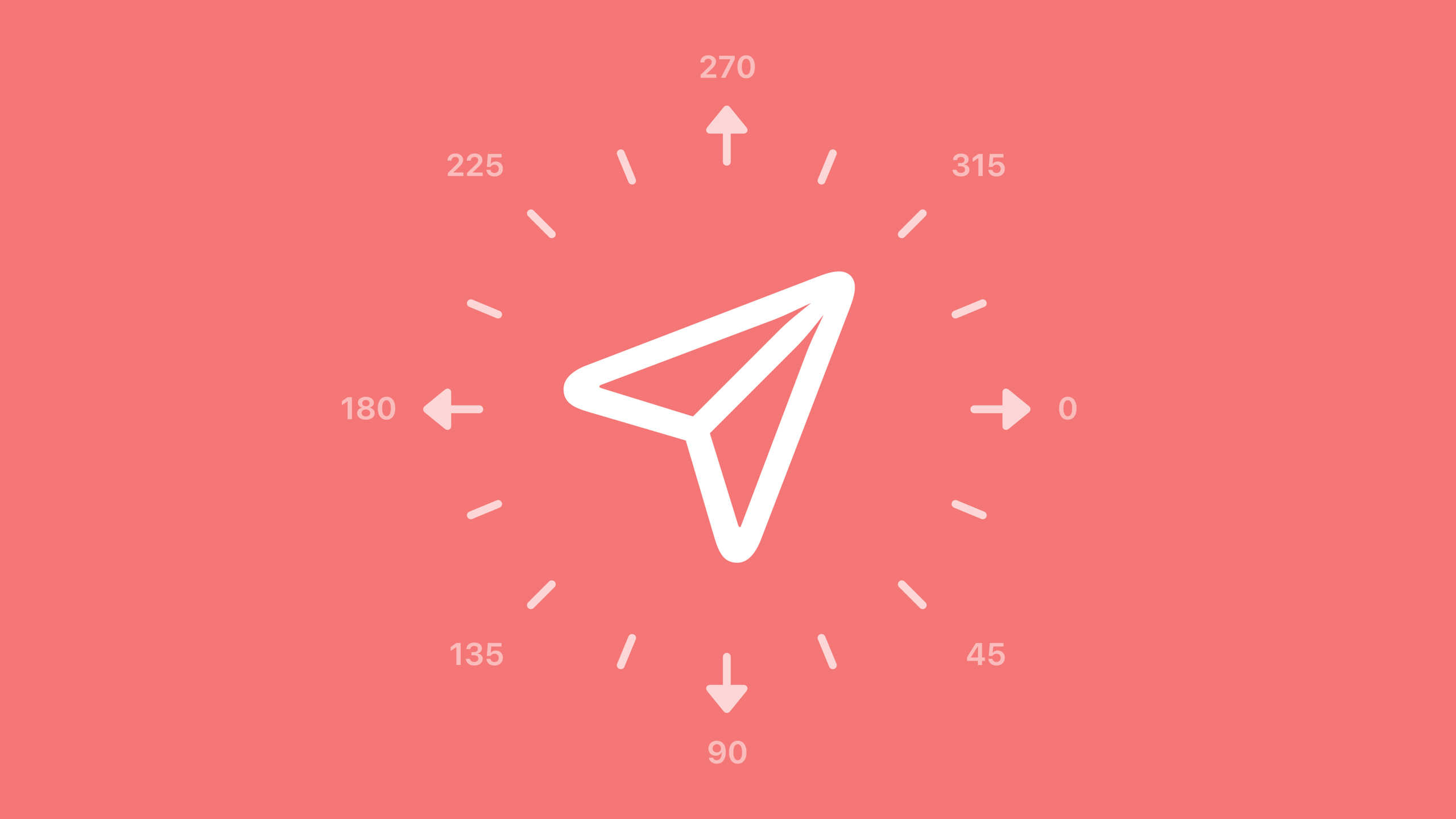
Wiggle emphasizes change or draws attention. Four base directions: horizontal (left/right), vertical (up/down), clockwise, counterclockwise. Plus reading-direction-aware forward/backward. Many symbols have a built-in preferred direction—a paper plane wiggles along its own heading. Override with a custom angle, e.g. 315° so the plane looks ready to take off (02:56).
Image(systemName: "paperplane")
    .symbolEffect(.wiggle)
Key points:
.wiggleuses the symbol’s built-in preferred direction by default- Pass direction such as
.wiggle.forwardor.wiggle.upto customize - Custom angle:
.wiggle(angle: .degrees(315))
Rotate (03:19)
Rotate adds spin. Whole-symbol rotation suits progress; By Layer rotates only part of the symbol—e.g. fan blades spin, base stays still. Custom symbols need layer annotation in the SF Symbols 6 app: mark which layers rotate and set the anchor (13:24).
Image(systemName: "deskfan")
    .symbolEffect(.rotate)
Key points:
.rotatespins the entire symbol by default- By Layer rotation requires checking can Rotate on specific layers in the SF Symbols app
- Anchor defaults to center; Snap to Points aligns to path nodes
Breathe (04:02)
Breathe changes both opacity and size for a living feel. Unlike Pulse (opacity only), Breathe adjusts both (04:23). In the SF Symbols app, enable Pulses—layers already marked Pulse change opacity, adding depth to Breathe (11:06).
Image(systemName: "drop.fill")
    .symbolEffect(.breathe)
Key points:
.breathesuits ongoing activity (recording, timing)- Layers previously marked Pulse participate in opacity under Breathe + Pulses
- No re-annotation needed
Magic Replace (04:58)
Magic Replace upgrades Replace. When two symbols are shape-related (same base with different badges), slashes draw/erase independently; badges appear, disappear, or swap apart from the base. This is the new default. Unrelated shapes fall back to standard Replace. Custom symbols using symbol components support Magic Replace—re-export from SF Symbols 6 and import in Xcode 16 (06:23).
Image(systemName: isFavorite ? "heart.fill" : "heart")
    .contentTransition(.symbolEffect(.magicReplace))
Key points:
.magicReplaceis the new default Replace behavior- Unrelated symbol pairs automatically use standard Replace
- Custom symbols need re-export from SF Symbols 6 app
Variable Color closed-loop improvements (06:39)
Variable Color advances state layer by layer via color opacity. Endpoint design drives looping: open loop (endpoints don’t meet) vs closed loop (endpoints meet). SF Symbols 6 improves closed-loop playback for seamless cycles. Mark closed-loop design in SF Symbols 6 for smoother continuous playback (07:31).
Animation playback control (11:19)
SF Symbols 6 app offers three repeat modes: Play Once, Repeat with Delay (configurable interval), Continuous (until explicitly stopped).
Custom symbol annotation (12:02)
In SF Symbols 6: set preferred direction for Wiggle; put Breathe parts in separate layers for animation order; for Rotate, check can Rotate and set anchor—default center, Snap to Points to path nodes, define in all three weights (Ultralight, Regular, Black) (15:18).
New symbols (15:43)
SF Symbols 6 adds 800+ symbols—6,000+ total. New categories: automotive (battery, convertible, temperature), diverse human activities, localized Greek and Cyrillic, progress indicators, haptics, Home Screen and widget symbols.
Core Takeaways
-
What to do: Use Wiggle instead of tooltips or text hints for key actions. Why it’s worth it: Semantic micro-animation feels more natural than static hints and adds no text clutter. How to start: Add
.symbolEffect(.wiggle)to button SF Symbols; use.wiggle.upetc. for direction. -
What to do: Use Rotate By Layer instead of custom spin progress indicators. Why it’s worth it: Custom spin needs timers and layers;
.symbolEffect(.rotate)is one declarative line; By Layer spins only blades on a fan. How to start: In SF Symbols 6, check can Rotate and set anchor on rotating layers, then.symbolEffect(.rotate)in code. -
What to do: Use Breathe for ongoing background activity. Why it’s worth it: Breathe changes opacity and size—stronger presence than Pulse—for recording, timing, “system still working.” How to start:
Image(systemName: "drop.fill")+.symbolEffect(.breathe)with Repeat with Delay or Continuous. -
What to do: Enable Magic Replace for icon state changes. Why it’s worth it: Slashes and badges transition independently—clearer than standard Replace. How to start:
.contentTransition(.symbolEffect(.magicReplace)); re-export symbols from SF Symbols 6.
Related Sessions
- Bring expression to your app with Genmoji — Integrate Genmoji expressive capabilities in your app
- Catch up on accessibility in SwiftUI — Latest SwiftUI accessibility improvements
- Demystify SwiftUI containers — How SwiftUI container views work
- Evolve your document launch experience — Optimize document-based app launch experience
Comments
GitHub Issues · utterances