
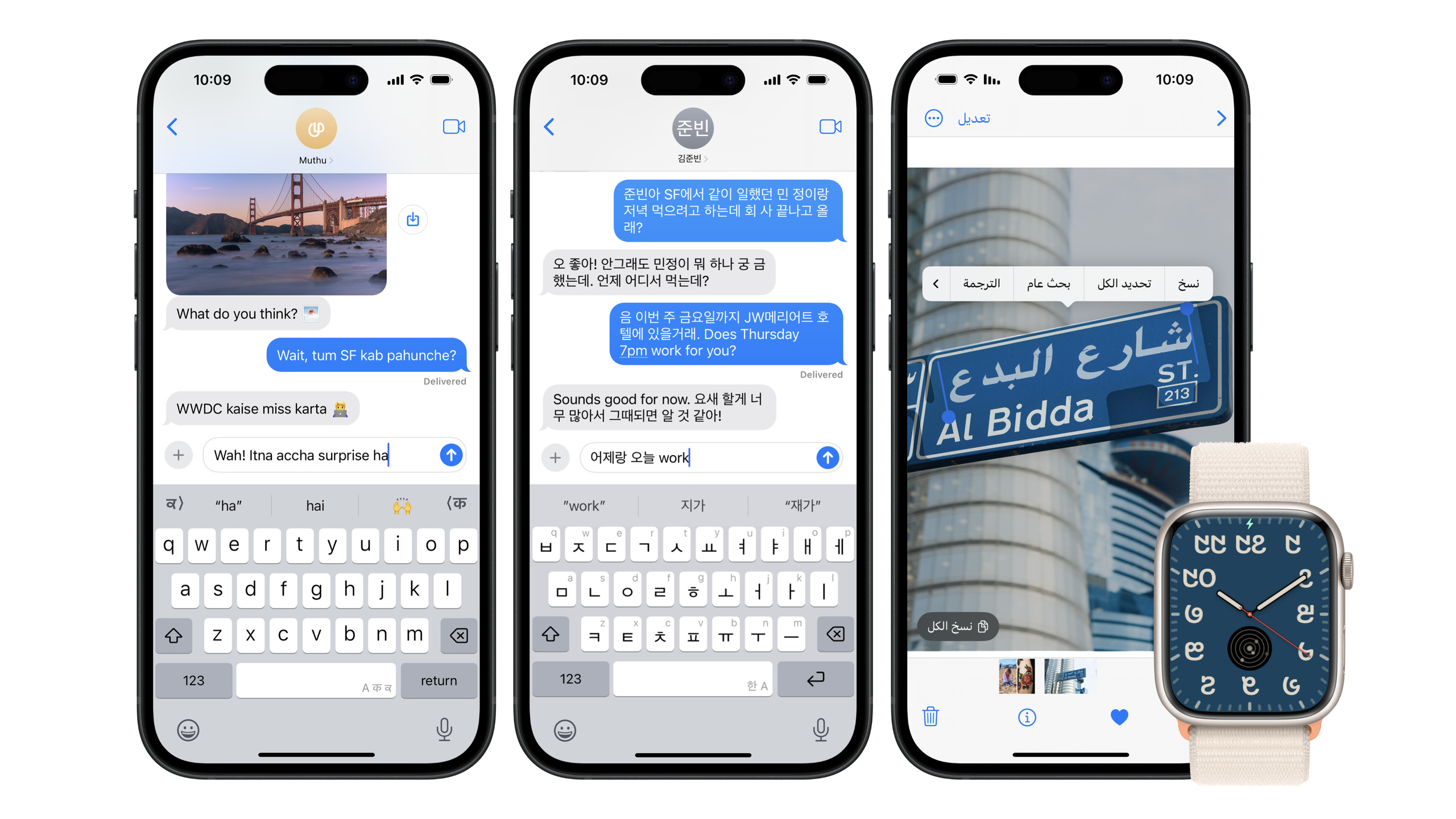
Highlight
Apple introduced several multilingual enhancements in iOS 18, including the new Multilingual Keyboard (type multiple languages without manual switching), Live Text support for Arabic, and 10 new Indic numeral systems. But this session’s core isn’t these system features—it’s teaching developers how to avoid common bugs in multilingual scenarios.
Core Content
Does your app support Chinese input? If a user is typing Chinese characters with Pinyin or handwriting keyboard, your autocomplete logic may interrupt input—CJK input methods first show “marked text” (temporary underlined text), which disappears only after the user selects a candidate. If your code modifies text on every keystroke, it breaks this input flow.
The same problem appears in search. Hindi users searching contacts may find nothing because of different spelling styles; search highlighting with bold breaks Hindi letters from diacritical marks. And Urdu’s Nastaliq script renders broken in some apps—text becomes completely illegible.
The session uses three friends from different regions—April in Singapore (Chinese-English bilingual), Raj in India (Hindi-English), and Ismat in the US (English-Urdu)—to break down these real scenarios one by one, each with specific one-line or few-line code fixes.
Detailed Content
Input: Keyboard Memory and Marked Text
April chats in Chinese and English across different conversations—the keyboard automatically remembers each conversation’s language. Implement by overriding textInputContextIdentifier (03:18):
override var textInputContextIdentifier: String? {
    uniqueID
}textInputContextIdentifieris a method onUIResponderreturning a unique string- The system uses this identifier to independently remember language preference per input context
- Different conversations in the same app can use different identifiers—the keyboard switches automatically
When keyboard height changes (e.g., handwriting keyboard expands), adjust UI layout. Two approaches: inputAccessoryView docks directly above the keyboard (03:41); keyboardLayoutGuide positions custom views relative to the keyboard (04:00).
Marked text in CJK input is the easiest trap. Fix by checking marked text before modifying text (04:42):
if textView.markedTextRange.empty {
    // Perform actions involving editing text
}markedTextRangereturns the current marked text range- If empty, the user has confirmed a candidate—safe to modify text
- If not empty, the user is still composing—don’t modify inline text
- While marked text exists, you can still search based on it and show suggestions elsewhere (e.g., table view)—Spotlight does this
Search: localizedStandardRange and Highlight Color
Raj can’t find contacts when searching in Hindi because search uses range(of:) for exact matching, but Hindi has multiple spelling styles. Switch to localizedStandardRange (05:58):
let range = text.localizedStandardRange(of: search)localizedStandardRangeis the locale-aware standard search API- iOS 18 significantly upgraded this API—cross-spelling-style matching and cross-numeral-system matching for more scripts
- One-line replacement fixes search issues
Search highlighting with bold breaks Hindi text because bold and regular are different fonts—letters and diacritical marks can’t connect across fonts. Use color highlighting instead (07:24):
attributedString[range].foregroundColor = highlightColor- Use
foregroundColorinstead of font weight changes to mark matched text - Color attributes don’t change the font—won’t break letter-to-diacritic connections
Also, italicization has no corresponding concept in most languages—only 3 of 10 languages’ “hello” show visual change when italicized (07:32). Don’t rely on italics to convey information differences.
Display: TextKit 2, Text Styles, Name Formatting
Ismat encountered broken Urdu rendering—the fix is TextKit 2 (09:39). Good news: SwiftUI, UIKit, and AppKit labels and text views already default to TextKit 2.
Text Styles ensure line spacing adapts to all user languages (09:39):
// Text Styles

// SwiftUI
Text("Hello, world!") // uses .body Text Style by default
Text("Hello, world!").font(.title)

// UIKit
let label = UILabel()
label.text = "Hello, world!"
label.font = UIFont.preferredFont(forTextStyle: .body)

// AppKit
let textField = NSTextField(labelWithString: "Hello, world!")
textField.font = NSFont.preferredFont(forTextStyle: .body)

// Keep clipsToBounds off
clipsToBounds = false- Text Styles consider app language and all user preferred languages, automatically adjusting line spacing
clipsToBoundsmust stayfalse—text in many languages needs to render beyond view bounds- No need to write language-specific code for any particular language
If content has a clear language, specify with typesettingLanguage (10:03):
// SwiftUI
Text(verbatim: "Hello, world!").typesettingLanguage(.init(languageCode: .english))

// UIKit
let label = UILabel()
label.text = "Hello, world!"
label.traitOverrides.typesettingLanguage = Locale.Language(languageCode: .english)- Default behavior considers all user preferred languages (larger line spacing for scripts like Urdu)
- After specifying language, typesetting uses that language’s rules (e.g., tighter English line spacing)
Display names with the formatted API (10:29):
// Formatting names

let nameComponents = PersonNameComponents
  (givenName: "June", familyName: "Wang", nickname: "Junie")

// Short Name (respects settings like "Prefer Nicknames")
let shortName =
 nameComponents.formatted(.name(style: .short)) // Junie

// Abbreviated Name (can be used for monograms)
let monogram =
nameComponents.formatted(.name(style: .abbreviated)) // W- Showing only given name is inappropriate in Chinese and Japanese—short style uses nickname when appropriate
- abbreviated style for monograms etc.—returns family name in Chinese
- This API respects the user’s “Prefer Nicknames” setting in Language & Region
Localization: Grammar Engine and Number Formatting
iOS 18 extends the automatic grammatical agreement engine to Hindi and Korean (12:20). Supported languages: German, English, Spanish, French, Italian, Portuguese, Hindi, Korean.
Two ways to format numbers. String interpolation in code (13:43):
Text("\(numberOfDays)-day forecast")numberOfDaysinTextautomatically formats per current locale- Suitable when the number is determined at runtime and all languages use numerals
New this year: format numbers directly in localized strings (14:21):
AttributedString(localized: "10-day forecast")
AttributedString(localized: "0.5× zoom")- Zero code to format numbers in localized strings
- Translators can use
formatNumberto ensure correct numeral systems—e.g., Indic numerals in Hindi translation - Also handles decimal separator and other format differences
Core Takeaways
-
What to do: Check if search implementation uses
localizedStandardRange. Why it’s worth it: Hindi, Arabic, and other languages have many spelling variants—exact matching withrange(of:)prevents users from finding content; iOS 18’slocalizedStandardRangesupports cross-spelling-style and cross-numeral-system matching. How to start: Globally search forrange(of:)andrangeOfString, replace withlocalizedStandardRange(of:)—one line of code. -
What to do: Check if autocomplete logic handles marked text. Why it’s worth it: CJK users get terrible experience if autocomplete interrupts input—the IME flow breaks and users must retype. How to start: Add
if textView.markedTextRange.emptycheck before all text modification logic; when marked text exists, only update external suggestion lists, not inline text. -
What to do: Use color instead of bold for search highlighting; don’t rely on italics in multilingual scenarios. Why it’s worth it: Bold breaks letter-to-diacritic connections in Hindi and similar languages (different fonts can’t connect); italics have no visual effect in most languages. How to start: Change search highlight from
font: .boldtoforegroundColor; review all places using italics to convey information differences—use color or font size instead. -
What to do: Ensure
clipsToBoundsstaysfalseon all labels and text views. Why it’s worth it: Text in many languages (Urdu Nastaliq script, Hindi diacritical marks) needs to render beyond view bounds—clipping causes truncation or illegibility. How to start: Search for all labels/text views withclipsToBounds = true, confirm if necessary—in most cases keep defaultfalse.
Related Sessions
- What’s new in UIKit — UIKit updates including TextKit 2 improvements and new APIs
- Discover SwiftUI enhancements — SwiftUI improvements including text rendering and layout enhancements
- What’s new in SF Symbols 6 — SF Symbols localized for a wide variety of languages and scripts
- What’s new in SwiftUI — SwiftUI text customization and layout improvements
Comments
GitHub Issues · utterances