
Highlight
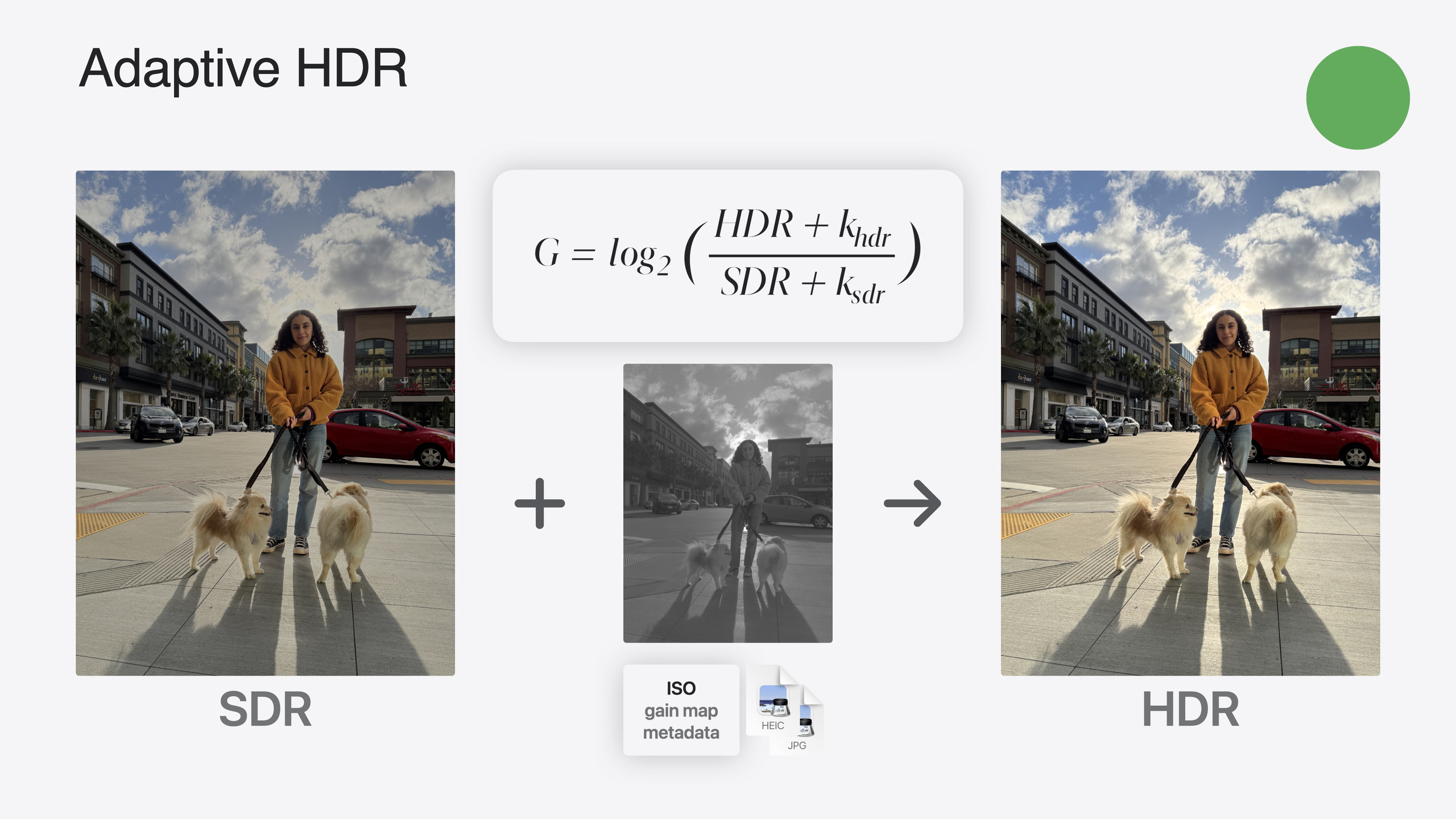
Adaptive HDR is an evolution of ISO HDR that uses Gain Map technology for backward compatibility with SDR systems while storing both HDR and SDR representations in a single file.
Core Content
HDR (High Dynamic Range) imaging has made significant progress in recent years. Apple introduced the ISO HDR standard last year, and this year builds on that foundation with Adaptive HDR technology.
ISO HDR faces a practical problem: when HDR images are viewed on SDR displays, tone mapping adjustments are required. Using default algorithms for this conversion can cause color distortion or exposure issues. Additionally, HDR files cannot be read directly by SDR decoders.
Adaptive HDR addresses all three problems: backward compatibility with SDR systems, decoders, and apps; storing both HDR and an optimized SDR representation in a single file; and providing adaptive tone mapping capabilities.
Since 2020, iPhone has captured images with embedded Gain Maps to enhance display quality—over a trillion such images to date. This year Apple is driving standardization of Gain Map technology as Adaptive HDR, currently at the ISO committee draft stage and moving toward an international standard draft.
The core idea of Adaptive HDR is to store a fully backward-compatible SDR baseline representation in the file, along with specific metadata and a Gain Map. The Gain Map records the spatial locations of bright areas in the scene. When applied to the baseline image, it can produce HDR output.
Detailed Content
The novelty of the Adaptive HDR file format is that it does not directly contain an HDR image, but rather a set of “ingredients” and a “recipe” that together create the HDR effect. HEIC files still contain only one image, but developers can request alternative appearances of the image. By default, the image decodes to an SDR representation. When requested, an alternative HDR appearance can be obtained.
(23:24)
// Read the HDR image using the expandToHDR option.
let hdrImage = CIImage(url: imageURL, options: [.expandToHDR: true])

// Query the image's Content Headroom.
let headroom = hdrImage.contentHeadroom
// For iPhone HDR photos, the value is greater than 1 and can reach 8.
// For some images, the property may return zero when Headroom is unknown.expandToHDRoption: Tells Core Image to load the image in HDR format rather than the default SDR formatcontentHeadroomproperty: Returns the image’s Content Headroom value—SDR images return 1, HDR images return values greater than 1, and 0 when unknown
(26:07)
// Example SDR and Gain editing strategy.
// 1. Load the SDR image.
let sdrImage = CIImage(url: imageURL)

// 2. Load the Gain Map.
let gainImage = CIImage(url: imageURL, options: [.auxiliaryHDRGainMap: true])

// 3. Scale the Gain image to the same size as the SDR image.
let scaledGainImage = gainImage.transformed(by: CGAffineTransform(scaleX: 2, y: 2))

// 4. Apply the same filters to both images, such as crop or distortion.
let editedSdrImage = stretchCropFilter.apply(to: sdrImage)
let editedGainImage = stretchCropFilter.apply(to: scaledGainImage)auxiliaryHDRGainMapoption: Loads the Gain Map from the file as a separate CIImage object- Scaling: Gain images are typically half the size of SDR images; account for this difference when editing
- Synchronized editing: When applying edits to the SDR image, apply the same edits to the Gain image
(29:15)
// Display HDR images with Core Image and Metal.
// 1. Configure MTKView for extended-range content.
metalView.colorspace = CGColorSpace(name: CGColorSpace.extendedLinearSRGB)
metalView.pixelFormat = .rgba16Float
metalView.framebufferOnly = false

// 2. Apply CIFilters to create the edited CIImage.
let editedImage = applyFilters(to: hdrImage)

// 3. Get the view's current display Headroom.
let displayHeadroom = metalView.currentDisplayHeadroom

// 4. Apply the new CIToneMapHeadroom filter.
let toneMappedImage = editedImage.applyingFilter(
    "CIToneMapHeadroom",
    parameters: ["inputHeadroom": displayHeadroom]
)

// 5. Render the result with the CIRenderDestination API.
let destination = CIRenderDestination(metalView)
try? context.startRendering(to: destination, from: toneMappedImage)- Extended color space: Configure MTKView with extended linear sRGB color space and 16-bit floating-point pixel format
currentDisplayHeadroom: Gets the available Headroom of the current displayCIToneMapHeadroomfilter: Automatically adjusts HDR images based on display Headroom—for ISO HDR files it uses the new Reference White Tone Mapping Operator; for Adaptive HDR files it uses an optimized custom tone map function
(30:09)
// Display using an SDR and Gain Map combination.
let displayHeadroom = metalView.currentDisplayHeadroom

// Combine the two images with the imageByApplyingGainMap API.
let combinedImage = sdrImage.imageByApplyingGainMap(
    gainMap: editedGainImage,
    headroom: displayHeadroom
)

// Render the result.
let destination = CIRenderDestination(metalView)
try? context.startRendering(to: destination, from: combinedImage)imageByApplyingGainMap: Combines SDR image and Gain Map to produce a tone-mapped image for the specified Headroom- Single-step operation: This API performs combination and tone mapping in one operation
The system provides three tone mapping methods. For ISO HDR images, the system uses ITU default global tone mapping. This year Apple developed a new Reference White Tone Mapping Operator that better preserves output quality, reduces highlight clipping, and maintains color reproduction. For Adaptive HDR images, the system adjusts using curves optimized for the Gain Map in the file.
Core Takeaways
-
Use system APIs for tone mapping: Don’t implement your own tone mapping algorithms. Apple’s
CIToneMapHeadroomfilter already accounts for various Display Headroom scenarios, including screen brightness settings, battery limits, and foreground/background transitions. -
Choose the right editing strategy: Select one of three editing strategies based on your app’s needs. The HDR strategy is simplest, suitable when you don’t need to modify the original Gain Map. The SDR and Gain strategy preserves the original Gain Map, suitable for simple edits like rotation, warping, and cropping. The SDR and HDR strategy is most complex but allows separate optimization for SDR and HDR.
-
Test under different Display Headroom conditions: Test HDR rendering at various screen brightness levels and battery states. Pay special attention to HDR state during foreground/background transitions—when the app goes to background, the system tone maps images to SDR; returning requires reloading full HDR data.
-
Prefer Adaptive HDR format: New projects should use Adaptive HDR instead of ISO HDR. Its backward compatibility ensures normal display on SDR devices while showing full dynamic range on HDR devices.
-
Maintain a complete color space pipeline: From file read through editing to write-back, keep the entire pipeline in HDR color space. Any downgrade at any step is irreversible and loses HDR information.
Related Sessions
- Display EDR content with Core Image, Metal, and SwiftUI — Adding EDR rendering support from a Core Image-based multi-platform SwiftUI application
- Build compelling spatial photo and video experiences — Adopting spatial photos and videos in your apps, including the new Quick Look preview application API in visionOS
- Keep colors consistent across captures — The Constant Color API and how it helps users determine precise colors in your app
- Discover media performance metrics in AVFoundation — Monitoring, analyzing, and improving user experience with the new media performance APIs
- What’s new in DockKit — How intelligent tracking in DockKit enables smoother transitions between subjects
Comments
GitHub Issues · utterances