
Highlight
iOS 18 changes the design principles for App Intents: from “expose your most common actions” to “everything your app does should be an Intent,” enabling Spotlight, Action Button, Siri, Controls, and other system entry points to invoke your functionality.
Core Content
Last year’s App Intents guidance was clear: pick the most frequently used actions in your app and expose them to Shortcuts and Siri. The problem with this strategy is that if your app only has 3 Intents, users have very limited room to combine them in Shortcuts.
iOS 18 solves this—the strategy shifts from “curate a few” to “comprehensive coverage.” Apple states clearly in this session: everything your app does should be an App Intent. The reason is that system entry points keep growing: Spotlight, Action Button, Siri, Controls, Widgets, Squeeze… each entry point needs rich Intents to be useful.
But “more” doesn’t mean “messy.” The session spends most of its time on design principles, centered on three questions:
-
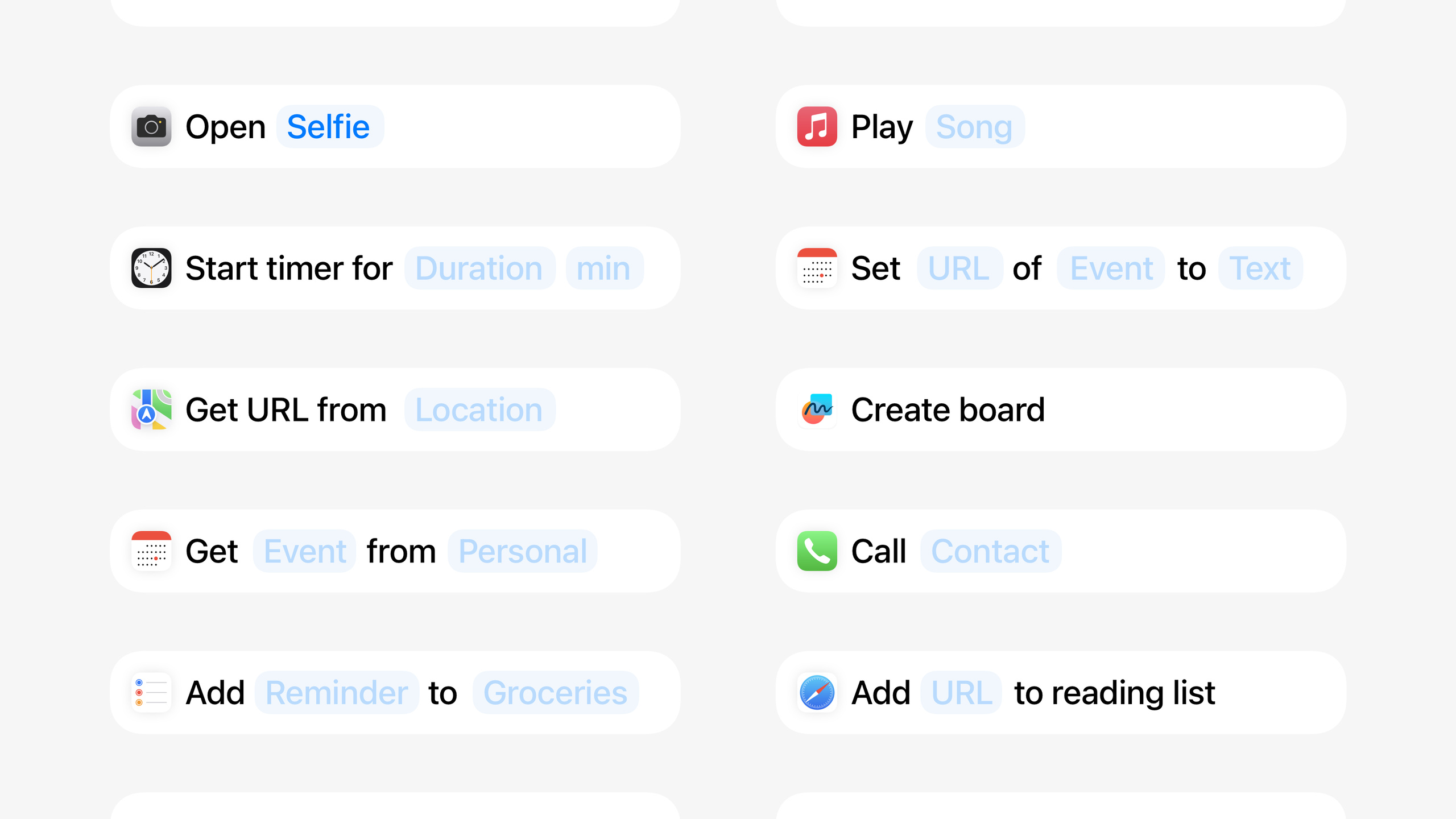
Which functionality should be exposed as Intents? Start from verbs—open, create, search, set, delete. Avoid fragmentation; multiple Intents doing the same thing should be merged into one Intent with parameters.
-
How should parameters be designed? Parameter summaries must read naturally under any parameter combination. If a parameter is a binary state (toggle-like), it must support Toggle as the default parameter—otherwise users are asked every time.
-
When should the app open? Previously the goal was to avoid opening when possible; now opening is common behavior. If your Intent causes a change in the app (like creating a new board), open the app directly so users see the result. This is achieved via the
OpenIntentprotocol or theopenWhenRunoption.
Detailed Content
Intent Types: Start from Verbs
When designing App Intents, start with these basic verbs (00:35):
- Open — Open a specific view, folder, or file
- Create — Create a note, event, or draft
- Search — Search within app content
- Set — Adjust toggles and states
- Delete — Delete items or drafts
These verbs cover most apps’ core functionality. Each feature maps to one Intent, rather than creating a separate Intent for every UI action.
Avoid Fragmenting Intents
A common mistake the session repeatedly warns against is “fragmentation”—creating multiple Intents for the same action (00:50). For example, don’t create separate Intents for “open different types of reminders”; instead create one “open reminder” Intent with reminder type as a parameter.
The correct approach is to structure functionality and put variable parts into parameters:
❌ Open work reminders
❌ Open personal reminders
❌ Open important reminders

✅ Open reminder (parameter: reminder type)
Parameter Summaries Must Read Naturally
Intent parameter summaries must read as a coherent sentence under any parameter combination (04:16). For example, a camera “open camera to specific mode” Intent should ensure any selected mode reads as one sentence.
Parameter Type Selection
Built-in parameters: Suitable for simple tasks like dates, text, and numbers (04:42).
Static parameters: For fixed options, such as app tabs (04:55).
App Entity: For dynamically changing options, such as when users add new folders and the option list needs automatic updates (05:10).
Optional vs Required Parameters
Prefer optional parameters (05:24): If the user doesn’t specify a parameter, the Intent should execute directly and provide a full in-app selection experience. For “open note in specific folder,” if no folder is specified, open the folder picker rather than asking every time.
Required parameters: Use only when the Intent is meaningless without the parameter. For “search mail,” a search term is required (06:04).
Binary States Must Support Toggle
If an Intent has only two states (on/off), it must support Toggle as the default parameter (06:32). For example, a “set flashlight” Intent should support Toggle rather than asking users on or off every time.
When to Open the App
A major iOS 18 change is that opening the app becomes common behavior (06:49). Two cases:
OpenIntent protocol: The Intent’s essence is opening the app to a specific view. For example, an “open stopwatch” Intent.
openWhenRun option: The Intent causes a change in the app after execution and should open so users see it. For example, after “create Freeform board” completes, open directly to the newly created board (07:59).
This option is enabled by default; users can disable it in Shortcuts, suitable for Shortcuts that run multiple Intents in sequence.
Background Execution Support
If your app supports Live Activity, audio playback, or recording, corresponding Intents should support background execution (06:39). This means users can complete these actions without opening the app.
Core Takeaways
1. Review Existing Intents for Fragmentation
If you already have App Intents, check whether multiple Intents do the same thing. For example, “send to friend,” “send to group,” and “send to channel” should merge into a “send message” Intent with the recipient as a parameter. After merging, users gain much more flexibility in Shortcuts.
2. Add Toggle Support for Binary States
Check all Intents with only two states (toggle-like) and ensure they support Toggle as the default parameter. For “Do Not Disturb,” “Focus mode,” and “play/pause” Intents, users expect a single toggle, not a selection dialog every time.
3. Rethink the “Open App” Strategy
If your Intent causes changes in the app (create, modify, delete), consider adding openWhenRun behavior. For “create note” and “add event” operations, opening directly after completion provides a more cohesive experience.
Related Sessions
- What’s new in App Intents — Comprehensive introduction to App Intents and how to make app functionality invocable from the system
- Build a great Lock Screen camera capture experience — Launching camera apps from the Lock Screen via the LockedCameraCapture API
- Evolve your document launch experience — Customizing launch experience and custom actions for document-based apps
- Integrate Smart Recollections into your app — Integrating app content into the system’s Smart Recollections experience
Comments
GitHub Issues · utterances