
Highlight
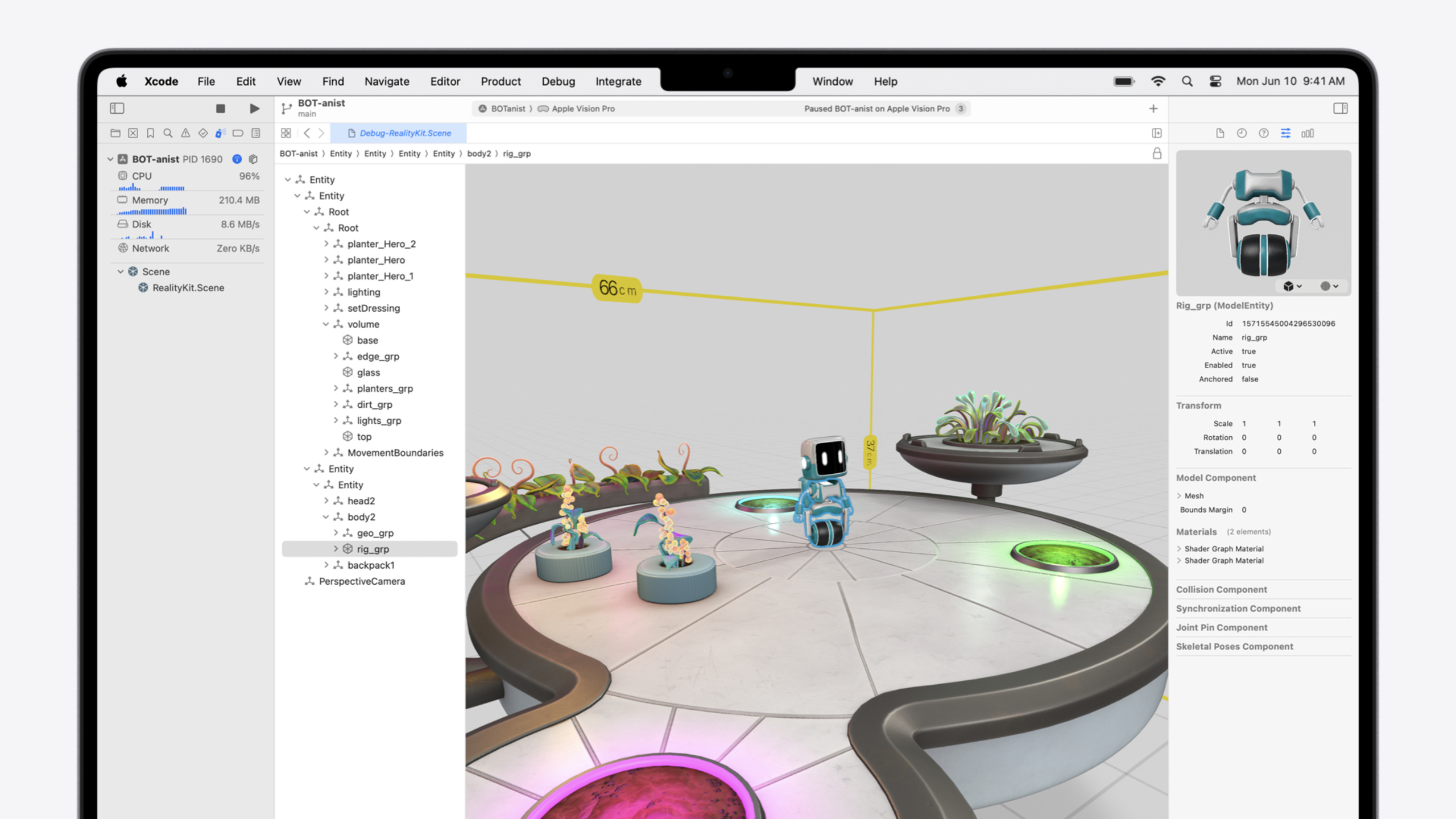
RealityKit Debugger captures a 3D snapshot of a running app and presents Entity Hierarchy, a 3D viewport, and an Inspector in a three-column layout in Xcode—letting you debug spatial apps the way View Debugger debugs UIKit.
Core Content
One of the most frustrating things about 3D apps: you clearly placed something in code, but at runtime it’s invisible, in the wrong position, or deformed. Previously you could only guess with print statements and experience. RealityKit’s Entity hierarchy and Transform inheritance are complex—you can’t visually tell where things went wrong.
Apple added RealityKit Debugger in Xcode. It works like View Debugger: click the “Capture Entity Hierarchy” button in the debug area to capture a 3D snapshot of the current scene, then open a three-column view in Xcode—Entity Hierarchy tree on the left, 3D viewport in the center, Inspector panel on the right. Select any Entity and all three columns update to show its hierarchy position, spatial location, and all Component properties.
This session uses a real project—transforming a botanical garden app into a robot nightclub—to demonstrate how to locate four common 3D bug types: shape deformation from Transform inheritance, behavior anomalies from forgetting to write back Components, missing content from rendering pipeline issues, and adding debug info to the Debugger with custom Components. Each is a frequent 3D development problem; with a visual tool, troubleshooting efficiency is completely different.
Detailed Content
1. Deformation from Transform Inheritance
The disco ball’s lines look flattened. In the Debugger, selecting the Outline Entity shows the model itself isn’t deformed in the Inspector preview, and the Transform component’s scale is uniformly 1. The problem isn’t local—it’s an ancestor. Checking upward: Background is fine, but Support Entity’s Transform has a large Y-axis scale—Support is stretched to shape the form, but it passes deformation to all descendants.
Fix: Change Support and Background from parent-child to siblings (06:50).
// Before the fix: Background is a child of Support and inherits the Y-axis scale.
support.addChild(background)

// After the fix: Background and Support are siblings under discoBall.
discoBall.addChild(background)
Key points:
support.addChild(background)makes Background inherit Support’s Y-axis scale deformation- Changing to
discoBall.addChild(background)means Background only inherits discoBall’s Transform, no longer affected by Support - Both Entities still appear connected in the scene, but Transforms no longer interfere
2. Forgetting to Write Back After Component Modification
The teleportation system should continuously spawn robots, but nothing appears. Checking the Teleporter Entity in the Debugger—all Components are present. Checking Teleportation Center’s ControlCenterComponent, the countdown value always equals the initial value—meaning the System’s update never took effect.
Back in code, the problem: the System modifies controlCenter.countdown on every update, but the modified Component isn’t written back to the Entity (10:18).
// The key step missing from TeleportationSystem.update.
// 5. Save updated component back to the entity
controlCenterEntity.components[ControlCenterComponent.self] = controlCenter
Key points:
- RealityKit Components are value types (structs)—after modifying one retrieved from an Entity, you must write it back to take effect
- This differs from SwiftUI’s
@Statemental model and is easy to miss - The Debugger captures real-time state at the moment you pause; an unchanged countdown value means the System didn’t actually update data on the Entity
3. Rendering Issues Causing Invisible Content
Only 1 of 9 oil bottles on the counter is visible. Using the Debugger to check each bottle reveals different problems: position below the counter (occluded), position beyond scene bounds (clipped), scale so large the camera is inside the model (triangles only render outside), Entity not enabled, leftover AnchoringComponent with no matching ARKit anchor in the scene, ModelComponent on the wrong Entity, Material with opacityThreshold set to 1 while opacity is less than 1 (entire bottle invisible), Mesh normals reversed (fix in 3D tool), or simply never added to the scene.
Fix by replacing all copy-paste code with a creation loop (18:15).
private func stockBottles(placementRadius: Float) -> Entity {
    let bottleRadius: Float = 0.003
    let bottleHeight: Float = 0.022
    let angleIncrement: Float = -12
    let outOfStockBrands: Set = [3]

    let bottleGroup = Entity()
    bottleGroup.name = "Bottle Group"
    bottleGroup.position = [0, 0.04, 0]
    bottleGroup.orientation = .init(angle: 180 * (.pi / 180), axis: [0, 1, 0])

    var bottleMaterial = PhysicallyBasedMaterial()
    bottleMaterial.baseColor = .init(tint: .green)
    bottleMaterial.blending = .transparent(opacity: .init(floatLiteral: 0.5))

    for i in 0..<9 {
        let angle = Angle2D(degrees: angleIncrement * Float(i))
        let bottleMesh = MeshResource.generateCylinder(height: bottleHeight, radius: bottleRadius)
        let bottle = ModelEntity(mesh: bottleMesh, materials: [bottleMaterial])
        bottle.name = "BT\(i)"
        bottle.position = pointOnCircumference(angle: angle, radius: placementRadius, y: bottleHeight / 2)
        if outOfStockBrands.contains(i) {
            bottle.components[OutOfStockComponent.self] = OutOfStockComponent()
        }
        bottleGroup.addChild(bottle)
    }
    return bottleGroup
}
Key points:
- Use a loop instead of manual copy-paste to eliminate “wrong parameter when copying” at the source
pointOnCircumferencecalculates positions uniformly, avoiding manual coordinate errorsoutOfStockBrandsmanages out-of-stock items with a Set for clear logic- Session recommendation: do scene layout in Reality Composer Pro when possible—more reliable than pure code positioning
4. Custom Debug Visualization
After robots teleport to the nightclub, they stand still instead of walking to the dance floor. The developer added debug Entities in #if DEBUG blocks: semi-transparent cylinder visualizations for each invisible attractor, custom AttractorDebugComponent showing state and target references in the Inspector, and DanceSystemDebugComponent rendering a Swift Chart pie chart (saved as a UIImage property).
In the Debugger, all attractors show “attracting” state at a glance—normally only one should. Clicking an attractor’s attractor reference link jumps to the target robot, revealing its Newcomer Component wasn’t removed, causing every attractor to lock onto the same robot. Fix requires just one line (22:48).
// 4. Untag them as a Newcomer
visitor.components[Newcomer.self] = nil
Key points:
- Custom Component properties automatically appear in the Inspector, including Entity references (as clickable links)
UIImageproperties can display images in the Inspector, such as a Swift Chart status pie chart- The entire debug system lives in
#if DEBUGblocks—completely removed by the compiler in Release builds
Core Takeaways
-
What to do: Make RealityKit Debugger part of your daily workflow—when something “doesn’t display correctly,” capture Entity Hierarchy first instead of adding prints. Why it’s worth it: 3D scene hierarchy and Transform inheritance are nearly impossible to infer from code; visual tools directly pinpoint the problem layer. How to start: Run your app in the visionOS simulator, click “Capture Entity Hierarchy” in Xcode’s debug area.
-
What to do: Give Entities meaningful
nameproperties, like"Disco Ball"instead of default empty strings. Why it’s worth it: The Debugger’s Hierarchy tree displays names—empty Entity names are impossible to identify during troubleshooting. How to start: Setentity.name = "descriptive name"immediately after creating an Entity. -
What to do: Use
#if DEBUGblocks to add debug visualization and Inspector Components for custom Systems. Why it’s worth it: The more complex your ECS Systems, the harder runtime state is to track—custom Components let the Debugger show your business logic state directly. How to start: Follow the session’sDanceSystemDebugComponentpattern—use custom Components to store counters and Entity references;UIImageproperties can display charts. -
What to do: Prefer completing scene layout in Reality Composer Pro over pure code 3D asset positioning. Why it’s worth it: The session’s 9 bottles had 9 different errors, all from manual coordinates and property settings in code—visual editors reduce these problems at the source. How to start: Place and configure assets in Reality Composer Pro, then load with
Entity.load(named:).
Related Sessions
- Discover RealityKit APIs for iOS, macOS, and visionOS — Latest RealityKit cross-platform API updates and new features
- Compose interactive 3D content in Reality Composer Pro — Building and previewing interactive 3D scenes with Reality Composer Pro
- Build a spatial drawing app with RealityKit — Building a spatial drawing app with RealityKit APIs on visionOS
- Create enhanced spatial computing experiences with ARKit — Latest ARKit APIs for spatial computing experience development
- Create custom environments for your immersive apps in visionOS — Creating custom environments for immersive visionOS apps
Comments
GitHub Issues · utterances