
Highlight
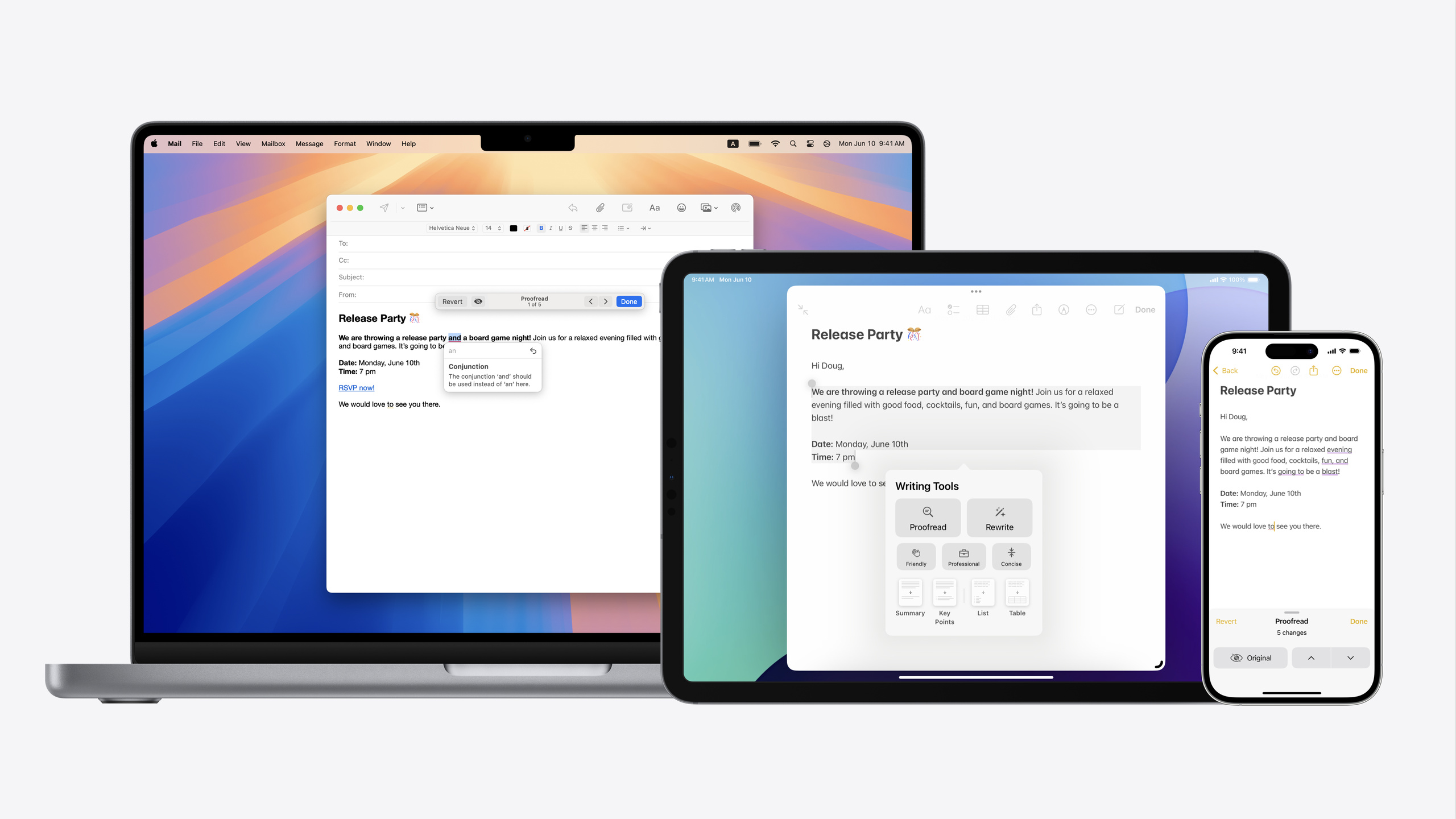
Writing Tools introduced in iOS 18 lets users proofread, rewrite, and transform text in any text view. Developers only need to use UITextView/NSTextView (TextKit 2) or WKWebView to get full support (00:14).
Core Content
When users edit text in an app and want to proofread grammar or rewrite wording, they typically leave the app, use external tools, and paste content back—a fragmented workflow where formatting is easily lost. Apple introduced Writing Tools in iOS 18 and macOS 15, integrating proofreading, rewriting, summarization, list conversion, and table conversion into native text views. After selecting text, users invoke it from the edit menu, floating bar, or context menu. Suggestions appear inline, and rich text attributes like styles, links, and attachments are automatically preserved after rewriting (03:39).
For developers, Writing Tools works out of the box: use UITextView, NSTextView (TextKit 2 required), or WKWebView and the system exposes the entry points automatically. When processing text, the system automatically expands the selection to complete sentences for better results and maintains original attributes via attributed strings. Developers can use new delegate methods to pause syncing and protect specific text ranges (like code blocks and quotes), keeping app state consistent with text operations (05:28).
Detailed Content
Default Behavior and TextKit Version Differences
When using UITextView or NSTextView, the Writing Tools experience depends on the TextKit version. TextKit 2 provides the full experience—suggestions display inline, and you can preview and apply changes directly in the text view; TextKit 1 falls back to panel mode, showing only processing results (03:58). WKWebView defaults to .limited (panel mode); for the full experience, explicitly set it to .complete in WKWebViewConfiguration (08:06).
Monitoring Writing Tools Sessions
When Writing Tools is active, it directly modifies text storage—apps should avoid persisting or syncing text at the same time. Apple provides new delegate methods to monitor session lifecycle (05:28):
func textViewWritingToolsWillBegin(_ textView: UITextView) {
    // Take necessary steps to prepare. For example, disable iCloud sync.
}

func textViewWritingToolsDidEnd(_ textView: UITextView) {
    // Take necessary steps to recover. For example, reenable iCloud sync.
}

if !textView.isWritingToolsActive {
    // Do work that needs to be avoided when Writing Tools is interacting with text view
    // For example, in the textViewDidChange callback, app may want to avoid certain things
    // when Writing Tools is active
}textViewWritingToolsWillBegin: Called when a session starts—good for pausing auto-save, text analysis, and other operations that interfere with text storagetextViewWritingToolsDidEnd: Called when a session ends—restore previously paused stateisWritingToolsActive: Read-only property for checking whether a Writing Tools session is in progress in callbacks
Controlling Behavior and Accepted Formats
Developers can control the experience mode via writingToolsBehavior (07:11):
textView.writingToolsBehavior = .limited  // Panel-only mode.
textView.writingToolsBehavior = .none     // Completely disabled.
Specify accepted format types via writingToolsAllowedInputOptions (07:31):
textView.writingToolsAllowedInputOptions = [.plainText]
textView.writingToolsAllowedInputOptions = [.plainText, .richText, .table].plainText: Accept plain text only.richText: Accept rich text (including styles, links, attachments).table: Accept table conversion (requires text view support for NSTextTable)
By default, the view is assumed to support plain and rich text but not tables; if your view can render tables, declare it explicitly.
WKWebView Configuration
WKWebView’s Writing Tools API is configured via WKWebViewConfiguration, defaulting to .limited. WKWebView also provides an isWritingToolsActive property to check session status (07:55):
// For `WKWebView`, the `default` behavior is equivalent to `.limited`
extension WKWebViewConfiguration {
    @available(iOS 18.0, *)
    open var writingToolsBehavior: UIWritingToolsBehavior { get set }
}

extension WKWebViewConfiguration {
    @available(macOS 15.0, *)
    open var writingToolsBehavior: NSWritingToolsBehavior { get set }
}

extension WKWebView {
    /// If the Writing Tools behavior on the configuration is `.limited`, this will always be `false`.
    @available(iOS 18.0, macOS 15.0, *)
    open var isWritingToolsActive: Bool { get }
}writingToolsBehavior: Set onWKWebViewConfigurationto determine the Writing Tools experience level for WKWebViewisWritingToolsActive: Always returnsfalsewhen behavior is.limited; only detects active sessions in full experience mode
Protecting Specific Text Ranges
Code blocks in note apps and quoted content in email apps shouldn’t be rewritten. Return NSRanges to ignore via the new delegate method, and Writing Tools won’t suggest modifications for those ranges (08:48):
// Returned `NSRange`s are relative to the substring of the textView's textStorage from `enclosingRange`
func textView(_ textView: UITextView, writingToolsIgnoredRangesIn
        enclosingRange: NSRange) -> [NSRange] {
    let text = textView.textStorage.attributedSubstring(from: enclosingRange)
    return rangesInappropriateForWritingTools(in: text)
}enclosingRange: The processing range passed by the system; returned NSRanges are relative to the substring of this rangeattributedSubstring: Extracts the substring from textStorage to detect code blocks or quotes within- WKWebView automatically ignores content inside
<blockquote>and<pre>tags (08:56)
Custom Text View Support
For custom text views other than UITextView/NSTextView, adopting UITextInteraction on iOS/iPadOS gives you Writing Tools menu items for free. The system reads/writes text and positions popovers via the UITextInput protocol; the new isEditable property indicates whether the view is editable (09:58):
protocol UITextInput {
    @available(iOS 18.0, macOS 15.0, *)
    optional var isEditable: Bool { get }
}
On macOS, custom views need to implement the NSServicesMenuRequestor protocol and override validRequestor(forSendType:returnType:), plus add a context menu to the view to automatically get Writing Tools menu items (11:05):
class CustomTextView: NSView, NSServicesMenuRequestor {
    override func validRequestor(forSendType sendType: NSPasteboard.PasteboardType?,
                                 returnType: NSPasteboard.PasteboardType?) -> Any? {
        if sendType == .string || sendType == .rtf {
            return self
        }
        return super.validRequestor(forSendType: sendType, returnType: returnType)
    }

    nonisolated func writeSelection(to pboard: NSPasteboard,
                                    types: [NSPasteboard.PasteboardType]) -> Bool {
        // Write plain text and/or rich text to pasteboard
        return true
    }

    // Implement readSelection(from pboard: NSPasteboard)
    // as well for editable view
}validRequestor: Declares pasteboard types the view supports (e.g., plain text.string, rich text.rtf); returningselfmeans the view can handle themwriteSelection: Writes selected content to the pasteboard for the system to readreadSelection: Reads processed text from the pasteboard and applies it to the view (required for editable views)
Core Takeaways
- Implement Writing Tools session monitoring: Pause auto-save and sync in
textViewWritingToolsWillBegin, restore intextViewWritingToolsDidEnd, and checkisWritingToolsActivein key callbacks.- Why it’s worth it: Writing Tools directly modifies text storage while active—concurrent auto-save or cloud sync causes conflicts and data inconsistency.
- How to start: Implement the two new delegate methods in UITextViewDelegate/NSTextViewDelegate and centralize logic that needs pausing.
- Protect text ranges that shouldn’t be rewritten: Return NSRanges for code blocks, quotes, fixed terms, etc. via
writingToolsIgnoredRangesInto prevent Writing Tools from suggesting changes.- Why it’s worth it: When users proofread an entire paragraph, rewriting code blocks or quotes destroys their original meaning, causing confusion and extra fix-up work.
- How to start: Implement
textView(_:writingToolsIgnoredRangesIn:)in the delegate, parse text attributes, and return ranges to ignore; WKWebView projects need no extra code—<blockquote>and<pre>tags are automatically ignored.
- Explicitly enable full experience for WKWebView: Set
writingToolsBehaviorto.completeinWKWebViewConfigurationso text editors in WebView get inline preview and direct apply.- Why it’s worth it: WKWebView defaults to
.limited(panel mode)—users only see results and must copy-paste manually, a noticeably worse experience than native text views’ inline interaction. - How to start: Set
writingToolsBehavior = .completewhen creatingWKWebViewConfiguration, then observeisWritingToolsActiveto confirm session status.
- Why it’s worth it: WKWebView defaults to
- Declare supported input formats: If your custom text view can render tables, explicitly set
writingToolsAllowedInputOptionsto include.table; if plain text only, declare.plainText.- Why it’s worth it: The system assumes text views don’t support tables by default—if your view can render them but you don’t declare it, users can’t use Writing Tools’ table conversion.
- How to start: Set
writingToolsAllowedInputOptions = [.plainText, .richText, .table]at text view initialization, choosing the subset based on actual rendering capability.
Related Sessions
- What’s new in UIKit — Text and input changes in UIKit, including system-level Writing Tools integration
- What’s new in AppKit — Writing Tools integration with NSServicesMenuRequestor on macOS
- Design App Intents for system experiences — How App Intents drive system-level experiences, complementing Writing Tools
- Build multilingual-ready apps — Best practices for text input and multilingual scenarios, enhancing internationalization with Writing Tools
Comments
GitHub Issues · utterances