
Highlight
The iPhone 15 Pro’s wide and ultra-wide cameras sit on the same horizontal baseline in landscape, and with three changes to existing AVFoundation APIs you can record spatial video—sync, calibration, encoding, and metadata writing are all handled by the system.
Core Content
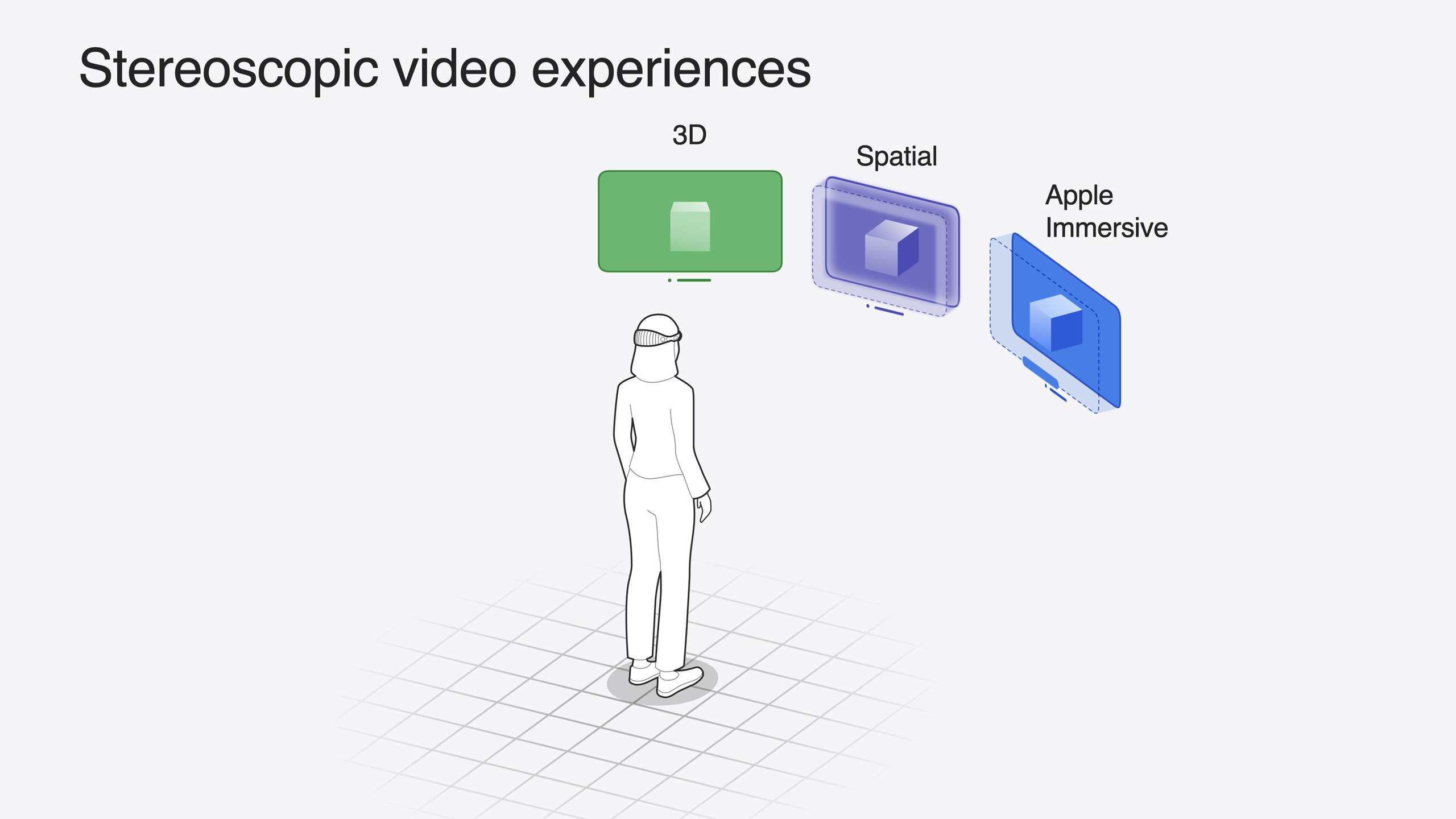
Vision Pro offers three stereoscopic video experiences: 3D Video presents depth on a flat screen, suited for movies; Spatial Video plays in a window, blending with the real world in immersive mode for everyday recording; Apple Immersive Video uses 180-degree 8K with Spatial Audio for professional production. Each presents differently in window and immersive modes—3D video embeds in a large screen in the environment, spatial video expands to an immersive view at real-world scale, and Apple Immersive fully wraps the viewer.
Over the past year, spatial media capture and playback were limited to system apps. This year Apple opened these capabilities to developers without introducing new frameworks. Capture uses AVFoundation, detection uses PhotoKit, playback uses QuickLook—all integrated into existing frameworks, requiring just a few lines of code.
The hardware foundation is the iPhone 15 Pro camera layout: wide and ultra-wide cameras moved from diagonal to side-by-side, sitting on the same horizontal baseline in landscape, similar to human eyes. At the API level, three steps: switch to builtInDualWideCamera, select a format that supports spatial video, enable isSpatialVideoCaptureEnabled. For playback and detection, PhotosPicker adds .spatialMedia filtering, PhotoKit supports spatialMedia subtype queries, and AVAssetPlaybackAssistant can detect whether any local file is spatial video. For display, QuickLook’s PreviewApplication API supports full spatial presentation, Safari’s Element FullScreen API supports spatial photos on the web, and AVPlayerViewController supports 3D playback of spatial video.
Detailed Content
Recording Spatial Video
Core code from the official sample (06:19):
class CaptureManager {
    var session: AVCaptureSession!
    var input: AVCaptureDeviceInput!
    var output: AVCaptureMovieFileOutput!

    func setupSession() throws -> Bool {
        session = AVCaptureSession()
        session.beginConfiguration()

        guard let videoDevice = AVCaptureDevice.default(
            .builtInDualWideCamera, for: .video, position: .back
        ) else { return false }

        var foundSpatialFormat = false
        for format in videoDevice.formats {
            if format.isSpatialVideoCaptureSupported {
                try videoDevice.lockForConfiguration()
                videoDevice.activeFormat = format
                videoDevice.unlockForConfiguration()
                foundSpatialFormat = true
                break
            }
        }
        guard foundSpatialFormat else { return false }

        let videoDeviceInput = try AVCaptureDeviceInput(device: videoDevice)
        guard session.canAddInput(videoDeviceInput) else { return false }
        session.addInput(videoDeviceInput)
        input = videoDeviceInput

        let movieFileOutput = AVCaptureMovieFileOutput()
        guard session.canAddOutput(movieFileOutput) else { return false }
        session.addOutput(movieFileOutput)
        output = movieFileOutput

        guard let connection = output.connection(with: .video) else { return false }
        guard connection.isVideoStabilizationSupported else { return false }
        connection.preferredVideoStabilizationMode = .cinematicExtendedEnhanced

        guard movieFileOutput.isSpatialVideoCaptureSupported else { return false }
        movieFileOutput.isSpatialVideoCaptureEnabled = true

        session.commitConfiguration()
        session.startRunning()
        return true
    }
}
Key points:
- Use
builtInDualWideCamerainstead ofsystemPreferredCamera, because spatial video requires both wide and ultra-wide to work together (06:22) - Iterate
videoDevice.formatsto find one withisSpatialVideoCaptureSupportedtrue and set it asactiveFormat(06:34) - Set
preferredVideoStabilizationModeto.cinematicExtendedEnhanced, using a longer look-ahead window and more cropping for smoother footage (07:40) - Set
isSpatialVideoCaptureEnabledto true to enable spatial video recording—only iPhone 15 Pro supports this (06:56) - Sync, calibration, encoding, and metadata writing are all handled by the system—you get a complete spatial video file
Capture Discomfort Monitoring
Wide and ultra-wide are different camera types with different noise levels in low light; shooting too close causes focus mismatch. The iPhone screen is monocular, so users can’t detect these issues while shooting. Apple added the spatialCaptureDiscomfortReasons property (09:13):
let observation = videoDevice.observe(\.spatialCaptureDiscomfortReasons) { (device, change) in
    guard let newValue = change.newValue else { return }
    if newValue.contains(.subjectTooClose) {
        // Prompt the user to move back.
    }
    if newValue.contains(.notEnoughLight) {
        // Prompt the user to find a brighter environment.
    }
}
Key points:
- Use KVO to observe
spatialCaptureDiscomfortReasonschanges .subjectTooClosemeans the subject is too close and one camera can’t focus.notEnoughLightmeans insufficient light—noise differences between cameras may cause viewing discomfort- Recommend showing guidance in the UI, similar to the system Camera app’s warnings
Detecting Spatial Content
Three ways to detect spatial media:
PhotosPicker supports filtering spatial content (09:58):
import SwiftUI
import PhotosUI

struct PickerView: View {
    @State var selectedItem: PhotosPickerItem?
    var body: some View {
        PhotosPicker(selection: $selectedItem, matching: .spatialMedia) {
            Text("Choose a spatial photo or video")
        }
    }
}
Key points:
matching: .spatialMediafilters to show only spatial photos and videos- Suited for scenarios where users manually select content
PhotoKit directly queries all spatial assets (10:14):
import Photos

func fetchSpatialAssets() {
    let fetchOptions = PHFetchOptions()
    fetchOptions.predicate = NSPredicate(
        format: "(mediaSubtypes & %d) != 0",
        argumentArray: [PHAssetMediaSubtype.spatialMedia.rawValue]
    )
    fetchResult = PHAsset.fetchAssets(with: fetchOptions)
}
Key points:
- Use
PHAssetMediaSubtype.spatialMediaas the subtype filter - Can further filter to return only spatial photos or spatial videos
- Suited for programmatic queries without user interaction
AVAssetPlaybackAssistant detects local files (10:36):
import AVFoundation

extension AVURLAsset {
    func isSpatialVideo() async -> Bool {
        let assistant = AVAssetPlaybackAssistant(asset: self)
        let options = await assistant.playbackConfigurationOptions
        return options.contains(.spatialVideo)
    }
}
Key points:
- Check whether
playbackConfigurationOptionscontains.spatialVideo - Suited for videos loaded from sources other than the photo library
Displaying Spatial Content
Three display approaches, each with different strengths:
- QuickLook PreviewApplication: Supports spatial photos and videos with full spatial presentation, consistent with the system Photos app. Suited for standard spatial playback (10:57)
- Safari Element FullScreen API: Opens spatial photos from the web with full spatial presentation in a new scene (11:36)
- AVPlayerViewController: Supports unified 2D and 3D video playback with HLS streaming. Note: spatial video here only plays as 3D video (not the spatial video immersive view)—use PreviewApplication for full spatial presentation (11:54)
Spatial Metadata
Spatial video is MV-HEVC with spatial metadata; spatial photos are stereoscopic HEIC with spatial metadata. Metadata includes (13:39):
- Projection type: Always rectilinear
- Baseline: Horizontal distance between the two camera centers, ~64mm close to human eye spacing. Larger baseline creates a miniaturization effect
- Field of View: Horizontal angle—larger is more immersive but lower resolution. Over 90 degrees is not recommended
- Disparity Adjustment: Controls 3D depth offset in window mode—negative brings content closer, positive pushes it away. A few percent offset significantly changes the viewing experience
Image requirements: stereo rectification (parallel optical axes), optical axis alignment (image center aligned with optical axis center—no cropping or horizontal shift), no vertical disparity (corresponding feature points in left/right images must connect horizontally).
Core Takeaways
-
Add a “spatial video” toggle to your existing camera app: Just three changes—switch to
builtInDualWideCamera, select a format that supports spatial video, setisSpatialVideoCaptureEnabled = true. Why it’s worth it: content users shoot in your app appears directly in Vision Pro’s spatial experience—a differentiator only iPhone 15 Pro offers. How to start: Based on the AVCam sample project, apply the three steps above. -
Filter spatial content in your photo browser: Use
PhotosPicker(matching: .spatialMedia)or PhotoKit’sspatialMediasubtype query. Why it’s worth it: Vision Pro users will accumulate more spatial content—a dedicated entry point makes it easier to discover than mixing with all content. How to start: Add the.spatialMediafilter to your existing photo picker. -
Display spatial media with QuickLook PreviewApplication: The simplest approach—a few lines of code for spatial presentation matching the system Photos app. Why it’s worth it: building your own spatial player requires stereo rendering, immersive mode switching, and more—QuickLook handles it all. How to start: Import QuickLook, create
PreviewApplication, and pass the spatial media file. -
Add capture discomfort guidance UI: KVO observe
spatialCaptureDiscomfortReasons, show guidance on.subjectTooCloseor.notEnoughLight. Why it’s worth it: the iPhone screen is monocular—users can’t preview spatial effects, and discovering discomfort on Vision Pro playback is too late. How to start: Overlay a guidance view on the camera preview, following the system Camera app’s warning style.
Related Sessions
- Enhance the immersion of media viewing in custom environments — Docking and immersive playback of 3D video in custom environments
- What’s new in Quick Look for visionOS — Detailed usage of the PreviewApplication API
- Optimize for the spatial web — Displaying spatial photos on the web with the FullScreen API
- Bring your iOS or iPadOS game to visionOS — Stereoscopic rendering of real-time 3D content on visionOS
Comments
GitHub Issues · utterances