
Highlight
DockKit is a framework Apple introduced last year, working with third-party physical mounts (now available in the Apple Store) to enable automatic tracking shots on iPhone. This year, iOS 18 brings Intelligent Subject Tracking—ML-based smart subject tracking.
Core Content
In a multi-person scene, who should the camera follow? That’s the old problem with DockKit tracking shots. The iOS 17 multi-person tracker could only estimate each person’s motion trajectory—it couldn’t tell who was the most worth following in the frame. When three people are in a scene—two talking in the front row and one in the back looking at their phone—a photographer knows instantly who to follow, but the old DockKit couldn’t.
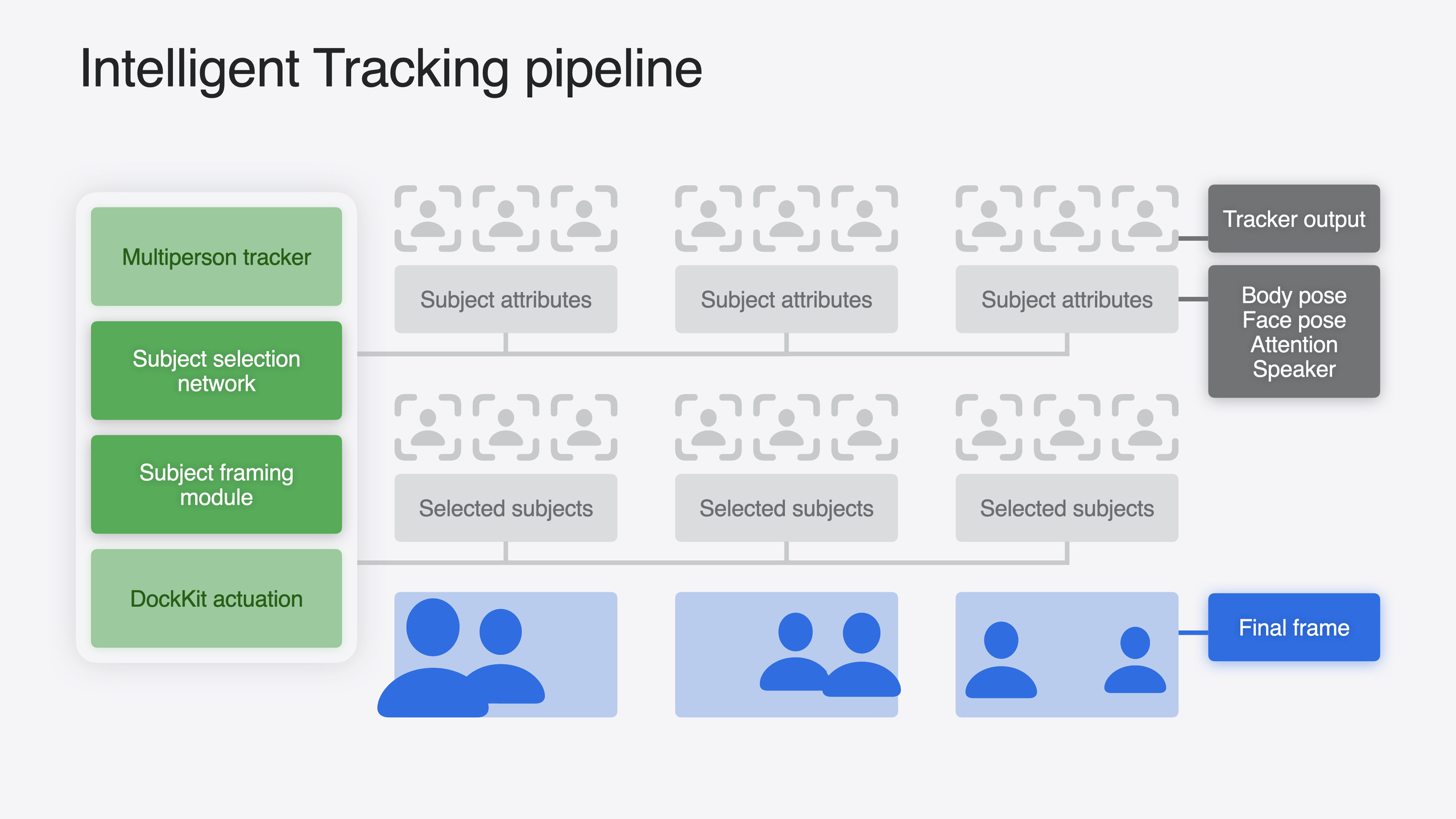
iOS 18’s Intelligent Tracking Pipeline solves this. It adds a Subject Selection ML Model on top of the multi-person tracker, analyzing each person’s body pose, face orientation, attention, and speaking confidence in real time to produce a saliency rank—the lower the rank, the more important the subject. A Subject Framing module then computes optimal composition, and commands go to the mount motors. The entire pipeline requires no extra code from developers—apps using the standard Camera API automatically get intelligent tracking.
Meanwhile, Apple also exposes ML signals (saliency rank, speaking confidence, lookingAtCameraConfidence) so developers can customize tracking logic, adds button events and gimbal accessory support, plus tracking for new camera modes like Cinematic and Pano, and battery status monitoring APIs.
Detailed Content
Intelligent Tracking Pipeline
The iOS 17 multi-person tracker only outputs each person’s trajectory. iOS 18 adds three stages on top (04:13):
- Subject Selection ML Model — Analyzes body pose, face pose, attention, and speaking confidence, outputting a saliency rank.
- Subject Framing — Computes visually optimal composition for the selected person.
- Actuator Commands — Combines motor position and velocity feedback to generate final drive commands.
Reading ML Signals: trackingStates
DockKit exposes tracking state through the trackingStates AsyncSequence (07:41). Each TrackedSubject includes:
identifier: Unique identifierfaceRectangle: Face regionsaliencyRank: Saliency rank, 1 = most important- For people, also
speakingConfidence(01) and1)lookingAtCameraConfidence(0
The session demonstrates a “track the speaker” example (08:59):
// Subscribe to tracking state.
let trackingState = dockAccessory.trackingStates

// Filter people who are speaking with confidence above 80%.
let activeSpeakers = trackingState.subjects
    .compactMap { $0 as? DockAccessory.TrackedSubject.Person }
    .filter { $0.speakingConfidence > 0.8 }

// Ask DockKit to track only these speakers.
dockAccessory.selectSubjects(activeSpeakers)
Key points:
trackingStatesis an AsyncSequence—you receive a new value on each state updatesaliencyRankstarts at 1 and increases monotonically; lower rank means higher importancespeakingConfidenceof 0 means not speaking, 1 means speakingselectSubjectsaccepts an array of TrackedSubject, telling DockKit which people to track
Watch Control
Beyond intelligent tracking, users can manually intervene with Apple Watch (05:27): tap a person’s face on the Watch to track them individually, or swipe to manually adjust the mount direction. This is built into the system—no development required.
Button Events
DockKit accessories now support buttons. Three system events automatically map to Camera and FaceTime (10:06):
- Shutter: Photo / record (toggle, no value)
- Flip: Switch front/back camera (toggle, no value)
- Zoom: Zoom with a relative factor (e.g., 2.0 means double the frame)
Third-party apps can receive these events via accessoryEvents, plus custom button events (with button ID and pressed boolean).
The session demonstrates using a custom button to control gimbal rotation for panoramas (13:15):
// Subscribe to accessory button events.
for await event in dockAccessory.accessoryEvents {
    if case .custom(let buttonID, let isPressed) = event {
        if buttonID == 5 {
            if isPressed {
                startPanoramaRotation()
            } else {
                stopPanoramaRotation()
            }
        }
    }
}
Key points:
accessoryEventsis an AsyncSequence—you receive one event per button press- System events (shutter / flip / zoom) and custom events share the same stream
- Custom events include
buttonIDandisPressedto distinguish press and release
Gimbal
DockKit adds a gimbal accessory category (11:16). Unlike desktop mounts, gimbals can be used handheld, suited for action photography. Buttons (flip, zoom, custom) are more practical on gimbals—when handheld, you can’t touch the screen; physical buttons are the only interaction.
New Camera Modes
iOS 18 extends DockKit’s supported camera modes (14:03):
- Photo mode: Track and shoot photos of people
- Pano mode: One-tap automatic rotation for panoramas
- Cinematic mode: Cinematic-style tracking focus on people
Battery Status
Monitor accessory battery via the batteryStates AsyncSequence (14:46). An accessory may have multiple batteries, each with name, level (percentage), and chargeState (charging / discharging / full).
Core Takeaways
-
What to do: Build a “meeting mode” that automatically tracks the current speaker. Use
speakingConfidenceto filter people who are speaking, andselectSubjectsto switch tracking targets. Why it’s worth it: speakers change frequently in video calls, and manual switching is a poor experience; DockKit’s ML signals already handle speech detection—you just need one filter line. How to start: In your existing Camera app, subscribe totrackingStates, filter persons with speakingConfidence > 0.8, and pass them toselectSubjects. -
What to do: Use a custom button for “one-tap panorama”—press to start steady rotation, release to stop. Why it’s worth it: when shooting panoramas handheld, manual rotation speed is uneven and stitching quality suffers; steady motor rotation is far more stable than a human hand. How to start: Subscribe to
accessoryEvents, detect custom button pressed/unpressed states, and call DockKit rotation APIs to control steady gimbal rotation. -
What to do: Build a “shoot when looking at camera” feature—only auto-trigger the shutter when
lookingAtCameraConfidenceexceeds a threshold. Why it’s worth it: in selfies or vlogs, people often adjust their expression or look away, producing lots of rejects; ML signals tell you directly whether someone is looking at the camera, saving post-selection work. How to start: In thetrackingStatescallback, checklookingAtCameraConfidence > 0.9and triggercapturePhotowhen the condition is met. -
What to do: Show accessory battery status in your app and alert users to charge when low. Why it’s worth it: losing power mid-shoot loses footage; early warning beats recovery after the fact. How to start: Subscribe to
batteryStatesand show a low-battery warning when level drops below 20%.
Related Sessions
- Bring your machine learning and AI models to Apple silicon — Learn how to optimize ML models for efficient execution on Apple silicon
- Build a great Lock Screen camera capture experience — Use the lockedCameraCapture API to provide camera capture on the Lock Screen
- Deploy machine learning and AI models on-device with Core ML — Core ML model conversion and runtime performance optimization
- Design App Intents for system experiences — Designing App Intents for Controls, Spotlight, Siri, and other system experiences
Comments
GitHub Issues · utterances