
Highlight
SwiftUI in macOS Sequoia adds window customization APIs such as
.toolbarBackgroundVisibility(),.windowMinimizeBehavior(), and.defaultWindowPlacement()— enabling hidden title bars, disabled minimize buttons, and dynamically computed window placement without NSWindow bridging (02:02).
Core Content
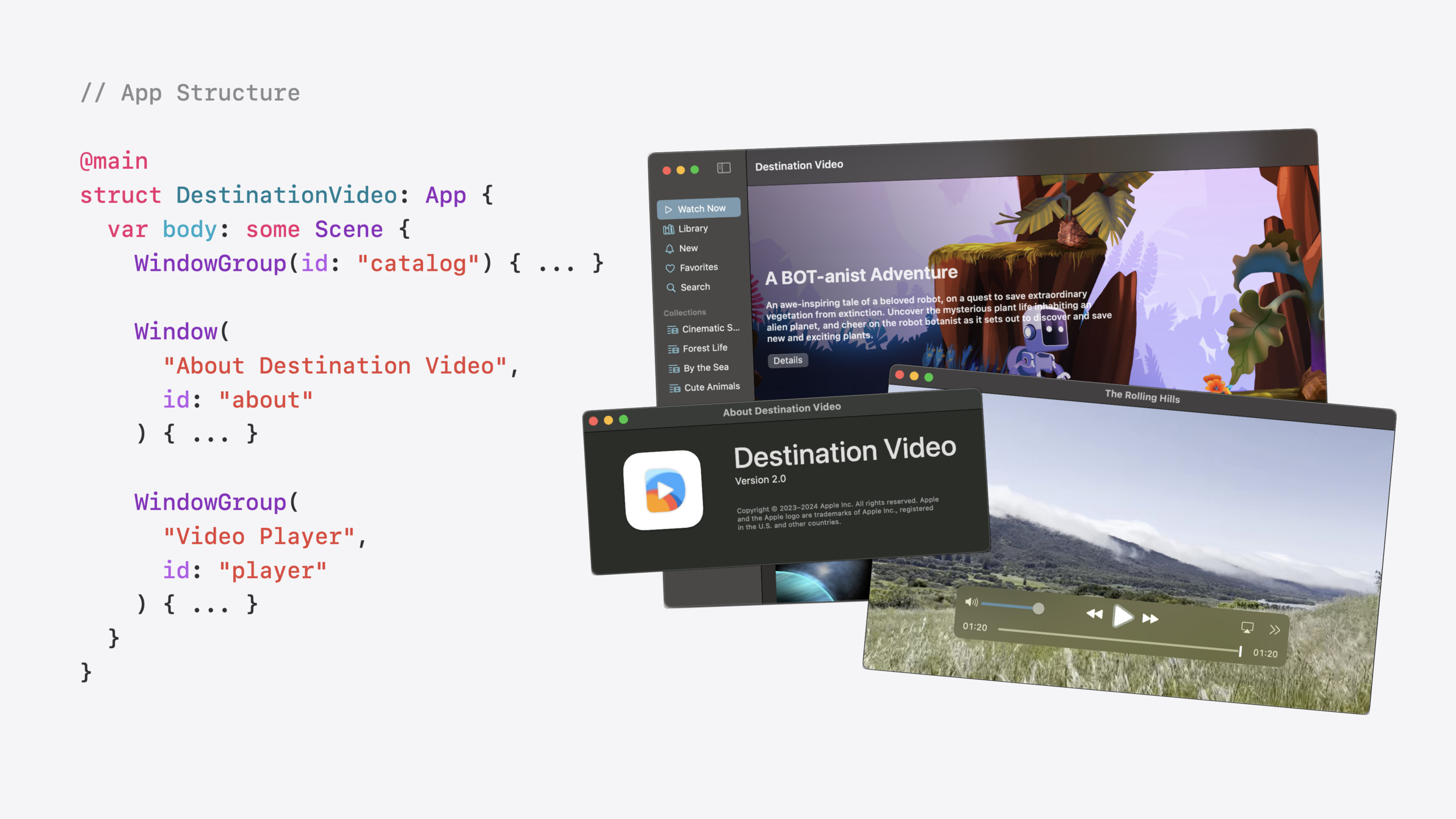
The session uses the Destination Video sample app to show how to tailor the appearance and behavior of different window types. The problem developers face is that SwiftUI’s default window styling is not flexible enough — a video player needs to compute its size dynamically from content, an About window should not have a minimize button, and the main window should extend content to the top edge. These requirements previously required Objective-C bridging code for NSWindow.
Apple introduced three categories of new APIs in macOS Sequoia: Toolbar customization can hide the title and toolbar background; window behavior control can disable the minimize button and state restoration; window placement control can dynamically compute the ideal window position based on content size and screen size.
Detailed Content
Toolbar Customization
The main window in Destination Video has a large image that needs to extend to the top edge of the window. By default, the toolbar and title area occupy space at the top (03:00).
WindowGroup("Destination Video", id: "main") {
    MainView()
        .toolbar(removing: .title)
        .toolbarBackgroundVisibility(.hidden, for: .windowToolbar)
}
.toolbar(removing: .title)hides the window title bar (the title remains in window metadata for the main menu and accessibility).toolbarBackgroundVisibility(.hidden, for: .windowToolbar)removes the toolbar background so content extends to the top edge
Window Behavior Control
The About window displays static information, is always reachable from the main menu, and does not need a minimize button or state restoration (05:12).
Window("About Destination Video", id: "about") {
    AboutView()
        .toolbar(removing: .title)
        .toolbarBackgroundVisibility(.hidden, for: .windowToolbar)
        .containerBackground(.thickMaterial, for: .window)
        .windowMinimizeBehavior(.disabled)
        .restorationBehavior(.disabled)
}
.containerBackground(.thickMaterial, for: .window)replaces the default background color with a frosted-glass material.windowMinimizeBehavior(.disabled)disables the yellow minimize button.restorationBehavior(.disabled)turns off state restoration (this window will not reopen automatically after the app quits)
Window Placement Control
The video player window needs to dynamically compute its position and size based on video dimensions and screen size (07:02).
Window("Video Player", id: "player") {
    PlayerView(video: video)
        .defaultWindowPlacement { content, context in
            let idealSize = content.sizeThatFits(.unspecified)
            let visibleRect = context.display.visibleRect

            let size = idealSize.clamped(to: visibleRect.size)
            return .default(.center, size: size)
        }
        .windowIdealPlacement { content, context in
            let visibleRect = context.display.visibleRect
            let zoomedSize = zoomToFit(content.sizeThatFits(.unspecified), in: visibleRect.size)
            return .default(.center, size: zoomedSize)
        }
}.defaultWindowPlacement()sets the initial position and size of a new windowcontent.sizeThatFits()computes the ideal content sizecontext.display.visibleRectgets the available screen area (automatically accounting for menu bar and Dock).clamped(to:)ensures the window stays within screen bounds
.windowIdealPlacement()controls the window size when the user clicks the Zoom buttonzoomToFit()is a custom function that maximizes the window while preserving aspect ratio
Key points:
- Video displays at native size and scales down automatically when it exceeds the screen
- The window is centered by default
- Zoom behavior is customizable and no longer limited by system defaults
Core Takeaways
1. Customize each window type independently
Main windows, About windows, settings windows, and player windows should have different toolbar needs, minimize behavior, and state restoration strategies. Spending 10 minutes adding the right modifiers to each window type noticeably improves the user experience.
2. Prioritize changes users notice most
.toolbarBackgroundVisibility(.hidden) gives content more layout freedom, and .defaultWindowPlacement() fixes the initial window size. These two changes have the lowest migration cost and the strongest user impact. Changes to state restoration and minimize behavior should be made more carefully because they alter existing user habits.
3. Use new APIs to avoid cross-language bridging
Requirements that previously required Objective-C bridging code for NSWindow now have native SwiftUI modifiers. Prefer SwiftUI APIs in new projects for lower maintenance cost.
Related Sessions
- Bring multiple windows to your SwiftUI app — A deep dive into Window, WindowGroup, and other Scene types
- Work with windows in SwiftUI — A systematic overview of SwiftUI window management APIs and best practices
- Meet SwiftUI — SwiftUI overview, including macOS adaptation
- Bring your app to the desktop — macOS app adaptation and desktop experience design
Comments
GitHub Issues · utterances