
Highlight
Siri’s underlying architecture changed fundamentally in iOS 18—with Apple Intelligence’s large language model, developers can conform App Intents to predefined schemas via the
@AssistantIntent(schema:)macro and get Apple’s trained natural language understanding for free (06:26).
Core Content
Integrating with Siri used to be painful. Users had to memorize fixed phrases; one wrong word and Siri couldn’t understand. Developers had limited options: SiriKit’s predefined domains (music, messages) or building complex natural language parsing themselves.
Apple changed the rules this year. They rebuilt Siri’s language understanding with a large language model and introduced App Intent Domains and Assistant Schemas. The idea: Apple’s models are heavily trained on specific Intent “shapes”—conform your AppIntent to that shape and you get Siri’s natural language understanding for free.
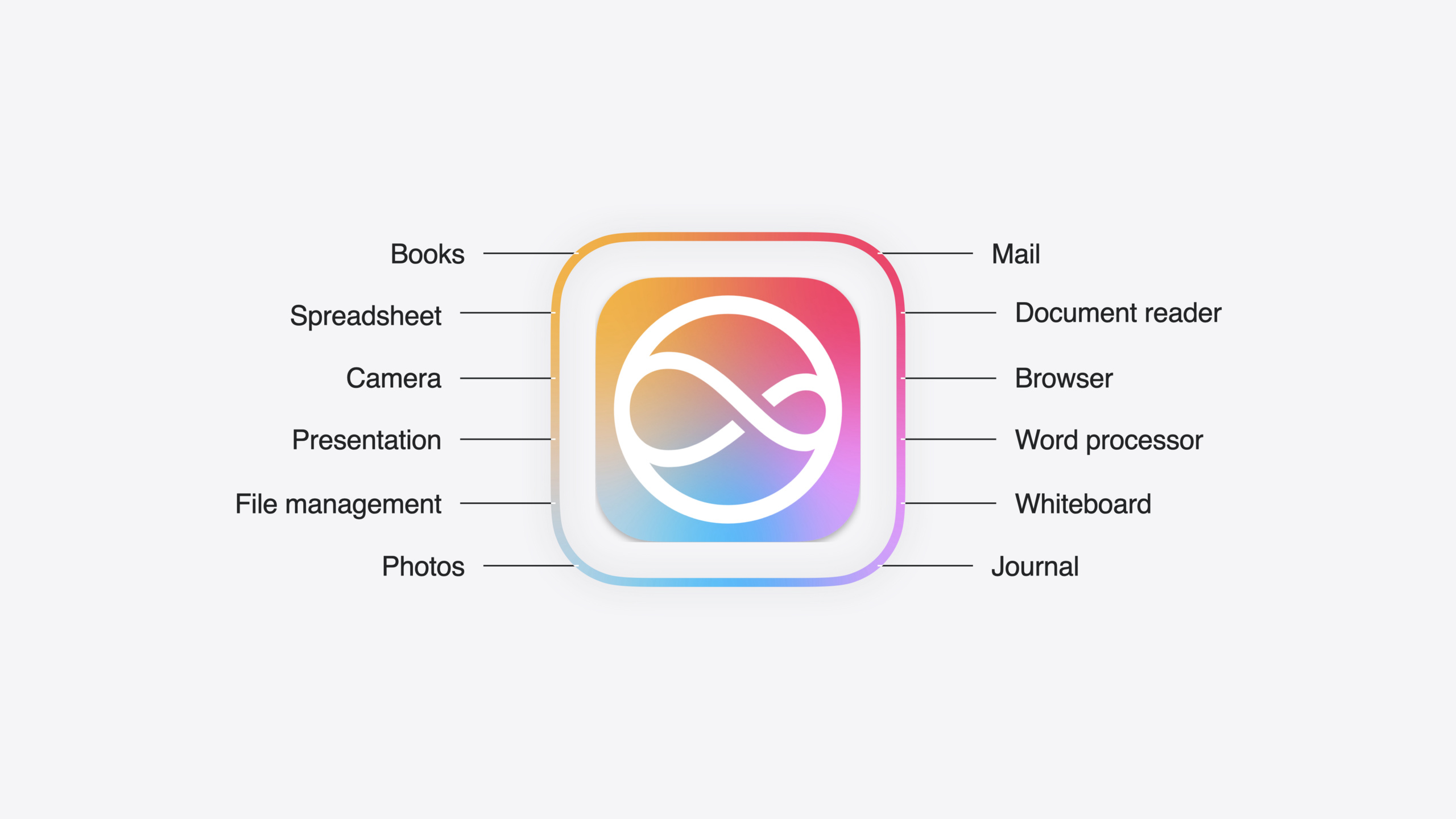
Apple has published 12 Domains covering Books, Camera, Mail, Photos, Spreadsheets, and more, with 100+ predefined schemas. Mail and Photos are available at iOS 18 launch; the rest roll out over time. If your app’s features fit these domains, integration cost is very low—add one line with the @AssistantIntent(schema:) macro before your AppIntent.
Beyond actions, Apple introduced In-App Search and Semantic Search. The former lets Siri call your in-app search and navigate to results; the latter lets Siri understand content semantics (searching “pets” finds cats, dogs, and snakes), not just keywords.
Detailed Content
Assistant Schemas: Natural Language Understanding in One Line
Traditional AppIntents require lots of boilerplate:
struct CreateAlbumIntent: AppIntent {
    static var title: LocalizedStringResource = "Create Album"
    static var description = IntentDescription(
        "Creates a new photo album",
        categoryName: "Media"
    )

    @Parameter(title: "Album Name")
    var albumName: String

    @Parameter(title: "Photos")
    var photos: [PhotosAsset]

    var openAppWhenRun: Bool = true

    func perform() async throws -> some IntentResult & ReturnsValue<AlbumEntity> {
        // Implementation logic
    }
}
With an Assistant Schema, the code shrinks to:
@AssistantIntent(schema: .photos.createAlbum)
struct CreateAlbumIntent: AppIntent {
    @Parameter(title: "Album Name")
    var albumName: String

    @Parameter(title: "Photos")
    var photos: [PhotosAsset]

    func perform() async throws -> some IntentResult & ReturnsValue<AlbumEntity> {
        // Implementation logic
    }
}
Key points:
- After declaring
@AssistantIntent(schema:), you no longer needtitle,description,categoryName, etc.—the schema shape defines them - Properties like
openAppWhenRunare handled automatically performremains fully under your control—Apple defines input/output shape; you implement the logic
For flexibility, extend with optional parameters:
@AssistantIntent(schema: .photos.createAlbum)
struct CreateAlbumIntent: AppIntent {
    @Parameter(title: "Album Name")
    var albumName: String

    @Parameter(title: "Photos")
    var photos: [PhotosAsset]

    // Extended parameter—not defined by the schema
    @Parameter(title: "Album Color")
    var albumColor: AlbumColor?
}
Assistant Entity: Making Content Understandable to Siri
AppIntents Entities have a corresponding macro:
@AssistantEntity(schema: .photos.asset)
struct AssetEntity: AppEntity {
    var id: PersistentIdentifier
    var title: String
    var creationDate: Date
    var location: Location?
    var hasSuggestedEdits: Bool  // Required by the schema

    static var typeDisplayRepresentation: TypeDisplayRepresentation = "Asset"
    static var defaultQuery = AssetQuery()
}
Key points:
- The compiler checks whether your Entity matches the schema shape—missing
hasSuggestedEditsfails compilation (12:18) - Xcode provides code snippets to auto-fill required properties
- You can extend with optional properties too
Assistant Enum: Exposing Enum Types
@AssistantEnum
struct AlbumColor: AppEnum {
    case red, blue, green, yellow

    static var typeDisplayRepresentation: TypeDisplayRepresentation = "Color"
    static var caseDisplayRepresentations: [AlbumColor: DisplayRepresentation] = [
        .red: "Red", .blue: "Blue", .green: "Green", .yellow: "Yellow"
    ]
}
Key points:
- Assistant Enum doesn’t restrict enum case shapes—you define them freely
- One macro line completes all required configuration
Siri Request Lifecycle
To understand how Assistant Schemas work, follow the full request flow (05:34):
- User request → processed by Apple Intelligence
- Model inference → predicts matching Intent based on schema shape
- Toolbox routing → selects from all AppIntents conforming to that schema
- Execution → calls your AppIntent’s
performmethod - Presentation → returns results to the user
Your AppIntent lets the model “reason” about it by conforming to the schema. That’s why schema shape matters—the model is trained on specific shapes.
In-App Search: Calling Your In-App Search
Based on ShowInAppSearchResultsIntent, Apple added a System Domain Search schema:
@AssistantIntent(schema: .system.search)
struct SearchAssetsIntent: AppIntent {
    @Parameter(title: "Search Criteria")
    var criteria: String

    func perform() async throws -> some IntentResult {
        // Navigate to in-app search results page
        navigationManager.openSearch(with: criteria)
        return .result()
    }
}
Key points:
- Users can say “search for bikes in [app name]” (16:24)
- Siri opens your app and navigates to the search results UI
- Testable via Shortcuts today; direct Siri voice support comes in a future update
Semantic Search: Understanding Beyond Keywords
Apple Intelligence lets Siri understand semantics:
// User says "find my pet photos"
// Siri matches not just "pet" but finds cats, dogs, snakes, etc.
To support this, mark your Entity as IndexedEntity (19:56):
@AssistantEntity(schema: .photos.asset)
struct AssetEntity: IndexedEntity {  // Conforms to IndexedEntity
    // ...
}
Key points:
IndexedEntityputs your content into semantic indexing- Siri understands that “pets” includes cats, dogs, snakes; “landscapes” includes mountains, lakes, seas
- After finding content, Siri can perform actions directly (share, edit, etc.)
Testing: Verify via Shortcuts
At iOS 18 launch, Assistant Schemas are mainly tested through the Shortcuts app (19:23):
- All schema-conforming AppIntents appear automatically in Shortcuts actions
- Create shortcuts to test parameter passing and execution results
- Future Siri voice support will arrive via software updates
Core Takeaways
1. Add Siri support to photo/media apps
If your app handles photos, video, or media, you can integrate Siri at low cost with Photos Domain schemas. Examples: “Add yesterday’s photos to the California album” or “Apply a filter to this photo.” Users complete complex actions by voice without multi-step taps.
How to start:
- Check whether your features match Photos Domain’s 10+ schemas (CreateAlbum, OpenAsset, SetFilter, etc.)
- Add
@AssistantIntent(schema:)to existing AppIntents - Verify parameters and execution via Shortcuts
2. Expose in-app search to Siri
Any app with search can let Siri call it via the In-App Search schema. Mail (“find all emails about bikes”), notes (“search project plan”)—users skip opening the app and typing manually.
How to start:
- Confirm your app has search UI and API
- Create an AppIntent conforming to the
.system.searchschema - Ensure
performnavigates correctly to the search results page
3. Use IndexedEntity for semantic search
If your app has user-generated content (photos, notes, documents), marking Entities as IndexedEntity lets Siri understand semantics. When a user says “find my travel photos,” Siri can infer from location, time, etc., even without a “travel” tag.
How to start:
- Conform AppEntity to
IndexedEntity - Provide rich attributes (location, time, people, type)
- Ensure Spotlight search is integrated
Related Sessions
- Bring your app’s core features to users with App Intents — Complete guide to App Intents core concepts: Intent, Entity, and Query
- What’s new in App Intents — Deep dive on IndexedEntity and other new capabilities
- Design for Apple Intelligence — Design principles for integrating with Apple Intelligence
- Meet Apple Intelligence — Overall Apple Intelligence capabilities and architecture
Comments
GitHub Issues · utterances