
Highlight
Privacy updates in iOS 18 and macOS Sequoia center on one core design philosophy: breaking “full authorization” into “precise selection”, letting users share only necessary data fragments through system-level Pickers (26:31).
Core Content
For a long time, apps requesting sensitive data permissions had only two options: full authorization or denial. That put users in a dilemma—wanting one feature meant handing over far more data than needed. An expense app might only need work-related transactions but had to access full bank statements; a setup app might only need to connect a camera once but required full Bluetooth scanning capability.
iOS 18 and macOS Sequoia solve this with system-level Pickers. Pickers are rendered by the system; apps cannot read their contents (02:11). After users select specific data in a Picker, only the selected portion is shared with the app. This turns “authorization” into “selection”, so users no longer need to over-share.
New Pickers this year cover three areas: FinanceKit’s transaction picker lets users share specific financial transactions instead of entire bank statements (03:09); the Image Playground API gives apps only the final selected generated image while generation stays fully system-hosted (04:57); AccessorySetupKit merges three permission dialogs—Bluetooth pairing, Wi-Fi connection, and device confirmation—into one picker (05:58).
Detailed Content
New Data Pickers
FinanceKit Transaction Picker
This is the new way to access financial data from Apple Card, Savings, Apple Cash, and more. When you request access to financial transaction data, the system shows two options (02:34):
Transaction Picker
├─ Use case: Only need access to a batch of existing transactions
├─ User behavior: Search and select specific transactions in a system-rendered list
└─ Data result: Only selected transactions are shared

Ongoing Access Control
├─ Use case: Need continuous, full financial data access
├─ User behavior: Select accounts to share and set earliest share date per account
└─ Data result: Full data stream matching the time range
Key points
├─ Transaction picker does not require FinanceKit Entitlement
├─ Ongoing access requires successfully applying for FinanceKit Entitlement
├─ Users can set "earliest share date" per account individually
└─ This selection layer lets users control whether older, more sensitive data is sharedImage Playground API
System-provided on-device image generation integrated into your app as a Sheet (04:57). Flow:
1. App presents Image Playground Sheet
2. Optional: provide text prompts or reference images
3. User iterates on image generation in a system-hosted environment
4. Only the user's final selected image is shared with the app
Key points
├─ No permission dialog required
├─ Image generation and selection are system-hosted; apps cannot peek
├─ Only the final selected image is shared
└─ Generation completes entirely on deviceAccessorySetupKit
Unified solution for Bluetooth accessory pairing, consolidating three previously separate permission flows (05:58):
Old flow (3 separate dialogs)
├─ Bluetooth pairing prompt
├─ Wi-Fi network join prompt
└─ Bluetooth accessory pairing confirmation

New flow (AccessorySetupKit, one step)
├─ Complete Bluetooth pairing and Wi-Fi connection in one tap
├─ App can access paired devices
├─ App cannot discover devices never paired before
└─ Rename accessories and manage permissions in Settings
Key points
├─ Does not require full Bluetooth scanning permission
├─ After pairing, app can only access devices paired with that app
├─ Can unbind devices in the new accessories menu
├─ Can share accessory permissions with other apps
└─ Preferred pairing approach in iOS 18Platform Protection Upgrades
Private Wi-Fi Address
iOS MAC address randomization now includes rotation; macOS gets MAC address protection for the first time (08:11):
Before iOS 18
└─ Each Wi-Fi network uses one random MAC address

After iOS 18
├─ With "Rotate Wi-Fi Address" on: MAC address rotates roughly every two weeks
├─ With "Rotate Wi-Fi Address" off: random address for that network stays fixed
├─ Forgotten networks: rotate within 24 hours at most
├─ Public networks: rotation enabled by default
└─ Other networks: random address by default
Key points
├─ MAC address is not protected by Wi-Fi security modes
├─ Visible and trackable by all devices on the same network
├─ iOS 18 setting renamed from "Private Wi-Fi Address" to "Rotate Wi-Fi Address"
└─ macOS now has the same rotation policy as iOSmacOS Extension Transparency
macOS now shows system notifications when extensions are installed and provides unified management in Login Items & Extensions settings (10:17):
Changes
├─ System notification when extensions are installed
├─ More extension types support notifications and settings control
├─ Cron disabled by default; can be re-enabled in the same settings window
├─ Login items and extensions now unified in System Settings
└─ Deprecated: Directory Services plug-in, legacy QuickLook plug-ins, com.apple.loginitems.plist
App Group Container Protection
macOS now provides sandbox protection for App Group containers (12:23):
Single app container (existing mechanism)
├─ App Sandbox restricts access to protected resources
├─ Prompt shown when one app tries to access another app's container
└─ User can allow or deny

App Group container (new protection)
├─ Multiple apps can share data
├─ Prompt shown when another developer's app tries to access
├─ Can use protected group containers only for sensitive data (such as browsing history)
└─ Avoid prompts by: correctly declaring Entitlement, using correct Group ID, using Foundation APIs only
Permission Flow Improvements
Contacts Permission
iOS 18 introduces a two-stage dialog for contacts permission (15:30):
Two-stage flow (for apps requesting access to multiple contacts)
├─ Stage 1: Ask whether to share contacts
└─ Stage 2: Choose "Limited Access" or "Full Access"

Contact Access Button (for contact search scenarios)
├─ No full-screen Picker required
├─ Can embed in your own UI
├─ Share contacts with a light tap
└─ Does not require full, continuous contacts access
Key points
├─ Two-stage flow enabled automatically; no new API adoption required
├─ Contact Access Button suits scenarios like searching email recipients
└─ Few apps truly need full, continuous contacts accessBluetooth Permission
iOS 18 Bluetooth authorization dialogs now clearly show data types exposed by Bluetooth access and potential risks (17:21):
New dialog content
├─ Map showing device's current location
├─ Examples of associated devices
├─ Information Bluetooth access may leak
│   ├─ Device location
│   └─ Unique device identifiers used for tracking
└─ Combined with your usage description string to help informed decisions
Key points
├─ Granting continuous Bluetooth access is a significant choice
├─ New dialog enabled automatically; no new API adoption required
├─ AccessorySetupKit is a better choice when full Bluetooth access isn't needed
└─ Clear usage description strings are key to building trustLocal Network Permission
macOS Sequoia introduces permission control for local network access (18:14):
Applicable scenarios
├─ Using Bonjour browse or broadcast
├─ Using custom multicast, broadcast, or unicast connections
└─ Any connection relying on the local network

Requirements
├─ Must include local network usage description in Info.plist
├─ If Bonjour Services key exists, must include NSLocalNetworkUsageDescription
├─ If Networking Multicast entitlement exists, must include description
└─ Access blocked when requirements aren't met
New Platform Capabilities
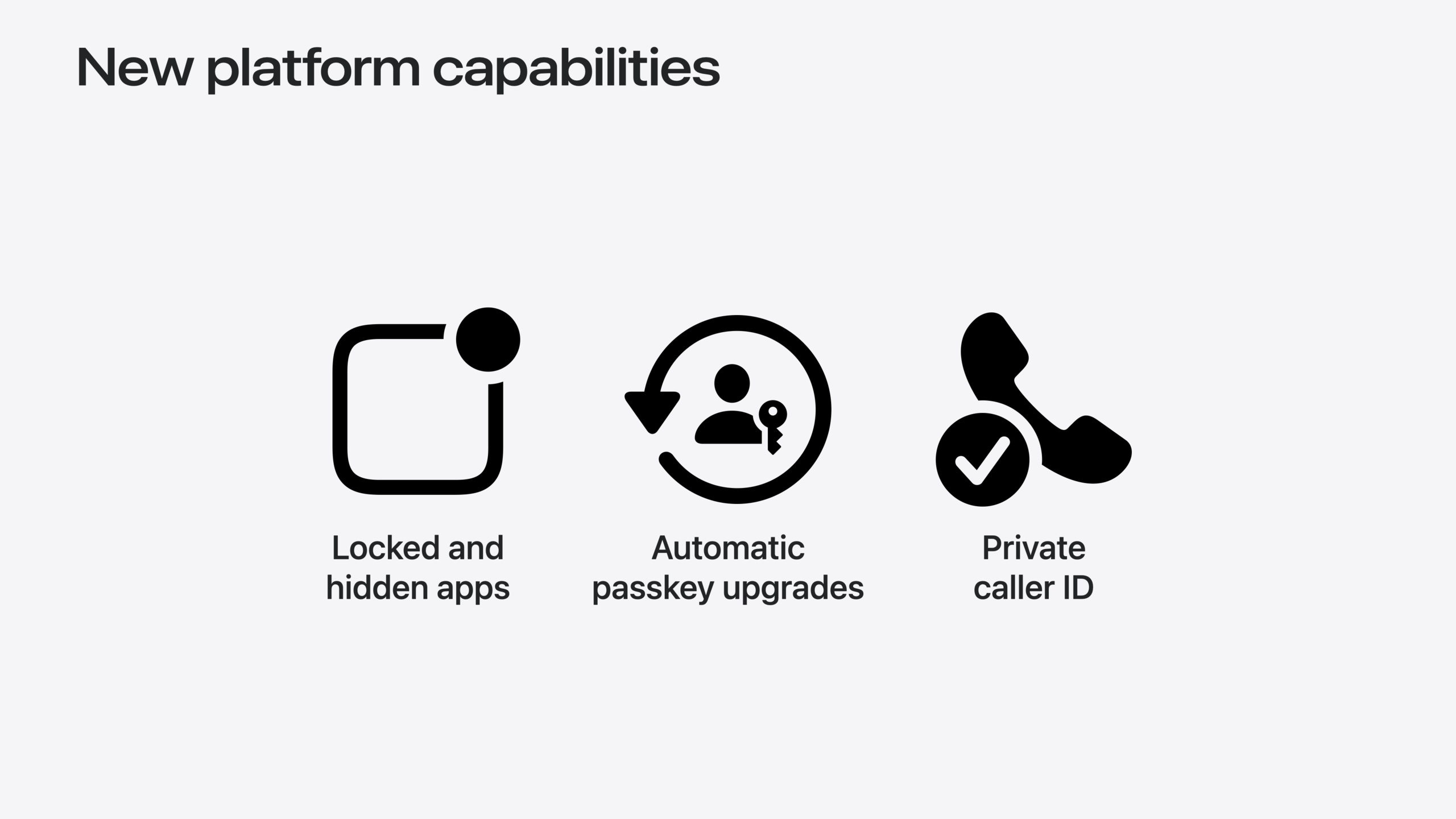
App Lock and Hide
iOS 18 lets users lock and hide any app (20:06):
Effects
├─ Face ID, Touch ID, or passcode required before accessing app
├─ All entry points (such as Share Sheet actions) require authentication
├─ Content won't appear in search or notifications
└─ Others can't accidentally see sensitive information
Automatic Passkey Upgrade
iOS 18 and macOS Sequoia support automatically upgrading existing accounts to passkeys at sign-in (21:48):
Benefits
├─ Passkeys are standards-based password replacements
├─ Easier to use, more secure, phishing-resistant
├─ Can automatically upgrade existing accounts during sign-in
├─ Coexist with passwords; no login flow changes required
└─ Reduces password management burden on users
Live Caller ID and Private Information Retrieval
New caller ID tools use private relay and homomorphic encryption for private information retrieval (21:49):
Workflow
├─ Device sends encrypted phone number to server
├─ Server computes on ciphertext (without decrypting)
├─ Server evaluates matches
└─ Returns transformed ciphertext to device

Key points
├─ Server never sees plaintext phone numbers
├─ Uses homomorphic encryption to compute on ciphertext
├─ Open-source server configuration resources coming late 2024
└─ See documentation: Getting up-to-date calling and blocking information for your app
Core Takeaways
1. Use Pickers instead of full permissions
For sensitive data like accessory pairing, contacts, and transaction records, prefer system Pickers over requesting full permission access. Pickers let users share only necessary data fragments, protecting privacy and reducing data your app must manage.
Why it’s worth doing: Users are more willing to use features when they clearly control data sharing scope, improving feature adoption.
How to start: Review all sensitive data scenarios in your app and check whether a corresponding Picker (AccessorySetupKit, Contact Access Button, FinanceKit Transaction Picker) can replace full access.
2. Prepare clear usage descriptions for local network and Bluetooth access
Local network and Bluetooth permission dialogs in iOS 18 and macOS Sequoia now clearly show data types exposed by access. Clear usage description strings are key to building user trust.
Why it’s worth doing: Users seeing permission dialogs without context are more likely to deny access. Good descriptions improve authorization rates.
How to start: Review all local network and Bluetooth usage description strings in Info.plist; ensure they clearly describe how your app uses the data.
3. Use AccessorySetupKit to simplify accessory pairing
If your app pairs Bluetooth accessories, AccessorySetupKit merges three separate permission flows into one—smoother UX and more precise privacy protection.
Why it’s worth doing: Reduces permission dialog confusion, improves pairing success rate, and app can only access paired devices—aligning with least privilege.
How to start: See the “Meet AccessorySetupKit” session to learn how to migrate existing pairing flows to the new API.
4. Consider enabling passkeys for sensitive features
If your app uses passwords for account protection, consider supporting passkeys and automatic upgrade. This provides a more secure, easier sign-in experience.
Why it’s worth doing: Passkeys are more secure and phishing-resistant than passwords, reducing password management burden.
How to start: See “Streamline sign-in with passkey upgrades and credential managers” to learn how to implement automatic passkey upgrade in your app.
Related Sessions
- What’s new in location authorization — Location authorization enters 2.0; learn new recommendations and techniques
- Meet AccessorySetupKit — Discover how to simplify Bluetooth accessory setup with unified permissions
- Meet the Contact Access Button — Learn the new way to access contacts without full permission
Comments
GitHub Issues · utterances