
Highlight
UIKit in iOS 18 supports driving UIView animations with SwiftUI Animation, unifies gesture dependencies across frameworks, and Tab Bar automatically adapts to sidebar form.
Core Content
Every developer who writes iPad apps with UIKit has hit the same problem: UITabBarController’s tab bar and sidebar are two separate UIs, and switching between them requires manual state management—long, bug-prone code. iPadOS 18 finally unifies them—the new UITab and UITabGroup APIs let you describe your app structure once, and the system automatically generates both tab bar and sidebar forms; users can also drag to customize tab order.
Trait change handling was equally painful. Previously you had to manually register every trait you cared about in registerForTraitChanges, then call setNeedsLayout or setNeedsDisplay in the callback. With automatic trait tracking in iOS 18, if you read a trait inside layoutSubviews, drawRect, or similar methods, UIKit automatically remembers the dependency and triggers the corresponding invalidation when the trait value changes. That means a lot of boilerplate can be deleted.
Cross-framework collaboration pain points are being eliminated too. SwiftUI’s Animation type can now directly drive UIKit view animations, including CustomAnimation; the gesture system is unified—UIKit and SwiftUI gestures can set failure/requirement relationships, and the new UIGestureRecognizerRepresentable protocol embeds UIKit gestures in the SwiftUI hierarchy.
Detailed Content
Driving UIView with SwiftUI Animation
This is the most practical API change in this update. UIView.animate(using:) accepts a SwiftUI Animation type and works especially well for interactive animations—use .interactiveSpring during the gesture and .spring when it ends, with velocity seamlessly continuing between the two phases (03:35):
switch gesture.state {
case .changed:
    UIView.animate(.interactiveSpring) {
        bead.center = gesture.translation
    }

case .ended:
    UIView.animate(.spring) {
        bead.center = endOfBracelet
    }
}
Key points:
- The
.changedbranch uses.interactiveSpringto follow the finger with moderate bounce - The
.endedbranch uses.springwith a fixed endpoint; velocity transitions naturally from the moment the gesture ends - Both phases share the same velocity transfer mechanism—no manual initial velocity calculation
Cross-Framework Gesture Dependencies
When SwiftUI views are nested inside UIKit views, gestures from both frameworks may recognize simultaneously and conflict. iOS 18 lets you set cross-framework failure requirements via name and delegate methods (04:46):
// Inner SwiftUI double tap gesture

Circle()
    .gesture(doubleTap, name: "SwiftUIDoubleTap")


// Outer UIKit single tap gesture

func gestureRecognizer(
    _ gestureRecognizer: UIGestureRecognizer,
    shouldRequireFailureOf other: UIGestureRecognizer
) -> Bool {
    other.name == "SwiftUIDoubleTap"
}
Key points:
- SwiftUI gestures are tagged with the
name:parameter; UIKit matches viaother.name - UIKit’s single tap requires the SwiftUI double tap to fail first, avoiding simultaneous recognition
- This is a standard
UIGestureRecognizerDelegatemethod—no new protocol needed
Automatic trait tracking
Reading traits in layoutSubviews lets UIKit automatically track dependencies (06:40):
class MyView: UIView {
    override func layoutSubviews() {
        super.layoutSubviews()

        if traitCollection.horizontalSizeClass == .compact {
            // apply compact layout
        } else {
            // apply regular layout
        }
    }
}
Key points:
- When
layoutSubviewsis called, UIKit records that you accessedhorizontalSizeClass - When that trait changes later, UIKit automatically calls
setNeedsLayout - Previously you needed manual
registerForTraitChanges+setNeedsLayoutin the callback—that code can be deleted - Supported methods include
layoutSubviews,drawRect:,traitCollectionDidChange, and more—see documentation for the full list
List environment trait
All views in UICollectionView list sections and UITableView now automatically have the list environment trait. UIListContentConfiguration and UIBackgroundConfiguration adjust appearance based on this trait (07:43):
func configurations(for location: FileLocation) ->
    (UIListContentConfiguration, UIBackgroundConfiguration) {

    var contentConfiguration = UIListContentConfiguration.cell()
    let backgroundConfiguration = UIBackgroundConfiguration.listCell()

    contentConfiguration.text = location.title
    contentConfiguration.image = location.thumbnailImage

    return (contentConfiguration, backgroundConfiguration)
}
Key points:
UIListContentConfiguration.cell()replaces logic that manually distinguished sidebar vs. regular stylesUIBackgroundConfiguration.listCell()is a new initializer that automatically reads appearance from the list environment trait- New initializers also include
.listHeaderand.listFooter - No need to pass list appearance as a parameter—configurations auto-adapt when applied to cells
UIUpdateLink
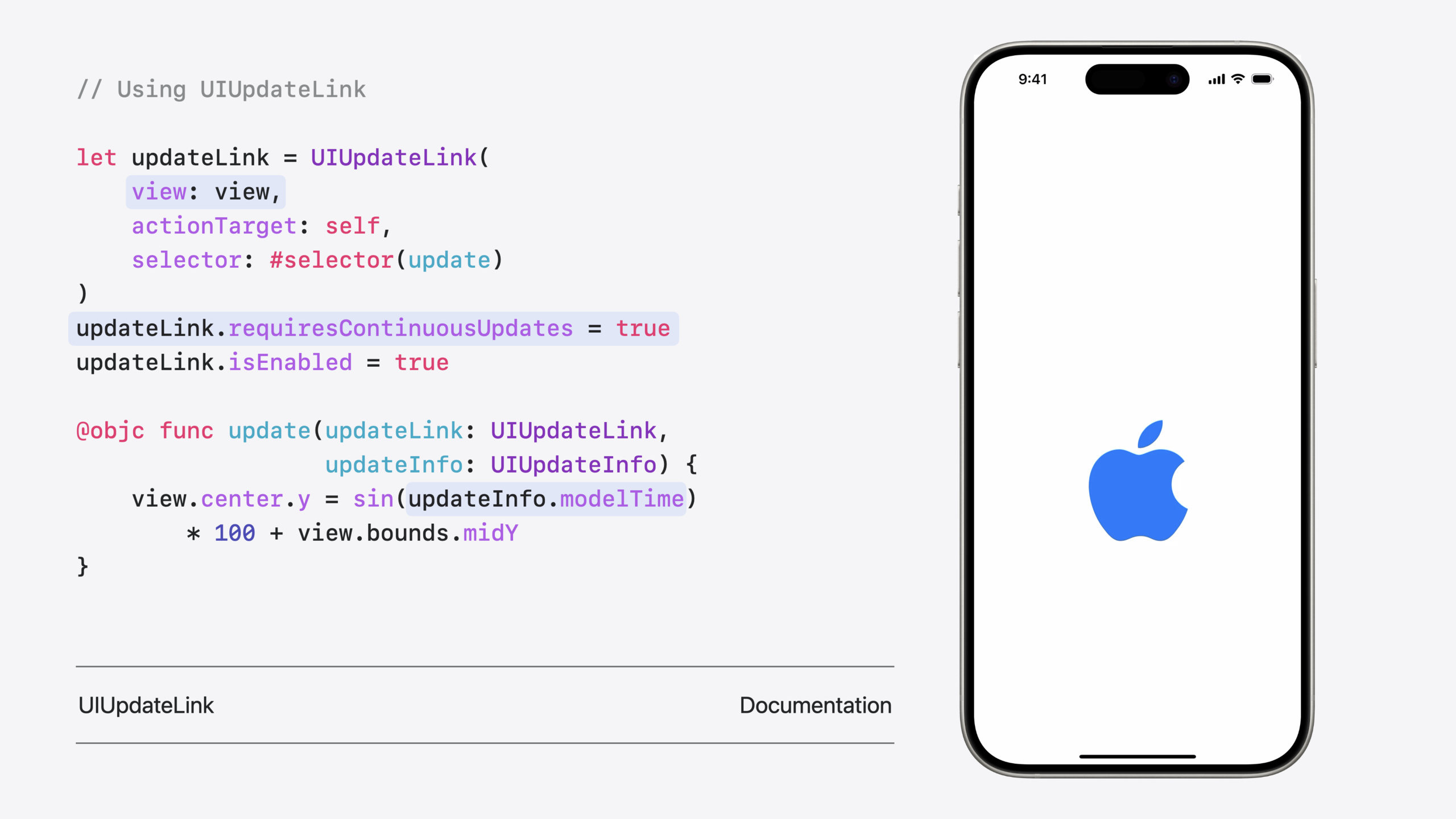
A new API replacing CADisplayLink, with automatic view tracking and low-latency mode (11:18):
let updateLink = UIUpdateLink(
    view: view,
    actionTarget: self,
    selector: #selector(update)
)
updateLink.requiresContinuousUpdates = true
updateLink.isEnabled = true

@objc func update(updateLink: UIUpdateLink,
                  updateInfo: UIUpdateInfo) {
    view.center.y = sin(updateInfo.modelTime)
        * 100 + view.bounds.midY
}
Key points:
- Binds to a view at construction; auto-activates when the view joins a visible window, auto-deactivates when removed
updateInfo.modelTimeprovides display-synced time, more accurate than manual timingrequiresContinuousUpdates = truetriggers every frame;falseonly when other updates drive it (gestures, layer changes)- Supports low-latency mode, suitable for drawing apps
Other Updates
- Zoom transition: iOS 18 adds zoom transition supporting navigation and presentation, fully interactive—you can drag to interrupt mid-transition (02:50)
- SF Symbols animations: New
.wiggle,.breathe,.rotatepreset animations, plus.periodic(specify repeat count and interval) and.continuousbehaviors. Magic Replace automatically handles badge and slash transition animations (12:47) - UICanvasFeedbackGenerator: New feedback generator for large canvas apps; bind to a view at creation, pass position coordinates when triggering feedback (15:02)
- Text formatting panel: UITextView adds a formatting panel with font, size, lists, highlights, and more; customize layout via
textFormattingConfiguration, or set tonilto dismiss (16:14) - Text highlight: Text highlighting via
textHighlightStyleandtextHighlightColorSchemewith 5 preset color schemes (16:49) - Writing Tools: UITextView integrates Writing Tools UI by default; editable text views get inline editing, non-editable get overlay panels (17:40)
- Apple Pencil Pro: Squeeze gesture, barrel-roll angle, undo slider, and PKToolPicker custom tool support (19:01)
Core Takeaways
-
What to build: Replace
UIViewPropertyAnimatorwithUIView.animate(.spring)for interactive animations. Why it’s worth doing: SwiftUI spring velocity transfer seamlessly continues between interactive and non-interactive phases, cutting code by more than half. How to start: In gesture.changedand.endedbranches, callUIView.animate(.interactiveSpring)andUIView.animate(.spring)respectively; delete old animator code. -
What to build: Migrate
UITabBarItemarrays toUITab/UITabGroupstructure. Why it’s worth doing: The new API auto-adapts to tab bar and sidebar forms; Mac Catalyst and visionOS get native experiences without writing separate navigation logic per platform. How to start: InUITabBarController’sviewDidLoad, build thetabsarray withUITabandUITabGroup; delete manualtabBar.itemssetup. -
What to build: Delete manual trait registration in
registerForTraitChanges. Why it’s worth doing: Automatic trait tracking inlayoutSubviewsand similar methods makes manual registration redundant. How to start: Global search forregisterForTraitChangesin Xcode; for each match, check if the trait is already accessed inlayoutSubviewsordrawRect:—if so, delete the registration. -
What to build: Replace manual list style checks with
UIListContentConfiguration.cell()andUIBackgroundConfiguration.listCell(). Why it’s worth doing: The list environment trait auto-adapts sidebar and insetGrouped appearance; cells don’t need manual reconfiguration on rotation or split view. How to start: FindisSidebarbranches in cell configuration code and replace with unified.cell()/.listCell()initializers.
Related Sessions
- Evolve your document launch experience — Customize the launch screen for document-based apps, including template document creation
- Elevate your tab and sidebar experience in iPadOS — Complete usage of UITab / UITabGroup and sidebar customization
- Enhance your UI animations and transitions — Detailed demo of zoom transition and SwiftUI Animation driving UIKit
- What’s new in SF Symbols 6 — New symbol animation presets and Magic Replace behavior
- Squeeze the most out of Apple Pencil — Apple Pencil Pro squeeze, barrel-roll, and PKToolPicker custom tools
Comments
GitHub Issues · utterances