
Highlight
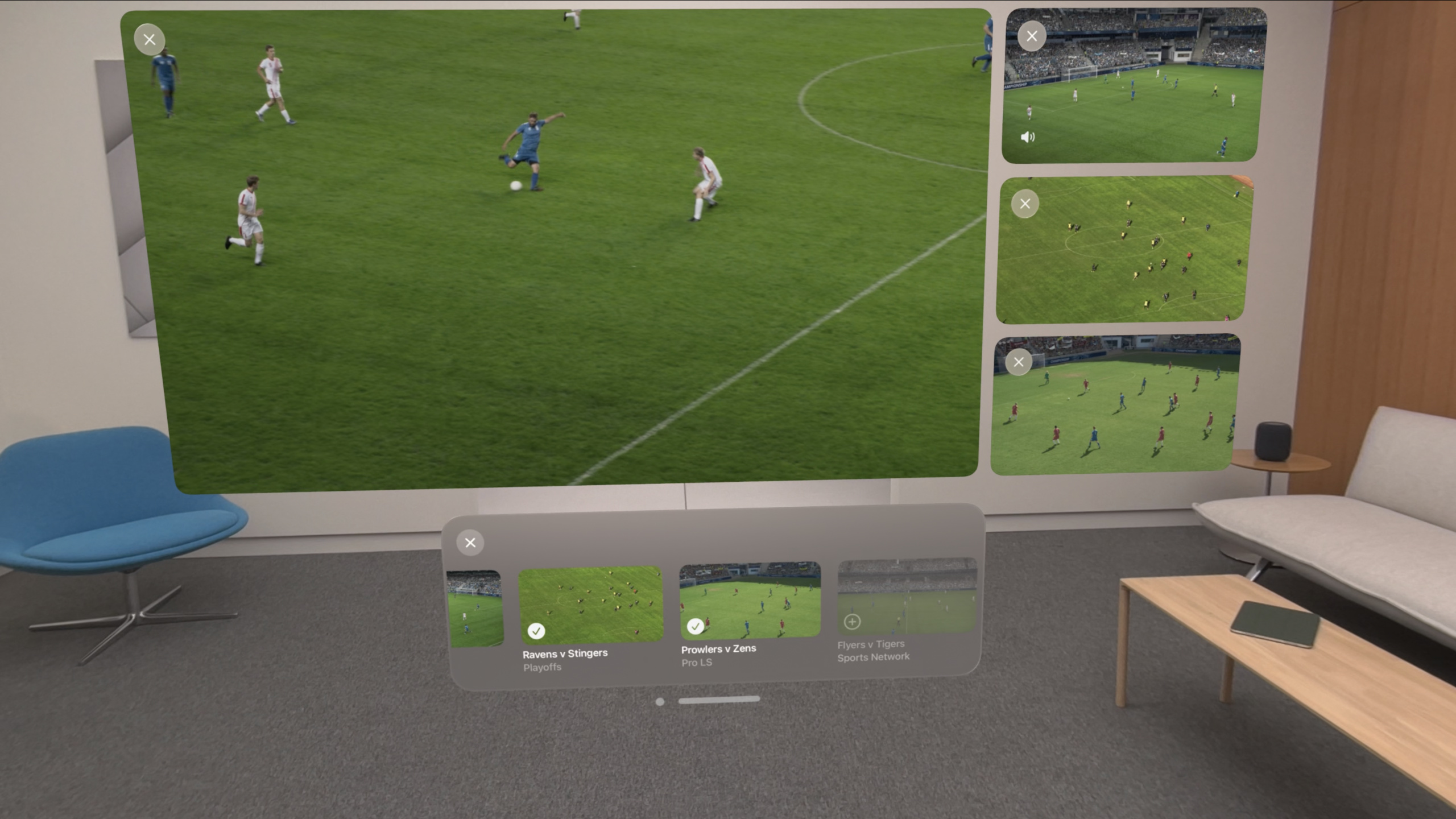
Multiview lets users play up to 5 video feeds simultaneously on Vision Pro. The system manages layout templates automatically; each feed is driven by an independent
AVPlayerViewController.
Core Content
Imagine this scenario: you’re watching a sports game and want to follow another game in progress; or you’re watching several streamers live and want to see all feeds; or the content itself offers multi-camera angles and you want to switch between them. The core need in all these scenarios: watch multiple feeds simultaneously and switch focus between them.
Multiview, introduced in visionOS this year, is designed for exactly this. The core approach is straightforward: each video feed is backed by an independent AVPlayerViewController, and the system arranges them in a comfortable layout. Users add videos through an app-customized content browser, tap a feed to switch focus, and drag to reposition.
Multiview supports up to 5 simultaneous feeds; the system automatically selects the optimal layout template based on feed count. Users can add/remove feeds, rearrange, and resize. When one feed is the “primary focus,” its audio plays preferentially and controls respond to that feed. Some settings (like volume) apply to all feeds; others (like playback speed) affect only the current feed.
For developers, the key is understanding how three classes collaborate: AVPlayerViewController plays individual videos, AVExperienceController manages experience mode transitions (embedded/expanded/multiview), and AVMultiViewManager manages all feeds entering Multiview mode. Your core implementation work: provide a custom browser View Controller with content selection UI.
Detailed Content
Multiview implementation relies on collaboration among three core classes. First, each video feed is driven by an independent AVPlayerViewController. This controller has a new companion class: AVExperienceController. The experience controller defines which experience modes the player can switch between: embedded (video displayed alongside app content), expanded (video screen displayed separately), and multiview.
To enable Multiview for a player, add .multiView to the experience controller’s allowedExperiences. This shows a multiview button in the player UI. When tapped, the experience controller switches to multiview experience, displaying the content selection browser to indicate the experience has started.
The content selection browser is an app-customized View Controller managing available content and providing selection UI. Attach it to AVMultiViewManager. This manager handles many details: activating browser UI when needed, tracking which experience controllers entered multiview mode, maintaining video screen layout.
The browser view controller and multiview manager collaborate to add or remove content. When users select additional content through browser UI, the signal lets the browser view controller create another AVPlayerViewController for that content. Its experience controller switches to active multiview experience. The multiview manager tracks the set of experience controllers that entered multiview and updates video screen layout accordingly.
Setup code below.
Setting up the content browser
Attach your custom browser view controller to the multiview manager (07:47):
import AVKit

AVMultiViewManager
    .default
    .contentSelectionViewController = multiViewController()
Key points:
AVMultiViewManager.defaultis a singleton managing the app’s entire multiview experience- Set
contentSelectionViewControllerearly so the manager can activate browser UI when needed - This view controller displays available content and handles user selection
Adding content to multiview
When users select content, create a new player and join multiview (08:09):
import AVKit

let controller = AVPlayerViewController()

let experienceController = controller.experienceController
experienceController.allowedExperiences = .recommended(including: [.multiView])

await experienceController.transition(to: .multiView)
Key points:
- Create
AVPlayerViewControllerbut view isn’t added to hierarchy yet experienceControllerstarts in platform default experience mode.recommended(including:)includes recommended experiences plus specified additional onestransition(to:)lets the manager take over, adding video to multiview layout
Removing content from multiview
When users remove content via browser, switch experience to another mode (08:47):
import AVKit

let experienceController = …

await experienceController.transition(to: .embedded)
Key points:
- Experience controller is already in multiview mode when removing
- Switching to
.embeddedremoves video from multiview layout - If the corresponding player view controller wasn’t installed in the view hierarchy, the manager dismisses it directly
Handling events outside the browser
Besides the content browser, users can interact with multiview other ways—tapping video screens, exiting multiview via playback controls. Handle these through AVExperienceController’s delegate (09:19).
The delegate receives all transition events regardless of how they occur, with context about each transition’s progress. When a single-screen player’s multiview button is tapped, the experience controller switches to multiview and the delegate is notified—the app can react. When users tap video screens or fully exit multiview via playback controls, the delegate receives those transition events too.
The delegate can also complete additional work before transitions begin (10:11). This is the app’s opportunity to prepare state, show or hide related UI, and prepare for smooth transitions.
Best practices
Progressive experience: Multiview is powerful but can overwhelm users who aren’t expecting it. Supporting graceful progressive experience is key. Start with familiar single-feed viewing, suggest multiview for those who want more. Use standard buttons provided by AVPlayerViewController. After exploring multiview, some may still prefer single-feed—in that case, provide an equally good experience (10:46).
Content selection: Multiview suits watching simultaneous content with emphasis on one feed. Not suitable for binge-watching TV series episodes sequentially—consider AVQueuePlayer instead (11:21). Without a strong use case, explore other AVKit options for appropriate experiences.
Content browser design: The content browser is the primary means of adding and removing content. It should be intuitive, set clear expectations, and let users quickly find what they want. Describe each item concisely with title and thumbnail preview (12:10). Browser area is limited relative to video screens—minimize decoration, focus on easily recognizable elements. Overall style should match the rest of the experience; thumbnail aspect ratio should match content playback, accent colors when appropriate. Don’t over-emphasize the browser or its selections—it hinders the overall experience.
Highlight current selection. A person may watch only a small portion of available content—help them identify which content is on screen in the browser (12:46). But remember, aggressively rearranging content in the browser or crowding limited space can hinder navigation and selection.
Core Takeaways
-
Use
AVExperienceControlleras the entry point for playback experience management. When architecting video playback modules, don’t just useAVPlayerViewControllerfor playback—make the experience controller the center of experience management. This minimizes changes when adding Multiview or other new experience modes later.Why it matters: Apple continues expanding playback experiences on visionOS (Multiview this year, immersive environments), and experience-controller-centric architecture lets you adapt to new features faster.
How to start: In existing playback modules, access
playerViewController.experienceController, useallowedExperiencesto declare supported modes. For new projects, design with the experience controller as an abstraction layer from the start. -
Design a lightweight content browser for Multiview. Reference the system Photos multi-select interaction—users already have this mental model. Browser should be concise and intuitive; thumbnail aspect ratios should match actual video; minimize decorative elements.
Why it matters: The browser is the primary entry for adding/removing multiview content—poor design makes a powerful feature hard to use. An intuitive browser reduces multiview cognitive load.
How to start: Implement a browser class inheriting
UIViewController, display available content in list or grid. Each item includes title and thumbnail. On user selection, callAVMultiViewManagerto add or remove content. Reference sample code from the video. -
Use delegate to keep app state synchronized with multiview manager. When users interact via video screen taps or playback controls, these events bypass the browser—handle them through the experience controller’s delegate.
Why it matters: Users interact with multiview multiple ways; listening only to browser events causes state inconsistency. The delegate lets you react to any transition event.
How to start: Set delegate on experience controller, implement methods like
experienceController(_:willTransitionTo:completion:). Update app state, show/hide UI, prepare resources in these methods.
Related Sessions
- Enhance the immersion of media viewing in custom environments — Enhance media viewing immersion with Reality Composer Pro components
- Build compelling spatial photo and video experiences — Adopt spatial photos and videos, explore stereoscopic media types
- Work with windows in SwiftUI — Create single and multi-window apps for visionOS with programmatic window control
- Dive deep into volumes and immersive spaces — Customize volumes and immersive spaces in visionOS
- What’s new in Quick Look for visionOS — Explore how Quick Look elevates file preview experiences in visionOS
Comments
GitHub Issues · utterances