
Highlight
HLS Interstitials is Apple’s approach to inserting independent ad segments on the main content timeline. Compared to splicing ads directly into the main content stream, Interstitials support late-binding ad decisions and ad content that doesn’t need to be processed with the main feature—offering greater flexibility.
Core Content
The simplest way to insert ads in a video player is to splice ad segments directly into the main content stream. The problems are obvious: ad decisions must be finalized during content preparation, with no dynamic replacement at playback time; changing an ad means re-splicing the entire stream. HLS Interstitials takes a different approach—ads are independent resources mounted at specified positions on the main content timeline, loaded and played only when playback reaches that point. Ads can be late-bound; the main feature stream requires no changes.
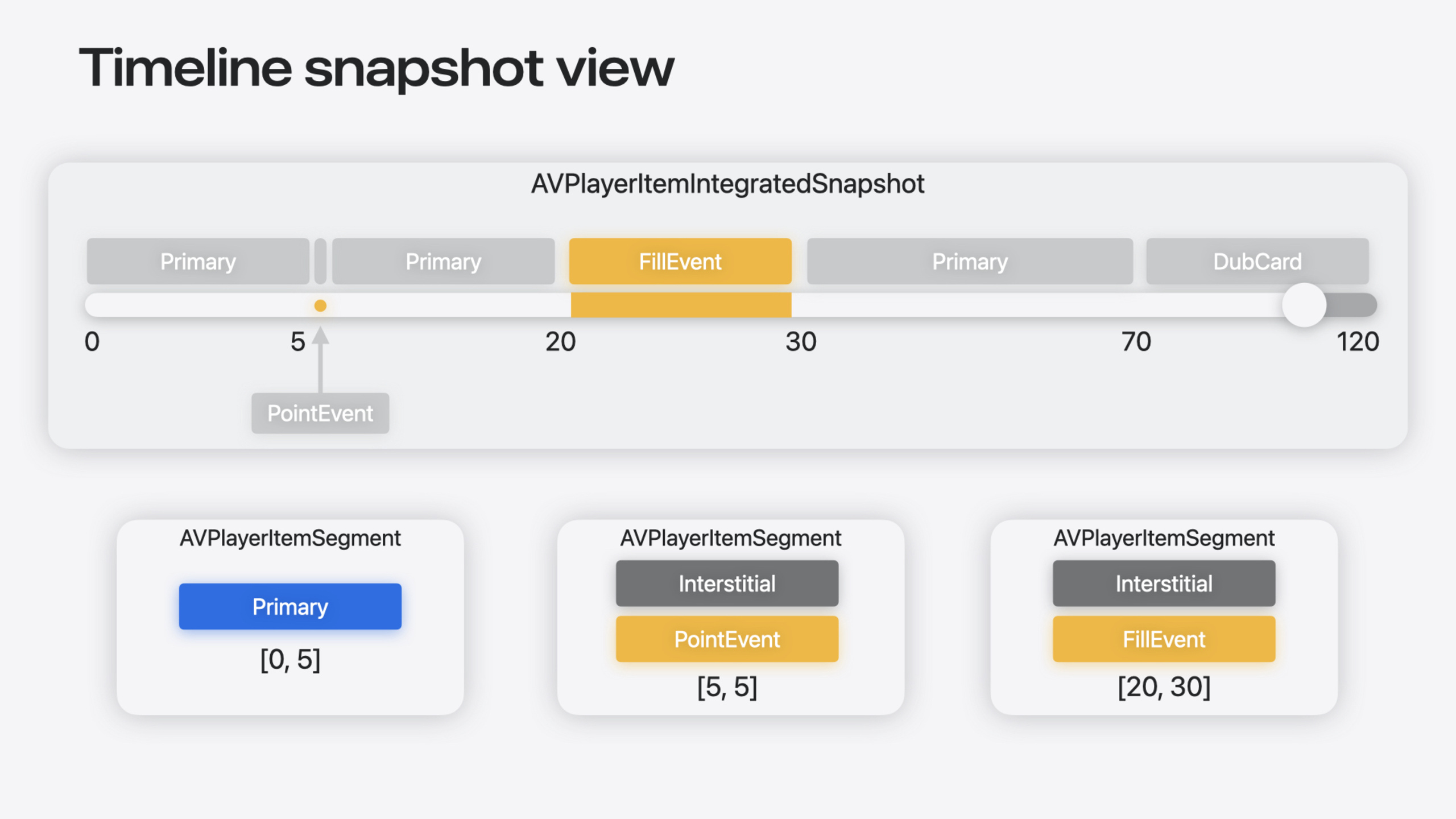
This year’s focus is the Integrated Timeline API. Previously, developers faced a hard problem: the timeline has both main content and ad segments—how do you draw the progress bar? What happens when seeking to a position where an ad hasn’t loaded yet? The new API solves these through AVPlayerItemIntegratedTimeline and AVPlayerItemSegment. Each time period (main content or ad) is a Segment with start/end time, type, occupancy, and other properties. The Snapshot mechanism ensures you get consistent data when reading timeline state, avoiding inconsistent reads as the timeline changes dynamically. SharePlay also now supports Interstitials synchronized playback—as long as ad content is marked identical across all participants, sync can be maintained during ads.
Detailed Content
Three timeline display modes
Interstitials have three display modes on the timeline (03:40):
- Point: Mark a point on the progress bar; playback head pauses when reached, continues after the ad. For ad markers in VOD content.
- Fill: Occupy a range on the progress bar; ad duration counts toward total duration. For live streams replacing burned-in content.
- Supplements Primary Content: Similar to Fill, but indistinguishable from main content in the UI. For recaps, transitions, rating notices, and other auxiliary content closely tied to the main feature.
Controlled via timelineOccupancy and supplementsPrimaryContent on AVPlayerInterstitialEvent (03:54):
// Creating a single point interstitial event
let pointEvent = AVPlayerInterstitialEvent(primaryItem: playerItem, time: ten)
pointEvent.timelineOccupancy = .singlePoint
Key points:
- Set
timelineOccupancyto.singlePointfor a point marker on the timeline - Point events don’t increase total duration during playback; the playback head pauses during the ad
// Creating a fill interstitial event
let fillEvent = AVPlayerInterstitialEvent(primaryItem: playerItem, time: ten)
fillEvent.timelineOccupancy = .fill
fillEvent.plannedDuration = CMTime(value: 15, timescale: 1)
Key points:
- Set
timelineOccupancyto.fillfor the ad to occupy a range on the timeline plannedDurationprovides a duration fallback for Fill type, since actual ad duration may be known late- Setting
plannedDurationis best practice for Fill events (04:19)
// Creating a fill interstitial event supplementing primary
let fillEvent2 = AVPlayerInterstitialEvent(primaryItem: playerItem, time: ten)
fillEvent2.supplementsPrimaryContent = true
fillEvent2.timelineOccupancy = .fill
fillEvent2.plannedDuration = CMTime(value: 15, timescale: 1)
Key points:
supplementsPrimaryContent = truemeans the event should be indistinguishable from main content in the UI- For rating notices, recaps, end cards, and similar (04:30)
Integrated Timeline API
Obtain AVPlayerItemIntegratedTimeline from AVPlayerItem (07:14). It provides currentSnapshot, returning an immutable snapshot with all consistent state needed to draw UI.
// Create AVPlayerItem and obtain its integrated timeline
let item = AVPlayerItem(url: ...)
let integratedTimeline = item.integratedTimeline

//  Any time we need a new representation of the timeline state, we can request for a snapshot
let snapshot = integratedTimeline.currentSnapshot

//  Using our snapshot, we can build a simple transport bar
drawUISlider(start: .zero, duration: snapshot.duration, currentPosition: snapshot.currentTime)

// Draw single-point interstitials on the transport bar
let pointSegments = snapshot.segments.filter { segment in
    segment.segmentType == .interstitial &&
    segment.interstitialEvent?.timelineOccupancy == .singlePoint
}
for segment in pointSegments {
    drawPoint(position: segment.timeMapping.target.start)
}

// Draw range interstitials on the transport bar
let highlightFillSegments = snapshot.segments.filter { segment in
    if (segment.segmentType == .interstitial) {
        if let interstitialEvent = segment.interstitialEvent {
            return interstitialEvent.timelineOccupancy == .fill &&
                   !interstitialEvent.supplementsPrimaryContent
        }
    }
    return false
}

for segment in highlightFillSegments {
    let range = segment.timeMapping.target
    highlightRegion(start: range.start, end: range.end)
}
Key points:
item.integratedTimelinegets the timeline object from AVPlayerItemintegratedTimeline.currentSnapshotreturns an immutable snapshot that won’t mutate with playback statesnapshot.durationincludes Fill ad total duration;snapshot.currentTimepauses during Point ad playback- Filter out segments with
supplementsPrimaryContent == true—don’t mark them distinctly in UI - Each Segment has
segmentType(.primaryor.interstitial) andtimeMappingproperties
Listening for timeline changes
The timeline is dynamic—ads may be resolved dynamically, live streams update continuously. Listen via snapshotsOutOfSyncNotification (08:26):
// Listen to integrated timeline notifications to update our logic

for await _ in NotificationCenter.default.notifications(named: AVPlayerItemIntegratedTimeline.snapshotsOutOfSyncNotification, object: integratedTimeline) {

    let reason = _.userInfo![AVPlayerItemIntegratedTimeline.snapshotsOutOfSyncReasonKey]
                as! AVPlayerIntegratedTimelineSnapshotsOutOfSyncReason

    switch(reason) {
    case .segmentsChanged:
        redrawTransportBar(snapshot: integratedTimeline.currentSnapshot)
    case .currentSegmentChanged:
        updatePlayerControls(snapshot: integratedTimeline.currentSnapshot)
    }
}
Key points:
segmentsChanged: Segment structure changed (ad resolved or removed)—redraw progress barcurrentSegmentChanged: Playback head moved from main content to ad or vice versa—update player controls- After notification, fetch
currentSnapshotagain for latest consistent state
New HLS server-side attributes
In HLS DateRange tags, two new attributes control timeline behavior (09:50):
X-TIMELINE-OCCUPIES: ValuePOINTorRANGE, corresponding to.singlePointand.fillX-TIMELINE-STYLE: ValueHIGHLIGHT(marked in UI) orPRIMARY(indistinguishable from main content)
SharePlay support
Interstitials can now participate in SharePlay synchronized playback (10:57). Prerequisite: ad content must be identical across all participants. Mark with contentMayVary = false:
// Set contentMayVary to false for SharePlay support
let event = AVPlayerInterstitialEvent(primaryItem: playerItem, time: ten)
event.contentMayVary = false
event.timelineOccupancy = .fill
event.plannedDuration = CMTime(value: 15, timescale: 1)
event.supplementsPrimaryContent = true
Key points:
contentMayVary = falsemeans ad content is identical across participants, enabling synchronized playback- Corresponds to
X-CONTENT-MAY-VARY=NOin HLS DateRange (11:59) - Don’t enable sync for personalized ads (e.g., recommendation-based)
- During sync, pause, seek, and other operations automatically synchronize across participants
Core Takeaways
-
What to do: Use Integrated Timeline to draw player progress bars that include ads. Why it matters: Without a unified timeline model, progress bars couldn’t accurately reflect ad placement, and seeking to ad positions would fail. How to start: Get timeline from
AVPlayerItem.integratedTimeline, read segment list viacurrentSnapshotto draw UI. -
What to do: Use
supplementsPrimaryContentto replace discontinuity segments in video streams. Why it matters: Recaps, transitions, and similar content are usually burned into main content as discontinuities—expensive to replace; Interstitials manage this auxiliary content independently with seamless UI integration. How to start: Create a Fill event withsupplementsPrimaryContent = true, setplannedDuration, mark withX-TIMELINE-STYLE=PRIMARYin HLS. -
What to do: Enable synchronized playback for shared ads in SharePlay scenarios. Why it matters: When multiple people watch live together, different ad content during ads breaks sync; marking
contentMayVary = falseauto-syncs ad playback, pause, and seek. How to start: Confirm ad content is identical across participants, setcontentMayVary = falseon the event, or addX-CONTENT-MAY-VARY=NOin HLS DateRange.
Related Sessions
- Explore dynamic pre-rolls and mid-rolls in HLS — Deep dive into HLS Interstitials basics and dynamic ad insertion
- Discover media performance metrics in AVFoundation — Monitor and optimize playback with new media performance metrics APIs
- Coordinate media experiences with Group Activities — Build shared media experiences with Group Activities and SharePlay
Comments
GitHub Issues · utterances