
Highlight
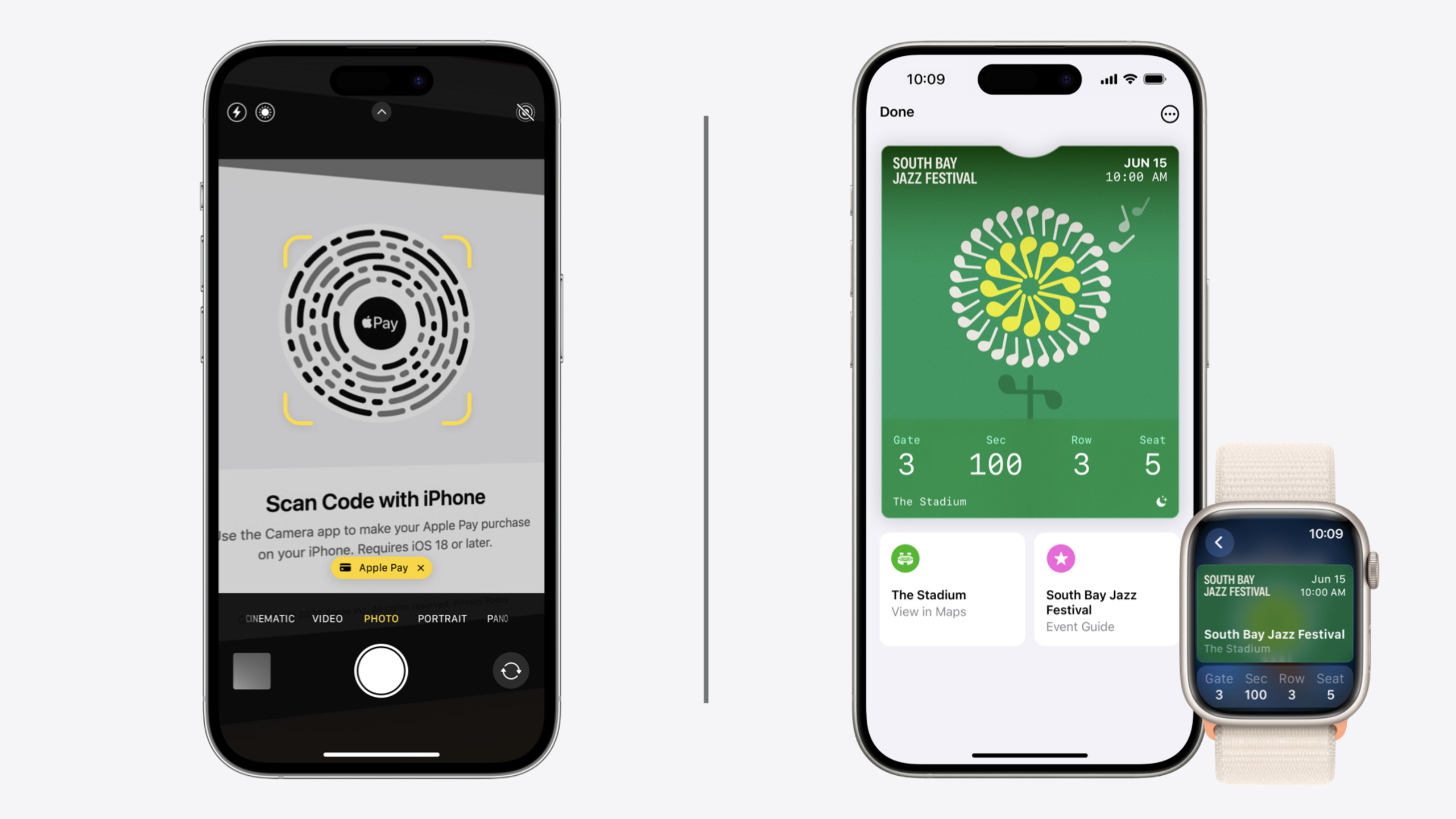
iOS 18 brings Apple Pay to all browsers: when users tap the Apple Pay button in a non-Safari browser, they scan a QR code on screen with iPhone to complete payment—the payment response format is identical to Safari.
Core Content
Apple Pay on the web has had one major limitation: only Safari worked. If your e-commerce site opened in Chrome or Firefox, the Apple Pay button would not appear. Many developers wrote browser sniffing logic—show Apple Pay in Safari, fall back to a credit card form elsewhere. The result was a fragmented checkout experience and lost conversions on mobile non-Safari browsers.
iOS 18 removes this restriction. Users tap the Apple Pay button in any browser, a QR code appears on the page, and they scan with iPhone to confirm payment. Under the hood it uses the same transaction system as iPhone Apple Pay; the payment response data format matches in-Safari payment exactly, so server code needs no changes. Developer changes are only two: adopt Apple Pay JS SDK 1.2.0+ and use the SDK-provided button component instead of a CSS implementation.
The session also covers two other payment updates. First, Disbursement extends to the web platform—last year’s iOS withdrawal feature now works in Safari on macOS 15, letting users transfer in-app balances to linked bank cards. Second, Merchant Category Code support: specify your merchant category code in the payment request and the payment sheet intelligently filters out cards that do not support that category, reducing transaction failures.
In the second half, Masha introduces Wallet’s major ticket redesign. NFC event tickets get a new visual layout: event logo and date at the top, large event artwork in the middle, and seat information consolidated in the footer. Below the ticket, a new map link and Event Guide appear—an information hub aggregating quick actions (food ordering, merchandise, baggage policy), weather forecast, venue map, and music playlist. Fill semantic tag data in pass.json and the ticket automatically starts a Live Activity at the most relevant time, showing entry information on the Lock Screen and Apple Watch.
Detailed Content
Apple Pay on the web: Non-Safari browser support
Developers need to do two things (01:15):
- Include Apple Pay JS SDK 1.2.0 or later in the HTML
<head>. - Use the SDK-provided
<applepay-button>component instead of a CSS-implemented button. CSS buttons do not support non-Safari browsers.
Also, canMakePaymentsWithActiveCard() is deprecated—use the new applePayCapabilities() API instead (02:05). Its paymentCredentialStatus has four values:
paymentCredentialsAvailable: Device supports Apple Pay with available cards—set Apple Pay as the preferred payment method.paymentCredentialsUnavailable: Device supports Apple Pay but has no available cards—do not show the button.paymentCredentialStatusUnknown: Apple Pay is supported but card info is unavailable (non-Safari browsers take this path)—show the button; ordering is up to the developer.applePayUnsupported: Do not show the button.
If you currently use only canMakePayments() and show the button when it returns true, no changes are needed—the feature works automatically.
Funds Transfer on the web (05:45)
Building a funds transfer request is similar to a standard PaymentRequest, with key configuration as follows:
const paymentMethodData = {
  supportedMethods: "https://apple.com/apple-pay",
  data: {
    version: 3,
    merchantCapabilities: [
      "supports3DS",
      "supportsInstantFundsOut"  // Enable instant funds out
    ],
    // ...other configuration
  }
};

const paymentDetails = {
  total: { label: "Transfer", amount: "100.00" }
};

const paymentOptions = {
  requestShipping: false  // Funds out does not involve shipping
};

const paymentRequest = {
  paymentMethodData: [paymentMethodData],
  paymentDetails: paymentDetails,
  paymentOptions: paymentOptions,
  modifiers: [{
    additionalLineItems: [
      { label: "Total deduction", amount: "100.00" },
      { label: "Instant transfer fee", amount: "1.50", type: "instantFundsOutFee" },
      { label: "Transfer to card", amount: "98.50", type: "disbursement" }
    ],
    disbursementRequest: {
      requiredRecipientContactFields: ["email", "name"]
    }
  }]
};
Key points:
supports3DSis a basic capability requirement;supportsInstantFundsOutenables instant transfer and declares fees.requestShippingmust befalsebecause funds transfer does not involve physical delivery.- The
disbursementRequestobject goes inmodifiers—even ifrequiredRecipientContactFieldsis not needed, an empty object must be present. additionalLineItemsincludes three items: total deduction, instant transfer fee (type: "instantFundsOutFee"—must exist even if free, set amount to zero), and actual amount received (type: "disbursement").
For error handling, ApplePayError adds a fourth field to specify the transaction type associated with the error (08:32). Use unsupportedCard when the card does not support transfer; use recipientContactInvalid when recipient contact info is incorrect.
Merchant Category Code (09:02)
After specifying a merchant category code in the payment request, the payment sheet shows only cards that support that category, reducing transaction failures. MCC follows the ISO 79450 standard—consult your payment processor for specific codes.
Wallet ticket redesign (09:56)
Prerequisites for NFC event tickets to get the new visual layout:
- Provide required Semantic Tags in pass.json so the system understands ticket data meaning.
- Set
preferredStylein pass.json toposterEventTicket(new style) oreventTicket(legacy style), with priority ordering. - The pass must be signed with the NFC entitlement for tap-to-enter.
New pass bundle assets: in addition to icon, logo, and background, artwork (main event visual—older OS falls back to strip image) and secondaryLogo (shown in the footer area) are new.
Ticket layout: event logo + date/time at top, large artwork in the middle, seat info in the footer (up to 4 fields). Multi-day events (such as festivals) can provide relevantTimeInterval instead of a single-day date. When there are no fixed seats, show admission level (such as General Admission).
Event Guide (13:29): Below the ticket, a map link and Event Guide appear. The Guide includes quick action links (food ordering, merchandise, etc.), weather forecast, venue details (with map and queue labels), and music playlist. Content is driven by semantic tag URLs, latitude/longitude coordinates, and performerNames / artistIDs in pass.json.
Live Activity auto-start (16:38): With semantic tag data filled in pass.json, the ticket automatically starts a Live Activity on iPhone and Apple Watch at the most relevant time, showing entry and seat information.
Core Takeaways
-
What to build: Upgrade your e-commerce site to Apple Pay JS SDK 1.2.0+ and replace CSS buttons with SDK components so non-Safari users see the Apple Pay button. Why it’s worth doing: Covers Chrome, Firefox, and other non-Safari browser users, directly improving checkout conversion with minimal changes (two file edits). How to start: Include the SDK in HTML
<head>, replace button implementation, useapplePayCapabilities()instead of browser sniffing. -
What to build: Integrate Funds Transfer on the web so users can withdraw from in-app accounts to linked bank cards. Why it’s worth doing: Wallet and e-commerce balance products lacked web withdrawal—users had to open the app; now they can complete it in any browser on any device. How to start: Add a
disbursementRequestobject in payment request modifiers, addsupports3DSto merchantCapabilities (addsupportsInstantFundsOutfor instant transfer), setrequestShippingto false. -
What to build: Specify Merchant Category Code in payment requests. Why it’s worth doing: The payment sheet automatically filters cards that do not support the category, reducing transaction failures from card restrictions—especially helpful for specialized merchants. How to start: Confirm your MCC with your payment processor and add the corresponding code to payment request data.
-
What to build: Add semantic tags and new visual styles to NFC event ticket passes. Why it’s worth doing: The new layout makes ticket info clearer (seat info consolidated in footer), Event Guide aggregates weather, maps, and quick actions, and Live Activity auto-start puts entry info on the Lock Screen—the entry experience goes from digging for the ticket to glanceable. How to start: Fill semantic tag data in pass.json, set
preferredStyle: "posterEventTicket", add artwork and secondaryLogo assets, keep primary/secondary/auxiliary fields for older OS compatibility.
Related Sessions
- Bring your Live Activity to Apple Watch — Bring Live Activities to Apple Watch Smart Stack, pairing with ticket auto-start Live Activity
- Broadcast updates to your Live Activities — Broadcast push notifications to update Live Activities for real-time event info changes
- Bring your app’s core features to users with App Intents — App Intents framework fundamentals; Event Guide quick action links can use App Intents
- Bring your app to Siri — Expose app capabilities via SiriKit and App Intents, relevant to voice interaction in ticket scenarios
Comments
GitHub Issues · utterances