
Highlight
Quick Look on visionOS adds the PreviewApplication API to open windowed previews in a few lines of code; 3D models support Surface Mapping that automatically snaps to desks, and USDZ variants let you switch multiple color schemes within a single file.
Core Content
There are two ways to preview files on visionOS: inline (as a full-screen cover over your app) and windowed (displayed in an independent volume so users can interact with your app simultaneously). But windowed preview previously could only be triggered by drag-and-drop—apps had almost no control over the preview process: no custom title, no way to disable editing, no notification when the user closed preview.
This year Apple introduced the PreviewApplication API, built on SwiftUI and Swift Concurrency. Call PreviewApplication.open with a URL to open windowed preview; pass a URL array for collection view with forward/back navigation arrows. Through PreviewItem you can customize the title (displayName) and editing mode (editingMode)—for example, .disabled removes crop, trim, and other edit buttons. The API returns a session object whose events is a Swift async stream for listening to preview open and close events.
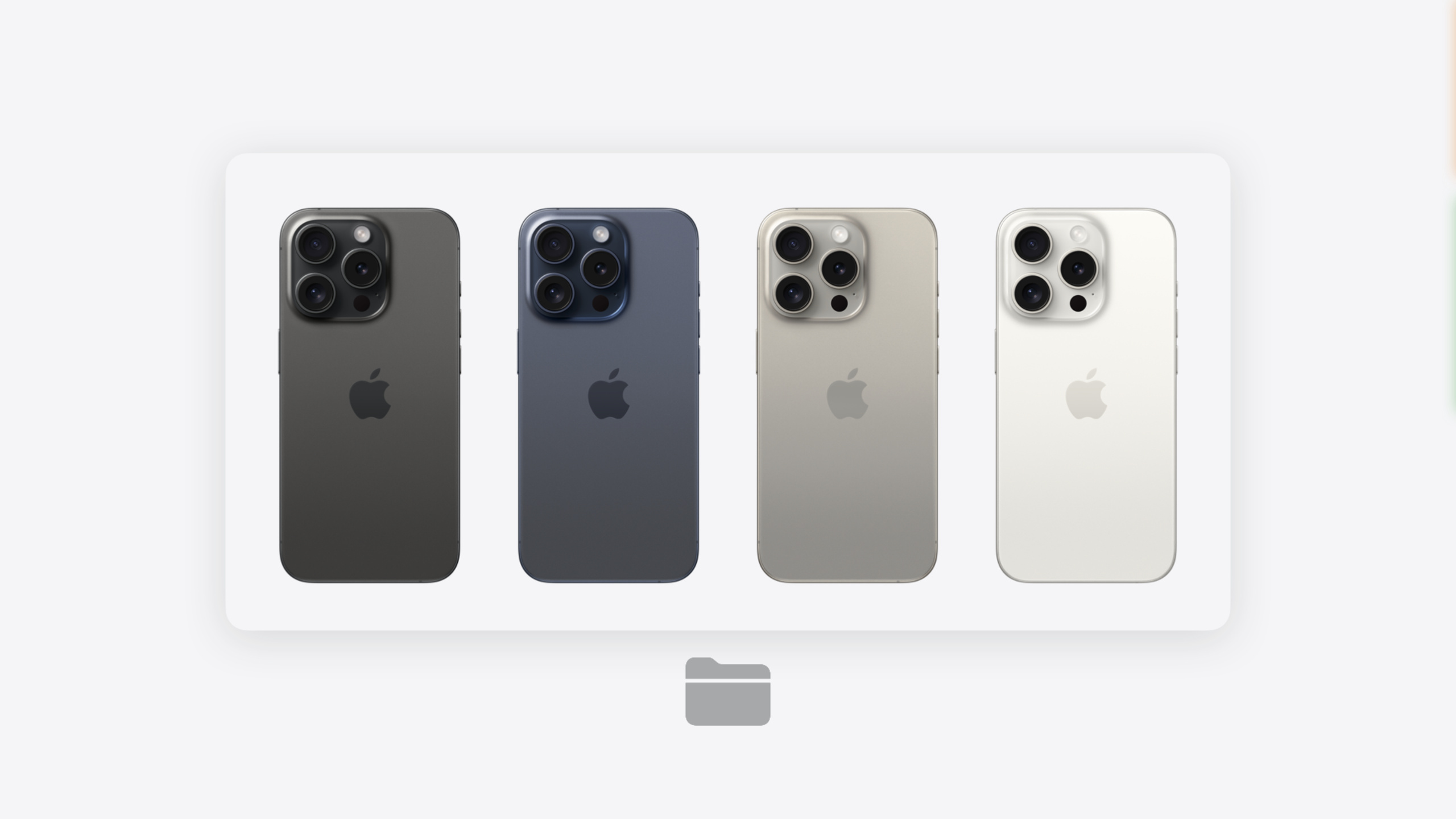
For 3D content, two highly requested features landed. Surface Mapping lets any 3D model automatically snap to desks or floors—drag the window bar near a surface to trigger, then slide the model freely with pitch rotation locked to prevent clipping into the surface. Configurations (called variants in USDZ) let one file contain multiple variants, such as different iPhone colors—users switch directly in Quick Look without separate files per color. This works on iOS and macOS too; visionOS also supports syncing configuration changes during FaceTime calls.
Detailed Content
PreviewApplication API
Basic usage: pass a single file URL to PreviewApplication.open (02:53).
PreviewApplication.open(url: selectedURL)Pass a URL array to open collection view (03:48):
PreviewApplication.open(urls: allURLs, selectedURL: selectedURL)Key points:
urlsparameter accepts an array—Quick Look shows collection view with navigation arrowsselectedURLspecifies the initially focused file
Customize title and editing mode with PreviewItem (05:19):
let previewItem = PreviewItem(url: selectedURL, displayName: entryName, editingMode: .disabled)
PreviewApplication.open(previewItem: previewItem)
Key points:
displayNameappears in the Quick Look top menu bareditingMode: .disabledremoves edit buttons, preventing accidental modification of original files- See API documentation for other editingMode options
Manage preview lifecycle through session events (06:47):
let session = PreviewApplication.open(url: selectedURL)
for await event in session.events {
    switch event {
    case .opened:
        isPreviewOpen = true
    case .closed:
        isPreviewOpen = false
    }
}
Key points:
session.eventsis a Swift AsyncSequence—iterate withfor await.openedand.closedevents let you sync preview state in your UI- Reopening the same file doesn’t create a new window—it brings the existing one to front
USDZ Variants (Configurations)
Define configuration variants with variantSet in USDZ (12:22):
#usda 1.0
(
    defaultPrim = "iPhone"
)

def Xform "iPhone" (
    variants = {
        string Color = "Black_Titanium"
    }
    prepend variantSets = ["Color"]
)
{
    variantSet "Color" = {
        "Black_Titanium" { }
        "Blue_Titanium" { }
        "Natural_Titanium" { }
        "White_Titanium" { }
    }
}
Key points:
- All variants must be defined on
defaultPrimfor Quick Look to query and display correctly string Color = "Black_Titanium"sets the default variantprepend variantSets = ["Color"]declares the variant set name- Variant names don’t support spaces—use underscores; Quick Look converts them to spaces for display
- Configuration button appears at the bottom of Quick Look; selecting a variant reloads the model
- Avoid heavy textures or complex geometry in variants to prevent slow loading
Surface Mapping
- All 3D models automatically enable Surface Mapping—no extra code needed
- Supports horizontal surfaces (desks, floors)
- Drag the window bar near a surface to trigger snap, accompanied by a sound
- After snapping, pitch rotation is locked to prevent the model clipping into the surface
- When exporting USDZ, ensure the model bottom sits at the coordinate origin for correct snap behavior
Core Takeaways
-
Use PreviewApplication.open instead of inline Quick Look: Windowed preview doesn’t interrupt the user’s current task and supports multitasking; code drops from SwiftUI fullScreenCover + UIViewControllerRepresentable to a one-line call. Call
PreviewApplication.open(url:)in the thumbnail’sonTapGesture. -
Create USDZ files with variants: One file contains all color options—users switch in Quick Look directly, reducing file count and management overhead; FaceTime on visionOS also supports configuration sync. Define
variantSeton the USDZ defaultPrim, each variant corresponding to a configuration; use underscores instead of spaces in variant names. -
Ensure 3D model bottom aligns with coordinate origin: Quick Look Surface Mapping is enabled by default for all models—if the bottom isn’t at the origin, the model floats or clips after snapping to a desk. Shift the model down in your 3D modeling software before export so the bottom sits on the Y=0 plane.
-
Use session.events to mark files being previewed in your UI: After opening multiple previews, users forget which files they’re viewing—visual markers like an eye icon clearly indicate state. Store the session returned by
PreviewApplication.openand update state variables infor await event in session.eventsto drive UI refresh.
Related Sessions
- Build compelling spatial photo and video experiences — Learn how to create and adopt spatial photos and videos in your apps
- Optimize your 3D assets for spatial computing — 3D asset optimization workflow; key techniques to reduce variant loading time
- What’s new in USD and MaterialX — Latest USD format updates; underlying technology for the variants mechanism
- Dive deep into volumes and immersive spaces — Deep dive into volume customization; the underlying container for Quick Look windowed preview
Comments
GitHub Issues · utterances