
Highlight
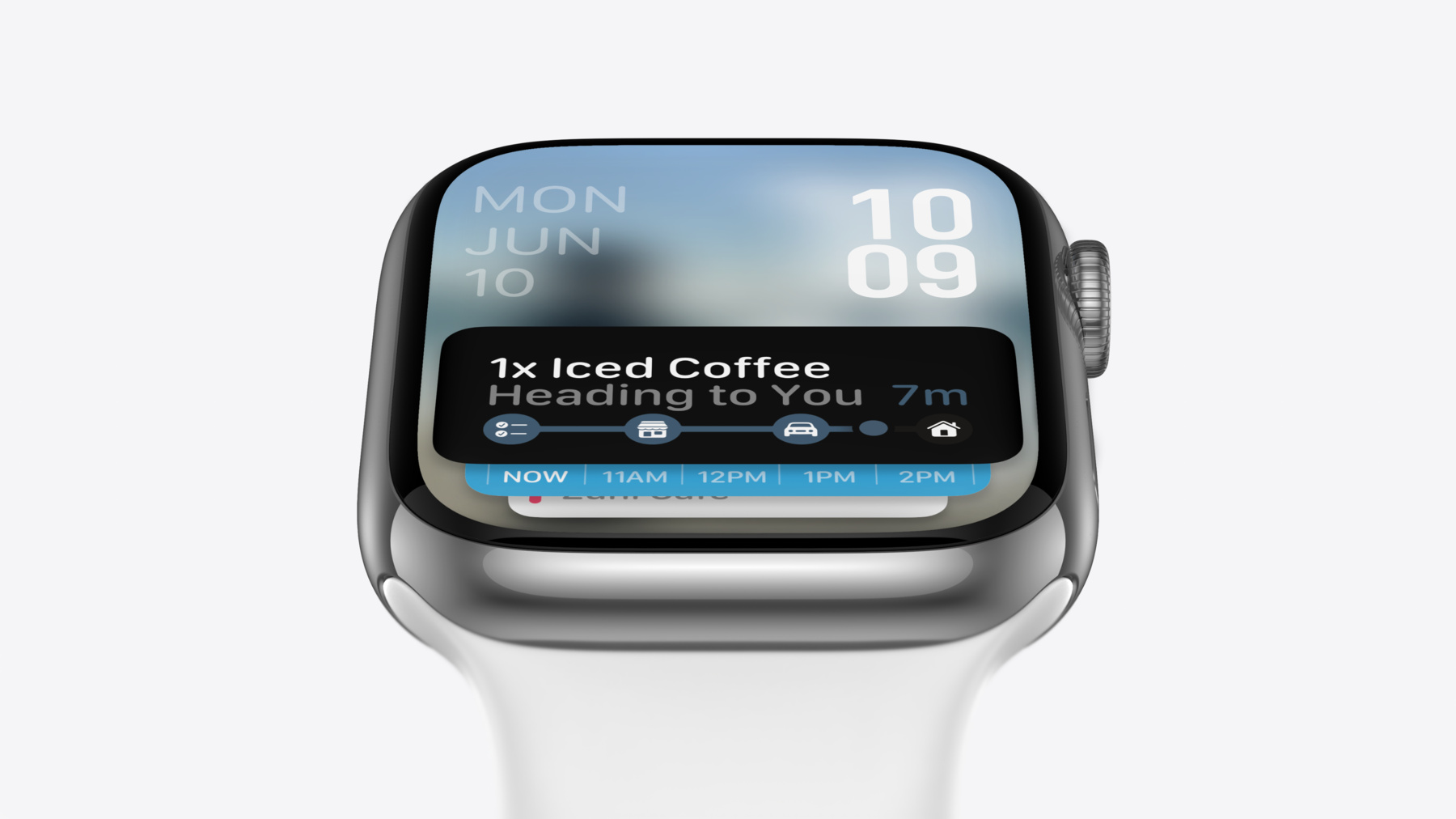
watchOS 11 automatically forwards iPhone Live Activities to the top of the Apple Watch Smart Stack, so users can track progress with a wrist raise; if you don’t provide a Watch-specific view, the system synthesizes one from the Dynamic Island Compact state.
Core Content
On iPhone, Live Activities have already changed how we interact with notifications—tracking a ride-share or food delivery no longer requires repeatedly opening notifications; the dynamically updating entry on the Lock Screen is everything. But the experience breaks when you’re wearing Apple Watch: to check Live Activity status, you still have to pull out your phone.
watchOS 11 fills this gap. When a Live Activity starts on iPhone, it automatically appears at the top of Apple Watch Smart Stack, and users see the latest status with a wrist raise. Smart Stack in watchOS 11 also gains automatic presentation—when a Live Activity starts, Smart Stack shows automatically without rotating the Digital Crown first. After lowering the wrist, Smart Stack stays visible so users can continue glancing at the time and Live Activity progress.
Ed and Taylor from the Apple Design Team detail three presentation forms for Live Activities on Apple Watch: the Widget view in Smart Stack (glance on wrist raise), the full in-app view after tapping the Widget (when there’s no Watch app, the system provides a full-screen view with an “Open on iPhone” button), and the Compact View that pops up at the bottom while using other apps. These three forms correspond to different attention levels—full information when the wrist is down, unobtrusive reminders in compact view while actively using the watch.
Detailed Content
Auto-Generated vs. Watch-Specific Adaptation
watchOS 11 automatically forwards iPhone Live Activities to Apple Watch. Specifically, it takes resources from the Dynamic Island Compact state and resynthesizes a Watch view (01:21). This means Live Activities appear on the watch even if you do nothing.
But the gap between auto-generated and Watch-specific views is significant. Ed shows both side by side in the session, saying “there is a significant difference in quality and experience between these two options” (01:48). Using the Watch size class can provide more useful information and a more compelling design. Engineering details are covered step by step by engineer Anne in session 10068 “Bring your Live Activity to Apple Watch.”
Show Only Key State Transitions
Apple Watch screens are small, so information density must be extremely restrained. Apple recommends showing only “significant states”—states that help users understand progress (such as how long until a flight lands), states that may require action (such as a ride-share arriving curbside), or states users genuinely care about (such as score changes) (02:02).
The core principle: Live Activities should answer “what’s happening now,” not “what is all the information.”
Controls: At Most One
Controls suit play/pause/resume scenarios such as workouts, timers, and voice memos. Apple strongly recommends using only one control—multiple controls don’t fit on a small screen, and you still need enough space for status information (02:35).
Layout Templates and Customization
Apple recommends using existing design layout templates, optimized for different information densities and graphic elements—see last year’s session 10062 “Design Widgets for the Smart Stack on Apple Watch” for details (02:40). For fully custom layouts, use standard margins and text styles to stay consistent with Smart Stack’s visual language and remain clear at a glance.
Core Takeaways
-
Food delivery / ride-tracking apps: Build a dedicated Live Activity view for Watch. Auto-generated Compact state forwarding is hard to read on the watch, especially after multi-line text and icons scale down. Why it’s worth doing: These are high-frequency Live Activity scenarios where glancing at progress on the wrist is most needed; Watch-specific views deliver the biggest experience gain. How to start: Add a
.watchActivitysize class to your existing ActivityWidget, keep only “current status + estimated completion time” in two lines, and reference Apple’s layout templates. -
Workout / timer apps: Add a single control button to Watch Live Activity. Pause/resume is core for workout Live Activities; on Watch you can do it without pulling out your phone. Why it’s worth doing: During workouts when both hands are occupied, a single button on the wrist is the most natural interaction. How to start: Add a Button in the Watch-specific view, drive pause/resume with an App Intent, and ensure clear status text next to the button indicating paused or running.
-
Sports scores / stock apps: Push only key state transitions. No need to update every second—only update Live Activity when scores change or stock prices cross thresholds. Why it’s worth doing: Frequent updates cause distraction on the watch; Compact View popping up too often makes users ignore it. How to start: Add state-change filtering in your ActivityKit update logic, calling
update()only when significant state changes, reducing unnecessary pushes.
Related Sessions
- Bring your Live Activity to Apple Watch — Engineering: how to customize Live Activity views for Apple Watch
- Broadcast updates to your Live Activities — Broadcast push notifications to update many Live Activities at once
- Design Widgets for the Smart Stack on Apple Watch — Smart Stack Widget layout templates and information density guidelines
- Update Live Activities with ActivityKit — Update Live Activity content at runtime with ActivityKit
Comments
GitHub Issues · utterances