
Highlight
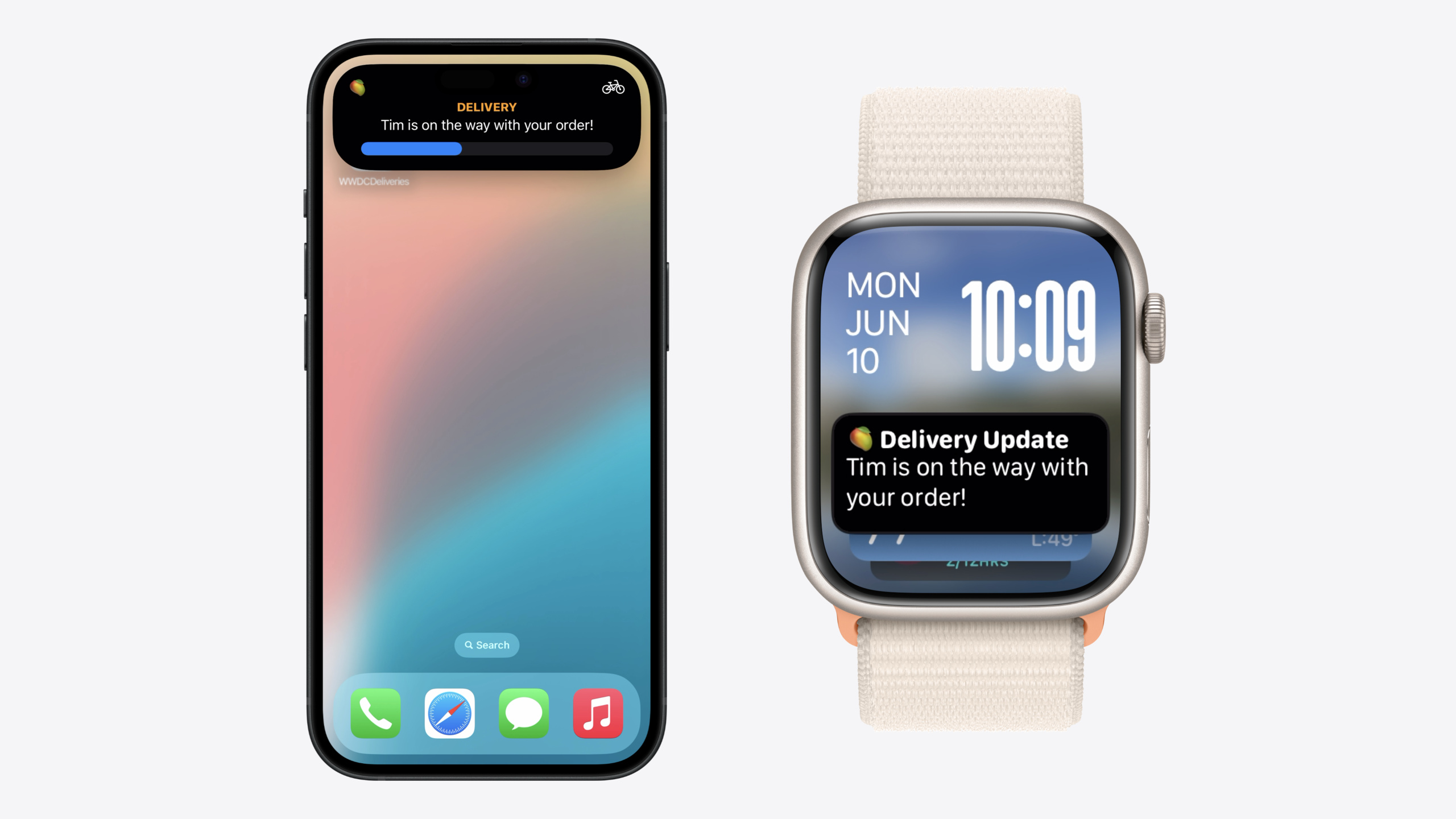
iOS 18 and watchOS 11 bring an exciting change: Live Activities you create on iPhone automatically appear in Apple Watch’s Smart Stack. No separate watchOS development, no extra push tokens—the system syncs updates automatically.
Core Content
Your app already supports Live Activity on iPhone—Lock Screen, StandBy, and Dynamic Island all show it. But what about Apple Watch on the user’s wrist? Before this, getting Live Activity on the watch meant building a separate watchOS version, managing independent push tokens, and handling two update paths. For most teams, that cost was not worth it.
watchOS 11 changes this. After upgrading, your existing iOS Live Activity automatically appears in Apple Watch’s Smart Stack. The system uses your Dynamic Island compact leading and compact trailing views for display and labels your app name above them. Updates sync to the watch automatically—no extra push tokens, no new code.
But that is just the starting point. Compact views are designed for iPhone Dynamic Island; moved directly to the watch, text may be truncated and information density may be insufficient. Apple provides the supplementalActivityFamilies modifier so you can supply dedicated layouts for Smart Stack. Use the activityFamily environment value to distinguish iPhone Lock Screen (.medium) from Apple Watch Smart Stack (.small) and provide the best layout for each.
Detailed Content
Automatic Display Mechanism
After upgrading to watchOS 11, your iOS Live Activity’s compact leading and compact trailing views automatically appear in Smart Stack (01:35). When iOS receives an alerting update, if the user is viewing the watch face, the system automatically expands Smart Stack to show your update (02:19). If the app is in the foreground, a banner with compact views appears at the bottom of the screen (02:34). Tapping the Live Activity opens a full-screen view with an “Open on iPhone” option by default.
Adding a Custom Smart Stack View
First, add the supplementalActivityFamilies modifier to ActivityConfiguration (04:15):
struct DeliveryLiveActivity: Widget {
    var body: some WidgetConfiguration {
        ActivityConfiguration(
            for: DeliveryActivityAttributes.self
        ) { context in
            DeliveryActivityContent(context: context)
        } dynamicIsland: { context in
            DynamicIsland {
                DynamicIslandExpandedRegion(.leading) {
                    DeliveryExpandedLeadingView(context: context)
                }
                DynamicIslandExpandedRegion(.trailing) {
                    DeliveryExpandedTrailingView(context: context)
                }
                DynamicIslandExpandedRegion(.bottom) {
                    DeliveryExpandedBottomView(context: context)
                }
            } compactLeading: {
                DeliveryCompactLeading(context: context)
            } compactTrailing: {
                DeliveryCompactTrailing(context: context)
            } minimal: {
                DeliveryMinimal(context: context)
            }
        }
        .supplementalActivityFamilies([.small])
    }
}
Key points:
.supplementalActivityFamilies([.small])declares that you provide a custom view for Smart Stack- After adding it, Smart Stack no longer uses compact views and instead shows the view in the
ActivityConfigurationcontent closure - Without this modifier, Smart Stack defaults to compact leading + compact trailing
Second, use the activityFamily environment value in the content view to branch layouts (04:49):
struct DeliveryActivityContent: View {
    @Environment(\.activityFamily) var activityFamily
    var context: ActivityViewContext<DeliveryActivityAttributes>

    var body: some View {
        switch activityFamily {
        case .small:
            DeliverySmallContent(context: context)
        case .medium:
            DeliveryMediumContent(context: context)
        @unknown default:
            DeliveryMediumContent(context: context)
        }
    }
}
Key points:
.smallcorresponds to Apple Watch Smart Stack.mediumcorresponds to iPhone Lock Screen@unknown defaulthandles future family types that may be added
Launching the Watch App from Smart Stack
If you have a Watch app, you can configure tapping the Live Activity to open the watch app directly instead of jumping back to iPhone. In the Watch app target’s Build Settings, find the Info.plist section and add the Supports Launch for Live Activity Attribute Types key (05:35). When the value is empty, it applies to all Live Activities; you can also specify concrete ActivityAttributes type names.
Always On Display Adaptation
When the wrist is lowered, the system automatically switches to a dark color scheme and reduces brightness. Use the isLuminanceReduced environment value to adjust bright elements (08:37):
struct DeliveryGauge: View {
    @Environment(\.isLuminanceReduced) private var isLuminanceReduced
    var context: ActivityViewContext<DeliveryActivityAttributes>

    var body: some View {
        Gauge(value: context.state.progressPercent) {
            GaugeLabel(context: context)
        }
        .tint(isLuminanceReduced ? .gaugeDim : .gauge)
    }
}
Key points:
isLuminanceReducedistruewhen the wrist is lowered and Always On mode is active- At that point, remove or dim bright elements to maintain readability
- Semantic colors (such as
.primary) automatically adapt to the current color scheme
If your Live Activity needs a light appearance, set .preferredColorScheme(.light) in the .small branch (08:57). In Always On mode, the system automatically switches to dark and reduces brightness.
Update Frequency and Networking
Update sync is automatic and requires no extra push token (06:51). However, sync frequency is budget-limited, with thresholds similar to iOS. If your current push updates stay within the iOS budget, Apple Watch needs no additional adjustment.
When the network is constrained, the system prioritizes Start, End, and alerting updates (08:01). Smart Stack shows a “last connected” time to indicate information may not be current. When the wrist is raised, the Live Activity refreshes to the latest available data.
Core Takeaways
-
What to build: Review the information density of your existing compact views. Why it’s worth doing: Compact views appear on the watch at zero cost; if they only show a static icon or app name, users see useless information on the watch. How to start: Run through your Live Activity and check whether compact leading/trailing show dynamically changing key data.
-
What to build: Use
supplementalActivityFamiliesto provide a custom view for Smart Stack. Why it’s worth doing: Compact views are designed for Dynamic Island; space and interaction patterns differ on the watch, and a custom view can show more information and deliver a better experience. How to start: Add.supplementalActivityFamilies([.small])toActivityConfiguration, branch layouts with@Environment(\.activityFamily), and start with a simplified version for the.smallcase. -
What to build: Configure direct Watch app launch. Why it’s worth doing: When users tap a Live Activity on the watch, the default behavior jumps to the iPhone app, breaking the watch-side usage loop. How to start: Add
Supports Launch for Live Activity Attribute Typesto the Watch app target’s Info.plist; an empty value applies to all types. -
What to build: Adapt for Always On Display. Why it’s worth doing: When the wrist is lowered, the system switches to dark mode and reduces brightness; bright elements can be harsh or cause burn-in. How to start: Detect state with
@Environment(\.isLuminanceReduced)and reduce brightness on Gauges, progress bars, and similar elements.
Related Sessions
- Broadcast updates to your Live Activities — Push updates to many Live Activities with Broadcast Push Notifications
- Bring your app’s core features to users with App Intents — App Intents framework core concepts: Intents, Entities, and Queries
- Bring your app to Siri — Expose app capabilities to Siri with SiriKit and App Intents
- Build custom swimming workouts with WorkoutKit — Create and customize workout plans with WorkoutKit
Comments
GitHub Issues · utterances