
Highlight
Safari on visionOS is defining the interaction paradigm for the “spatial web.” This session covers three layers: interaction, immersive content, and debugging tools.
Core Content
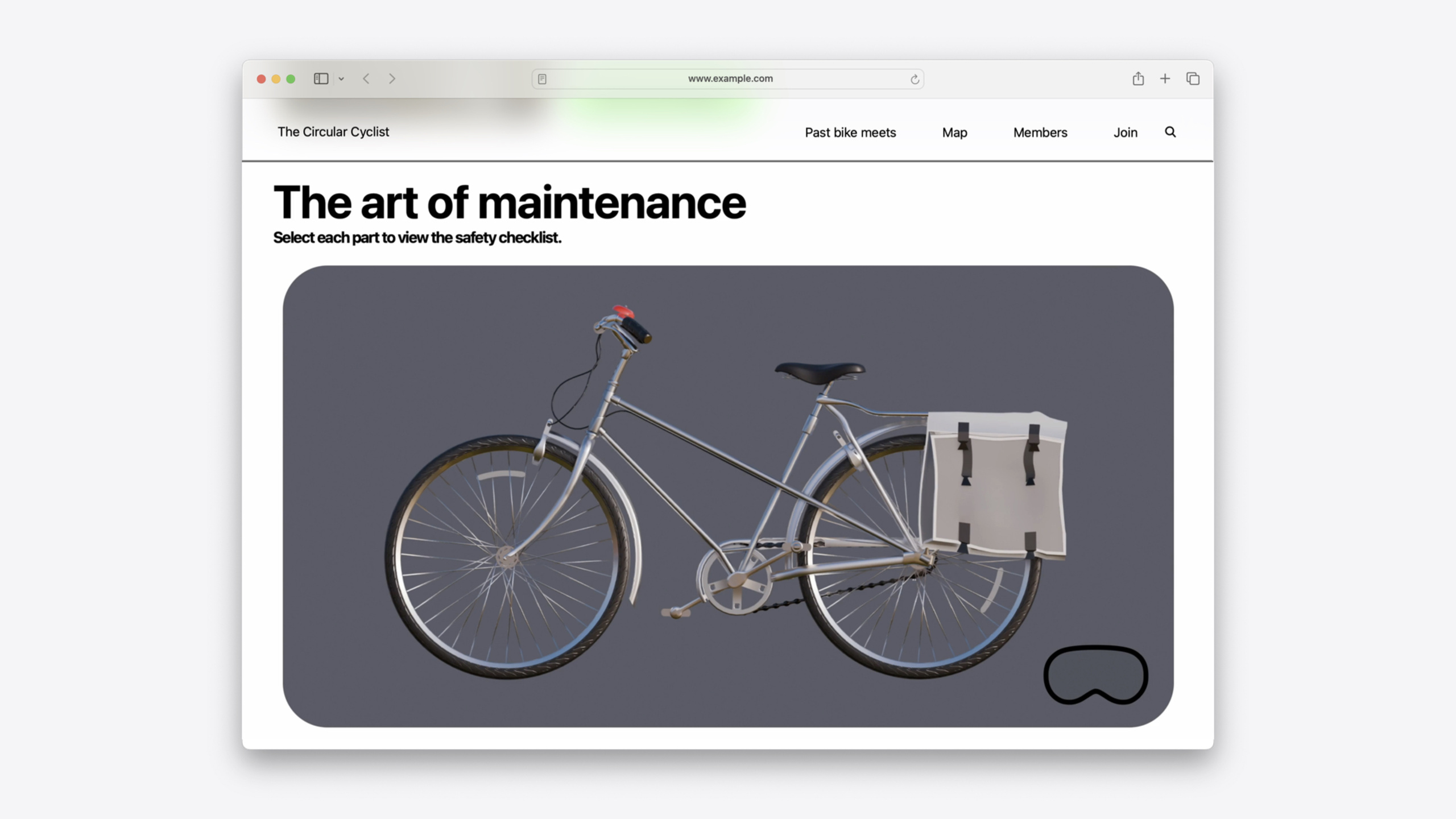
On traditional devices, the web interaction paradigm is “mouse click” or “finger tap.” On visionOS, the core input method is “eye gaze + finger pinch.” That raises a question: how does the browser know which element the user is looking at? visionOS 1 introduced Interaction Region highlighting—a semi-transparent highlight box drawn around the element you’re gazing at. But the default rectangular highlight is completely inadequate for complex graphics (such as different parts of a bicycle diagram).
visionOS 2 brings two key improvements. First, you can use SVG paths to customize the shape of interaction regions, so highlights precisely follow irregular outlines. Second, when a link contains large media (such as a video thumbnail), the highlight automatically fades after a few seconds to avoid blocking content. The session also demonstrates the unique value of the WebSpeech API on Vision Pro—speech recognition and synthesis run entirely on-device, with no API key and no backend, making it ideal for hands-free games or tools.
For immersive content, web pages can now embed spatial photos and panoramas (entering an exclusive view via the Element Fullscreen API), 3D models (USDZ links with rel=ar triggering Quick Look), spatial audio (Web Audio API PannerNode), and full WebXR VR experiences. For debugging, Safari’s Web Inspector connects to visionOS devices or simulators, and includes an XR Inspector for debugging WebXR scene spatial layout.
Detailed Content
Custom interaction region shapes (03:48)
visionOS 2 allows defining interaction regions with SVG paths. The session demos a bicycle parts diagram: on Mac, hovering a part shows an outline highlight; on Vision Pro, the same SVG path is used to draw the gaze highlight. The effect seems subtle, but because it appears exactly where you’re looking, it feels much more noticeable in person than in a screen recording.
For ordinary links, Apple’s recommended approach is straightforward: add padding to enlarge the clickable region and use rounded corners so the highlight shape matches your site’s visual style. This padding and rounding doesn’t need to be visible in the DOM—they’re hints for the system’s highlight rendering.
WebSpeech API: speech recognition and synthesis (05:00)
The session demos a small game called “Bike! Color! Shout!” using WebSpeech. Players stare at the screen and shout guessed color sequences aloud—no tapping or typing required. Core code:
// Create a speech recognition object; Safari uses the webkit prefix
const recognizer = new webkitSpeechRecognition();

// Listen for result events
recognizer.onresult = (event) => {
  // Get the latest recognition result
  const result = event.results[event.results.length - 1];
  // Get the text from the first alternative
  const transcript = result[0].transcript;
  // Use simple string matching to determine the color
  checkColorGuess(transcript);
};

// Must be started from a user event, such as a click
button.addEventListener("click", () => {
  recognizer.start(); // The first run prompts for microphone permission
});
Key points:
webkitSpeechRecognitionis Safari’s prefixed API, following the standard implementationevent.resultsis a cumulative list of all recognition segments; take the last one for the latest result- Each result contains multiple alternatives;
[0]is the highest-confidence option start()must be called from a user event; the first use triggers a microphone permission prompt
Speech synthesis is simpler:
// Build a speech object and play it
const utterance = new SpeechSynthesisUtterance("Game over! Your score is 42.");
speechSynthesis.speak(utterance);
Key points:
- Build a
SpeechSynthesisUtterancewith the text to speak - Call
speechSynthesis.speak()to play it - Recognition and synthesis run on-device; no data leaves the device and no API key is required
Spatial photos and panoramas: Element Fullscreen API (08:51)
Apple found spatial photos display poorly when embedded in pages—the user’s Safari window position and size are uncontrollable, and spatial photos need to be centered at real size in an exclusive view to show correct depth. The solution is the Element Fullscreen API, popping the spatial photo out of the Safari window into the same exclusive view as the Photos app:
<img
  src="bike-spatial.heic"
  srcset="bike-fallback.jpg"
  onclick="this.requestFullscreen()"
/>
Key points:
- Use
srcsetfor the spatial photo format (HEIC) with a fallback image for browsers that don’t support it requestFullscreen()must be called from a user event- After entering fullscreen, visionOS automatically shows a portal view with feathered edges; tap the immersive button to enter a real-size exclusive view
- Panoramas use the exact same pattern—any sufficiently large image can trigger panorama mode
- Users can exit fullscreen anytime with the Home gesture or Digital Crown
3D models: Quick Look (12:42)
Displaying 3D models on the web requires only one HTML attribute—rel=ar, identical to AR Quick Look syntax on iOS/iPadOS:
<a href="bike.usdz" rel="ar">View in 3D</a>Key points:
rel=aropens the Quick Look viewer on visionOS- Users can place the model anywhere in physical space
- The Safari window stays open while the 3D model exists in the scene
- Detect support with
anchor.relList.supports("ar") - USDZ models can be created with Reality Composer Object Capture or converted with Preview on Mac
Spatial audio: Web Audio API PannerNode (14:27)
Web Audio API gains spatialization on visionOS. The core is PannerNode, controlling audio position, orientation, cone angle, and reference distance in 3D space:
const audioCtx = new AudioContext();
const source = audioCtx.createBufferSource();
const panner = audioCtx.createPannerNode();

// Set the audio source position
panner.positionX.value = 2;
panner.positionY.value = 0;
panner.positionZ.value = -1;

source.buffer = myAudioBuffer;
source.connect(panner);
panner.connect(audioCtx.destination);
source.start();
Key points:
- Create
PannerNodefromAudioContext - Set
positionX/Y/Zto control the sound source position in space - Position values can be updated dynamically for moving sources
- Multiple PannerNodes with different sources can build a complete soundscape
Debugging: Web Inspector on visionOS (17:19)
Connection steps: Mac and Vision Pro on the same network → enable Web Inspector in Vision Pro Settings > Apps > Safari > Advanced → Settings > General > Remote Devices → select Vision Pro in Mac Safari’s Develop menu → enter pairing code. After that, Vision Pro appears automatically in the Develop menu on the same network. You can view Web Inspector on the virtual Mac screen for side-by-side debugging.
Core Takeaways
-
What to do: Add padding and rounded corners to links on existing sites. Why it’s worth it: This is the lowest-cost visionOS adaptation—enlarges the gaze-highlight trigger area, and rounded corners align the highlight with your site style. How to start: Add
padding: 8pxandborder-radius: 12pxtoatags in global styles; no conditional logic needed. -
What to do: Replace text input with the WebSpeech API. Why it’s worth it: On Vision Pro, users’ hands may be busy—voice is the most natural input; Safari’s implementation runs entirely on-device with zero backend dependency. How to start: Use
webkitSpeechRecognitionto listen foronresult, extracttranscripttext for simple matching; useSpeechSynthesisUtterancefor voice feedback. -
What to do: Use the Element Fullscreen API for spatial photos and panoramas. Why it’s worth it: Spatial photos look poor when embedded; fullscreen exclusive view shows correct depth and real size; no download or extra permissions needed. How to start: Add
onclickcallingrequestFullscreen()on<img>, usesrcsetfor spatial format and fallback. -
What to do: Add USDZ Quick Look links on product pages. Why it’s worth it: Users can place 3D models in real space—far beyond 2D images; one line of HTML. How to start: Use
<a rel=ar>pointing to a USDZ file; userelList.supports("ar")for feature detection.
Related Sessions
- Build immersive web experiences with WebXR — Deep dive into building VR immersive experiences with WebXR in Safari
- Bring your iOS or iPadOS game to visionOS — Porting iOS/iPadOS games to native visionOS experiences
- Create custom environments for your immersive apps in visionOS — Creating custom environments for immersive apps
- What’s new in USD and MaterialX — Latest USD and MaterialX updates across the Apple ecosystem
Comments
GitHub Issues · utterances